
For users transitioning from the Windows ecosystem to macOS, the keyboard often presents the first hurdle. Among the various keys that cause confusion, the F5 key stands out as a primary source of frustration. On a PC, F5 is the universal command for “Refresh”—a reflex for anyone browsing the web or managing files. However, tapping F5 on a Mac keyboard typically yields a very different result, or in some cases, no visible result at all.
Understanding what F5 does on a Mac requires a dive into the philosophy of Apple’s hardware design, the evolution of the macOS interface, and the specific software triggers that allow users to reclaim this key for their own productivity workflows. Whether you are using a classic MacBook Air, a high-end Mac Studio with a Magic Keyboard, or a legacy MacBook Pro with a Touch Bar, the role of F5 is multifaceted.

The Anatomy of the Mac Keyboard Layout
To understand F5, one must first understand the “Function” row on a Mac. Unlike traditional keyboards where function keys (F1 through F12) are primary, Apple prioritizes “Media Keys.” These are the icons representing screen brightness, Mission Control, keyboard backlighting, and volume.
Media Keys vs. Standard Function Keys
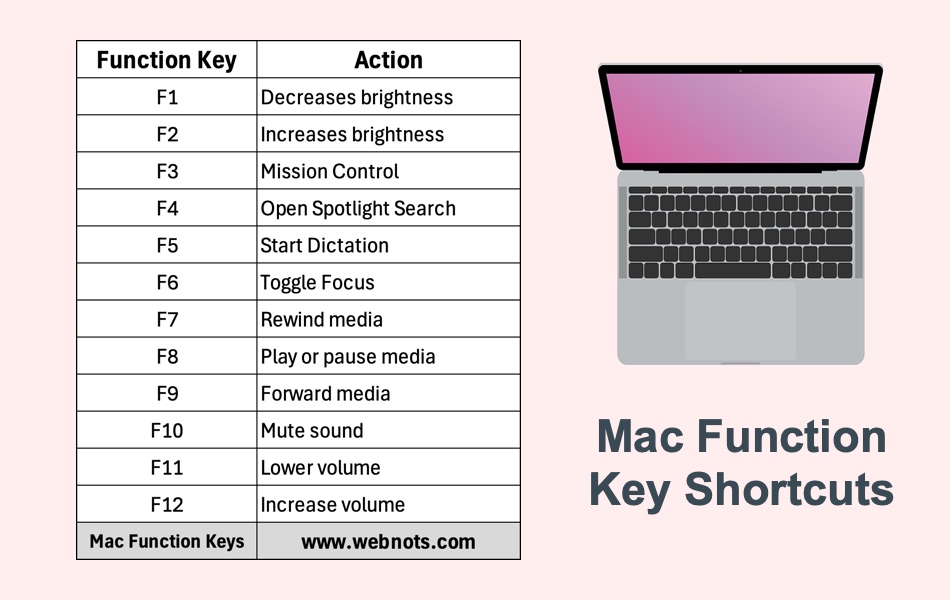
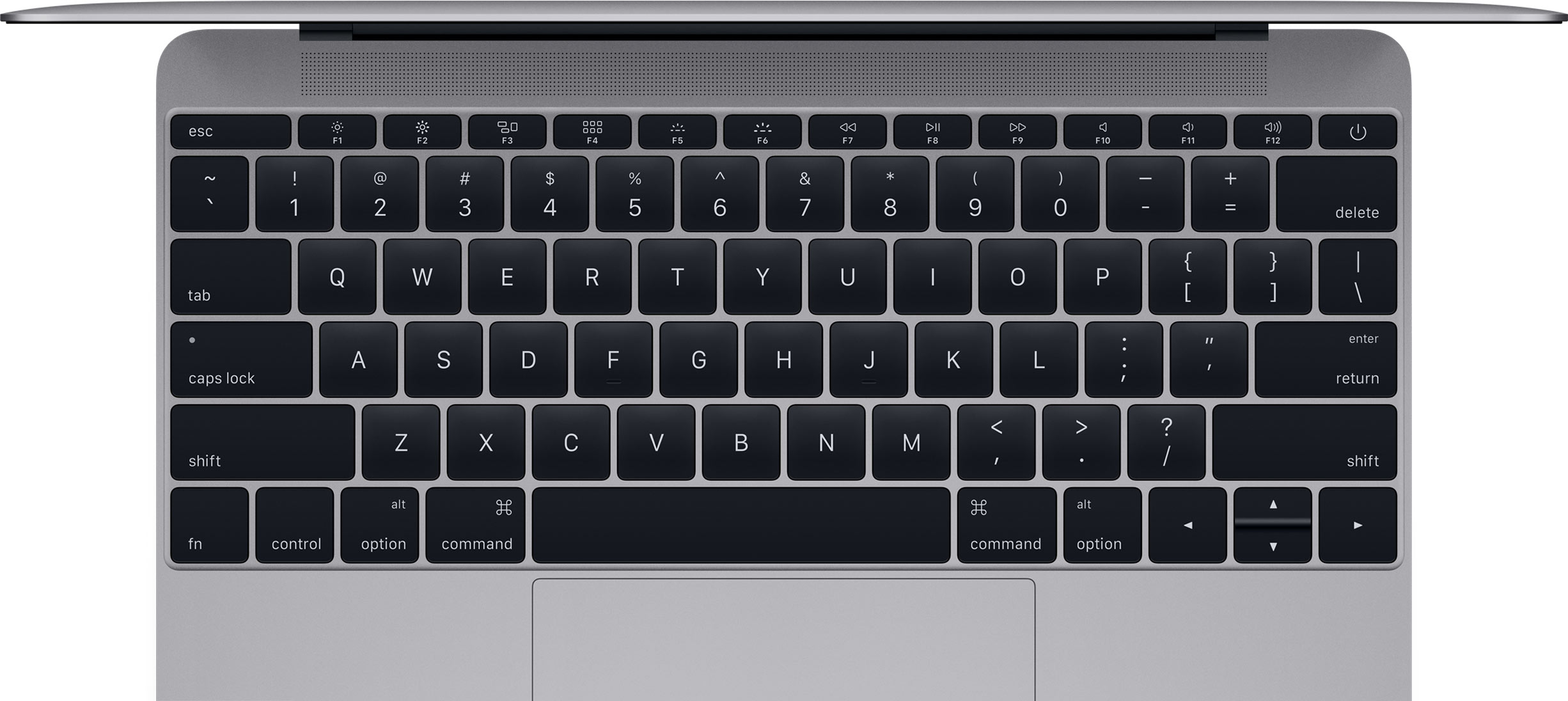
By default, the top row of a Mac keyboard performs system-level actions. On most modern MacBooks, the F5 key is adorned with a microphone icon. This signifies its role in triggering Dictation. On older models, particularly those manufactured before 2020, F5 often featured a series of dots or a “dimmed” sun icon, which was used to decrease the keyboard backlight intensity.
To use the “Standard” F5 function—the one a software developer or a power user might need—you must hold down the fn (Function) key or the Globe key located in the bottom-left corner of the keyboard. This toggle switches the behavior of the top row from system media controls to standard F1-F12 inputs.
The Role of the ‘fn’ Key
The fn key is the gatekeeper of the F5 command. In the macOS System Settings, users can invert this behavior. By navigating to Keyboard > Keyboard Shortcuts > Function Keys, you can enable the option to “Use F1, F2, etc. keys as standard function keys.” When this is toggled on, pressing F5 sends the F5 command directly to your software, while holding fn + F5 triggers the media action (like Dictation or backlight control).
What Does F5 Actually Do on a Mac?
The specific action triggered by F5 depends heavily on the hardware model and the version of macOS currently installed. Because Apple frequently iterates on its hardware design, the F5 key has seen several identities over the last decade.
Dictation and Voice Input
On the most recent M1, M2, and M3 MacBook Pro and Air models, as well as the latest Magic Keyboards, F5 serves as the shortcut for Dictation. When you press F5 in a text field, macOS activates the microphone, allowing you to speak your text rather than type it. This is a reflection of Apple’s push toward more natural user interfaces and accessibility. If Dictation is not set up, pressing this key may prompt a setup window or do nothing.
Keyboard Backlighting Control
If you are using a MacBook from the 2015–2019 era, F5 is likely mapped to decreasing the brightness of the backlit keys. Its counterpart, F6, increases the brightness. This was a physical hardware control that allowed users to save battery life or adjust to low-light environments instantly. In newer models, Apple removed these physical keys to make room for Dictation (F5) and Do Not Disturb (F6), moving the backlight controls into the Control Center in the menu bar.
The Refresh Myth: F5 in Web Browsers
The most common point of confusion is the lack of a “Refresh” function on F5. If you are in Safari, Google Chrome, or Firefox on a Mac, pressing F5 will not reload the page. Instead, the universal macOS shortcut for “Refresh” is Command + R.
This distinction exists because macOS utilizes the Command key (⌘) for almost all application-level shortcuts, whereas Windows utilizes the Control key or specific Function keys. For those who cannot break the habit, remapping the key is the only solution, which we will explore in the following sections.
How to Remap F5 for Maximum Productivity
For many professionals, the default Dictation or backlight function of F5 is less useful than a custom shortcut. Fortunately, macOS is highly customizable, and several methods exist to change what happens when you strike that key.
Using System Settings for Basic Mapping
While macOS doesn’t allow you to globally remap “F5 to Refresh” within the standard settings, you can create application-specific shortcuts.
- Go to System Settings > Keyboard > Keyboard Shortcuts.
- Select App Shortcuts from the sidebar.
- Click the + icon to add a new shortcut.
- Select your browser (e.g., Google Chrome).
- For the Menu Title, type “Reload This Page” (it must match the menu command exactly).
- Click the Keyboard Shortcut field and press F5.
Now, whenever you are in Chrome, F5 will act as a refresh key. Note that you may still need to hold the fn key depending on your “Standard Function Keys” setting.
Advanced Customization with Third-Party Tools
For users who want F5 to act as a specific trigger across the entire operating system, third-party software is the gold standard. Tools like Karabiner-Elements or BetterTouchTool allow for deep hardware-level remapping.
With Karabiner-Elements, you can create a “Simple Modification” that maps f5 to command+r. This effectively turns your Mac’s F5 key into a Windows-style refresh key globally. BetterTouchTool goes even further, allowing you to map F5 to trigger complex macros, such as opening a specific set of apps, snapping windows, or even executing AppleScripts.
F5 in Professional and Specialized Software
In professional environments, the F5 key transitions from a media controller to a vital tool for navigation and execution. Different industries utilize this key in unique ways that bypass the standard macOS defaults.
Web Development and Coding
For developers using IDEs (Integrated Development Environments) like Visual Studio Code, IntelliJ IDEA, or Xcode, F5 is a critical key.
- In VS Code: F5 is the default command to “Start Debugging.” When a developer is working on a script or an application, hitting F5 launches the debugger, allowing them to step through code.
- In Terminal: F5 can be configured to perform “Command Completion” or history searches, depending on the shell (Zsh or Bash) configuration.
- In Chrome DevTools: While
Command + Rrefreshes the page, pressing F5 (as a standard function key) while the DevTools panel is open can sometimes trigger specific debugging cycles depending on the workspace settings.
Spreadsheets and Data Management
In Microsoft Excel for Mac, F5 retains its classic “Go To” functionality. Pressing it opens a dialog box that allows users to jump to a specific cell reference or named range. This is one of the few instances where Apple and Microsoft have maintained parity across operating systems, provided the user knows to use the fn key or has enabled standard function keys.
Media Production
In software like Adobe Premiere Pro or Final Cut Pro, F5 is often used for “Match Frame” commands or for toggling specific bin views. Because these applications rely on a vast array of keyboard shortcuts, the F5 key is frequently remapped by editors to fit their specific “left-hand” workflow, minimizing the movement required to access frequent commands.
The Evolution of Input: From Physical Keys to the Touch Bar
The story of F5 on Mac wouldn’t be complete without mentioning the Touch Bar era (2016–2021). On MacBook Pro models equipped with the OLED strip, the physical F5 key disappeared entirely.
The Virtual F5
On a Touch Bar Mac, the F-keys are hidden by default. To see “F5,” users must hold down the fn key, which causes the OLED strip to change from media icons to a digital row of F1-F12. This was a controversial move by Apple, as it removed the tactile feedback necessary for “blind” typing.
For users of these models, F5 was not a stationary target but a dynamic one. It could be a refresh button in a browser if the developer programmed it to appear, or it could be a slider for volume. The return to physical function keys in the M1 Pro/Max MacBook Pros in 2021 was largely seen as a victory for professionals who relied on the consistency of keys like F5.
Accessibility and the Future of Function Keys
Apple’s decision to map F5 to Dictation on modern Macs highlights a shift toward accessibility. By making voice-to-text a primary hardware-level command, they have made the Mac more usable for individuals with motor impairments or those who find typing strenuous. Looking forward, as AI and Siri become more integrated into the core macOS experience, it is likely that the F5 key will continue to serve as the primary bridge between physical input and voice-activated AI commands.
Conclusion
The F5 key on a Mac is a microcosm of the Apple philosophy: it is minimalist by default, multipurpose by design, and deeply customizable for those who know where to look. While it may not “Refresh” a page out of the box, its roles—from keyboard backlight regulation to triggering sophisticated voice dictation—make it a versatile component of the macOS experience. By mastering the fn key toggle, leveraging application-specific shortcuts, or using powerful remapping tools, users can transform F5 from a source of confusion into a cornerstone of their digital productivity.