
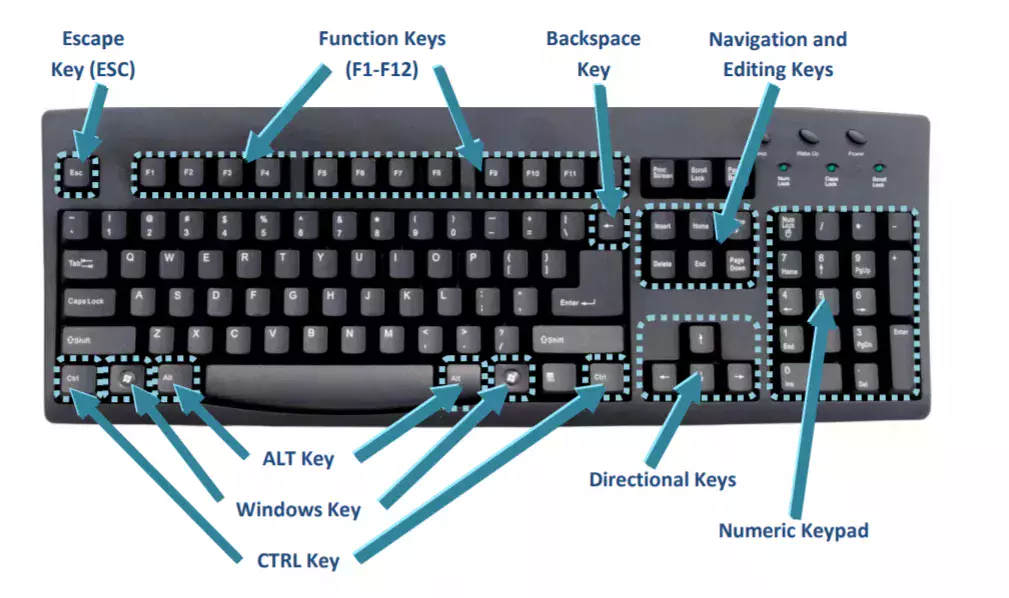
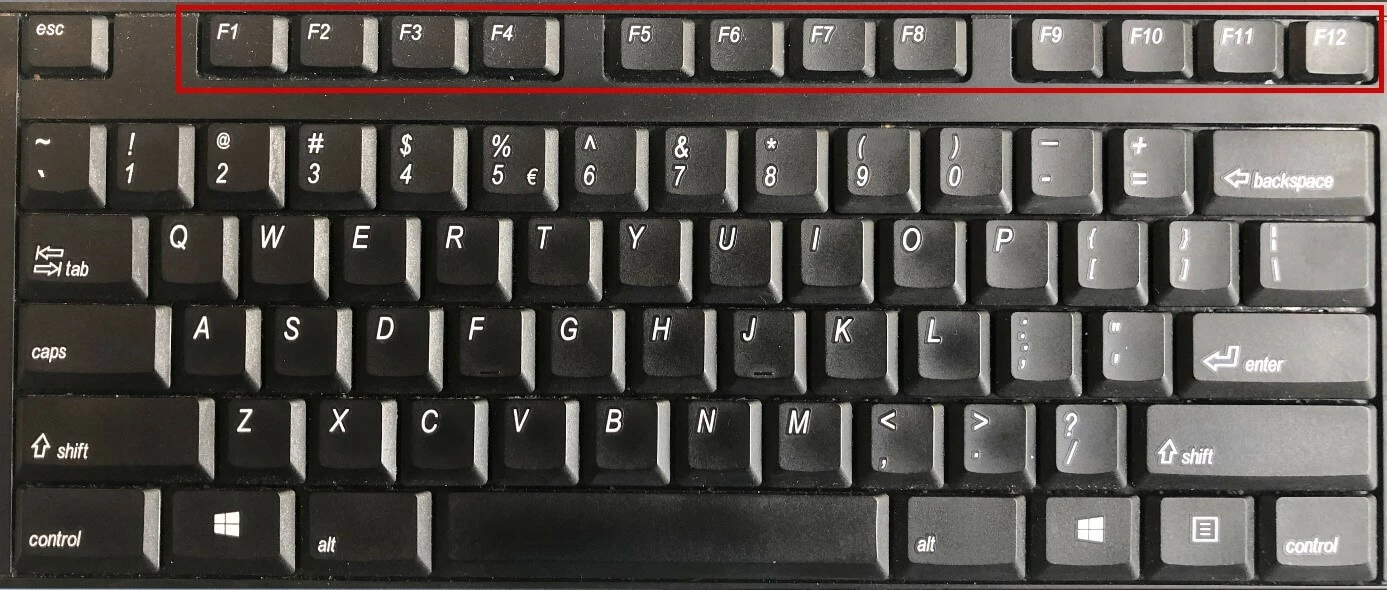
In the landscape of modern computing, the keyboard remains the primary interface between human intent and digital execution. While most users are intimately familiar with the QWERTY layout and the numerical pad, there is a specific row of keys—perched at the very top—that often remains underutilized: the Function keys, or “F-keys.” Ranging from F1 to F12 on standard keyboards (and sometimes up to F19 on specialized versions), these keys serve as powerful shortcuts designed to streamline workflows, trigger specific software commands, and control hardware settings.
Understanding the utility of F-keys is more than just a lesson in computer trivia; it is a gateway to professional productivity. Whether you are a software developer, a creative professional, or a casual user, mastering these keys can significantly reduce your reliance on the mouse, allowing for a more ergonomic and efficient computing experience. This guide explores the architecture, standard uses, and advanced customization of function keys within the modern tech ecosystem.
Understanding the Architecture and Purpose of Function Keys
To appreciate what F-keys do, one must first understand what they are. Unlike the letter “A,” which almost always inputs the character “a,” F-keys are “soft keys.” This means their behavior is not fixed; it is defined by the operating system (OS) or the specific application currently in focus.
The History and Evolution of the F1–F12 Row
The inclusion of function keys dates back to the early days of mainframe terminals and the original IBM PC keyboards of the 1980s. Originally, these keys were often placed in two columns on the left side of the keyboard. As the industry standardized, they migrated to the top row to make room for a more expansive typing area. The goal was to provide users with a way to send “interrupt” signals to the computer—commands that told the machine to perform a specific task regardless of what data was being typed.
In the contemporary tech era, the F-key row has evolved into a dual-purpose tool. On modern laptops, these keys often share space with “multimedia keys” that control screen brightness, volume, and playback. This evolution reflects the transition of the PC from a strictly business machine to a comprehensive entertainment hub.
Why They Exist: The Bridge Between Hardware and Software
Function keys act as a bridge. At the hardware level, they provide a tactile way to interact with the system BIOS or UEFI during startup. At the software level, they provide “accelerators.” Instead of navigating through three layers of menus to “Save As,” a single tap of F12 in many applications completes the task instantly. For power users, F-keys represent a “command layer” that sits above the standard input layer, allowing for complex multi-tasking without breaking the rhythm of typing.
Standard Functions: A Breakdown of F1 through F12
While software developers can program F-keys to do almost anything, the industry has adopted several “de facto” standards that work across most Windows and macOS environments. Learning these universal shortcuts is the first step toward keyboard mastery.
Help, Rename, and Search (F1–F3)
- F1: Almost universally recognized as the “Help” key. Pressing F1 will typically open the help menu or a support web page for the software you are currently using. In Windows, it can also open the “Get Help” sidebar.
- F2: In Windows Explorer and many desktop environments, F2 is the shortcut to rename a selected file or folder. In Microsoft Excel, it allows you to edit the active cell without using the mouse.
- F3: This is the “Find” key. In web browsers like Chrome or Firefox, and in many document editors, F3 opens the search bar to find specific text within the page.
Navigation and Windows Operations (F4–F6)
- F4: This key is most famous for the “Alt + F4” combination, which instantly closes the active window or program. On its own, in some browsers, it highlights the address bar.
- F5: The universal “Refresh” or “Reload” key. Whether you are updating a webpage or refreshing the file list in a folder, F5 is the go-to command. In PowerPoint, it starts a slideshow from the beginning.
- F6: This key typically cycles through screen elements. In a web browser, pressing F6 will move the cursor focus directly to the address bar, allowing you to type a new URL immediately.
Spelling, Booting, and Menus (F7–F9)
- F7: Primarily used in Microsoft Office applications (Word, Outlook) to trigger the “Spelling and Grammar” check.
- F8: Historically, F8 was used to enter the Windows “Safe Mode” during the boot process. While modern Windows versions (10 and 11) have changed this process, F8 is still used in some developer environments to extend a selection.
- F9: This key is less standardized in common apps but is vital in Microsoft Word to refresh document codes and in Outlook to trigger a “Send and Receive” for all accounts.
Right-Clicking and Full Screen (F10–F12)
- F10: Pressing F10 often activates the menu bar of an open application. More importantly, “Shift + F10” functions as a right-click for the selected item, a lifesaver if your mouse or trackpad fails.
- F11: The “Full Screen” toggle. It hides the toolbars and taskbar in most browsers and folders to give the content maximum screen real estate.
- F12: In Microsoft Word, F12 opens the “Save As” dialog. In web browsers, it opens the “Developer Tools” console, a critical feature for web designers and programmers.

The “Fn” Key Mystery: Toggling Between Multimedia and System Commands
On most modern laptops—such as those from Dell, HP, Lenovo, and Apple—the F-keys don’t work alone. They are accompanied by a modifier key labeled “Fn.” This addition was necessitated by the shrinking size of hardware and the need for dedicated media controls.
Understanding Fn Lock and Primary vs. Secondary Functions
The “Fn” key acts like a Shift key for the function row. If you look closely at your keyboard, you will see icons for volume, brightness, and Wi-Fi toggles on the same keys as F1–F12.
- Standard Mode: Pressing the key triggers the F-command (e.g., F5 refreshes).
- Media Mode: Pressing the key triggers the icon command (e.g., F5 dims the keyboard backlight).
Most laptops allow for an “Fn Lock” (often triggered by Fn + Esc), which lets you choose which behavior is the default. This is a critical setting for tech professionals who might prefer the F-keys to be primary, while casual users might prefer the media keys to be primary.
OEM Variations: Mac vs. PC vs. Gaming Keyboards
Different manufacturers treat F-keys differently.
- Apple (MacBooks): MacOS treats the F-row as media keys by default. To use them as standard F-keys, the user must hold the Fn key. Interestingly, Apple provides F11 and F12 for volume and F1 through F12 as “Standard Function Keys” within the System Settings.
- Gaming Keyboards: High-end mechanical keyboards (Razer, Corsair, Logitech) often allow for “On-the-fly Macro Recording.” This allows a gamer to program an entire sequence of actions (like a complex spell in an RPG) to a single F-key.
Advanced Customization: Remapping and Automation
For those in the tech industry, the default functions of the F-keys are just the beginning. The real power of these keys lies in their ability to be remapped to fit specific professional needs.
Using Macro Software for Productivity
Software tools like AutoHotkey (for Windows) or Karabiner-Elements (for Mac) allow users to rewrite the code of their keyboard. You can program F1 to launch your most-used IDE (Integrated Development Environment), F2 to open your project folder, and F3 to launch a specific terminal command. This level of automation transforms the keyboard from a typing tool into a command center.
Programming F-Keys for Specialized Software
In specialized fields, F-keys are indispensable:
- Adobe Creative Suite: Designers use F-keys to toggle specific panels or actions in Photoshop and Illustrator.
- CAD (Computer-Aided Design): Engineers use these keys to switch between different viewing planes or to trigger specific drawing tools.
- Software Development: F-keys are the standard for debugging. F5 starts debugging, F10 “steps over” a line of code, and F11 “steps into” a function. Without these shortcuts, the debugging process would be significantly slower.
The Future of Function Keys in a Touch-First World
As technology moves toward touchscreens and haptic feedback, the physical F-key row has faced challenges. The most notable example was Apple’s “Touch Bar” experiment, which replaced the physical F-keys with a dynamic OLED touch strip.
The Touch Bar Experiment and the Return to Physical Keys
The Touch Bar was intended to be the next step in keyboard evolution, offering context-aware buttons that changed based on the app being used. However, the tech community largely rejected it. Professional users missed the tactile “blind” feel of physical keys; they didn’t want to look down at their hands to find the F5 key. In 2021, Apple reverted to physical function keys in its MacBook Pro lineup, signaling a victory for tactile reliability over visual versatility.
Virtual Functionality and Global Hotkeys
Despite the return to physical keys, the concept of the function key is expanding. We now see “virtual” function keys on tablets and mobile devices. Furthermore, the rise of “Global Hotkeys”—commands that work regardless of what app is open—has integrated F-key logic into the broader OS experience.
In conclusion, the F-keys are far from being “legacy” hardware. They are a sophisticated layer of the user interface that, when mastered, offers a level of speed and precision that a mouse or touchscreen cannot replicate. By understanding their history, learning their standard shortcuts, and leveraging customization tools, you can unlock a new level of technological proficiency, turning your keyboard into a finely-tuned instrument of digital productivity.
aViewFromTheCave is a participant in the Amazon Services LLC Associates Program, an affiliate advertising program designed to provide a means for sites to earn advertising fees by advertising and linking to Amazon.com. Amazon, the Amazon logo, AmazonSupply, and the AmazonSupply logo are trademarks of Amazon.com, Inc. or its affiliates. As an Amazon Associate we earn affiliate commissions from qualifying purchases.