
The ubiquity of Wi-Fi has made it an indispensable part of our daily lives, powering everything from our smartphones and laptops to smart home devices and critical business operations. While we often take its seamless operation for granted, understanding the underlying metrics that govern its performance can unlock a new level of appreciation and, more importantly, allow for troubleshooting and optimization. Among the most crucial of these metrics is “dBm,” a unit that quantifies Wi-Fi signal strength. This article delves into the world of dBm, explaining what it represents, how it impacts your wireless experience, and what constitutes good or bad signal strength, all within the realm of technology.
Understanding the Decibel Milliwatt (dBm)
At its core, dBm is a logarithmic unit used to express power levels relative to one milliwatt (mW). This logarithmic nature is key to its usefulness, as it allows for a wide range of power values to be represented more concisely and practically.
The Science Behind dBm: A Logarithmic Scale
The decibel (dB) scale itself is a ratio of two power levels. However, dBm takes this a step further by referencing a fixed power level: 1 milliwatt. The formula for converting milliwatts to dBm is:
$ text{dBm} = 10 times log_{10}(frac{text{Power in mW}}{1 text{ mW}}) $
Conversely, to convert dBm back to milliwatts:
$ text{Power in mW} = 10^{(frac{text{dBm}}{10})} $
Why use a logarithmic scale? Consider the vast differences in signal power. A powerful Wi-Fi router might transmit at 100 mW, while a faint signal from a distant access point might be as low as 0.001 mW (1 microwatt). Representing these on a linear scale would involve very large or very small numbers. The dBm scale compresses this range, making it easier to grasp and compare. For example, 100 mW translates to +20 dBm, and 0.001 mW translates to -30 dBm.
Positive vs. Negative dBm Values: What They Mean
It’s important to understand that dBm values can be positive or negative.
- Positive dBm values indicate a power level greater than 1 milliwatt. In the context of Wi-Fi, it’s extremely rare to encounter positive dBm values for received signal strength, as devices are typically receiving signals rather than transmitting at such high power levels. Manufacturers’ specifications for transmitters might be in positive dBm, but for client devices measuring incoming signals, negative is the norm.
- Negative dBm values indicate a power level less than 1 milliwatt. This is what you will almost always see when measuring Wi-Fi signal strength. The closer the negative number is to zero, the stronger the signal. For instance, -50 dBm is a much stronger signal than -80 dBm.
The Relationship Between dBm and Wi-Fi Performance
The dBm value directly correlates with the quality and reliability of your Wi-Fi connection. A stronger signal (less negative dBm) means your device has a clearer, more robust communication channel with the access point (router). This translates to:
- Faster data transfer speeds: With a stronger signal, your device can receive and send data packets more efficiently, leading to higher download and upload speeds.
- Reduced latency: Less signal degradation means less need for retransmissions, which in turn lowers the time it takes for data to travel back and forth, crucial for online gaming, video conferencing, and real-time applications.
- Greater stability and reliability: A weak signal is prone to interference and packet loss, leading to dropped connections, buffering, and frustrating interruptions. A strong signal ensures a consistent and dependable connection.
- Extended range: While dBm primarily measures signal strength at a specific point, understanding it helps in assessing how far the signal effectively reaches.
Measuring Wi-Fi Signal Strength in dBm
Fortunately, you don’t need specialized equipment to check your Wi-Fi signal strength in dBm. Most operating systems and many third-party applications provide this information.
How to Check dBm on Different Devices
- Windows: You can check the Wi-Fi signal strength in dBm by opening the Command Prompt and typing
netsh wlan show interfaces. Look for the “Signal” value. While it might display as a percentage on the taskbar, the command prompt provides the raw dBm reading. Alternatively, third-party tools like Acrylic Wi-Fi or Wi-Fi Analyzer (for Android) can provide more detailed information. - macOS: Macs offer a hidden Wi-Fi diagnostic tool. Hold down the Option key and click on the Wi-Fi icon in the menu bar. You’ll see a detailed menu that includes “RSSI,” which is your signal strength in dBm.
- Android: The Google Play Store has numerous apps like “WiFi Analyzer” or “Network Cell Info Lite” that can display Wi-Fi signal strength in dBm. Some devices also have a “Wi-Fi advanced” setting that might reveal this information.
- iOS: iOS devices don’t natively display dBm in an easily accessible way for the average user. However, you can enable “Wi-Fi Assist” in settings, which can indirectly indicate signal quality by switching to cellular data when Wi-Fi is weak. For a more technical approach, you might need to put your iPhone into field test mode, but this is often more for cellular signal strength.
Interpreting Signal Strength: What’s Good, What’s Bad?
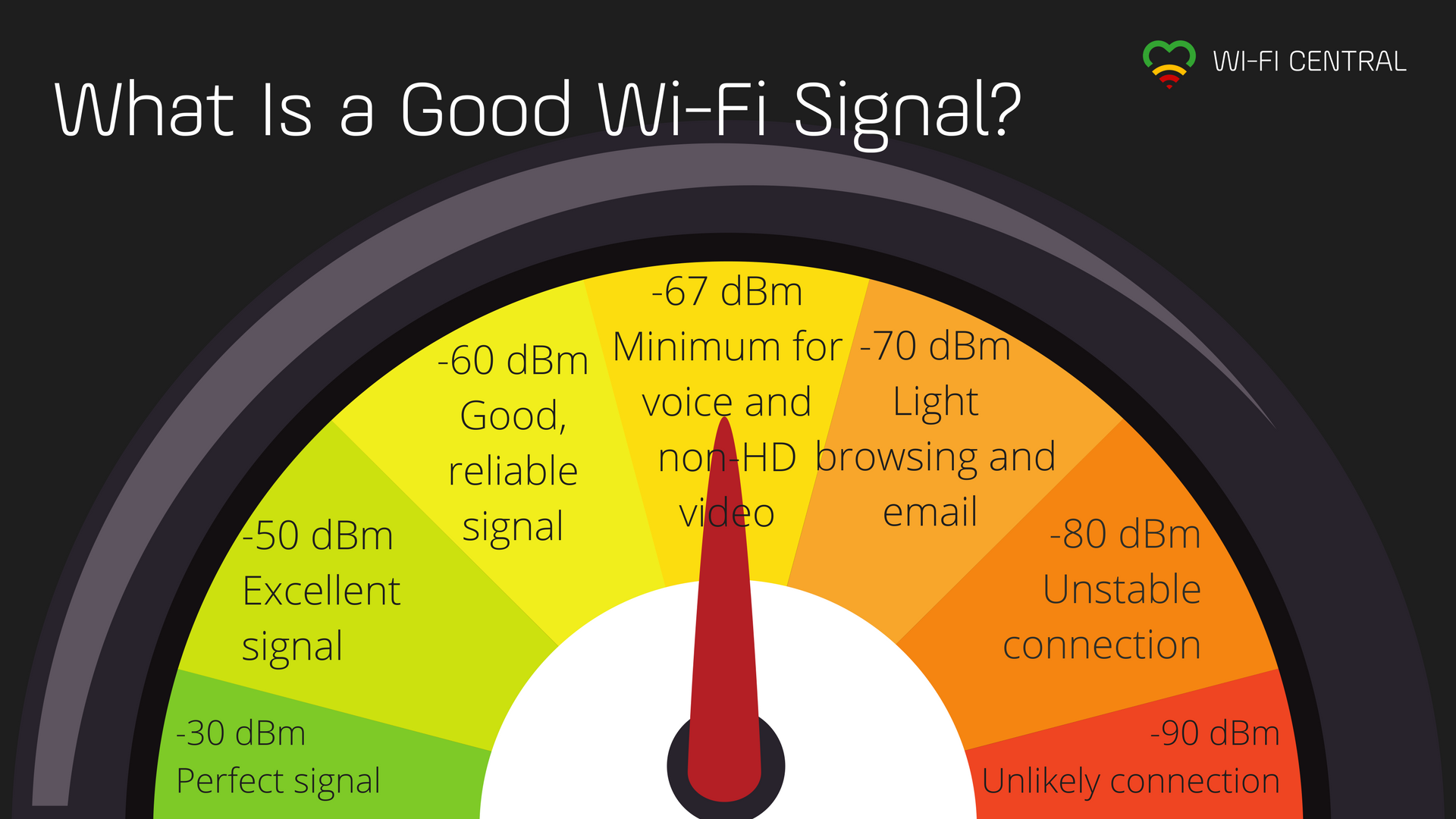
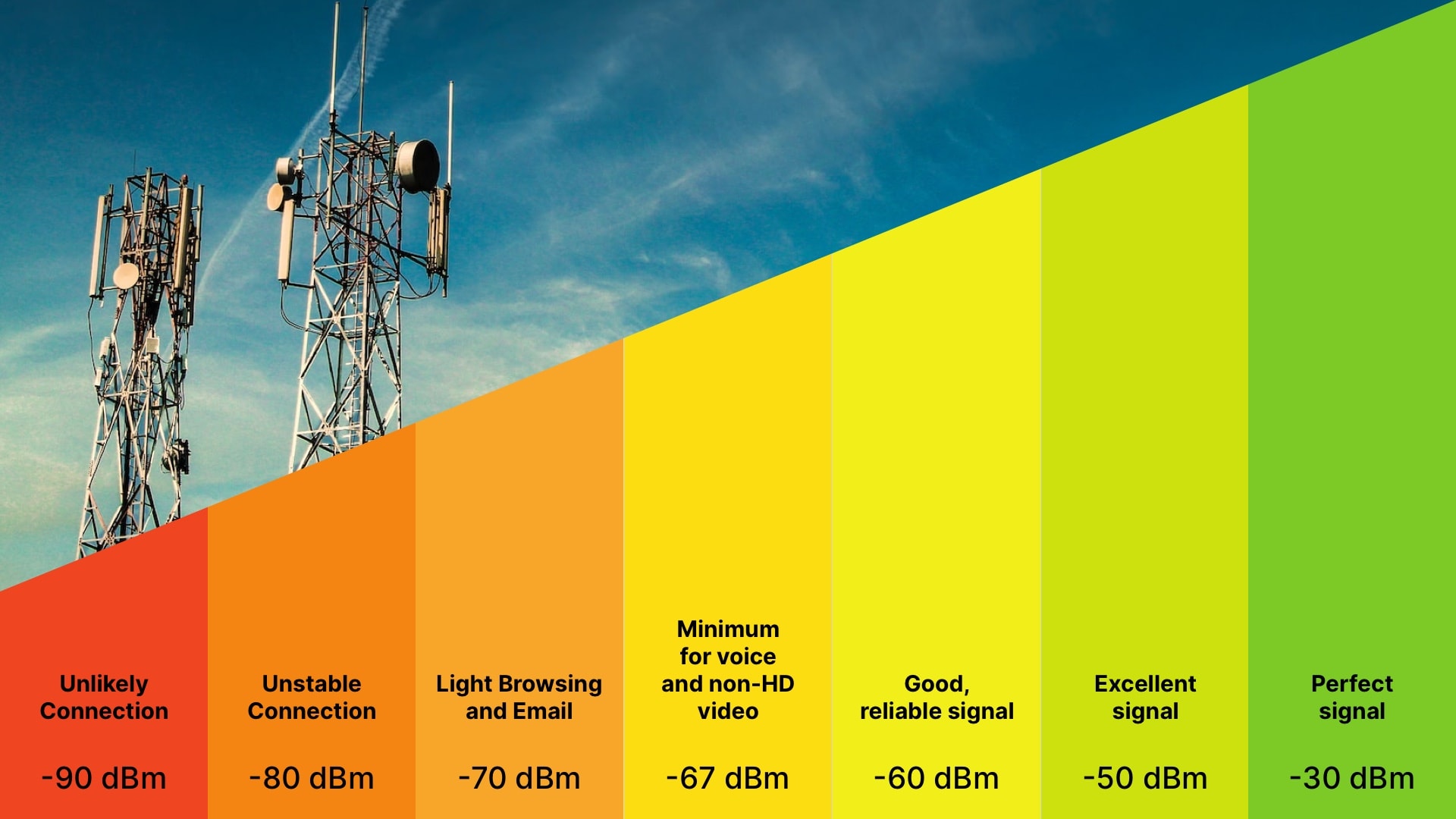
Understanding the numbers is one thing; knowing what they mean in practical terms is another. Here’s a general guide to interpreting dBm values for Wi-Fi signal strength:
- -30 dBm to -50 dBm: Excellent. This represents a very strong signal, typically found right next to the access point. You can expect the fastest speeds and most stable connection.
- -50 dBm to -60 dBm: Very Good. This is an ideal range for a strong and reliable connection throughout most of your home or office.
- -60 dBm to -70 dBm: Good. Your connection should still be quite usable, with decent speeds. You might experience occasional minor slowdowns or minor buffering.
- -70 dBm to -80 dBm: Fair. The signal is starting to weaken. You’ll likely notice slower speeds, increased latency, and potential for dropped connections, especially during peak usage times or when downloading large files.
- -80 dBm and below (e.g., -85 dBm, -90 dBm): Poor. This indicates a very weak signal. Expect a very unreliable connection, frequent disconnections, and very slow data transfer rates. At this level, it’s unlikely you’ll be able to use Wi-Fi effectively for most tasks.
It’s important to remember that these are general guidelines. The actual performance can also be influenced by other factors like interference, network congestion, and the capabilities of your device and router.

Factors Influencing dBm and Wi-Fi Performance
While dBm quantifies the signal strength received, it’s not the only factor determining your Wi-Fi experience. Several environmental and technical factors can influence the dBm reading and, consequently, your overall wireless performance.
The Impact of Distance and Obstacles
The most significant factor affecting signal strength is distance from the Wi-Fi access point. As the signal travels, it weakens due to signal attenuation. The further away you are, the lower the dBm value will be.
Obstacles also play a crucial role. Different materials absorb and reflect Wi-Fi signals to varying degrees:
- Drywall and wood: Have a relatively minor impact, causing some signal loss.
- Glass and standard windows: Cause a bit more attenuation.
- Brick and concrete: Significantly block Wi-Fi signals, leading to substantial signal degradation.
- Metal: Is a major impediment to Wi-Fi signals, reflecting them and causing significant loss. This includes metal appliances, large metal furniture, and even foil-backed insulation.
- Water: Surprisingly, water can also absorb Wi-Fi signals. This means aquariums, large potted plants, or even high humidity can contribute to signal weakening.
Interference: The Silent Killer of Signal Strength
Interference is another major culprit behind weak Wi-Fi signals and poor performance. It occurs when other devices emit radio waves on the same or overlapping frequencies as your Wi-Fi. Common sources of interference include:
- Other Wi-Fi networks: In densely populated areas like apartment buildings, multiple Wi-Fi networks operating on the same or adjacent channels can cause interference.
- Microwave ovens: When in operation, microwave ovens emit strong radio waves that can severely disrupt Wi-Fi signals in the 2.4 GHz band.
- Bluetooth devices: While generally lower power, numerous Bluetooth devices operating nearby can contribute to interference, especially in the 2.4 GHz band.
- Cordless phones: Older cordless phones often operate on frequencies that can interfere with Wi-Fi.
- Wireless speakers and security cameras: Some wireless devices, especially older models, can operate on frequencies that clash with Wi-Fi.
- Certain building materials and electronics: Even some lighting fixtures and electronic devices can emit electromagnetic interference.
Router Placement and Configuration
The placement of your Wi-Fi router is paramount to achieving good signal strength throughout your space.
- Central location: Ideally, place your router in a central, open location, away from corners, walls, and obstructions.
- Elevated position: Placing the router higher up, on a shelf or table, can help propagate the signal more effectively.
- Avoid proximity to interference sources: Keep your router away from microwave ovens, large metal objects, and other potential sources of interference.
- Antenna orientation: If your router has external antennas, experiment with their positioning. Often, having them at different angles (e.g., one vertical, one horizontal) can help cover a wider area.
Router configuration also plays a role. Choosing the right Wi-Fi channel (especially in the 2.4 GHz band, which is more prone to congestion) and utilizing the 5 GHz band (which offers faster speeds but has a shorter range and is more susceptible to obstacles) can significantly impact performance. Many modern routers can automatically select the best channel, but manual selection might be necessary in challenging environments.
Optimizing Your Wi-Fi for the Best dBm Readings
Understanding dBm empowers you to take proactive steps to improve your Wi-Fi experience. By addressing the factors influencing signal strength, you can achieve more consistent and robust wireless connectivity.
Troubleshooting Weak Signals
If you’re consistently experiencing poor Wi-Fi performance, the first step is to identify the problematic areas and the dBm readings there.
- Map your signal: Walk around your home or office with a Wi-Fi analyzer app and note the dBm readings in different locations. Identify “dead zones” where the signal is significantly weaker.
- Check your router: Ensure your router’s firmware is up to date. Sometimes, performance improvements are released through firmware updates.
- Restart your router: A simple reboot can often resolve temporary glitches and improve performance.
- Assess your environment: Look for potential sources of interference or signal-blocking obstacles in areas with weak signals.
- Test with a wired connection: If possible, connect a device directly to your router via an Ethernet cable. If wired speeds are excellent, the issue is definitively with your Wi-Fi signal.
When to Consider Upgrades or Extensions
If basic troubleshooting and optimization aren’t enough, it might be time to consider hardware solutions.
- Wi-Fi Extenders/Repeaters: These devices capture your existing Wi-Fi signal and rebroadcast it, extending the range. While they can help eliminate dead zones, they can also halve the available bandwidth and may not always provide the most stable connection.
- Mesh Wi-Fi Systems: A more advanced solution, mesh systems consist of a main router and several satellite nodes that work together to create a single, seamless Wi-Fi network. They offer superior coverage and more consistent performance compared to extenders, intelligently managing devices and connections.
- Powerline Adapters: These devices use your home’s electrical wiring to transmit network data. They can be a good option for extending Wi-Fi to areas where traditional wireless signals struggle, but performance can be affected by the quality and complexity of your home’s wiring.
- Upgrade your router: If your router is several years old, it might not support the latest Wi-Fi standards (e.g., Wi-Fi 6 or Wi-Fi 6E) or may lack the processing power to handle modern network demands. A newer, more powerful router can significantly improve signal strength and overall performance.
The Importance of the 5 GHz Band
Modern dual-band routers broadcast on both the 2.4 GHz and 5 GHz frequency bands. While the 2.4 GHz band offers a longer range and better penetration through obstacles, it’s more prone to interference and generally slower. The 5 GHz band, conversely, offers significantly faster speeds and less interference, but its range is shorter, and it’s more easily blocked by walls and other obstructions.
For devices that are close to the router and require high bandwidth (like streaming devices or gaming consoles), connecting to the 5 GHz band will usually result in a better experience and a higher dBm reading from that band, even if the overall signal strength metric is slightly lower in pure distance terms. Understanding the trade-offs between the two bands is key to optimizing your network.
In conclusion, dBm is not just a technical jargon term; it’s a fundamental measure of your Wi-Fi signal strength that directly impacts your online experience. By understanding what dBm represents, how to measure it, and the factors that influence it, you are empowered to diagnose issues, optimize your current setup, and make informed decisions about upgrading your network for a truly seamless and high-performance wireless experience.
aViewFromTheCave is a participant in the Amazon Services LLC Associates Program, an affiliate advertising program designed to provide a means for sites to earn advertising fees by advertising and linking to Amazon.com. Amazon, the Amazon logo, AmazonSupply, and the AmazonSupply logo are trademarks of Amazon.com, Inc. or its affiliates. As an Amazon Associate we earn affiliate commissions from qualifying purchases.