
In the realm of digital document creation and physical output, “collate” is a fundamental yet often overlooked printing setting that significantly impacts how multi-page documents are organized. For anyone who regularly prints reports, manuals, presentations, or any document consisting of multiple pages and requiring multiple copies, understanding collation is essential for efficiency and professional presentation. At its core, collating refers to the process of arranging printed pages in a specific, sequential order, ensuring that each complete set of a document is grouped together before the next set begins.
Understanding the Mechanics of Collation
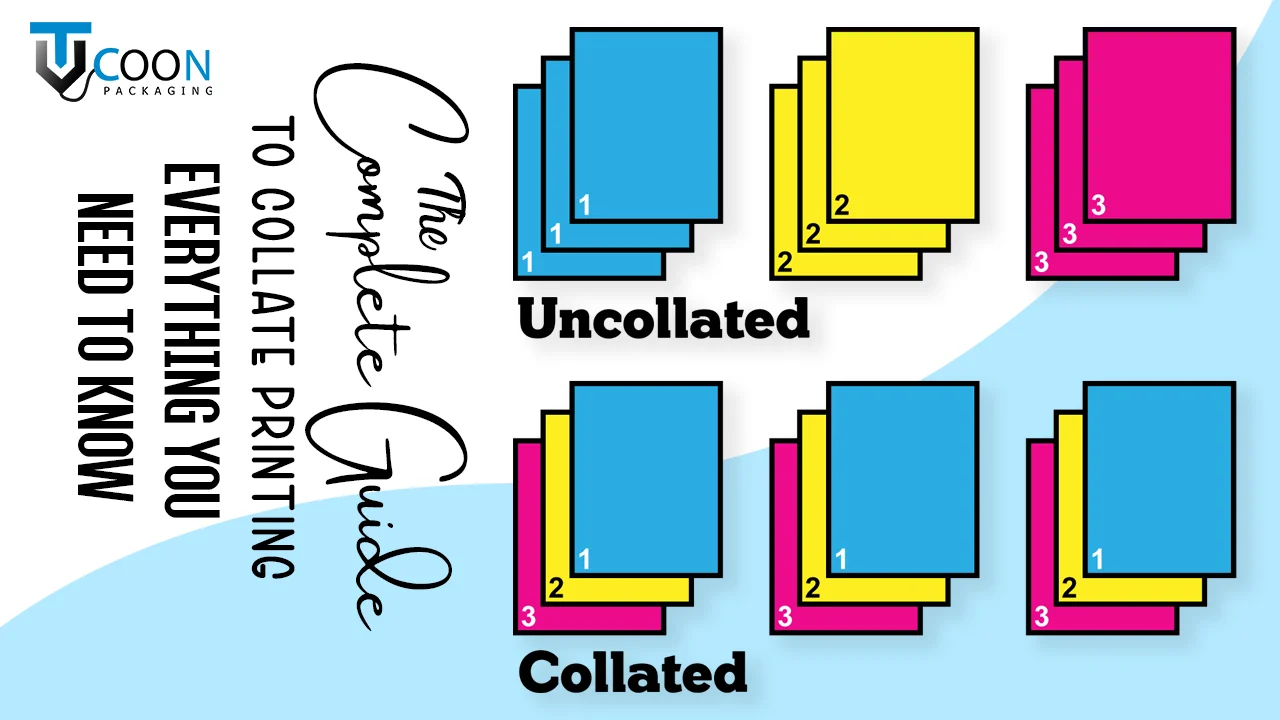
To grasp the full utility of collation, it’s vital to understand what happens both with and without this setting enabled. Imagine you have a three-page document (Page 1, Page 2, Page 3) that you need to print five copies of.
The Problem Collation Solves
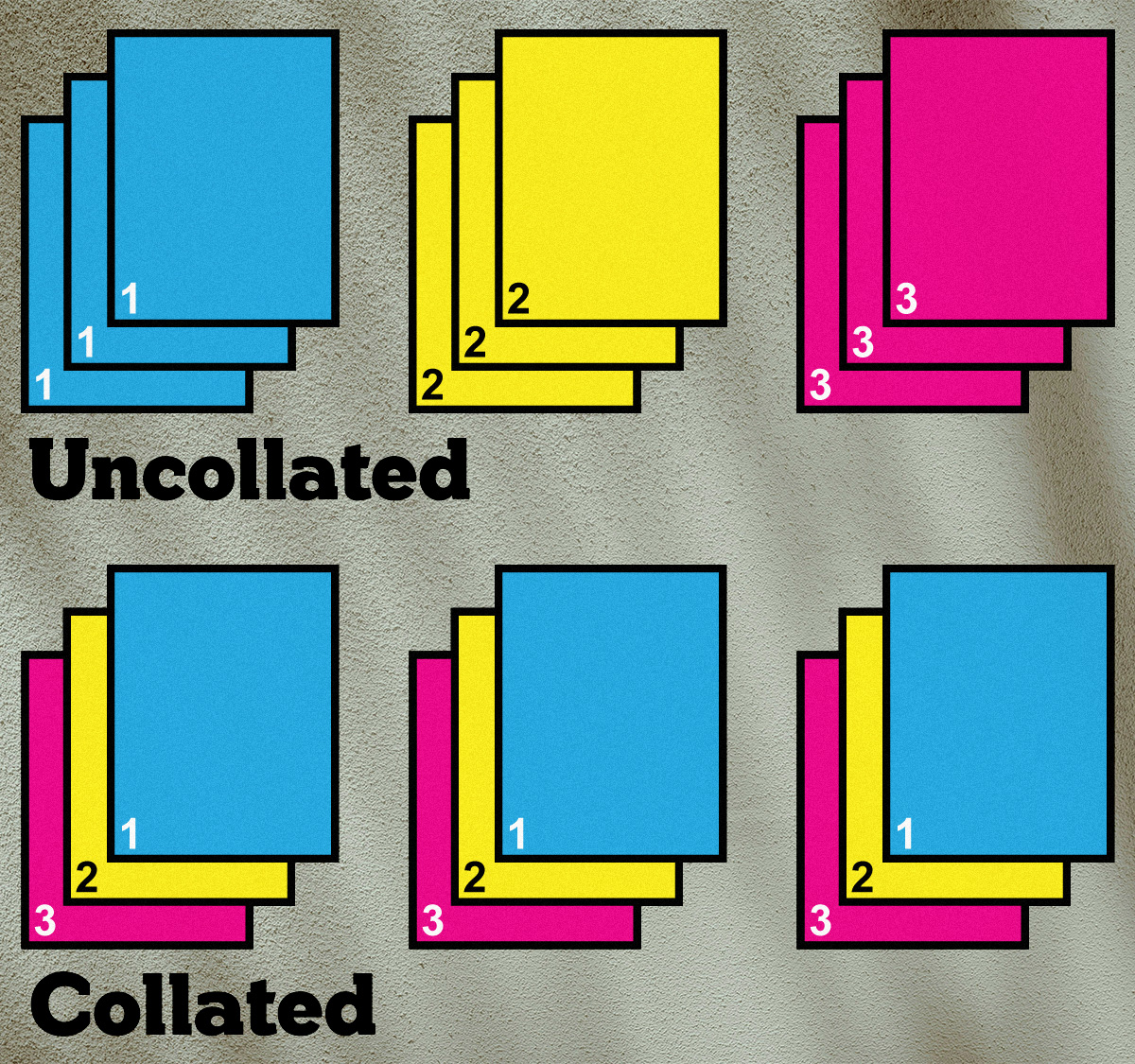
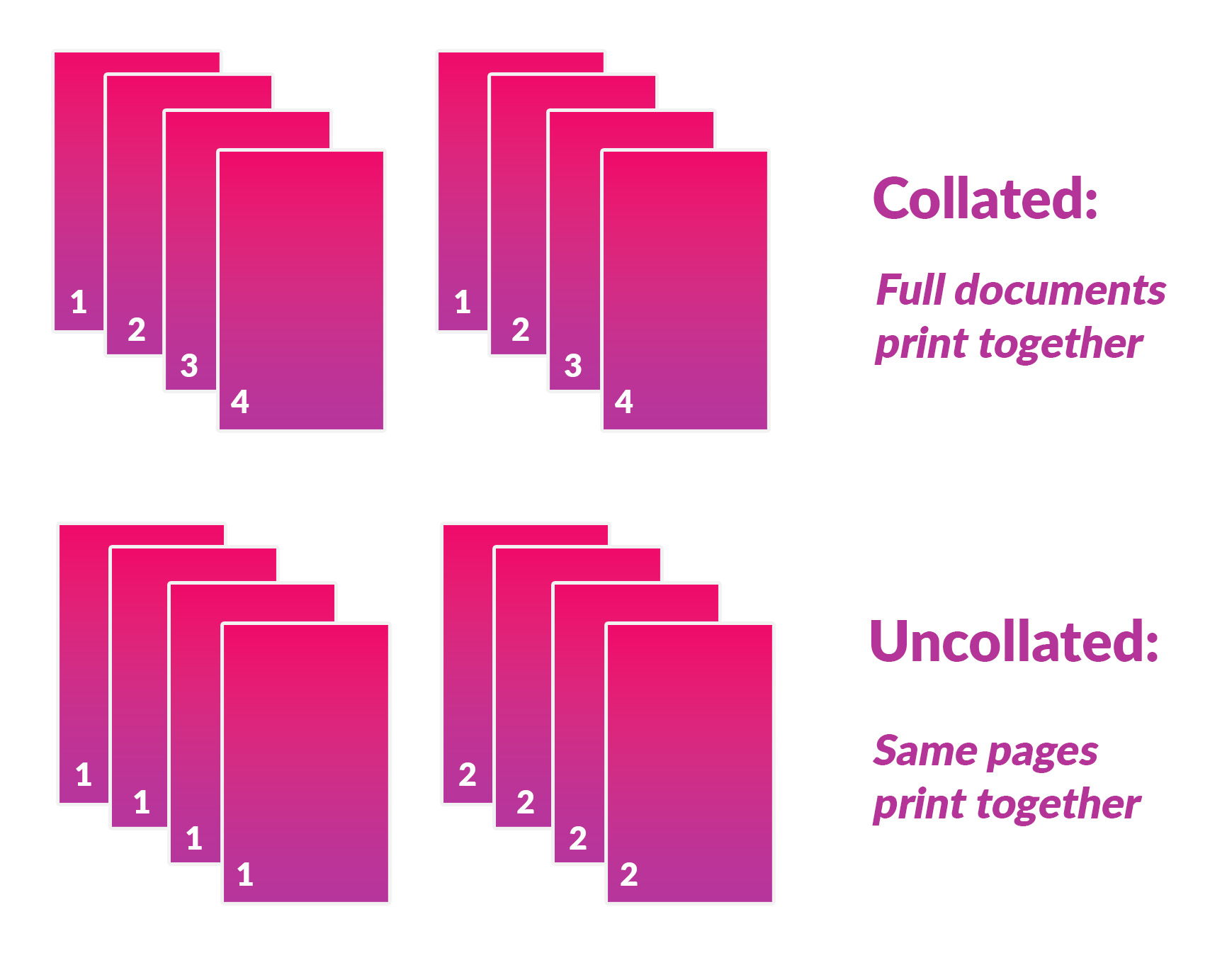
Without collation, a printer will output all copies of Page 1, then all copies of Page 2, and finally all copies of Page 3. In our example, the output stack would look like this:
(Page 1, Page 1, Page 1, Page 1, Page 1)
(Page 2, Page 2, Page 2, Page 2, Page 2)
(Page 3, Page 3, Page 3, Page 3, Page 3)
While seemingly simple, this uncollated output creates a significant manual task. To get five complete sets of the document, a user would need to manually sort through 15 pages, picking one Page 1, then one Page 2, then one Page 3, repeating this five times. This can be incredibly time-consuming and prone to errors, especially with longer documents or a higher number of copies.
How Collation Works Digitally and Physically
When you enable collation, the printer’s software (often the print driver or the application sending the print job) intelligent processes the request. Instead of printing all copies of each page sequentially, it prints a complete set of the document (Page 1, Page 2, Page 3), then moves on to print the next complete set, and so on.
In our example with collation enabled, the output stack would appear as:
(Page 1, Page 2, Page 3) – Set 1
(Page 1, Page 2, Page 3) – Set 2
(Page 1, Page 2, Page 3) – Set 3
(Page 1, Page 2, Page 3) – Set 4
(Page 1, Page 2, Page 3) – Set 5
Each set is now perfectly ordered, requiring no further manual sorting. This fundamental difference is what makes collation such a powerful feature, directly impacting workflow efficiency and document handling. The “magic” happens either at the software level, where the print job is intelligently spooled and sent to the printer in the collated sequence, or within the printer’s own memory if it has advanced processing capabilities. Modern printers often handle the collating instruction directly from the print driver, managing the page order in their internal memory buffer before physically outputting the pages.
Practical Applications and Benefits of Collation
The advantages of using the collate function extend beyond mere convenience, impacting productivity, accuracy, and the overall presentation of printed materials.
Enhancing Document Organization
The most immediate benefit of collation is the inherent organization it provides. For multi-page documents, especially those destined for distribution, collation ensures that each recipient receives a logically ordered and complete package. This is critical for professional documents where readability and ease of reference are paramount. Imagine distributing a fifty-page report to a dozen board members; manually sorting 600 pages would be a logistical nightmare, whereas collated output presents 12 perfectly ordered documents.
Saving Time and Effort
The time saved by avoiding manual sorting can be substantial. For individuals or offices that handle frequent large-volume printing, collation translates into hours of saved labor each week. This allows staff to focus on more valuable tasks rather than performing repetitive, menial sorting. The potential for human error in manual sorting (missing pages, misplacing sections) is also completely eliminated, saving time that would otherwise be spent proofreading and re-sorting.
Use Cases: Reports, Manuals, Presentations
Collation finds its strongest applications in scenarios where multiple, identical, multi-page documents are required:
- Reports: Annual reports, project progress reports, financial statements, and research papers often need to be distributed to multiple stakeholders. Collation ensures each copy is complete and in sequence.
- Manuals and Handbooks: Training manuals, product guides, and employee handbooks are typically lengthy documents provided to numerous individuals. Collated printing is indispensable for creating these materials efficiently.
- Presentations and Agendas: Meeting agendas, slide handouts, and conference materials benefit greatly from collation, allowing participants to follow along without having to reorder pages.
- Educational Materials: Worksheets, syllabi, and reading packets for students are prime candidates for collated printing, streamlining the preparation process for educators.
Technical Implementation: Collation Settings
Accessing and utilizing the collation feature is generally straightforward, integrated into the standard print dialog boxes of most operating systems and applications.
Accessing Collation Options in Software
Regardless of whether you’re printing from Microsoft Word, Adobe Acrobat, a web browser, or a specialized design application, the collation option is almost universally found within the print dialog box. Typically, after selecting “Print” from the file menu (or using Ctrl+P/Cmd+P), a dialog window appears. Within this window, usually under “Copies” or “Page Handling” settings, you’ll find a checkbox or toggle labeled “Collate.”
- Default State: In many modern applications and operating systems, collation is often enabled by default when printing multiple copies of a multi-page document, recognizing its common utility.
- Specific Settings: Some advanced print drivers or applications may offer variations, such as “Reverse Collate” for printers that output pages face-up in reverse order, ensuring the top page is the first page of the last set.
Printer Driver Integration
The printer driver acts as the intermediary between your software application and the physical printer. When you select “Collate” in your application’s print dialog, this instruction is passed to the printer driver. The driver then formats the print job, spooling the pages in the correct collated sequence before sending the data to the printer. This ensures that even simpler printers without sophisticated internal processing capabilities can still produce collated output, as the sequence is dictated by the driver. This process can sometimes increase the print job file size or the processing time before printing begins, especially for very complex documents, as the driver has more data to prepare and manage.
Advanced Collation Features
Beyond basic sequential collation, some printers and print drivers offer more sophisticated options that integrate with other printing functionalities:
- Duplex Printing and Collation: When printing on both sides of a page (duplex printing), collation ensures that each complete, double-sided set is grouped correctly. For example, a 3-page document printed duplex would result in Page 1 on the front, Page 2 on the back of the first sheet, and Page 3 on the front of the second sheet for each collated set.
- Stapling and Finishing Options: Many high-end office printers and multifunction devices include built-in finishing options like stapling, hole-punching, or even booklet making. When these features are enabled in conjunction with collation, the printer can produce fully finished, collated, and bound documents without any manual intervention, representing the pinnacle of printing automation. These systems rely heavily on the precise sequencing provided by collation to correctly bind each individual set.
- Tray Selection and Collation: For documents that require different paper types (e.g., cardstock for covers, plain paper for interior pages), advanced collation can sometimes integrate with tray selection, ensuring the correct paper is used for each part of the document within each collated set.
When to Use and When Not to Use Collation
While collation is a powerful tool for productivity, there are specific scenarios where it is essential and others where it might be counterproductive.
Scenarios Where Collation is Essential
Collation should be your default choice whenever you are printing:
- Multiple copies of a multi-page document intended to be read or distributed as complete, individual sets. This is the primary use case and where it delivers the greatest time and labor savings.
- Documents that will be manually bound or finished after printing. Having pre-sorted sets makes the binding process (e.g., putting into binders, spiral binding) much faster and less error-prone.
- Any document where the order of pages is critical for comprehension, such as legal briefs, instruction manuals, or academic papers.
Situations Where Collation Might Be Counterproductive
There are specific instances where disabling collation makes more sense:
- Printing single copies of a multi-page document: If you only need one copy, collation has no effect as there’s only one set to print.
- Printing multiple copies of a single-page document: If your document is only one page long, collation is irrelevant because there’s no sequence of pages to sort. The printer will simply output all copies of that single page.
- Printing multiple copies of a multi-page document where you intend to stack all identical pages together: For example, if you’re printing five copies of a 3-page document and want to put all Page 1s in one stack, all Page 2s in another, and all Page 3s in a third, then you would disable collation. This might be useful if you’re creating sets of individual components that will be assembled later in a different order or with other materials.
- When using a specific, specialized finishing machine that expects uncollated stacks of identical pages to perform its function. Some older or niche finishing equipment might be designed this way.
Common Pitfalls and Troubleshooting
The most common “pitfall” with collation is simply forgetting to check the setting. Users often print multiple copies, only to find a massive stack of unsorted pages, realizing they overlooked the “Collate” checkbox. Conversely, leaving collation enabled when it’s not needed (e.g., for single-page documents) won’t harm anything but also offers no benefit. If a print job seems to take an unusually long time to start printing, especially with many copies of a complex document, it might be the print driver meticulously processing the collated sequence. Ensuring your printer drivers are up to date can sometimes improve the efficiency of this process.
In conclusion, “collate when printing” is a cornerstone feature of modern printing technology, designed to streamline document organization and significantly boost productivity. Understanding its function and how to leverage it correctly is a simple yet powerful skill for anyone working with digital documents and physical output.
aViewFromTheCave is a participant in the Amazon Services LLC Associates Program, an affiliate advertising program designed to provide a means for sites to earn advertising fees by advertising and linking to Amazon.com. Amazon, the Amazon logo, AmazonSupply, and the AmazonSupply logo are trademarks of Amazon.com, Inc. or its affiliates. As an Amazon Associate we earn affiliate commissions from qualifying purchases.