
The digital landscape has been consistently reshaped by advancements in artificial intelligence, with sophisticated tools now moving from niche applications to integral parts of our daily computing experience. Among these, Microsoft Copilot stands out as a transformative AI assistant designed to fundamentally alter how users interact with their personal computers. More than a mere chatbot, Copilot represents a significant leap forward, merging generative AI capabilities with the robust functionality of Windows and Microsoft’s suite of applications.
The Evolution of Digital Assistance on PC
The concept of a digital assistant on a personal computer is not new, but its recent evolution marks a dramatic shift in capability and scope. Early iterations laid the groundwork, but the advent of large language models (LLMs) and generative AI has unlocked unprecedented potential.

From Clippy to Cortana
Microsoft has a long history with digital helpers. Many will recall Clippy, the animated paperclip assistant in Microsoft Office during the late 1990s and early 2000s. While often met with mixed reviews, Clippy represented an early attempt to integrate contextual assistance directly into software. Its primary function was to offer tips and help with common tasks, a precursor to more advanced AI.
Years later, with the rise of voice assistants like Siri and Google Assistant on mobile platforms, Microsoft introduced Cortana. Cortana, launched with Windows 10, was a more sophisticated voice-activated assistant designed to answer questions, set reminders, open applications, and manage basic system functions. It aimed to provide a personalized, proactive experience, integrating with calendars and web searches. However, Cortana’s capabilities, while useful, were largely reactive and limited to predefined commands or search queries, operating more as an advanced search interface than a truly intelligent companion.
The Rise of Generative AI
The true paradigm shift occurred with the maturation of generative AI, particularly large language models (LLMs) capable of understanding, generating, and synthesizing human-like text, code, and even images. These models are trained on vast datasets, allowing them to grasp complex nuances of language, context, and intent. Unlike previous rule-based or pattern-matching AI, generative AI can produce original content, summarize complex information, translate languages, and engage in more dynamic, context-aware conversations. This technological leap paved the way for a new class of AI assistants that could move beyond simple command execution to genuine co-creation and complex problem-solving. Copilot is a direct beneficiary and implementer of this generative AI revolution.
Understanding Copilot: More Than Just a Chatbot
Copilot on PC, often simply referred to as Copilot in Windows, is Microsoft’s integrated AI assistant designed to empower users across various tasks. It leverages advanced generative AI to understand natural language prompts and provide intelligent assistance, deeply integrated into the Windows operating system and the Microsoft 365 ecosystem.
Core Functionality and Capabilities
At its heart, Copilot functions as a sophisticated conversational AI, but its capabilities extend far beyond typical chat applications. It can perform a wide array of tasks, acting as a personal assistant, a creative partner, and a productivity booster. Key functionalities include:
- Answering Complex Questions: It can provide detailed answers to queries, summarize documents, and explain intricate concepts by drawing information from the internet and local files.
- System Control and Customization: Users can command Copilot to change PC settings (e.g., enable dark mode, adjust volume, take a screenshot), launch applications, or manage files directly through natural language.
- Productivity Enhancement: Within applications like Word, Excel, PowerPoint, and Outlook, Copilot can draft emails, summarize lengthy documents, generate presentation outlines, analyze data, and even suggest formulas, significantly reducing manual effort.
- Creative Content Generation: It can assist in brainstorming ideas, writing creative content (stories, poems, scripts), generating images from text descriptions, and refining existing drafts.
- Web Interaction and Research: Copilot integrates with Microsoft Edge, allowing users to ask questions about webpage content, summarize articles, or compare information across multiple tabs without leaving the browser.
- Code Assistance (Developer Copilot): While the general Copilot focuses on everyday tasks, specialized versions (like GitHub Copilot) are tailored for developers, helping write code, debug, and suggest solutions.
Integration Across the Microsoft Ecosystem
A defining feature of Copilot is its deep integration. Unlike standalone AI tools, Copilot is designed to work seamlessly within the Windows environment and across Microsoft’s suite of products.
- Windows Integration: Copilot is accessible directly from the taskbar in Windows, allowing for quick access to its capabilities regardless of the open application. It can interpret commands related to the operating system itself, providing a unified AI experience.
- Microsoft 365 Apps: This is where Copilot truly shines for productivity. It integrates into Word, Excel, PowerPoint, Outlook, Teams, and more, becoming an embedded assistant that understands the context of the user’s work within these applications. For instance, in Word, it can rewrite paragraphs; in Excel, it can analyze data trends; in Outlook, it can draft email responses.
- Microsoft Edge: When browsing the web, Copilot can provide context-aware assistance, summarizing pages, answering questions about displayed content, or helping to compose text for online forms and social media posts.
How Copilot Differs from Traditional AI Assistants
The distinction between Copilot and its predecessors like Cortana, or even other general-purpose chatbots, lies in several key areas:
- Generative vs. Reactive: Traditional assistants are largely reactive, executing predefined commands or retrieving information based on keywords. Copilot is generative, meaning it can create new content, synthesize complex ideas, and engage in more open-ended conversations.
- Contextual Understanding: Copilot’s integration allows it to understand the context of your work within applications. It’s not just a general AI; it’s an AI for your specific task at that moment, whether you’re writing a report or analyzing a spreadsheet.
- Proactive Assistance: While still largely user-initiated, Copilot has the potential to offer more proactive suggestions and insights based on observed usage patterns and content, moving beyond simply waiting for a command.
- Scale of Knowledge and Reasoning: Leveraging advanced LLMs, Copilot possesses a vastly broader and deeper knowledge base and more sophisticated reasoning capabilities than previous assistants, enabling it to tackle more complex intellectual tasks.
Practical Applications and Use Cases
The practical implications of having an AI co-pilot on your PC are extensive, touching almost every aspect of digital work and creativity.
Enhancing Productivity in Microsoft Office
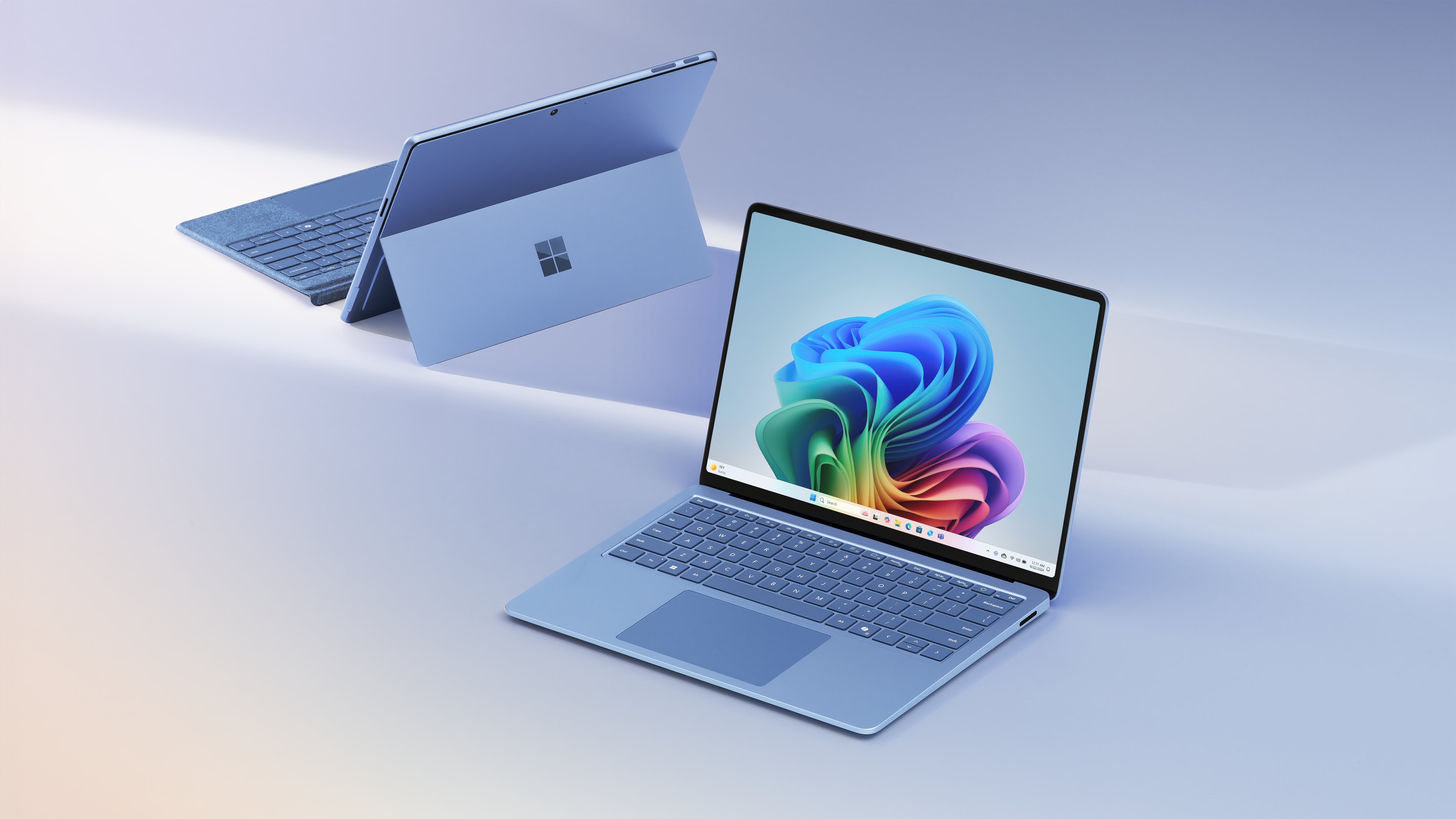
One of the most impactful applications of Copilot is within the Microsoft 365 suite.
- Word: Draft entire documents, summarize long reports, rewrite sections with a different tone, or generate bullet points from verbose text.
- Excel: Analyze datasets to identify trends, create charts, suggest formulas, or answer questions about your data in natural language.
- PowerPoint: Generate presentation outlines, design slides, summarize meeting notes into a presentation, or suggest relevant images.
- Outlook: Draft email replies, summarize lengthy email threads, schedule meetings, or organize your inbox.
- Teams: Summarize meeting discussions, generate action items, and create follow-up messages.
Streamlining Web Browsing and Research
Copilot in Edge transforms web research:
- Content Summary: Quickly get the gist of long articles or research papers without reading through them entirely.
- Comparative Analysis: Ask Copilot to compare products, services, or concepts across multiple open tabs.
- Information Extraction: Easily pull specific data points or facts from a webpage.
- Drafting Web Content: Help compose social media posts, blog comments, or online reviews based on your current browsing context.
Creative Endeavors and Content Generation
Beyond productivity, Copilot can be a creative muse:
- Brainstorming: Generate ideas for stories, marketing campaigns, or project names.
- Drafting Creative Works: Write short stories, poems, song lyrics, or script snippets.
- Image Generation: Create unique images from text descriptions, useful for presentations or personal projects.
- Editing and Refinement: Enhance existing creative text, suggesting improvements in style, grammar, or flow.
System Management and Troubleshooting
For day-to-day PC management, Copilot simplifies tasks:
- Changing Settings: Adjust display settings, manage notifications, enable focus mode, or change privacy settings using natural language.
- Launching Applications: Open specific programs or files by simply asking.
- Basic Troubleshooting: Get suggestions for common PC issues or find quick links to relevant support documentation.
- File Management: Search for files, organize folders, or understand file properties.
Getting Started with Copilot on Your PC
Accessing and utilizing Copilot involves a few straightforward steps, ensuring your system meets the necessary requirements.
Requirements and Availability
Copilot is primarily integrated into Windows 11, specifically in versions 23H2 and later. Users on older versions of Windows (e.g., Windows 10) may eventually gain access through updates, but the full experience is currently optimized for Windows 11.
- Operating System: Windows 11 (version 23H2 or newer recommended).
- Microsoft Account: A Microsoft account is typically required for full functionality, especially for integration with Microsoft 365 services.
- Hardware: While not overly demanding, a modern PC with a decent processor and sufficient RAM (8GB or more) will provide a smoother experience.
To check your Windows version, go to Settings > System > About. If you’re on Windows 11 23H2 or later, Copilot should be readily available.
Activating and Customizing Copilot
Once your system meets the requirements, Copilot is usually easy to activate:
- Taskbar Icon: Look for the Copilot icon (a square with two overlapping circles or a ribbon-like symbol) on your Windows taskbar. Clicking it will open the Copilot pane.
- Keyboard Shortcut: You can also activate Copilot by pressing
Win + Con your keyboard. - Customization: Within the Copilot pane, you can often customize certain preferences, such as the AI model used (if options are available), and review your interaction history. Settings within Windows and Microsoft Edge also allow for privacy control and integration management for Copilot.
Best Practices for Effective Interaction
To get the most out of Copilot, consider these tips:
- Be Specific: The clearer and more detailed your prompts, the better the AI’s response will be.
- Iterate and Refine: If the initial response isn’t perfect, don’t hesitate to refine your query or ask follow-up questions.
- Provide Context: Especially when working within an application, ensure Copilot has the necessary context (e.g., “Summarize this document” rather than just “Summarize”).
- Experiment: Try different types of requests – from creative writing to system commands – to discover Copilot’s full range of capabilities.
- Review and Verify: Always review generated content for accuracy, especially for factual information or critical documents. AI is a tool; human oversight remains essential.
The Future of PC Interaction with Copilot
Copilot’s current capabilities represent just the beginning of a profound shift in how we interact with personal computing. Its ongoing development promises even deeper integration and more intelligent assistance.
Potential Developments and Expansions
Future iterations of Copilot are likely to bring:
- Enhanced Proactivity: The AI could become more proactive, suggesting actions or insights even before being explicitly asked, based on user behavior and context.
- Multi-Modal Interaction: Beyond text and basic image generation, Copilot may evolve to better understand and generate more complex media, including video and advanced audio.
- Deeper Personalization: More tailored experiences based on individual user habits, preferences, and learning styles.
- Specialized Copilots: Further development of domain-specific Copilots for professions like healthcare, legal, or advanced engineering.
- Offline Capabilities: While currently heavily reliant on cloud processing, future versions might offer more robust offline functionality.
Ethical Considerations and Data Privacy
As Copilot becomes more intertwined with our digital lives, ethical considerations and data privacy remain paramount. Microsoft emphasizes its commitment to responsible AI development, including principles of fairness, reliability, safety, privacy, security, inclusiveness, and transparency. Users should be aware of how their data is used, and Microsoft provides controls for managing privacy settings. Transparency regarding AI’s role in content generation and decision-making will be crucial as the technology advances.
The Shifting Landscape of Human-Computer Interaction
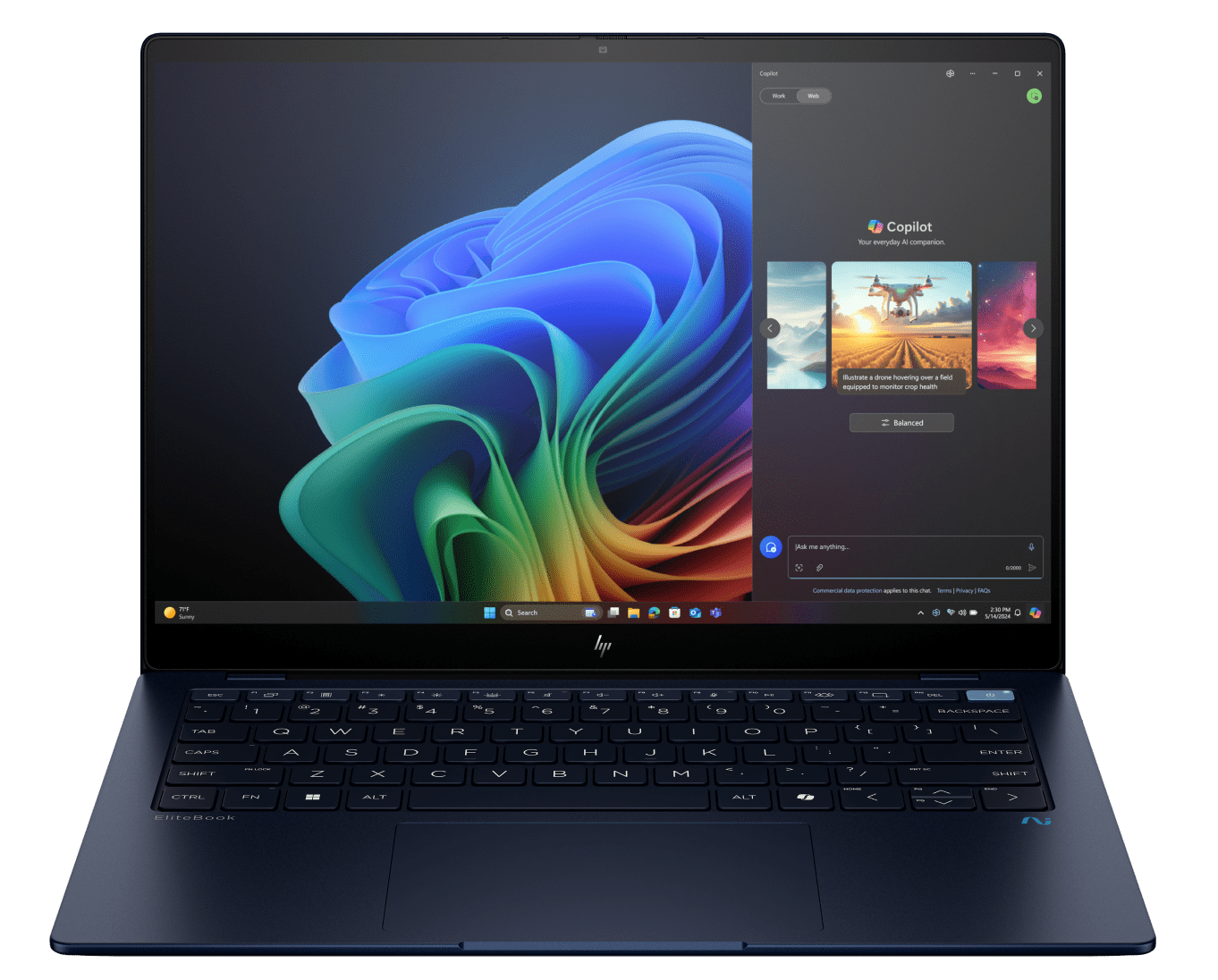
Ultimately, Copilot is redefining human-computer interaction. It moves beyond graphical user interfaces and direct manipulation, ushering in an era of conversational interfaces where natural language becomes a primary mode of control and creation. This shift promises to make computing more accessible, intuitive, and powerful for everyone, transforming the PC from a tool we operate to an intelligent partner in our daily tasks and creative endeavors.
aViewFromTheCave is a participant in the Amazon Services LLC Associates Program, an affiliate advertising program designed to provide a means for sites to earn advertising fees by advertising and linking to Amazon.com. Amazon, the Amazon logo, AmazonSupply, and the AmazonSupply logo are trademarks of Amazon.com, Inc. or its affiliates. As an Amazon Associate we earn affiliate commissions from qualifying purchases.