
In the complex ecosystem of modern mobile computing, our smartphones have transitioned from simple communication devices to sophisticated workstations. However, with this complexity comes the potential for software instability, performance bottlenecks, and security vulnerabilities. For Android users, one of the most powerful yet underutilized features for maintaining device health is “Safe Mode.” Much like its counterpart in the Windows operating system, Android Safe Mode serves as a diagnostic environment designed to isolate the core operating system from third-party interference.
Understanding how to leverage Safe Mode is an essential skill for any tech enthusiast or professional. It allows you to peel back the layers of your device’s software to determine whether a persistent issue is rooted in the hardware, the Android OS itself, or a poorly optimized third-party application.
The Architecture of Safe Mode: What It Is and Why It Matters
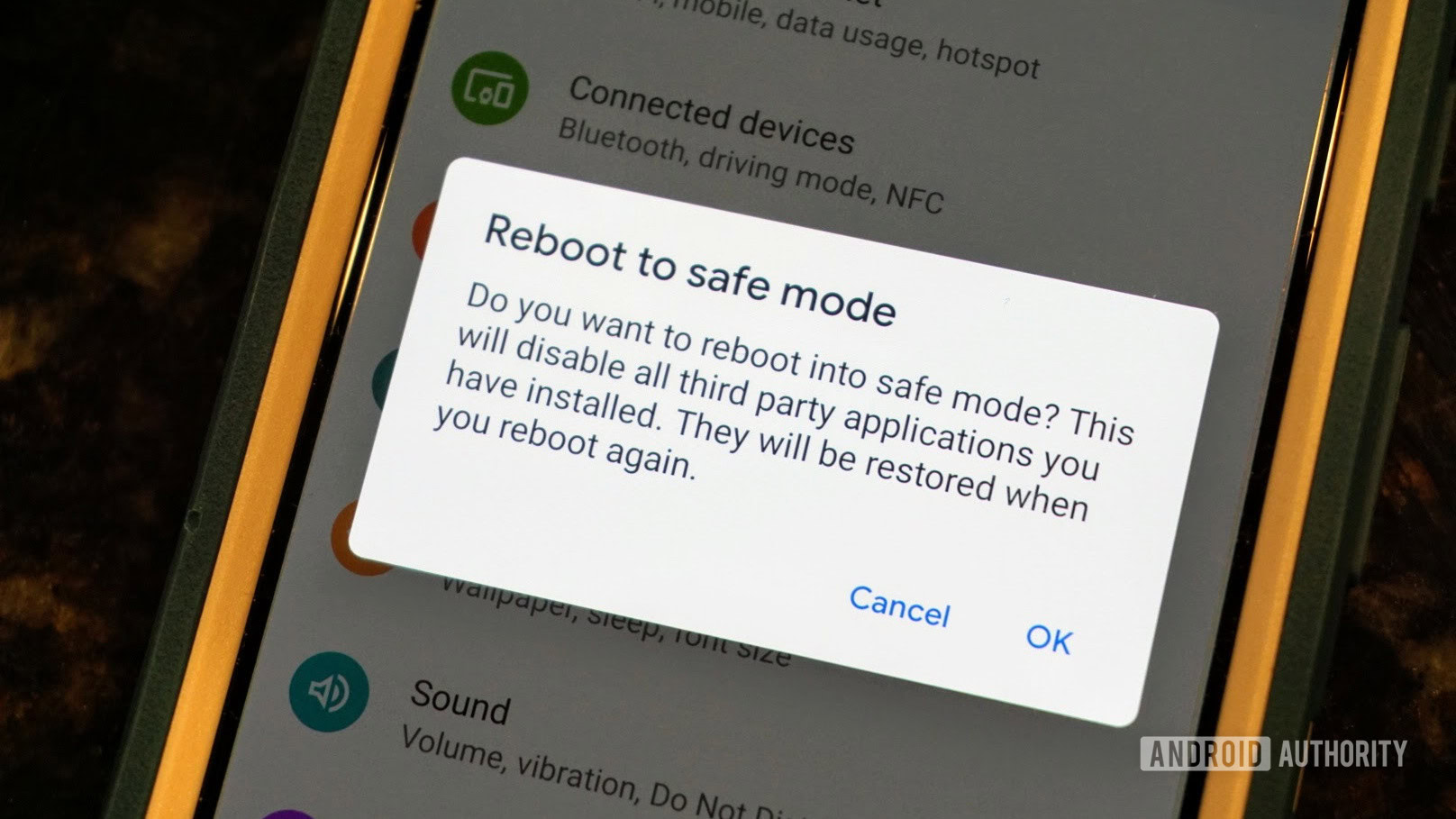
Safe Mode is a boot state that strips the Android experience down to its bare essentials. When your device enters this mode, it bypasses the loading of all third-party applications and services—essentially anything you have downloaded from the Google Play Store or sideloaded via APKs. Only the original system applications that came pre-installed with the manufacturer’s firmware are allowed to run.
How Safe Mode Isolates Software Conflicts
The primary utility of Safe Mode lies in its ability to create a “controlled environment.” Modern Android apps often run background processes, accessibility services, and persistent notifications that can conflict with one another or the system UI. By disabling these external variables, Safe Mode allows the user to see how the phone performs in its “factory state” without actually performing a factory reset. This is crucial for identifying memory leaks, battery drain issues, and localized system crashes.
Identifying Symptoms That Require Safe Mode
When should a user consider booting into Safe Mode? The tech-savvy approach involves looking for specific red flags:
- Excessive Latency: If the interface lags significantly during basic navigation.
- Battery Depletion: Rapid, unexplained battery drain that occurs even when the screen is off.
- App Crashing: Frequent “Application Not Responding” (ANR) errors.
- Overheating: The device becoming warm during low-intensity tasks.
- Persistent Advertisements: Pop-ups appearing on the home screen or within the notification shade, often a sign of “adware” bundled with third-party apps.
How to Access Safe Mode Across Different Android Ecosystems
Because Android is an open-source platform utilized by various manufacturers—from Google and Samsung to OnePlus and Xiaomi—the methods for entering Safe Mode can vary slightly. However, the logic remains consistent: you must interrupt the standard boot sequence or signal the kernel during power-up to bypass third-party data partitions.
The Software Method: Accessing Safe Mode via the UI
On most modern devices running Android 10 or higher, the process is streamlined. While the phone is powered on, press and hold the physical Power button until the Power menu appears on the screen. Instead of a quick tap, perform a “long press” on the “Power off” or “Restart” icon. A prompt will appear asking if you want to “Reboot to safe mode.” Tapping “OK” will trigger a restart into the diagnostic environment.
The Hardware Method: Using Physical Key Combinations
If your device is unresponsive or stuck in a boot loop, the software method may not be accessible. In these instances, you must use hardware triggers. Typically, this involves turning the device off completely, then holding the Power button. As soon as the manufacturer logo appears, release the Power button and immediately hold the Volume Down button until the device finishes booting. You will know you have succeeded when the words “Safe Mode” appear in a translucent box at the bottom-left corner of the screen.
Manufacturer-Specific Nuances
While the Google Pixel follows the “pure” Android path, Samsung devices (using One UI) occasionally require users to hold the Volume Down button specifically during the entire animation of the “Samsung” logo. Understanding these minor differences is key to troubleshooting a wide array of hardware for clients or personal use.
Diagnostic Strategies: Troubleshooting Like a Pro

Once you are in Safe Mode, your phone will look different. Your downloaded apps will be grayed out or missing entirely from the app drawer. This is your “clean slate” for testing.
Step 1: Evaluating System Stability
The first step is to spend 10 to 15 minutes using the phone as you normally would, but only using system apps like Chrome, YouTube (if pre-installed), or the Settings menu. If the phone runs smoothly, stays cool, and the battery remains stable, you have successfully confirmed that your hardware is healthy. The problem, therefore, lies within your third-party software library.
Step 2: Isolating the Culprit
If the issue disappeared in Safe Mode, you must now identify which app is the offender. Start by looking at your most recently installed apps. Often, apps that require extensive permissions—such as custom launchers, anti-virus suites, or “battery savers”—are the primary causes of system instability. In Safe Mode, you can still go to Settings > Apps and uninstall these suspicious programs even though you cannot run them.
Step 3: Dealing with Persistent Issues
If your phone continues to crash, overheat, or lag even while in Safe Mode, the diagnosis is more severe. This indicates one of two things: a corrupted system partition (OS level) or a hardware failure (such as a degrading battery or failing flash storage). In this scenario, the next logical step in the tech troubleshooting hierarchy is a Factory Data Reset or seeking a professional hardware repair.
Exiting Safe Mode and Post-Diagnostic Maintenance
After you have identified the problem or finished your testing, returning to the standard Android environment is straightforward, though it can occasionally present minor hurdles.
Returning to Normal Operation
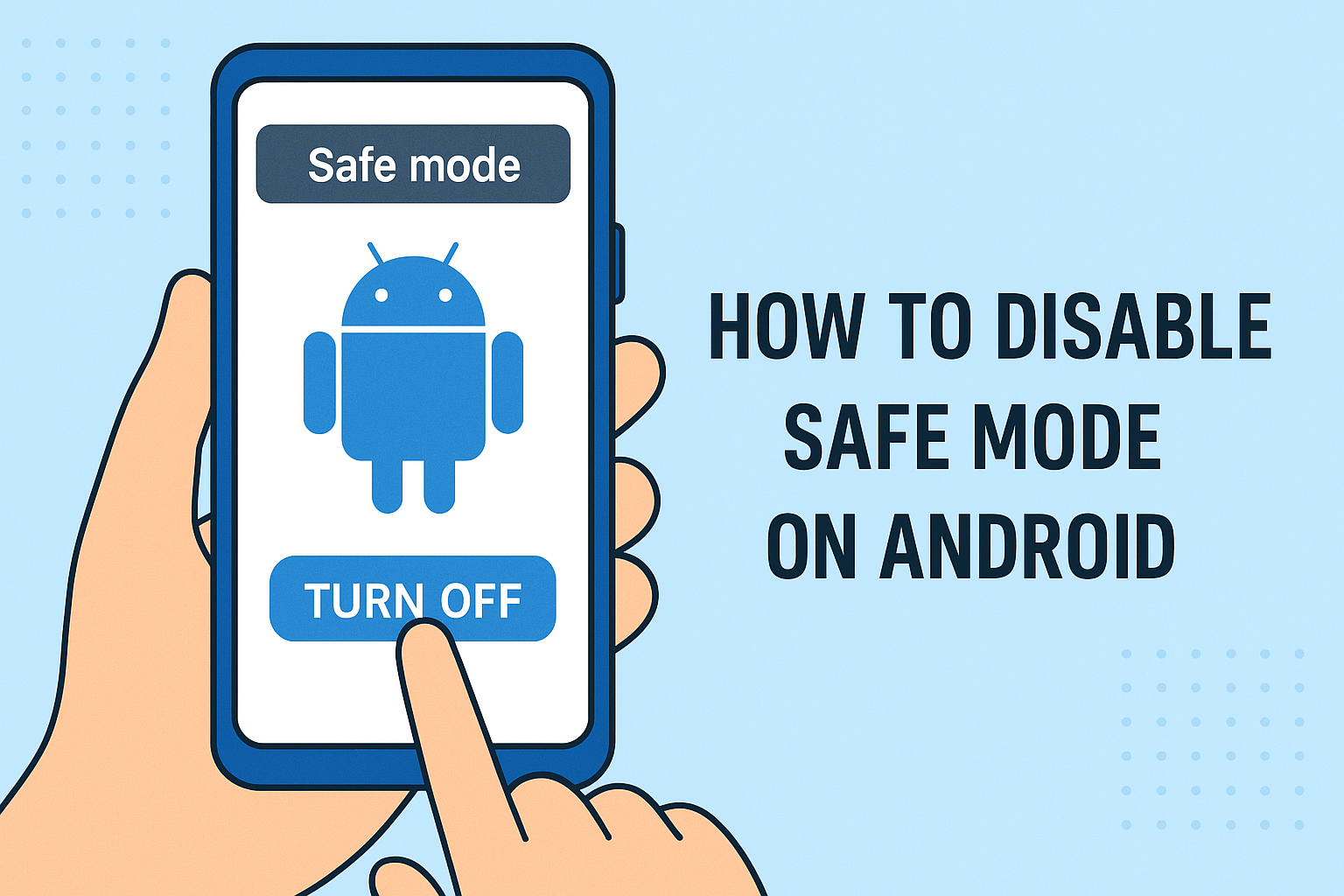
In 99% of cases, exiting Safe Mode requires nothing more than a standard restart. Simply hold the Power button and select “Restart.” Once the device reboots, your third-party apps will be accessible again. Note that some widgets on your home screen might need to be manually re-added or refreshed, as Safe Mode occasionally breaks the link between the widget and the app data to protect the system.
What to Do If You Are Stuck in Safe Mode
Occasionally, a device may reboot back into Safe Mode automatically. This is usually not a software glitch but a hardware signal. If your Volume Down button is stuck or jammed, the device detects the “Safe Mode” hardware trigger every time it boots. Ensure your case isn’t pressing against the buttons and that the hardware keys are clean and responsive.
Digital Hygiene: Preventing Future Issues
To avoid needing Safe Mode frequently, practitioners of good digital security and tech management recommend several habits:
- Audit App Permissions: Periodically check which apps have “Draw over other apps” or “Accessibility” permissions, as these are common vectors for lag.
- Clear Cached Data: While not always necessary, clearing the system cache partition (via Recovery Mode) can complement Safe Mode diagnostics.
- Avoid “Cleaner” Apps: Many third-party apps that claim to speed up your phone actually consume more resources by constantly killing background processes that Android intends to keep cached.
The Role of Safe Mode in Mobile Security and Privacy
Beyond simple performance troubleshooting, Safe Mode is a vital tool for digital security. In the event that a device is infected with “malware” or “ransomware,” these malicious scripts often attempt to gain persistence by starting automatically during the boot process.
Safe Mode prevents these scripts from executing. If you find that your phone is behaving erratically—sending unsanctioned text messages, displaying full-screen ads, or redirecting your web browser—booting into Safe Mode allows you to revoke administrative privileges from malicious apps and delete them before they can re-engage their defenses. It acts as an emergency “kill switch,” providing the user with the upper hand in reclaiming their digital privacy.
In conclusion, Android Safe Mode is more than just a menu option; it is a fundamental pillar of mobile device management. By understanding how to enter, utilize, and exit this mode, users can extend the lifespan of their hardware, optimize their software experience, and maintain a high standard of digital security. Whether you are a casual user or a tech professional, mastering Safe Mode ensures that you remain in control of your technology, rather than the other way around.
aViewFromTheCave is a participant in the Amazon Services LLC Associates Program, an affiliate advertising program designed to provide a means for sites to earn advertising fees by advertising and linking to Amazon.com. Amazon, the Amazon logo, AmazonSupply, and the AmazonSupply logo are trademarks of Amazon.com, Inc. or its affiliates. As an Amazon Associate we earn affiliate commissions from qualifying purchases.