
In the vast and intricate world of computing, temporary files, often abbreviated as “temp files,” are ubiquitous yet frequently overlooked. These ephemeral digital entities play a crucial role in the seamless operation of our devices, acting as silent workhorses that facilitate a multitude of tasks. While most users interact with computers daily, the underlying mechanisms that ensure smooth performance often remain a mystery. Understanding what a temp file is, how it functions, and why it exists is fundamental to appreciating the sophisticated engineering that powers our digital lives. This exploration will delve into the nature of temp files, their various purposes, the common locations where they reside, and the best practices for managing them to ensure optimal system performance and security.
The Role and Purpose of Temporary Files
Temporary files serve as essential intermediaries in the processes undertaken by software applications and the operating system itself. They are created to hold data that is needed only for a short duration, typically during the execution of a specific task, program, or operation. Their existence is fleeting, and ideally, they are automatically deleted once their purpose has been fulfilled. This transient nature is key to their functionality, preventing clutter and unnecessary storage consumption on your hard drive.
Holding Intermediate Data
One of the primary functions of temp files is to store intermediate data. When you perform complex operations, such as editing a large document, rendering a video, or performing intricate calculations in a spreadsheet, the software may not have enough direct memory (RAM) to hold all the necessary data at once. In such scenarios, the application will offload some of this data to a temporary file on your storage device. This allows the program to continue processing even when RAM is a bottleneck. For example, an image editing program might save a partially edited version of a large photo to a temp file while you are applying various filters or making significant adjustments. This ensures that your work is not lost if the application crashes or if the system runs out of available RAM.
Facilitating Application Stability and Recovery
Temp files are also instrumental in enhancing application stability and providing mechanisms for data recovery. Many applications use temp files to auto-save your progress periodically. This is a critical feature that can save you from significant data loss in the event of unexpected shutdowns, power outages, or application crashes. When an application unexpectedly terminates, it may leave behind these temporary files. Upon relaunching the application, it can often detect these residual temp files and prompt you to recover your unsaved work. This auto-save functionality, powered by temp files, significantly reduces the frustration and productivity loss associated with losing hours of work.
Supporting Software Installation and Updates
The installation and updating of software often rely heavily on temporary files. When you download an installer package, it is frequently unpacked into a temporary directory before the actual installation process begins. This allows the system to extract the necessary files, verify their integrity, and then copy them to their final destinations on your hard drive. Similarly, software updates may utilize temp files to store downloaded patches or new program components before they are integrated into the existing software. This staging process ensures that the installation or update can be performed cleanly and efficiently, with the ability to roll back changes if an issue arises during the process.
Storing System Cache and Preferences
Beyond application-specific needs, the operating system itself generates and utilizes temporary files for caching and storing user preferences. System caches, for instance, are temporary storage areas that hold frequently accessed data to speed up future operations. This could include web browser caches, which store parts of websites to load them faster on subsequent visits, or operating system caches for program executables and system libraries. Additionally, certain user preferences or settings that are dynamically changed during a session might be temporarily stored in temp files before being permanently written to configuration files.
Common Locations and Types of Temp Files
Temporary files are not confined to a single location; they are dispersed across various directories on your system, depending on the operating system and the application that created them. Understanding these locations can be helpful for troubleshooting and for manual cleanup when necessary.
Operating System Specific Temporary Directories
Different operating systems have designated default locations for temporary files.
Windows Temp Folders
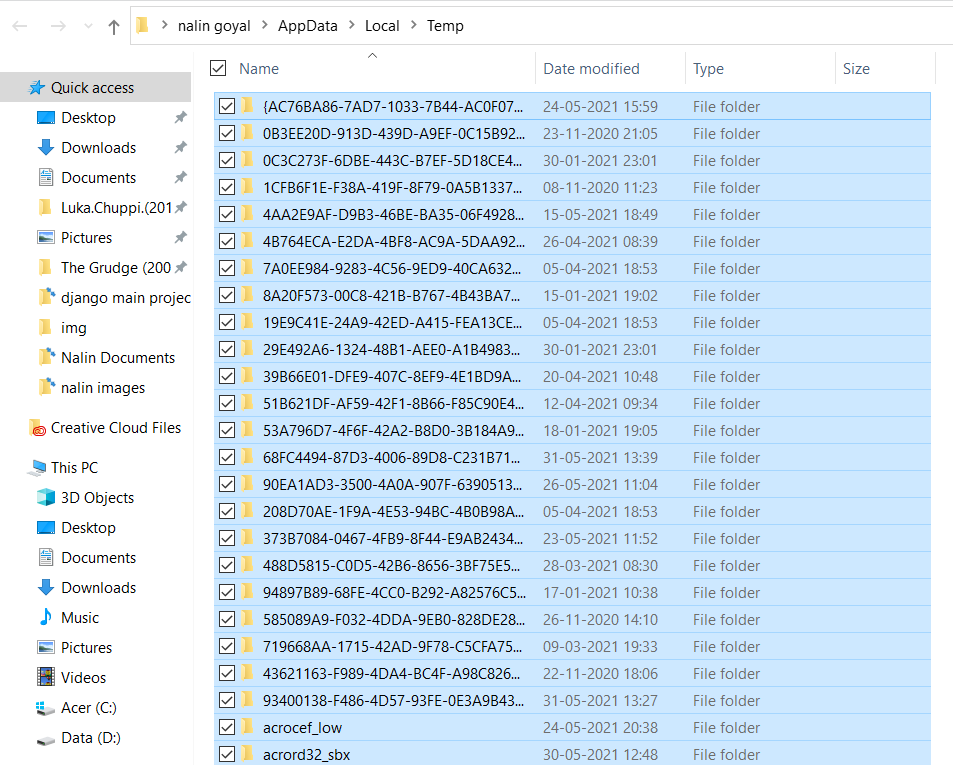
In Microsoft Windows, the primary locations for temporary files are typically found within the user’s profile and the system’s Windows directory. The most common user-specific temp folder is located at %USERPROFILE%AppDataLocalTemp. Within this folder, you will find a plethora of subdirectories and individual files created by various applications and the system. Another significant location is the system-wide temporary directory, often found at C:WindowsTemp. This folder is used by the operating system for tasks related to system processes, installations, and updates. Accessing and modifying files in C:WindowsTemp may require administrative privileges.
macOS Temporary Directories

On macOS, temporary files are typically managed by the system and are often found in the /private/var/folders/ directory. This directory is dynamically structured, with subdirectories based on a combination of user IDs, process IDs, and other system-specific identifiers. The exact path can vary between reboots and even during active use. macOS also utilizes /tmp as a symbolic link to /private/var/folders/. The system is designed to clean up these temporary files automatically during startup and shutdown, as well as when applications are closed.
Linux Temporary Directories
Linux distributions generally follow a similar convention, with /tmp being the standard directory for temporary files. This directory is often mounted as a RAM disk, meaning its contents are stored in memory, which makes file access very fast but also means the contents are lost upon reboot. In some configurations, /var/tmp is used for temporary files that are intended to persist across reboots. Like macOS, Linux systems are designed to manage and clean up these directories automatically.
Application-Specific Temporary Files
Beyond the system-wide directories, many applications create their own temporary files in their installation directories or within the user’s profile. These can range from scratch files for image editors to cache files for web browsers. For instance, web browsers like Chrome, Firefox, and Edge create extensive cache directories to store website assets, which can grow quite large over time. Similarly, professional software like Adobe Photoshop or video editing suites will often create temporary files within their project directories or in designated cache locations to speed up rendering and editing processes.
Managing and Cleaning Up Temp Files
While temporary files are an essential part of computing, they can, over time, accumulate and consume significant disk space. Moreover, improperly managed temp files can sometimes lead to performance issues or even security vulnerabilities. Therefore, understanding how to manage and clean them up is crucial for maintaining a healthy and efficient system.
The Importance of Regular Cleanup
The accumulation of old, orphaned, or unnecessary temporary files can lead to several problems. Firstly, they consume valuable disk space, which can be particularly problematic on devices with limited storage, such as solid-state drives (SSDs) or smaller capacity hard drives. This can slow down your system’s ability to write new data and can even lead to storage full errors. Secondly, an excessive number of temp files can sometimes impact application performance. While temp files are designed to speed up operations, a cluttered temp directory can paradoxically slow down the process of finding and accessing the specific temp file an application needs. In rare cases, corrupted temp files or temp files containing sensitive information that were not properly purged can pose security risks.
Automated vs. Manual Cleanup
Fortunately, most modern operating systems and applications are designed to handle the cleanup of temporary files automatically. However, this automated process is not always perfect, and manual intervention may sometimes be necessary or beneficial.
Automated Cleanup Mechanisms
Operating systems have built-in mechanisms to manage temp files. Windows, for example, includes a Disk Cleanup utility that can scan your system for temporary files, including those in the WindowsTemp folder and user temp folders, and offer to delete them. macOS and Linux also have automated routines that clear out temporary directories, especially during system startup and shutdown. Many applications also manage their own temporary files, deleting them when the application is closed or when a specific task is completed. Web browsers, in particular, have settings that allow users to automatically clear cache and other temporary data.
Manual Cleanup Strategies
Despite automated processes, manual cleanup can be a useful practice. For users who want to gain more control or address specific storage concerns, several manual strategies can be employed.
- Using Disk Cleanup Tools: As mentioned, Windows Disk Cleanup is a powerful built-in tool. Beyond this, third-party system optimization tools can offer more aggressive scanning and cleaning capabilities, though it’s wise to use reputable software and understand what it’s deleting.
- Manually Deleting Files: For advanced users, manually navigating to the temp directories (e.g.,
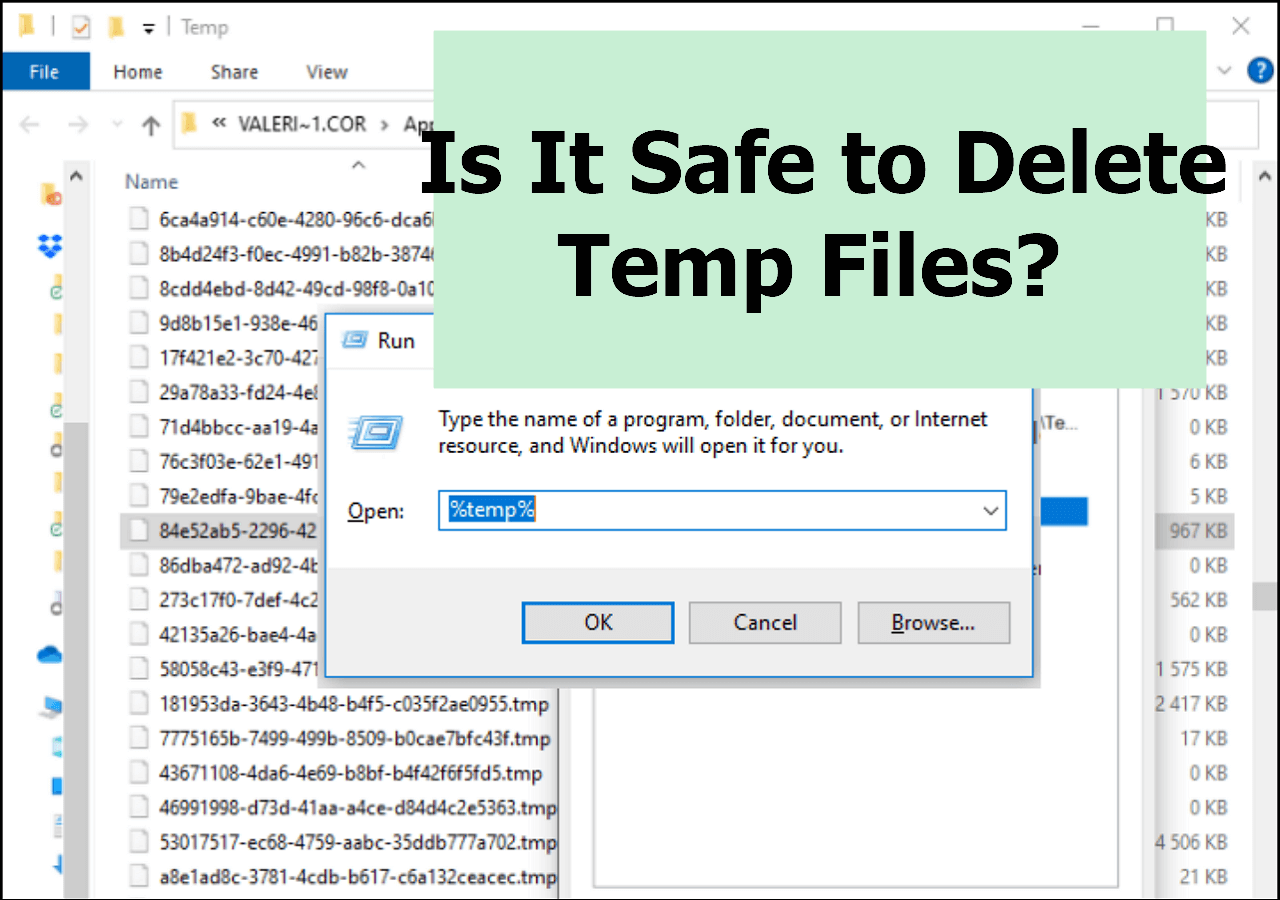
%USERPROFILE%AppDataLocalTemporC:WindowsTempon Windows) and deleting files and folders is an option. It is crucial to exercise caution here; only delete files you are certain are temporary and not currently in use by any running application or system process. It is generally safe to delete files in the temp directory when no programs are actively running, especially if they are dated and you are trying to free up space. - Clearing Browser Cache: Regularly clearing the cache in your web browser can free up significant disk space and also help resolve certain website loading issues or privacy concerns. This is usually found within the browser’s settings menu, often under “Privacy,” “Security,” or “History.”
Best Practices for Temp File Management
To ensure optimal system performance and security, adhering to certain best practices for managing temporary files is recommended.
- Regularly run disk cleanup utilities: Make it a habit to use built-in disk cleanup tools at least once a month.
- Be cautious with manual deletion: If you choose to manually delete files from temp directories, ensure you understand what you are deleting. It’s often best to do this after closing all applications and restarting your computer.
- Monitor disk space: Keep an eye on your available disk space. If it’s consistently low, a thorough cleanup of temp files and other unnecessary data might be in order.
- Consider SSD optimization: If you have an SSD, your operating system usually handles temp file management in an optimized way to minimize wear. Avoid aggressive manual deletion unless absolutely necessary.
- Beware of third-party cleaners: While some third-party cleaning tools are legitimate, others can be intrusive or even harmful. Stick to well-known and reputable software if you opt for external tools.
By understanding the nature of temporary files and adopting good management practices, you can contribute to a smoother, more efficient, and secure computing experience.
aViewFromTheCave is a participant in the Amazon Services LLC Associates Program, an affiliate advertising program designed to provide a means for sites to earn advertising fees by advertising and linking to Amazon.com. Amazon, the Amazon logo, AmazonSupply, and the AmazonSupply logo are trademarks of Amazon.com, Inc. or its affiliates. As an Amazon Associate we earn affiliate commissions from qualifying purchases.