
The Central Processing Unit (CPU) is the brain of your computer, executing billions of calculations per second. As it works, it generates heat—a byproduct of electrical resistance within the microscopic transistors that make up the chip. While modern processors are designed to handle significant heat, thermal management remains the single most critical factor in determining your system’s longevity, stability, and performance. Understanding what constitutes a “safe” CPU temperature is essential for any power user, gamer, or professional workstation operator.
Understanding Thermal Thresholds: The Safe vs. Critical Range
To determine whether your CPU is operating safely, you must distinguish between idle temperatures, load temperatures, and the thermal throttling point. Manufacturers design chips with a specific “Tjunction” or “Tmax”—the maximum temperature the silicon can endure before the chip forces a shutdown to prevent permanent physical damage.
The Idle State
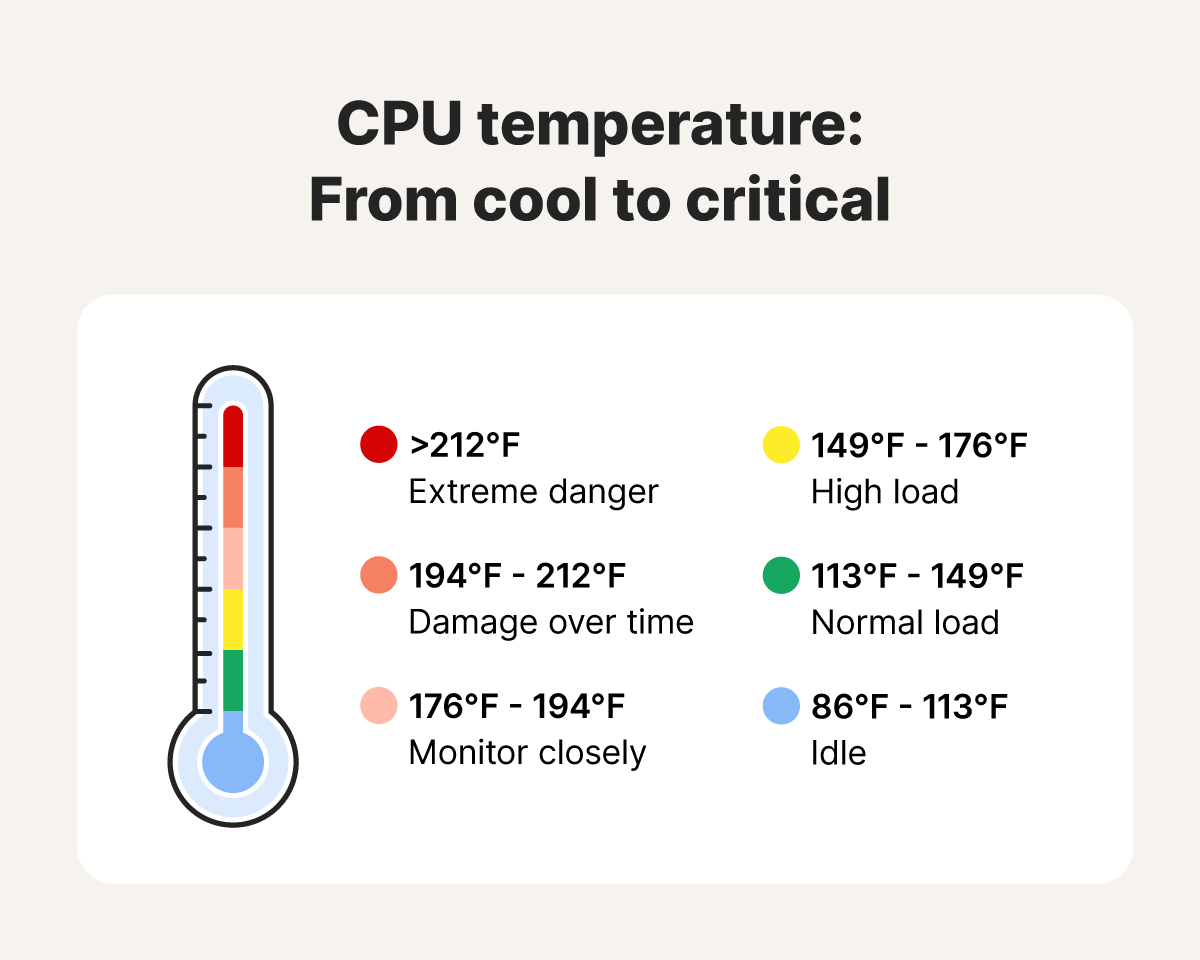
When you are not running resource-intensive applications, your CPU should hover in the “idle” range. For most modern desktop CPUs, a healthy idle temperature typically falls between 30°C and 45°C (86°F–113°F). If your CPU is idling above 50°C, it is an immediate indicator of a cooling inefficiency, such as poor airflow in the chassis, a failing fan, or dried-out thermal paste.
The Load State
Under heavy workload—such as rendering video, compiling code, or playing high-fidelity games—your CPU will naturally heat up. A safe range for load temperatures is generally considered to be 60°C to 80°C (140°F–176°F). While seeing your CPU climb toward 85°C isn’t necessarily catastrophic, it indicates that your cooling solution is reaching its capacity.
The Danger Zone
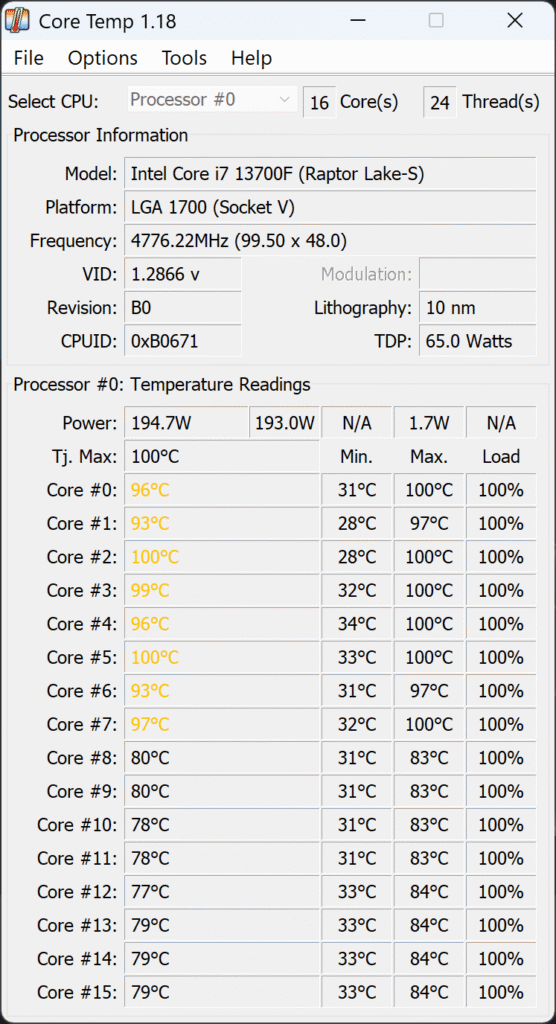
Most modern Intel and AMD processors begin to implement “thermal throttling” once they hit 90°C to 95°C. At this stage, the processor dynamically reduces its clock speed and voltage to lower its heat output. If your temperatures consistently hit or exceed 95°C, you are operating in a dangerous zone that will inevitably lead to system instability, crashes, and potentially accelerated hardware degradation.
Factors Influencing CPU Temperatures
Several variables dictate how hot your processor runs. Recognizing these factors allows you to troubleshoot temperature spikes before they evolve into hardware failure.
The Role of Thermal Interface Material (TIM)
Thermal paste serves as the bridge between your CPU’s Integrated Heat Spreader (IHS) and the base of your cooling solution. Even the most microscopic gaps between these two metal surfaces can trap insulating air. High-quality thermal paste fills these gaps to facilitate efficient heat transfer. Over time, however, thermal paste can “pump out” or dry up, losing its elasticity and thermal conductivity. Replacing this paste every two to three years is a fundamental maintenance task for maintaining lower temperatures.
Airflow and Case Design
A high-performance CPU cooler cannot function effectively if it is constantly recycling hot air trapped inside your computer chassis. Efficient case airflow requires a balance of intake and exhaust fans. If your intake fans are obstructed by dust filters or positioned against a wall, the internal ambient temperature rises, creating a “heat soak” effect. A well-organized system uses a front-to-back or bottom-to-top airflow path, ensuring that heat generated by the GPU and CPU is evacuated immediately.
Ambient Room Temperature
It is a common oversight to ignore the environment where the computer lives. If your room is 30°C (86°F), your cooling solution has a much harder task than it would in a 20°C (68°F) room. Physics dictates that heat flows from hot to cold; the smaller the delta between your CPU temperature and the ambient air temperature, the less efficient the cooling becomes.
Cooling Solutions: Air vs. Liquid
Choosing the right cooling solution is often the primary factor in maintaining safe temperatures. There are two dominant schools of thought in the enthusiast market: air coolers and All-in-One (AIO) liquid coolers.
Air Cooling: Reliability and Simplicity
Air coolers rely on massive aluminum heatsinks and high-static-pressure fans to dissipate heat. They are exceptionally reliable because they lack pumps that can fail or liquids that can leak. High-end air towers are often quieter and just as efficient as many liquid coolers for daily workloads. However, they rely heavily on the internal ambient temperature of the case, meaning they can struggle in cramped or poorly ventilated builds.
Liquid Cooling: Capacity and Aesthetics
AIO liquid coolers move heat away from the CPU block via a closed-loop liquid system to a radiator mounted elsewhere in the case. This is generally more efficient at handling “bursty” workloads because the fluid has a higher heat capacity than a metal heatsink. If your chassis is small or your CPU has a high Thermal Design Power (TDP)—such as an Intel Core i9 or an AMD Ryzen 9—a large-format AIO is often the superior choice for keeping temperatures within a safe window.
Monitoring Your Hardware Health
You cannot manage what you cannot measure. To keep your CPU within a safe operating range, you must employ reliable diagnostic tools.
Software Monitoring Tools
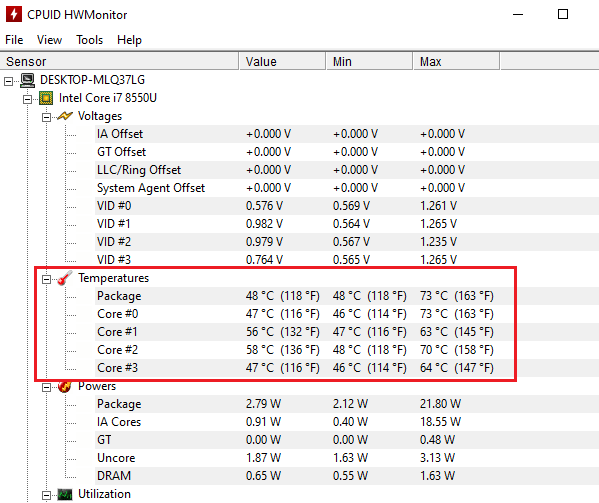
Tools like HWMonitor, Core Temp, or HWiNFO64 are industry standards. These utilities interface with the motherboard’s sensors to provide real-time reporting on individual core temperatures, package power draw, and clock speeds. It is recommended to log these temperatures during a “stress test.” Running a program like Prime95 or Cinebench for 15 to 30 minutes will push your CPU to its absolute limit, simulating the worst-case scenario. If your CPU remains under 85°C during these intense benchmarks, you can be confident that your cooling solution is robust enough for any real-world scenario.
Bios and Fan Curves
Modern motherboards allow you to customize “fan curves” within the BIOS or via dedicated software. Instead of letting your fans run at a fixed speed, you can program them to scale up as the temperature rises. Setting a steeper curve—where fans reach 80% or 100% speed once the CPU hits 70°C—can preemptively mitigate temperature spikes, keeping the chip cooler before it ever approaches the thermal throttle limit.
Long-term Impacts of Ignoring Thermal Limits
Consistently operating at high temperatures, even if you remain below the official thermal throttle point, has long-term implications. Electromigration—a phenomenon where atoms within the processor migrate due to high current density—is exacerbated by heat. While modern CPUs are incredibly durable, extreme heat over years can cause the chip to become less stable, eventually requiring you to increase voltage (which creates more heat) to maintain factory clock speeds. This cycle can eventually lead to a “degraded” CPU that is no longer capable of maintaining its advertised performance.
Furthermore, motherboard components surrounding the CPU socket, such as the Voltage Regulator Modules (VRMs), are also sensitive to heat. When your CPU runs hot, the heat radiates into these components. Keeping your CPU cool protects the surrounding ecosystem of your motherboard, ensuring that the entire system remains responsive for years to come.
Ultimately, a safe CPU temperature is one that stays well beneath the manufacturer’s thermal limit to ensure stability, performance consistency, and hardware longevity. By combining efficient airflow, high-quality thermal interface material, and active monitoring, you ensure that your computer remains a reliable tool rather than a volatile heat source. If your hardware consistently creeps above 85°C under load, take the time to clean your filters, adjust your fan profiles, or upgrade your cooling solution. Your CPU will thank you with years of silent, efficient performance.
aViewFromTheCave is a participant in the Amazon Services LLC Associates Program, an affiliate advertising program designed to provide a means for sites to earn advertising fees by advertising and linking to Amazon.com. Amazon, the Amazon logo, AmazonSupply, and the AmazonSupply logo are trademarks of Amazon.com, Inc. or its affiliates. As an Amazon Associate we earn affiliate commissions from qualifying purchases.