
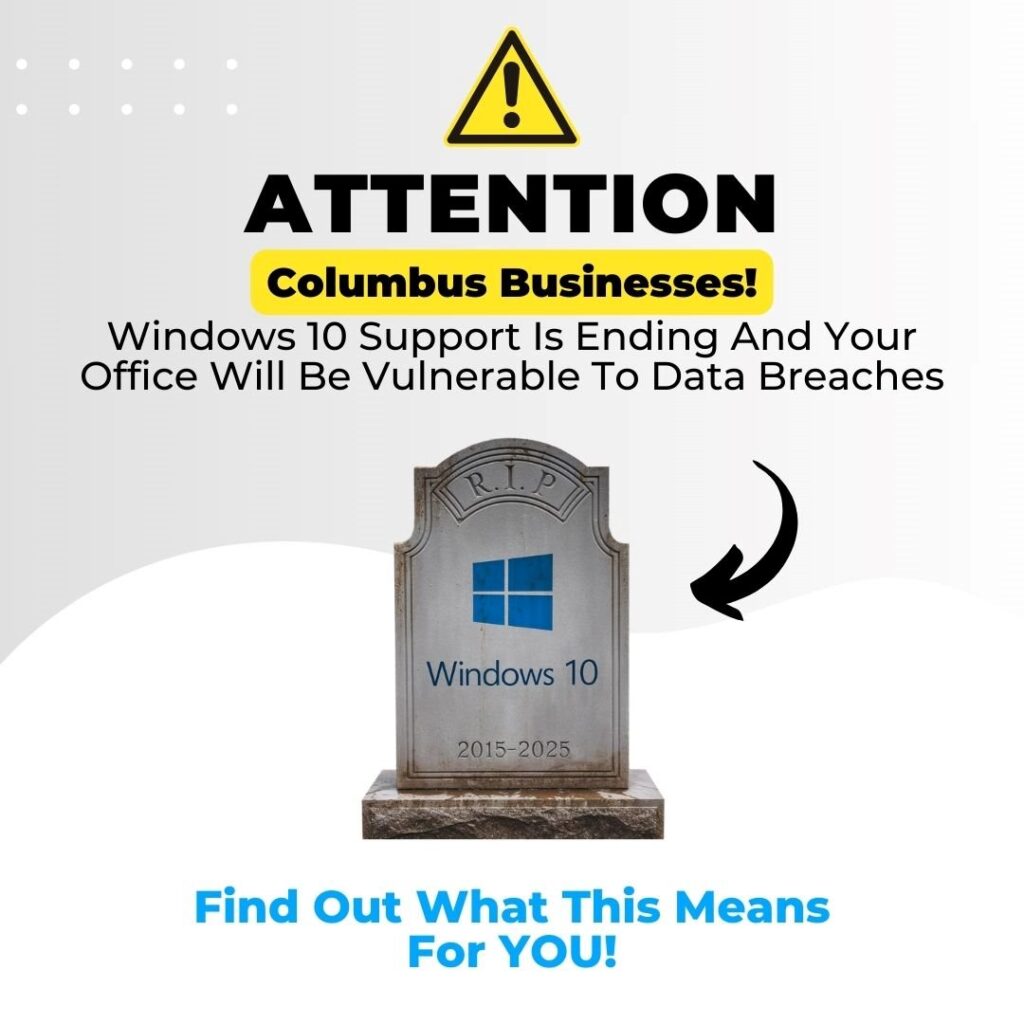
For nearly a decade, Windows 10 has served as the backbone of the computing world, powering everything from high-end gaming rigs to critical infrastructure in hospitals and financial institutions. However, every software lifecycle must eventually reach its conclusion. Microsoft has officially set the “End of Life” (EOL) date for Windows 10 for October 14, 2025.
As this deadline approaches, millions of users and IT administrators find themselves at a crossroads. The end of support is not merely a symbolic milestone; it represents a significant shift in the digital security landscape and technical functionality of modern computing. Understanding the technical ramifications of this transition is essential for maintaining system integrity and ensuring a seamless move into the next generation of the Windows ecosystem.
The Technical Reality of End-of-Life: Security and Stability
The primary concern when an operating system reaches EOL is the cessation of security updates. In the modern tech environment, software is never truly “finished.” It is a living entity that requires constant patching to defend against newly discovered vulnerabilities. When Microsoft pulls the plug on Windows 10, the repercussions will be felt across several technical layers.
The End of Security Patches and “Patch Tuesday”
For years, the second Tuesday of every month—commonly known as “Patch Tuesday”—has been the day Microsoft releases critical security fixes. These patches address “Zero-Day” vulnerabilities that hackers use to gain unauthorized access to systems. After October 2025, these updates will stop for the general public. This means that any new vulnerability discovered in the Windows 10 codebase will remain unpatched forever, essentially leaving a permanent “backdoor” open for cybercriminals. For businesses, this transforms a reliable workstation into a significant liability.
Software and Driver Incompatibility
Operating systems do not exist in a vacuum; they interact with a massive ecosystem of third-party software and hardware drivers. Once Windows 10 is no longer supported by Microsoft, third-party developers like Adobe, Google, and specialized hardware manufacturers will eventually stop testing their products on the platform. Over time, you will find that the latest version of your browser or a new peripheral—like a printer or a graphics card—simply refuses to install or function correctly on the aging OS. This “software rot” eventually makes the system unusable for modern tasks.
Increased Risk of Targeted Exploits
Cyberattackers often “hoard” vulnerabilities, waiting for an OS to reach its EOL before deploying them. Once they know that Microsoft will no longer release a fix, they can launch widespread campaigns against the millions of legacy systems still in use. Without the protection of the Windows Defender Antimalware Service receiving updated definitions specifically tuned for Windows 10’s architecture, the risk of ransomware and data theft increases exponentially.
Navigating the Windows 11 Transition
The logical successor to Windows 10 is Windows 11. While the transition may seem straightforward, it presents unique technical challenges due to Microsoft’s heightened hardware requirements. Unlike previous upgrades, moving to Windows 11 isn’t just about software; it’s about the physical components inside your machine.
The TPM 2.0 Requirement and Secure Boot
The most significant hurdle for many Windows 10 users is the requirement for a Trusted Platform Module (TPM) version 2.0. This is a physical chip or a firmware-based security feature that provides hardware-level cryptographic functions. Microsoft implemented this requirement to bolster security against sophisticated firmware attacks. If your PC was built before 2018, there is a high probability it lacks a TPM 2.0 module, making it officially incompatible with Windows 11. This creates a “hardware ceiling” that prevents older, yet functional, machines from upgrading.
Performance Enhancements and Resource Management
Technically, Windows 11 is built on the same core architecture as Windows 10, but with significant optimizations for modern hardware. It features a revamped scheduler that better manages Intel’s hybrid architecture (Performance-cores and Efficient-cores) and utilizes DirectStorage for faster loading times in data-heavy applications. Upgrading is not just a security necessity; it is a way to unlock the full potential of modern CPUs and NVMe SSDs that Windows 10 cannot fully exploit.
Clean Install vs. In-Place Upgrade
When making the jump, users have two technical paths: an in-place upgrade or a clean install. An in-place upgrade preserves files and settings but can sometimes migrate “registry bloat” or conflicting driver configurations from the old OS. A clean install—wiping the drive and installing Windows 11 from scratch—is the technically superior method. It ensures a stable, “pristine” environment, though it requires a robust backup strategy for user data and a significant time investment for reconfiguring applications.

Exploring Alternatives for Legacy Hardware
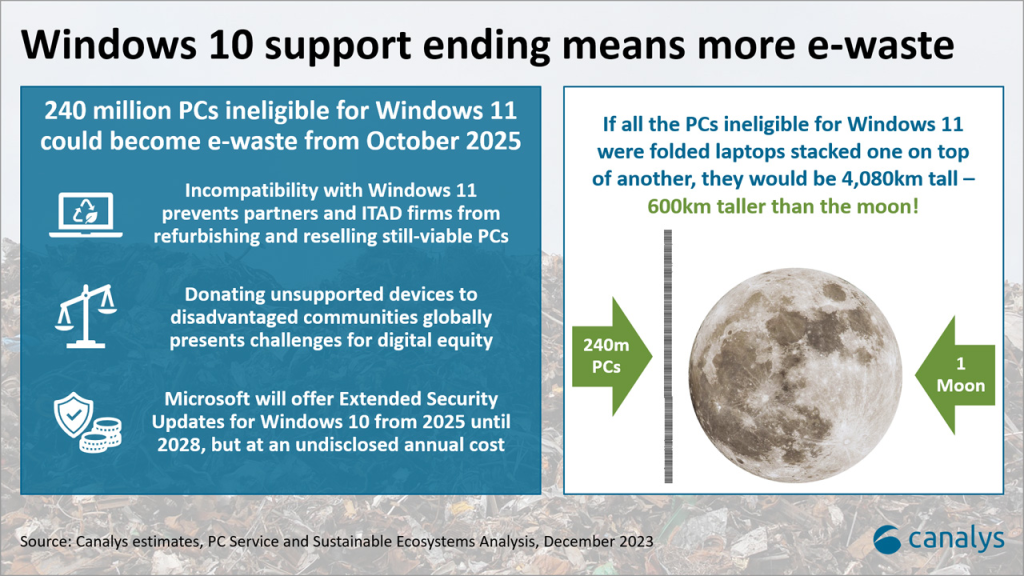
For users with hardware that does not meet the Windows 11 requirements, the end of Windows 10 support doesn’t necessarily mean the garbage bin for their devices. Several technical workarounds and alternative operating systems can breathe new life into older silicon.
The Extended Security Updates (ESU) Program
In a rare move, Microsoft has announced that they will offer Extended Security Updates (ESU) for Windows 10 to individual consumers, not just enterprise clients. For a yearly subscription fee, users can continue to receive critical security patches for up to three additional years. This is a “stop-gap” solution. It doesn’t add new features, but it keeps the system secure while the user plans for an eventual hardware replacement. For many, this is the most viable way to extend the ROI of a high-end workstation that lacks a TPM 2.0 chip.
Switching to Linux or ChromeOS Flex
For those who are tech-savvy and want to avoid the Windows 11 hardware requirements entirely, Linux offers a powerful alternative. Distributions like Linux Mint or Ubuntu are highly optimized for older hardware and offer modern security features and software support. Alternatively, Google’s ChromeOS Flex can turn an aging Windows laptop into a fast, cloud-centric Chromebook. These options effectively bypass the “Microsoft Wall,” though they require users to find technical equivalents for their Windows-specific software.
Virtualization as a Stop-Gap
For developers or power users who must maintain a Windows 10 environment for specific legacy software, virtualization provides a sandbox. By running Windows 10 as a Virtual Machine (VM) within a secure host OS (like Windows 11 or Linux), you can isolate the unsupported system from the rest of your network. This limits the “attack surface” while allowing continued access to critical legacy tools that may not run on newer platforms.
Long-term Strategic Planning for Users and IT Admins
The transition away from Windows 10 is a massive undertaking that requires foresight and technical strategy. Whether you are managing a single home PC or a fleet of 5,000 corporate laptops, the approach remains the same: assessment, migration, and hardening.
Hardware Lifecycle Management and Auditing
The first step in any transition is a comprehensive audit. Tools like Microsoft’s “PC Health Check” app or enterprise-grade solutions like Microsoft Endpoint Manager can identify which machines are eligible for Windows 11 and which are not. This data allows for a structured hardware replacement cycle. Instead of a panicked bulk purchase in September 2025, IT departments can phase in new hardware over the next 18 months, spreading the technical workload and the budget.
Data Migration and Cloud Integration
A change in operating systems is the perfect time to modernize data management. Moving away from local file storage toward cloud-integrated solutions like OneDrive or SharePoint ensures that user data is decoupled from the hardware. From a technical standpoint, this makes the eventual hardware transition much simpler; a user can sign into a new Windows 11 device, and their profile, settings, and files will sync automatically through the Microsoft Graph API.
Hardening the Security Posture
As Windows 10 enters its twilight, security protocols must be tightened. For machines that must remain on Windows 10 past the deadline, IT admins should implement strict “Least Privilege” access, disable unnecessary services, and potentially air-gap critical systems from the internet. Enhancing network-level security—such as using advanced firewalls and Intrusion Detection Systems (IDS)—can help mitigate the risks of running an unpatched OS until it can be retired.
Conclusion
The end of Windows 10 support is a defining moment for the technology industry. It marks a transition toward a more secure, hardware-verified computing model. While the October 2025 deadline may seem distant, the technical complexities of hardware upgrades, data migration, and security planning require immediate attention.
By understanding the risks of unpatched software, the requirements of Windows 11, and the potential of alternative platforms, users can navigate this shift with confidence. The sunset of Windows 10 is not an ending, but a technical evolution—one that pushes the digital world toward a more resilient and modern future. Whether you choose to upgrade, subscribe to ESU, or switch platforms, the key is to act proactively before the window of support closes for good.
aViewFromTheCave is a participant in the Amazon Services LLC Associates Program, an affiliate advertising program designed to provide a means for sites to earn advertising fees by advertising and linking to Amazon.com. Amazon, the Amazon logo, AmazonSupply, and the AmazonSupply logo are trademarks of Amazon.com, Inc. or its affiliates. As an Amazon Associate we earn affiliate commissions from qualifying purchases.