
In the ecosystem of modern computing, the relationship between hardware and software is facilitated by an often-overlooked middleman: the driver. Whether you are troubleshooting a flickering screen, trying to squeeze more frames out of a high-end graphics card, or attempting to connect a legacy printer to a new laptop, the question “What driver do I have?” becomes central to your digital experience. Drivers are the essential sets of instructions that tell your operating system (OS) how to communicate with specific hardware components. Without the correct driver, even the most expensive GPU or high-speed SSD is little more than a collection of silicon and plastic.

Understanding how to identify, verify, and manage these drivers is a fundamental skill for any tech-savvy user. This guide explores the various methods to pinpoint exactly which drivers are running on your system, the significance of their versioning, and how to ensure they are optimized for both performance and security.
The Invisible Bridge: Understanding the Role of Drivers in Modern Computing
To understand why identifying your driver is important, one must first understand what a driver actually does. At its core, a device driver is a specialized software program that controls a particular type of hardware device attached to a computer. Operating systems like Windows, macOS, and Linux are designed to be general-purpose; they cannot inherently know how to talk to every single piece of hardware manufactured over the last thirty years.
Drivers act as the translator. When an application wants to print a document, it sends a generic request to the OS. The OS then passes that request to the printer driver, which translates the generic command into the specific machine language required by that specific model of printer.
Why Driver Identification Matters
Knowing your driver version is critical for several reasons:
-
Compatibility: When upgrading your OS, you need to know if your current drivers will function or if they require a manufacturer-provided update.
-
Performance Optimization: Manufacturers frequently release updates that improve the efficiency of hardware, particularly for Graphics Processing Units (GPUs) and Network Interface Cards (NICs).
-
Security: Vulnerabilities are often found in driver code. Knowing what you have allows you to check against CVE (Common Vulnerabilities and Exposures) databases to ensure your system isn’t an open door for exploits.
-
Troubleshooting: If a device stops working, the first step in technical support is almost always identifying the current driver version to check for known bugs or conflicts.
How to Identify Your Drivers on Windows Systems
Windows remains the most common environment where manual driver management is necessary. While Microsoft’s Windows Update service handles many “Plug and Play” drivers automatically, specialized hardware often requires a more hands-on approach.
Using Device Manager: The Standard Method
The primary tool for managing hardware in Windows is the Device Manager. This utility provides a graphical representation of all hardware recognized by the system.
To identify a driver here:
-
Right-click the Start button and select Device Manager.
-
Locate the category of hardware you are interested in (e.g., “Display adapters” for your GPU or “Network adapters” for your Wi-Fi).
-
Click the arrow to expand the category, then right-click the specific device and select Properties.
-
Navigate to the Driver tab.
Here, you will find the “Driver Provider” (e.g., Microsoft, NVIDIA, Intel), the “Driver Date,” and the “Driver Version.” The version number is the most crucial piece of information, as it allows you to compare what you have against the latest release on the manufacturer’s support website.
Leveraging System Information for Deep Dives
For a more comprehensive overview without clicking through dozens of individual device properties, the System Information (msinfo32) tool is invaluable.
By typing “msinfo32” into the Windows search bar, you open a detailed window. Navigating to Components allows you to see detailed technical specifications of every hardware piece, including the paths to the actual .sys driver files on your hard drive. This is particularly useful for identifying “ghost” devices or drivers that may be causing system instability (BSODs) but aren’t clearly labeled in Device Manager.
Advanced Identification via Command Prompt and PowerShell
For IT professionals or users who prefer a text-based interface, Windows offers powerful command-line tools.
-
Command Prompt: Typing
driverqueryprovides a clean list of every driver installed on the system, including the link name and the type of driver (Kernel vs. File System). -
PowerShell: Using the command
Get-WmiObject Win32_PnPSignedDriver | select devicename, driverversionprovides a filtered, readable list of signed drivers and their versions. PowerShell is especially useful for exporting these lists to a text file for remote troubleshooting.
Deep Dive into Critical Driver Categories
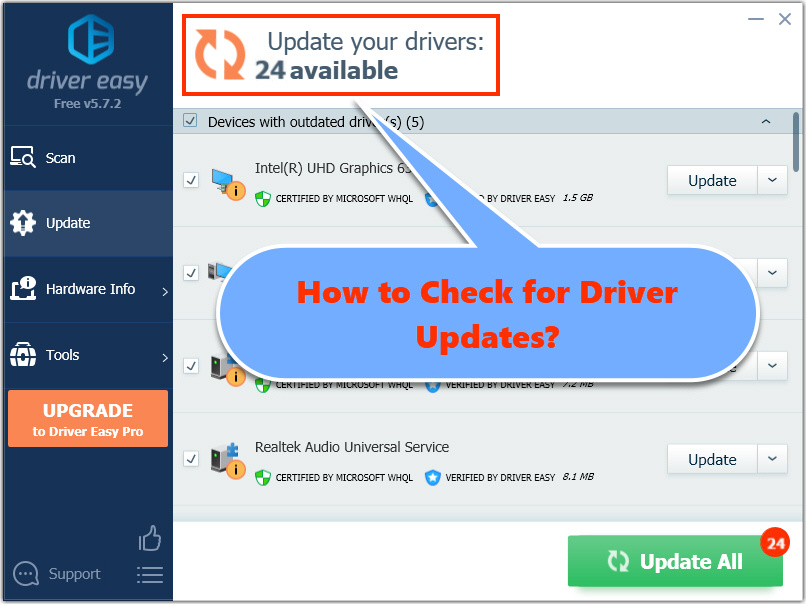
Not all drivers are created equal. Some are generic and rarely need attention, while others are high-performance components that require constant monitoring.
Graphics Drivers: NVIDIA, AMD, and Intel
The graphics driver is arguably the most complex piece of software on your computer. It handles the rendering of every pixel on your screen. Because gaming and professional rendering software change so rapidly, GPU manufacturers release updates frequently—sometimes multiple times a month.
To identify these, users often use proprietary “Control Centers” like NVIDIA GeForce Experience or AMD Radeon Software. These tools not only identify the current driver but also notify the user of “Game Ready” updates. However, for a “clean” identification without bloatware, the DirectX Diagnostic Tool (dxdiag) is the gold standard. Run “dxdiag” from the search bar, go to the “Display” tab, and you will see the exact driver model and DCH (Declarative Componentized Hardware) status.
Network and Connectivity Drivers
Your Wi-Fi and Ethernet drivers govern your connection to the digital world. If you experience intermittent drops or slow speeds, identifying the driver is the first step. Often, Windows will install a generic “Microsoft” driver that provides basic connectivity, but the manufacturer (like Realtek or Killer Networking) may have a specific driver that enables advanced features like “Wake-on-LAN” or better power management.
Audio and Peripherals
Audio drivers (Realtek, High Definition Audio) often involve complex software “stacks” that include spatial sound processing. Identifying whether you are using the Windows UAA (Universal Audio Architecture) generic driver or a vendor-specific one can be the difference between having functional surround sound and being stuck with basic stereo.
Identifying Drivers on macOS and Linux Environments
While Windows users deal with drivers most frequently, macOS and Linux users also need to identify their hardware-software bridges, albeit through different mechanisms.
macOS: The System Report
Apple tightly controls its hardware ecosystem, meaning driver issues are less common because the OS and the hardware are designed in tandem. However, when using external peripherals or specialized PCIe cards in a Mac Pro, identification is still necessary.
By clicking the Apple Menu > About This Mac > System Report, users gain access to a categorized list of every hardware component. Under the “Software” section, the Extensions tab lists all “Kexts” (Kernel Extensions), which are essentially the macOS equivalent of drivers. Here, you can see if an extension is “Obtained from: Apple” or a “Third Party.”
Linux: The Power of the Terminal
In the Linux world, most drivers are built directly into the kernel as modules. This makes the system incredibly robust but slightly more complex to query.
-
lspci -k: This command lists all PCI devices and explicitly states which kernel driver is currently in use for each device.
-
lsusb: Similar to lspci, this identifies all USB-connected devices.
-
modinfo [driver_name]: If you know the name of the module (like
iwlwififor Intel Wi-Fi), this command provides the version number, author, and description.
Best Practices for Driver Maintenance and Security
Once you have identified your drivers, the next step is determining whether they should be left alone or updated. The old adage “if it ain’t broke, don’t fix it” applies to many stable drivers (like those for your keyboard or chipset), but there are significant exceptions.
Knowing When to Update (and When to Wait)
You should proactively update drivers in three scenarios:
-
Security Patches: If a manufacturer announces a security flaw in a driver, update immediately.
-
New Software Requirements: New games or CAD software often require the latest “day-one” drivers to even launch.
-
Bug Resolution: If you are experiencing specific hardware errors, check the “Changelog” of the latest driver release to see if your issue is listed as “Fixed.”
Conversely, avoid “Driver Updater” third-party software. Many of these tools are categorized as “Potentially Unwanted Programs” (PUPs). They often install incorrect or beta versions of drivers that can lead to system instability. Always source your drivers directly from the manufacturer’s website (e.g., Dell, HP, ASUS, or the component maker like Intel).
Security Implications and Driver Signing
Modern operating systems require drivers to be “digitally signed.” A digital signature acts as a seal of authenticity, proving that the driver hasn’t been tampered with by malware and that it has been tested for stability. When identifying your drivers in Device Manager, you may see a “Digital Signer” field. If this says “Unsigned,” proceed with extreme caution, as unsigned drivers can bypass core security features of the OS kernel, potentially leading to rootkit infections.

Troubleshooting with Driver Rollbacks
Sometimes, a new driver causes more problems than it solves. If you’ve identified that a recent update caused instability, Windows provides a “Roll Back Driver” feature in the Device Manager properties. This keeps a copy of the previous driver version in the system cache, allowing for a one-click restoration of stability.
By mastering the tools of driver identification—from the GUI-based Device Manager to the command-line precision of PowerShell and Terminal—you take full control over your hardware. You move from being a passive user to an active administrator of your digital environment, ensuring your machine runs at its peak potential while remaining shielded from the vulnerabilities of the past.
aViewFromTheCave is a participant in the Amazon Services LLC Associates Program, an affiliate advertising program designed to provide a means for sites to earn advertising fees by advertising and linking to Amazon.com. Amazon, the Amazon logo, AmazonSupply, and the AmazonSupply logo are trademarks of Amazon.com, Inc. or its affiliates. As an Amazon Associate we earn affiliate commissions from qualifying purchases.