
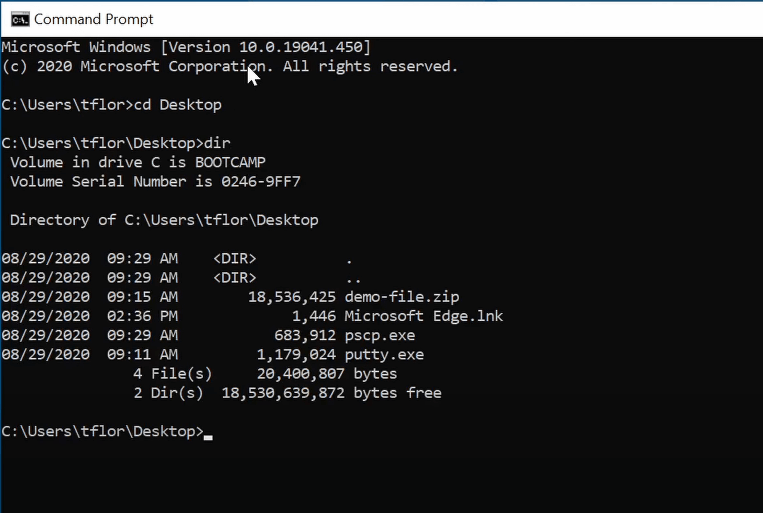
In the vast ecosystem of network administration and secure remote management, the PuTTY suite remains a cornerstone of utility. While many users are familiar with the primary PuTTY executable—the terminal emulator used for SSH, Telnet, and rlogin sessions—a crucial component often resides in the same directory, waiting to streamline file management. This tool is pscp.exe, or the PuTTY Secure Copy client. Designed as a command-line utility for transferring files securely between a local computer and a remote server, pscp.exe is the Windows-based equivalent of the Unix-style scp command.
Understanding pscp.exe is essential for system administrators, developers, and DevOps engineers who operate within Windows environments but need to interact with Linux-based servers. By leveraging the SSH (Secure Shell) protocol, pscp.exe ensures that data remains encrypted during transit, providing a robust defense against eavesdropping or man-in-the-middle attacks.
Core Functionality and Architecture
At its heart, pscp.exe acts as a bridge between disparate file systems. It is a command-line application, meaning it does not rely on a graphical user interface (GUI) to function. Instead, it utilizes arguments passed via the Windows Command Prompt (cmd) or PowerShell to dictate file movement, authentication protocols, and connection parameters.
The Role of SSH in Secure File Transfer
The “Secure” in Secure Copy is not a marketing term; it is the fundamental architectural pillar of the tool. When pscp.exe initiates a transfer, it establishes a secure, encrypted tunnel to the destination server. Unlike older protocols such as FTP or TFTP, which transmit data and authentication credentials in plain text, pscp encapsulates the entire transaction within an SSH connection. This ensures that the integrity of the data is maintained and the confidentiality of the authentication process—such as passwords or SSH private keys—is protected.
Why Choose pscp.exe Over GUI Tools?
While modern visual tools like WinSCP or FileZilla are popular, pscp.exe offers distinct advantages, particularly for automation. Because it operates via the command line, it can be embedded into batch files, PowerShell scripts, or complex CI/CD (Continuous Integration/Continuous Deployment) pipelines. It is lightweight, requires no installation beyond the executable, and provides a consistent interface for scripting remote server maintenance.
Practical Usage and Command Syntax
Mastering pscp.exe requires an understanding of its syntax. The basic command structure follows a predictable pattern: pscp [options] [source] [destination]. This structure is flexible, allowing for various flags that modify how the connection is handled.
Basic Transfer Operations
To move a file from a local directory to a remote server, the command is straightforward:
pscp C:localfile.txt username@remote_host:/home/username/
In this scenario, pscp will prompt the user for a password before initiating the transfer. For those managing multiple servers or working in environments where manual password entry is inefficient, the tool supports the use of Private Key files. By adding the -i flag, a user can specify the path to their .ppk (PuTTY Private Key) file, enabling seamless authentication:
pscp -i C:keysprivate_key.ppk C:localfile.txt username@remote_host:/home/username/
Recursive Transfers and Directory Management
One of the most powerful features of pscp.exe is its ability to handle recursive transfers. By using the -r flag, the utility can copy an entire directory structure, including subfolders and their contents, from a local machine to a remote destination. This is particularly useful for deploying web application files or moving large data sets for analysis.
Conversely, pscp can also pull files from a remote server back to the local machine, simply by reversing the source and destination arguments. This bi-directional capability makes it an indispensable tool for both uploading deployments and downloading server logs for local inspection.

Advanced Configurations and Security Considerations
While pscp.exe is designed for simplicity, it offers several advanced configuration options that allow it to fit into highly secure enterprise environments. Proper utilization of these features can significantly reduce the attack surface of your remote management workflows.
Managing Host Keys and Security Warnings
When connecting to a server for the first time, pscp will prompt the user to accept the host’s public key. This is a vital security feature that verifies the identity of the remote server. In an interactive environment, the user simply types “y” to accept. However, in automated scripts, this prompt can cause the script to hang. To handle this, administrators often use the -batch flag, which tells pscp not to prompt for interaction, or manually import the host key into the Windows registry beforehand to ensure the connection is trusted by default.
Working with Alternative Ports
Standard SSH operations occur on port 22. However, for security through obscurity or to avoid firewall conflicts, many servers are configured to listen on non-standard ports. pscp.exe accounts for this with the -P flag:
pscp -P 2222 C:data.zip username@remote_host:/backup/
This command explicitly directs the tool to connect to port 2222, providing flexibility for hardened server environments where standard ports are restricted or remapped.
Compression and Bandwidth Efficiency
For users dealing with large volumes of data over high-latency or restricted-bandwidth connections, pscp.exe supports data compression via the -C flag. By enabling this, the tool compresses the data stream before transmission, which can significantly speed up the transfer of text-heavy files, logs, or uncompressed database dumps. While this adds a minor overhead to the local CPU, the reduction in transfer time is often well worth the trade-off in network-constrained scenarios.
Automating Workflows with pscp.exe
The true power of pscp.exe is realized when it moves beyond manual execution and enters the realm of automation. By integrating this tool into the Windows Task Scheduler or utilizing it within complex orchestration scripts, organizations can create robust data movement patterns.
Scripting for Backups
A common use case involves the automated backup of local configuration files to a centralized remote storage server. A simple batch file (.bat) can be created to execute pscp on a schedule:
@echo off
pscp -i C:securityssh_key.ppk C:applogs*.* remote_user@backup_server:/backups/
echo Backup Complete.
When triggered by the Windows Task Scheduler, this script runs in the background, ensuring that critical data is offloaded to a secure remote location without any human intervention.
Integration with CI/CD Pipelines
In software development, pscp.exe serves as a reliable mechanism for “push” deployments. After a project is built and tested on a Windows-based build agent, a post-build script can be configured to use pscp to move the compiled binaries or static assets to the production or staging server. Because pscp is part of the trusted PuTTY suite and uses robust SSH encryption, it fulfills the security compliance requirements often demanded in corporate development lifecycles.
Best Practices for Secure Administration
While pscp.exe is a secure tool, its effectiveness depends on the environment in which it is deployed. To maximize the security of your file transfers, consider the following best practices:
- Use Key-Based Authentication: Avoid password authentication whenever possible. Passwords can be intercepted or guessed. SSH keys offer a cryptographic challenge-response mechanism that is exponentially more secure.
- Regularly Update PuTTY: The PuTTY suite receives security updates to address vulnerabilities. Always ensure you are using the latest version of the suite to protect against known exploits.
- Principle of Least Privilege: When creating service accounts for automated transfers, ensure the account has only the permissions necessary to perform the task. Do not use root or administrative accounts for automated script executions.
- Audit Logs: Regularly review both your local machine logs and the remote server’s
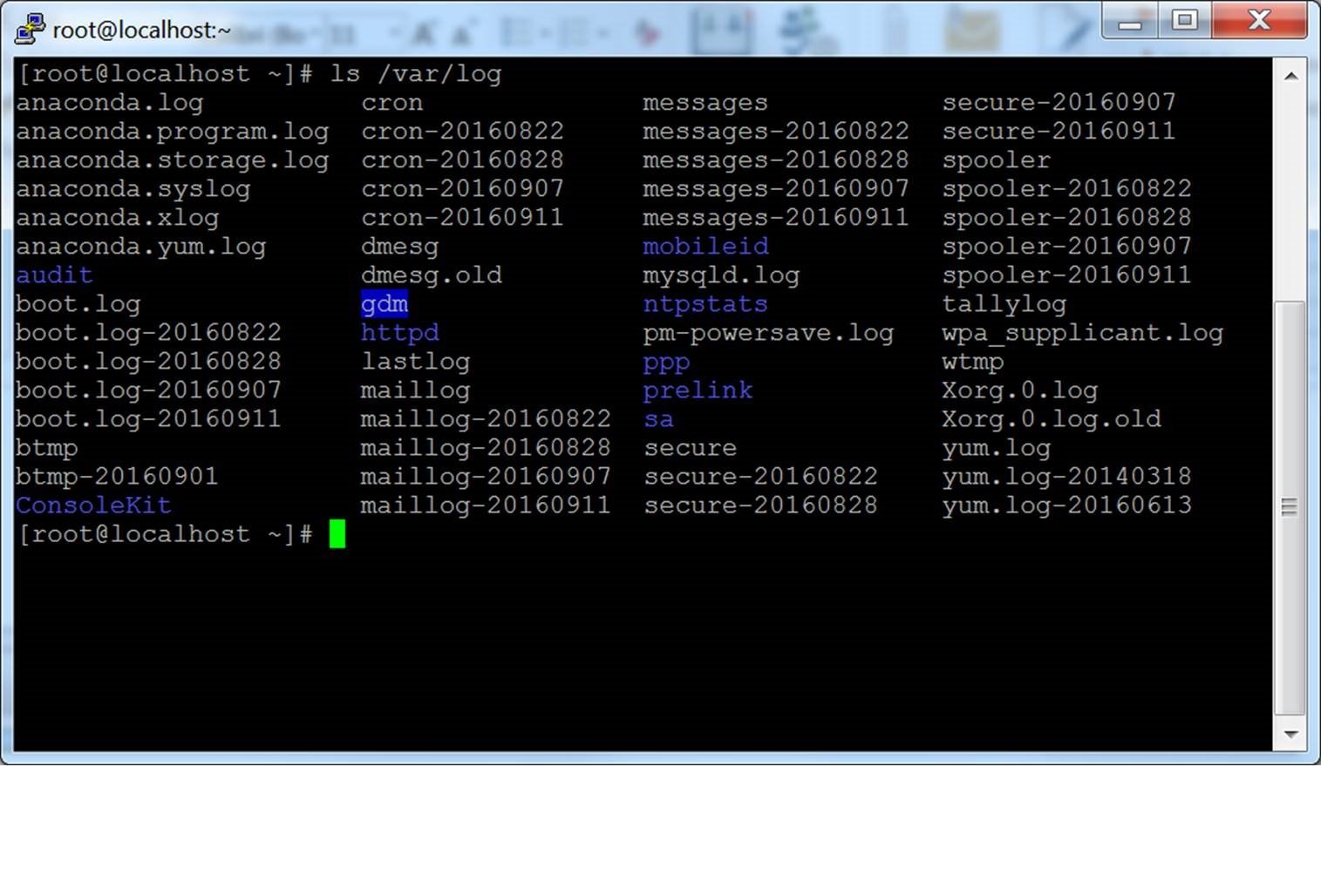
/var/log/auth.log(or equivalent) to monitor for suspicious transfer activity or unauthorized connection attempts.
By understanding the full capabilities of pscp.exe, users can move beyond simple file transfers and develop professional-grade workflows for remote server administration. It is a testament to the utility of the PuTTY suite that, despite the proliferation of complex modern tools, this compact, command-line utility remains an essential component of the Windows administrator’s toolkit. Whether for simple file movement, directory synchronization, or complex automated deployments, pscp.exe provides a reliable, secure, and efficient interface for the modern digital landscape.