
Apple AirPods have revolutionized the way we experience wireless audio, becoming an indispensable gadget for millions worldwide. Their seamless connectivity, impressive sound quality, and iconic design make them a staple in personal technology. Yet, for all their intuitive design, one small detail often sparks confusion among users: the enigmatic orange indicator light on the charging case. Far from being a mere aesthetic choice, this light serves as a crucial communicator, signaling various states that are vital for optimal AirPod performance and longevity. Understanding what the orange light means is key to decoding your device’s health, ensuring you’re always connected and powered up.
Decoding the AirPods Indicator Lights: A Primer
Like many modern gadgets, AirPods rely on subtle visual cues to convey information to their users. These indicator lights, though small, are part of Apple’s thoughtful design philosophy, providing quick, at-a-glance status updates without requiring you to constantly check your phone. Grasping the language of these lights is fundamental to troubleshooting and maintaining your AirPods effectively.
The Importance of Visual Cues in Gadgets
In an increasingly complex world of technology, manufacturers employ simple, universal signals to communicate status. Lights are particularly effective because they are immediate and require no language interpretation. For devices like AirPods, which are often used on the go and away from a primary display, these visual cues are paramount. They can signify anything from power status and connectivity to charging progress and error states, empowering users to understand their device’s condition instantly. Without them, tasks as simple as knowing if your device is charging or fully powered would become cumbersome, requiring constant digital verification.
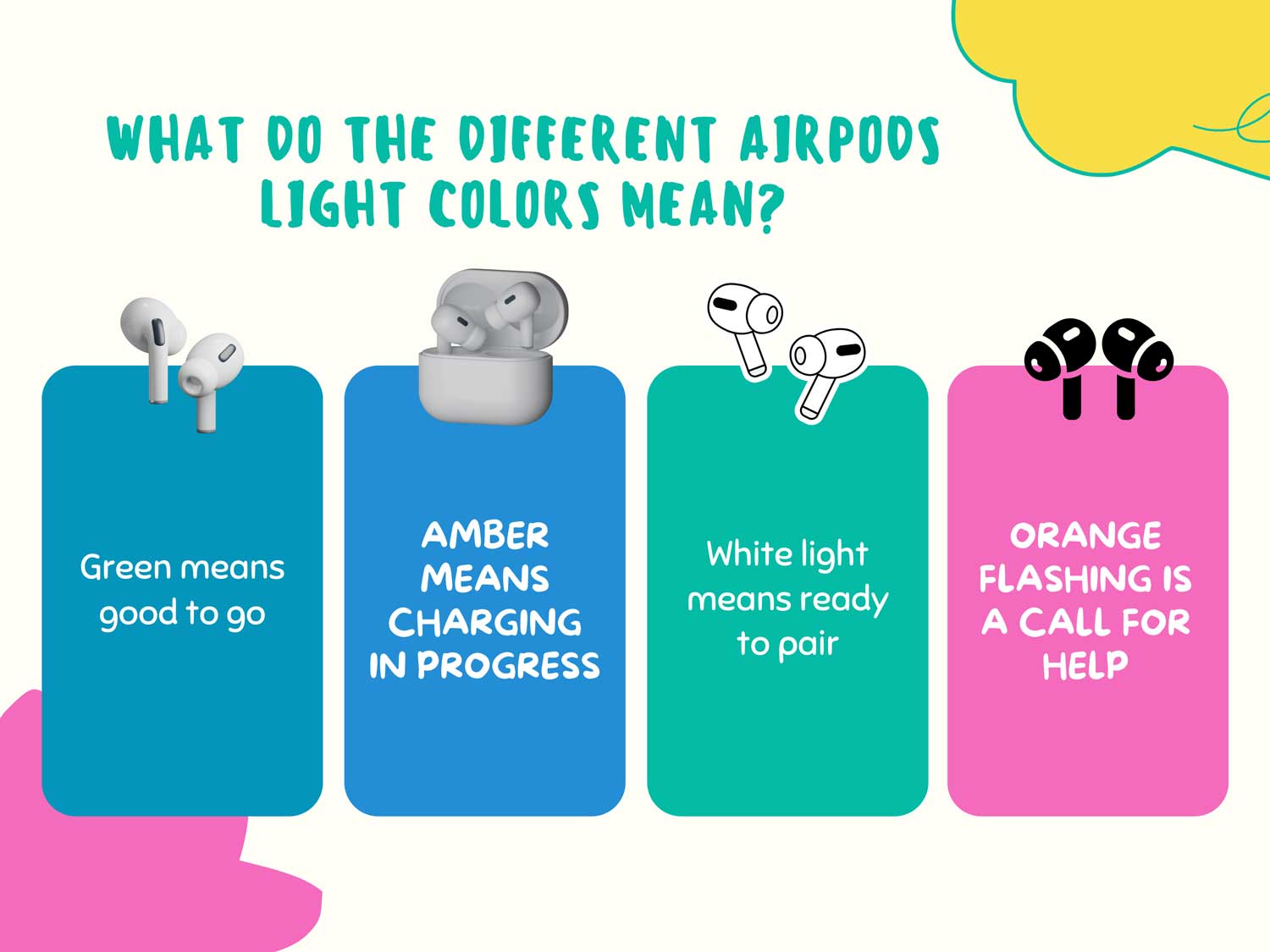
A Quick Overview of AirPods Light Colors
Before diving deep into the orange light, it’s helpful to quickly review the other colors you might encounter on your AirPods charging case:
- Green Light: This is the most reassuring signal. A solid green light indicates that your AirPods and/or their charging case are fully charged. If you open the case with AirPods inside and see a green light, both are charged. If you see it without AirPods inside, only the case is fully charged.
- White Light: A flashing white light signifies that your AirPods are ready to pair with a new device or are currently in pairing mode. This typically appears when you open the case near an Apple device for the first time or when you press and hold the setup button on the back of the case.
- Amber/Orange Light: This is our primary focus. The orange light carries multiple meanings, predominantly related to battery status and certain operational modes. Its appearance often prompts users to take action, making it arguably the most important indicator to truly understand.
The Orange Light Explained: What It Signifies
The orange light on your AirPods charging case is a multifaceted indicator, conveying different pieces of information depending on the context. Its presence is almost always a call to attention, signaling either a need for power or an ongoing operational process.
Low Battery Warning (Primary Meaning)
The most common and critical meaning of the orange light is a low battery warning. This isn’t just a “low battery” message; it specifically means that your AirPods and/or the charging case have less than a full charge remaining.
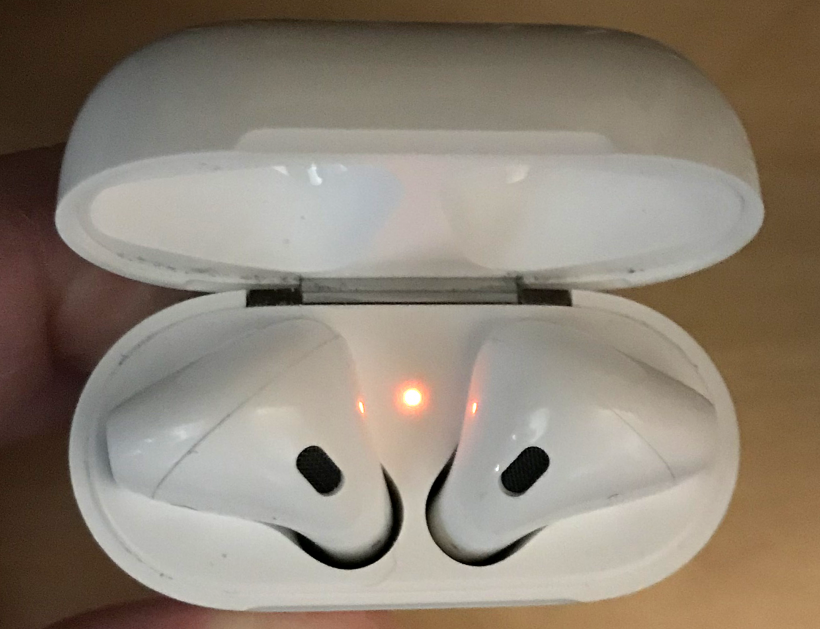
- Orange Light in the Case Without AirPods: If you open your charging case and the orange light illuminates without the AirPods inside, it means the case itself has less than one full charge capacity remaining. While it still holds some power, it’s a good indication that it won’t be able to fully charge your AirPods from empty.
- Orange Light in the Case With AirPods: When you open the case with your AirPods nestled inside and see an orange light, it indicates that either the AirPods or the charging case (or both) have less than one full charge available. This is your cue to start thinking about charging soon to avoid running out of power mid-use.
In both scenarios, the actionable advice is clear: charge your AirPods and their case as soon as possible to ensure continuous listening. Ignoring this warning can lead to inconvenient power outages, especially during crucial calls or long commutes.
Charging in Progress
The orange light also plays a role in indicating active charging. When your AirPods charging case is connected to a power source (via Lightning cable or wirelessly, depending on the model), a solid orange light will illuminate inside the case.
- Solid Orange While Connected to Power: This means the AirPods and/or the case are currently drawing power and replenishing their batteries. This light will remain orange until the device reaches a full charge.
- Transition to Green: Once fully charged, the orange light will seamlessly transition to a solid green, confirming that charging is complete and your AirPods are ready for extended use.
It’s important to differentiate this “charging in progress” orange from the “low battery warning” orange. The charging indicator only appears when connected to a power source, while the low battery warning appears when you open the case, regardless of its connection status.
Reset/Troubleshooting Mode
Beyond battery status, the orange light serves a crucial function during specific troubleshooting and reset procedures. If you’re experiencing connectivity issues, pairing problems, or unusual behavior, performing a factory reset is often a recommended first step.
- Flashing Orange During Reset: To initiate a factory reset, you typically open the lid of the charging case (with AirPods inside), forget the AirPods from your device’s Bluetooth settings, then press and hold the setup button on the back of the case for about 15 seconds. During this process, the indicator light will flash orange multiple times. This flashing orange indicates that the reset procedure is underway.
- Transition to Flashing White: After the orange flashes, the light will typically flash white, signifying that the reset is complete and the AirPods are now in pairing mode, ready to be reconnected to a device.
Understanding this specific sequence helps users confidently perform necessary troubleshooting steps without misinterpreting the flashing orange as an error.
Context Matters: Where and When You See the Orange Light
The meaning of the orange light is highly dependent on when and where you observe it. Paying attention to these nuances can prevent misinterpretation and guide you toward the correct action.
Inside the Charging Case (With/Without AirPods)

As previously discussed, whether the AirPods are nestled in their case or not significantly alters the interpretation of the orange light.
- AirPods Inside, Orange Light: Indicates that either the AirPods or the case have less than a full charge. This is a general “low battery” warning for the system.
- AirPods Outside, Orange Light (when opening case): Indicates that only the case itself has less than one full charge remaining. This is vital for planning, as an empty case cannot recharge your AirPods on the go.
While Connected to Power
The presence of the orange light while your case is plugged in or placed on a wireless charging mat is almost always a positive sign.
- Solid Orange while Connected: Confirms that charging is active and electricity is flowing into the batteries. This is the normal state during replenishment. If you don’t see a light when connected, it might indicate a charging issue (faulty cable, adapter, or charging port).
During Pairing or Reset Attempts
These specific operational modes trigger distinct light patterns, including the orange light.
- Flashing Orange During Reset Procedure: This is a diagnostic and procedural indicator, confirming that your long-press on the setup button has initiated the factory reset process. It’s a temporary state, transitioning to white.
- Persistent Flashing Orange: If your AirPods light is flashing orange persistently and not transitioning, or if it appears erratically outside of a reset context, it could signal a more serious issue. This might point to a pairing error that hasn’t resolved, a firmware glitch, or even a hardware fault. In such cases, repeating the reset procedure or consulting Apple Support is advisable.
Maximizing Your AirPods Experience: Tips and Troubleshooting
Understanding the orange light is just one piece of the puzzle for optimal AirPods usage. Implementing best practices and knowing common troubleshooting steps can significantly enhance your experience and extend the life of your device.
Best Charging Practices
Proper charging habits are crucial for battery health and longevity.
- Use Apple-Certified Accessories: Always use MFi (Made for iPhone/iPod/iPad) certified Lightning cables and reputable power adapters. Generic or substandard accessories can damage your battery or charging circuitry.
- Avoid Extreme Temperatures: Charging in very hot or very cold environments can degrade battery performance over time. Aim for room temperature charging whenever possible.
- Don’t Let Them Die Completely: While modern lithium-ion batteries don’t suffer from a “memory effect” like older battery types, regularly draining them to 0% can put undue stress on the battery. It’s better to top them up when you see the orange light.
- Consider Wireless Charging (if applicable): If you have AirPods Pro or AirPods (2nd generation) with a wireless charging case, utilize wireless charging for convenience. Ensure your wireless charging pad is compatible and certified.
When to Reset Your AirPods
A factory reset is a powerful troubleshooting tool for a range of issues.
- Step-by-Step Reset Guide:
- Place both AirPods in their charging case and close the lid for 30 seconds.
- Open the lid.
- On your iPhone/iPad/Mac, go to Bluetooth settings and “Forget This Device” for your AirPods.
- With the lid open, press and hold the setup button on the back of the case for about 15 seconds. The indicator light will flash amber, then white.
- Re-pair your AirPods by placing them near your device with the lid open and following the on-screen prompts.
- Common Scenarios for Resetting: When AirPods won’t connect, only one AirPod works, audio quality issues, or persistent pairing problems.
Keeping Your Firmware Updated
Firmware updates for AirPods are pushed automatically through your connected Apple devices (iPhone, iPad, Mac). These updates often bring performance improvements, bug fixes, and new features.
- How to Ensure Updates: Simply keep your AirPods charged, connected to your Apple device, and within Bluetooth range. The update typically happens in the background. Regularly checking your iOS/iPadOS version and updating it can also facilitate AirPods firmware updates.
- Benefits of Updates: Improved connectivity, better battery management, enhanced audio features, and fixes for potential issues signaled by the orange light.
Cleaning and Maintenance
Dirt, dust, and earwax can accumulate on your AirPods and their charging contacts, leading to charging issues or sensor malfunctions.
- Regular Cleaning: Use a soft, lint-free cloth, cotton swabs, and a dry brush to gently clean the AirPods and the inside of the charging case. Pay special attention to the charging contacts (metal pins) inside the case and on the stems of the AirPods.
- Impact on Charging: Blocked charging contacts can prevent the AirPods from charging properly, leading to a persistent orange light even when connected to power, or an inaccurate battery reading.
When to Seek Professional Help
If you’ve tried all the troubleshooting steps and the orange light continues to flash erratically, stays persistently orange without reason, or your AirPods simply won’t charge or connect, it might be time to contact Apple Support.
- Warranty and Repair: Check your warranty status. Apple provides support for hardware issues that aren’t caused by accidental damage.
- Common Hardware Issues: Battery degradation (over several years), charging port issues, or internal component failures are possible, though less common with proper care.
Conclusion
The humble orange light on your AirPods charging case is far more than a simple glow; it’s a vital diagnostic tool designed to keep you informed about your device’s battery status and operational mode. Whether it’s signaling a low charge, indicating active power replenishment, or guiding you through a system reset, understanding its nuances empowers you to maintain your AirPods effectively and ensure uninterrupted audio enjoyment. By heeding its warnings and knowing when to act, you not only optimize your listening experience but also contribute to the longevity of these remarkable gadgets. In the world of tech, where sleek design often hides intricate functionalities, mastering these simple visual cues is a testament to being a truly informed and efficient user.
aViewFromTheCave is a participant in the Amazon Services LLC Associates Program, an affiliate advertising program designed to provide a means for sites to earn advertising fees by advertising and linking to Amazon.com. Amazon, the Amazon logo, AmazonSupply, and the AmazonSupply logo are trademarks of Amazon.com, Inc. or its affiliates. As an Amazon Associate we earn affiliate commissions from qualifying purchases.