
In the modern digital landscape, keeping software up to date is not merely a matter of accessing new features; it is a critical pillar of cybersecurity and system stability. While most casual users are familiar with the automated “Windows Update” toggle in their settings menu, IT professionals, system administrators, and power users often require a more surgical approach to software maintenance. This is where the Microsoft Update Catalog comes into play. As a centralized, searchable repository for all Microsoft software updates, drivers, and hotfixes, it serves as the backbone for manual patch management and enterprise-scale deployments.

Understanding the Microsoft Update Catalog is essential for anyone tasked with maintaining the integrity of a network or troubleshooting persistent software conflicts. This guide explores the platform’s core functions, its strategic importance in professional environments, and how to leverage it to maintain a secure and efficient computing environment.
Understanding the Core Functionality of the Microsoft Update Catalog
The Microsoft Update Catalog (MUC) is a web-based service that provides a portal for downloading software updates, drivers, and hotfixes for all currently supported versions of Windows and related Microsoft products. Unlike the standard Windows Update service, which pushes updates automatically based on a device’s specific configuration, the Catalog allows users to pull specific files manually.
A Centralized Repository for All Updates
The Catalog acts as a definitive library. It hosts everything from critical security patches and cumulative updates to hardware drivers and “out-of-band” (OOB) fixes that may not yet be available through standard automated channels. For a tech professional, this centralization is invaluable. Instead of scouring manufacturer websites for a specific network card driver or searching through obscure forums for a bug fix, the Catalog provides a single, trusted source verified by Microsoft’s digital signatures.
Granular Search and Filtering Capabilities
One of the most powerful aspects of the Microsoft Update Catalog is its search functionality. Users can search by Knowledge Base (KB) number, product name, or specific hardware IDs. This granularity allows technicians to find specific patches that address niche vulnerabilities or compatibility issues. For instance, if a specific security vulnerability (CVE) is identified, Microsoft will release a patch associated with a KB number. By entering this number into the Catalog, an administrator can download the exact fix for every architecture in their fleet—be it x86, x64, or ARM64—without waiting for the automated service to trigger.
Why IT Professionals and Power Users Rely on the Catalog
In an enterprise setting, automation can sometimes be a double-edged sword. While it ensures broad coverage, it lacks the precision required for complex infrastructure. The Microsoft Update Catalog provides the control necessary to manage these complexities.
Supporting Offline Installations and Air-Gapped Systems
In high-security environments, such as government offices, financial institutions, or research labs, many systems are “air-gapped”—meaning they have no direct connection to the public internet. Automated Windows Updates are impossible in these scenarios. The Microsoft Update Catalog allows administrators to download the necessary update files on a secure, connected machine, transfer them to a portable storage device, and manually install them on the isolated systems. This ensures that even the most secure environments remain protected against the latest threats.
Managing Out-of-Band (OOB) Patches
Occasionally, Microsoft releases “Out-of-Band” updates. These are urgent patches released outside of the standard “Patch Tuesday” cycle, usually to address zero-day exploits or critical bugs that cause system crashes (such as the infamous Blue Screen of Death). Frequently, these OOB updates are not pushed through Windows Update immediately to avoid overwhelming servers or because they are intended only for affected users. The Catalog is the primary distribution point for these emergency fixes, allowing tech teams to react instantly to emerging threats.
Driver Management and Legacy Hardware
Hardware compatibility is a recurring challenge in tech management. Sometimes, the latest driver provided by a manufacturer might introduce a bug, or a legacy device might lose support in a newer version of Windows. The Microsoft Update Catalog keeps a historical record of drivers. This allows users to search for older, stable versions of a driver to perform a “roll-back” or to find specific WHQL (Windows Hardware Quality Labs) certified drivers that have been vetted for stability.
Navigating and Using the Microsoft Update Catalog Interface
While the interface of the Microsoft Update Catalog may appear somewhat dated compared to modern web apps, its functionality is robust. Navigating it effectively requires an understanding of how Microsoft packages its software.
Step-by-Step: Searching and Downloading
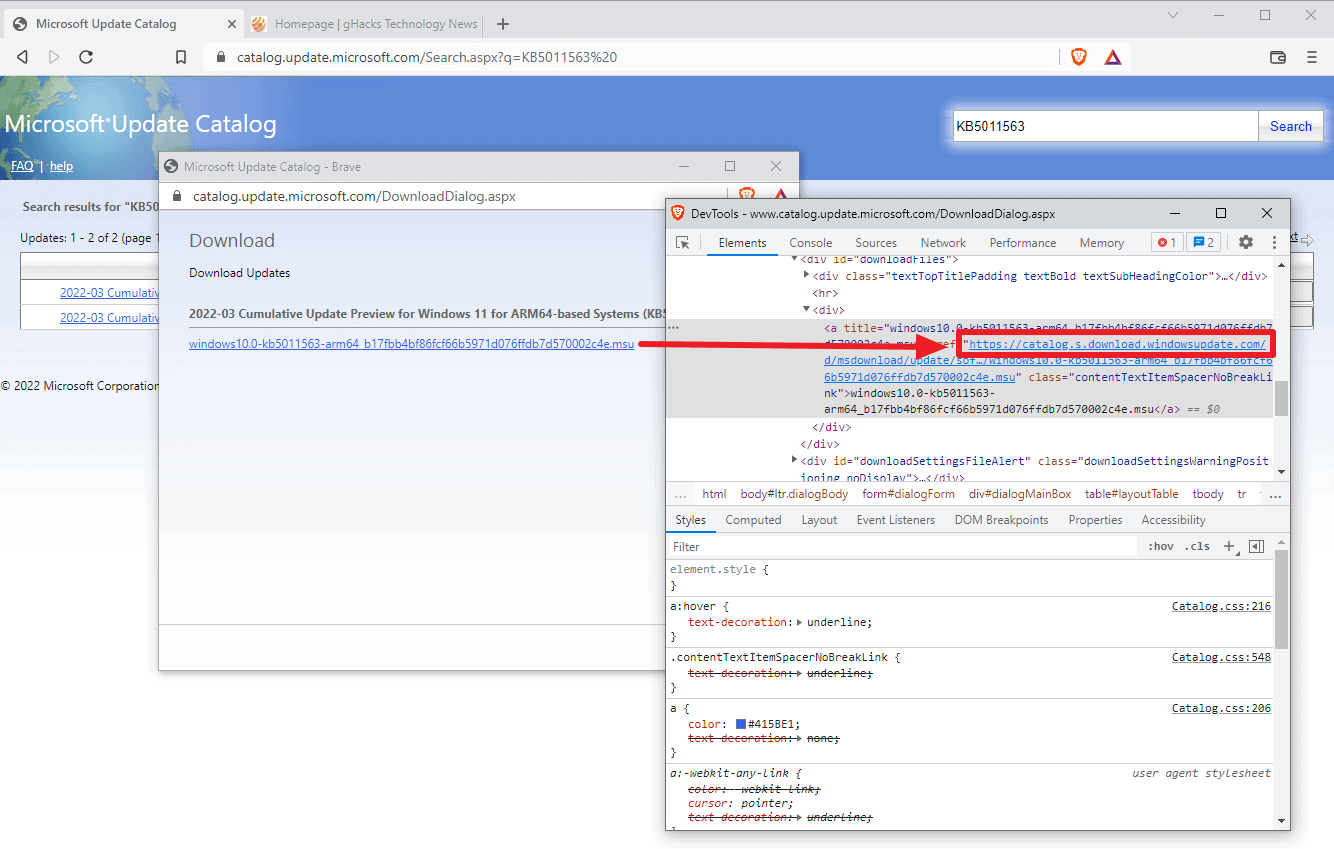
To use the catalog, a user enters a query into the search bar. The results table displays the title of the update, the products it applies to, the classification (e.g., Security, Critical, or Drivers), and the last updated date.
- Selection: Once the correct update is identified, clicking the “Download” button opens a pop-up window.
- Direct Links: The pop-up provides direct links to the update files. In the past, the Catalog used an ActiveX “Basket” system, but modern versions provide direct
.msuor.exelinks for better cross-browser compatibility. - Architecture Check: It is vital to ensure the architecture (x64 vs. ARM64) matches the target system, as installing the wrong package will result in an error.
Understanding File Formats: .msu vs .cab
When downloading from the Catalog, users typically encounter two file types:
- .msu (Microsoft Update): These are standalone installer files. They are user-friendly and can be executed with a simple double-click. They utilize the Windows Update Standalone Installer (Wusa.exe) to apply the patch.
- .cab (Cabinet File): These are compressed folders containing the update files. These are often used for drivers or for deployment via command-line tools. Installing a .cab file usually requires the use of the Deployment Image Servicing and Management (DISM) tool or the “PnPUtil” command for drivers.
Integration with WSUS and SCCM/MECM
For large-scale organizations, manual downloading is replaced by automated synchronization. Tools like Windows Server Update Services (WSUS) and Microsoft Endpoint Configuration Manager (MECM) can import updates directly from the Catalog. This allows administrators to “approve” specific updates from the Catalog and then distribute them across thousands of workstations simultaneously, ensuring consistency across the entire corporate network.
Security Implications and Best Practices
In the realm of digital security, the Microsoft Update Catalog is a defensive tool. However, using it correctly requires adherence to certain best practices to prevent misconfiguration or the introduction of stability issues.
Verifying Digital Signatures
A primary concern when downloading software manually is the risk of “man-in-the-middle” attacks or file corruption. Microsoft mitigates this by digitally signing every file in the Catalog. Before an update is applied, the Windows operating system verifies the signature against Microsoft’s root certificates. If the file has been tampered with, the installation will fail. For tech professionals, manually verifying these signatures via file properties is a standard security protocol before deploying an update to a production server.
The Importance of Testing (UAT)
Because the Catalog allows for the manual installation of “Preview” updates and optional “C-releases,” there is a risk of installing software that hasn’t been fully “hardened” for all environments. Professional tech environments utilize the Catalog to download updates for a “Pilot” group first. By manually applying the update to a small subset of machines (User Acceptance Testing), IT teams can monitor for conflicts with proprietary software before a global rollout.
Managing Cumulative Update Bloat
Modern Windows updates are “cumulative,” meaning the latest update includes all previous fixes. When using the Catalog, it is a best practice to always search for the most recent cumulative update for a specific version of Windows (e.g., version 22H2). This prevents the “layering” of multiple older patches, which can lead to disk space issues and fragmented system files.

Conclusion: An Indispensable Tool for the Modern Tech Professional
The Microsoft Update Catalog is far more than just a website; it is a vital utility for maintaining the health, security, and performance of the Windows ecosystem. While the average user may never need to visit the site, its existence ensures that IT professionals have the tools necessary to solve complex problems, protect isolated systems, and manage enterprise-wide deployments with precision.
In an era where cybersecurity threats are evolving at an unprecedented pace, the ability to manually source, verify, and deploy specific security patches is a non-negotiable requirement for system administration. Whether you are fixing a single broken driver or securing a network of ten thousand computers, the Microsoft Update Catalog remains the definitive source for the software that keeps the world’s most popular operating system running smoothly. By mastering this tool, tech professionals can move beyond passive reliance on automation and take full command of their digital environment.
aViewFromTheCave is a participant in the Amazon Services LLC Associates Program, an affiliate advertising program designed to provide a means for sites to earn advertising fees by advertising and linking to Amazon.com. Amazon, the Amazon logo, AmazonSupply, and the AmazonSupply logo are trademarks of Amazon.com, Inc. or its affiliates. As an Amazon Associate we earn affiliate commissions from qualifying purchases.