
In the ecosystem of professional networking, real-time communication has become a cornerstone of user engagement. LinkedIn, as the premier platform for professional interaction, utilizes several subtle UI (User Interface) elements to facilitate these connections. Among the most significant yet frequently misunderstood of these elements is the “green dot.” While it may seem like a simple indicator, the green dot represents a sophisticated backend logic designed to manage presence, latency, and cross-platform synchronization.
For software developers, UI/UX designers, and tech-savvy professionals, understanding the mechanics behind these presence indicators offers insight into how modern social platforms manage “State” across millions of concurrent users. This guide provides a comprehensive technical breakdown of what the green dot signifies, how the underlying software determines your status, and how users can manage their digital footprint through the platform’s privacy settings.

The Mechanics of LinkedIn Presence Status
The presence indicator on LinkedIn is not a binary “on or off” switch. Instead, it is a nuanced visual representation of a user’s current connectivity to the LinkedIn servers. When you navigate through your messaging inbox or view a profile, you will notice variations in these icons.
Solid Green vs. Green Circle: The Technical Distinction
LinkedIn utilizes two primary visual states for its active status, each representing a different layer of connectivity.
- The Solid Green Dot: A solid green dot positioned next to a user’s profile picture indicates that the user is currently “Active” on the platform. From a technical standpoint, this means there is an active session currently sending heartbeat signals to LinkedIn’s servers. This usually occurs when the user has the LinkedIn website open in a browser tab (and it is the active tab) or has the mobile app open in the foreground.
- The Hollow Green Circle: A white circle with a green border (the “hollow” dot) signifies that the user is “Active on Mobile.” This is a crucial distinction in modern software architecture. It indicates that while the user does not currently have the app open in the foreground, they have push notifications enabled and are historically active on a mobile device. This status suggests that the user is reachable and will likely receive an “Instant” notification on their smartphone, even if they aren’t looking at the screen this second.
Cross-Platform Synchronization: Mobile vs. Desktop
Maintaining an accurate presence status across multiple devices (Desktop, Tablet, and Smartphone) is a complex challenge in distributed systems. LinkedIn uses a specialized presence service that aggregates signals from various endpoints.
When you log in via a web browser, the browser establishes a persistent connection—often via WebSockets or long-polling—to the LinkedIn presence API. If you simultaneously have your mobile app open, the system must reconcile these signals. The “Solid Green” status generally takes precedence if any active session is detected in the foreground. The system’s ability to switch between the solid dot and the hollow circle in near real-time is a testament to the platform’s low-latency data synchronization.
Behind the Algorithm: How LinkedIn Determines “Active” Status
The transition from “Active” to “Away” is not instantaneous. If the status changed the moment you blinked or switched tabs, the UI would flicker distractingly. LinkedIn employs specific algorithmic delays and triggers to ensure the status indicators are useful rather than intrusive.
Activity Timeout and Idle Logic
To determine if a user is truly “Active,” the LinkedIn frontend monitors user input events, such as mouse movements, keyboard strokes, or touch interactions.
- Desktop Idle Logic: On a desktop browser, if no input is detected for a specific duration (typically several minutes), the system transitions the user’s state from “Active” to “Inactive.” The green dot disappears. However, if the tab remains open but is moved to the background, the “Active” status may persist for a short grace period before the system determines the user is no longer engaged with the interface.
- Mobile Backgrounding: On iOS and Android, the operating system manages background processes strictly to save battery. When a user swipes away from the LinkedIn app, the app sends a final “background” signal to the server. At this point, the presence service switches the user’s icon to the hollow green circle, indicating that they are now relying on the mobile push notification gateway rather than a direct socket connection.
Background Processes and Push Notifications
The hollow green circle is heavily dependent on the status of a user’s “Push Notification” permissions. If a user disables notifications at the OS level (iOS/Android settings), the LinkedIn server may fail to register them as “Active on Mobile,” because the platform cannot guarantee that a message will reach the user instantly.
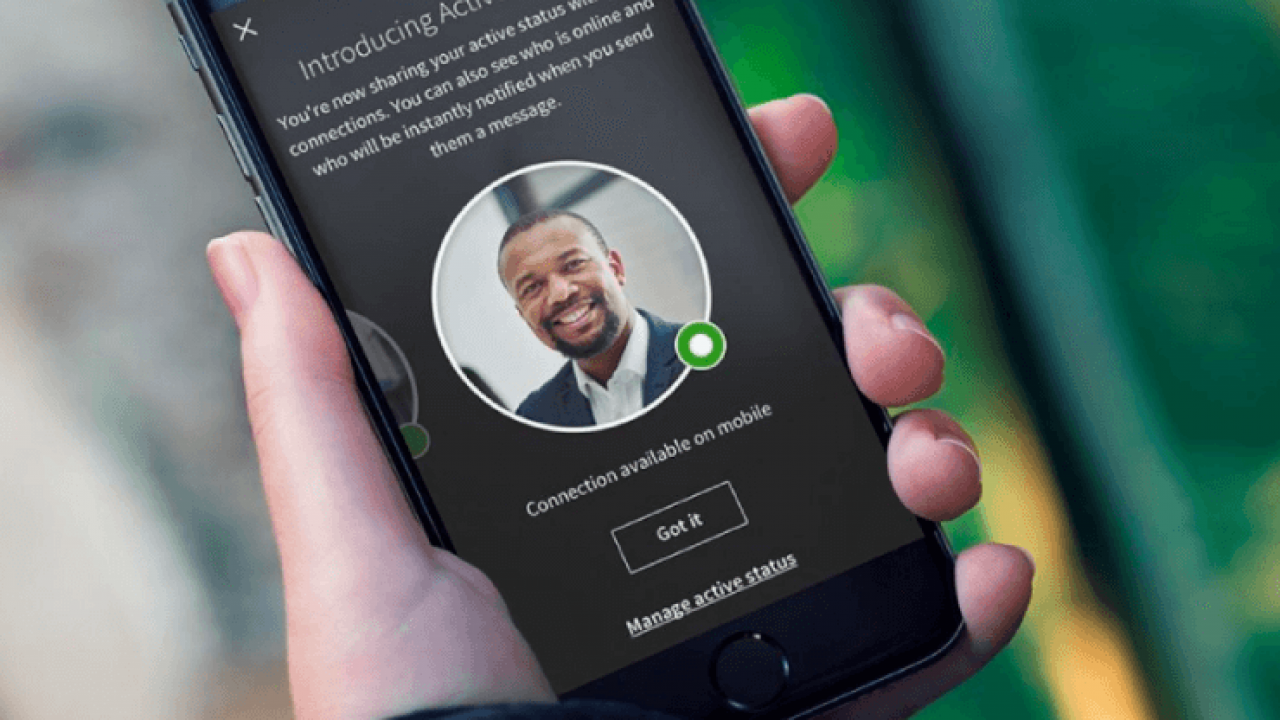
From a technical perspective, the hollow dot is an indicator of “Reachability” rather than “Presence.” It signifies that the bridge between LinkedIn’s messaging server and the Apple Push Notification service (APNs) or Firebase Cloud Messaging (FCM) is open and functional for that specific user.
Privacy and Security in Real-Time Communication
As with any feature that tracks user behavior in real-time, the green dot raises significant questions regarding digital privacy and security. LinkedIn provides a suite of tools for users to control their visibility, reflecting a “Privacy by Design” approach.
Controlling Your Visibility via Settings
LinkedIn allows users to opt-out of presence tracking entirely. This is handled through the “Visibility” section of the user settings. When a user toggles off their active status, the LinkedIn backend stops broadcasting their presence packets to other users.
Technically, this creates a “Stealth Mode.” When this is enabled:
- Outbound: Other users cannot see when you are online; your profile will never display a green dot or a hollow circle.
- Inbound: In a move to ensure reciprocity, LinkedIn also prevents you from seeing the active status of others. This is a common logic in social software (similar to WhatsApp’s “Last Seen” feature) designed to prevent “asymmetric monitoring,” where one user monitors others without being monitored themselves.
Data Encryption and Metadata in Messaging
The presence indicator is a form of metadata. While it doesn’t reveal the content of your professional interactions, it does reveal patterns of activity. For high-security professionals or those concerned with digital footprints, the existence of these indicators is a factor to consider.
LinkedIn’s messaging and presence data are encrypted in transit. However, the presence status itself is a public-facing (or network-facing) attribute. By understanding the tech behind the settings, users can better manage their “digital availability,” ensuring they are only “Active” when they truly wish to be engaged.
Future-Proofing Professional Connectivity: AI and Predictive Status
As LinkedIn continues to integrate deeper with the broader Microsoft ecosystem (including Microsoft Teams and Outlook), the technology behind the green dot is evolving. We are moving toward a more holistic “Universal Presence.”
Integration with Microsoft Ecosystem
With the integration of Microsoft Graph, LinkedIn’s presence indicators are becoming more intelligent. In the future, or in certain enterprise integrations, your LinkedIn status may sync with your Outlook calendar. If you are in a scheduled “Focus Time” or a meeting, the green dot could theoretically be suppressed or modified to reflect a “Busy” state, similar to the functionality found in unified communication platforms like Slack or Teams.
The Evolution of Smart Messaging UI
LinkedIn is also experimenting with AI-driven “Best time to message” features. This goes beyond the green dot. By analyzing the historical technical data of when a user is most likely to engage with their “Solid Green” status, the platform can suggest to a sender the optimal time to reach out.
This predictive modeling uses machine learning to analyze patterns in presence data. For example, if the system sees that a user typically activates their “Solid Green” status at 9:00 AM EST every weekday, it can prioritize that user’s messages in their connections’ feeds. The green dot is thus the visible tip of a massive data-driven iceberg aimed at optimizing human-to-human professional latency.

Conclusion: The Utility of the Indicator
The green dot on LinkedIn is more than a simple icon; it is a sophisticated UI component powered by real-time data streaming, cross-platform synchronization, and user-controlled privacy logic. Whether it is the solid dot indicating an active desktop session or the hollow circle representing mobile reachability, these indicators serve as vital signals in the modern professional workflow.
For the tech-literate user, understanding these nuances allows for better communication management. You can identify the best time to send a time-sensitive proposal, understand why a contact might not reply immediately despite being “Active on Mobile,” and exercise full control over your own digital presence. As the platform evolves, the “Green Dot” will likely remain the gold standard for representing professional availability in the digital age.
aViewFromTheCave is a participant in the Amazon Services LLC Associates Program, an affiliate advertising program designed to provide a means for sites to earn advertising fees by advertising and linking to Amazon.com. Amazon, the Amazon logo, AmazonSupply, and the AmazonSupply logo are trademarks of Amazon.com, Inc. or its affiliates. As an Amazon Associate we earn affiliate commissions from qualifying purchases.