
For many iPhone users, the small symbols that appear in the status bar at the top of the screen are often overlooked until something changes. Among these icons, the arrow—specifically the navigation-style arrowhead—is perhaps the most frequent yet misunderstood. While it may seem like a minor UI element, it is actually a vital component of Apple’s commitment to transparency and digital security.
Understanding what the arrow means on an iPhone is about more than just identifying an icon; it is about understanding how your device interacts with the physical world, how apps consume your data, and how you can maintain control over your digital privacy. This guide provides a deep dive into the various iterations of the iPhone arrow and what they signal about your device’s background activity.
The Core Significance: Location Services and Privacy Indicators
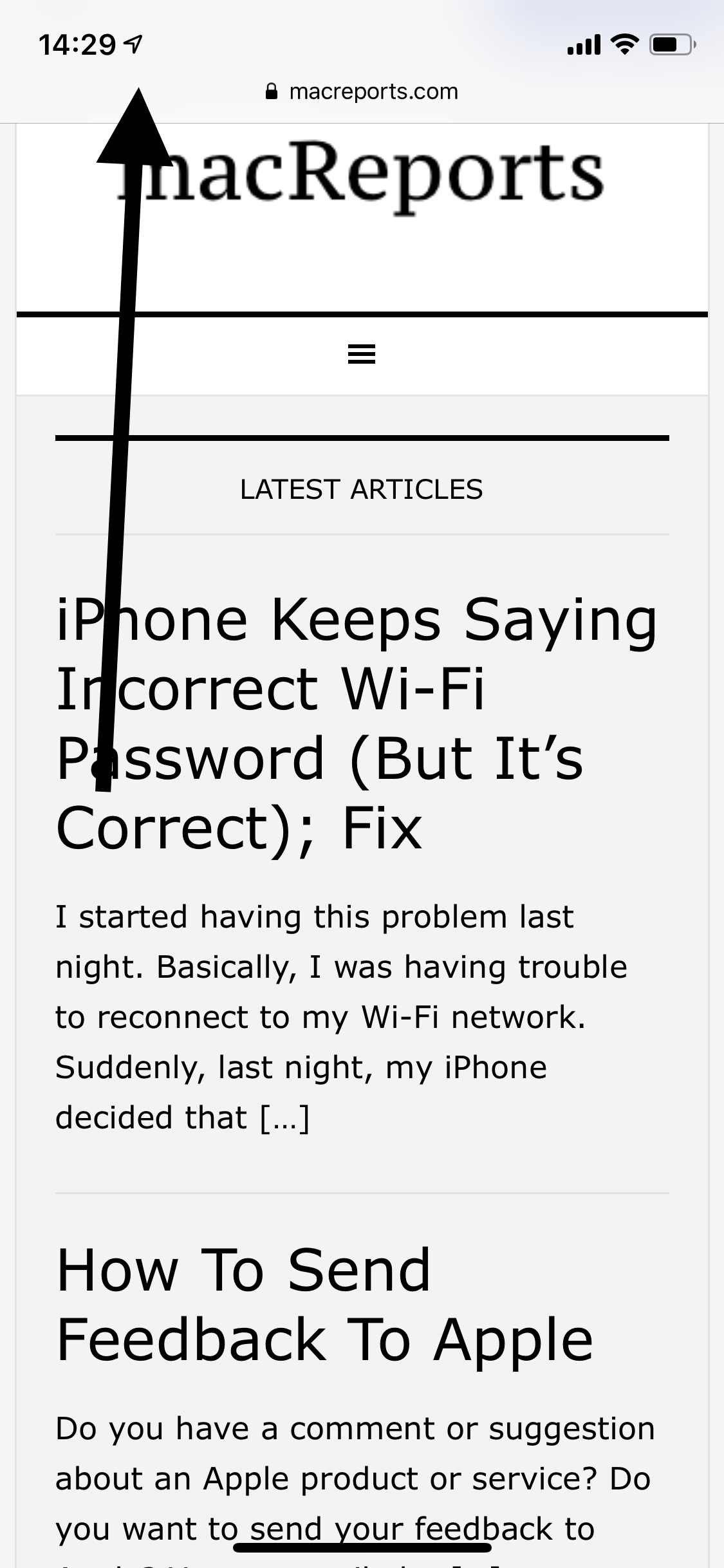
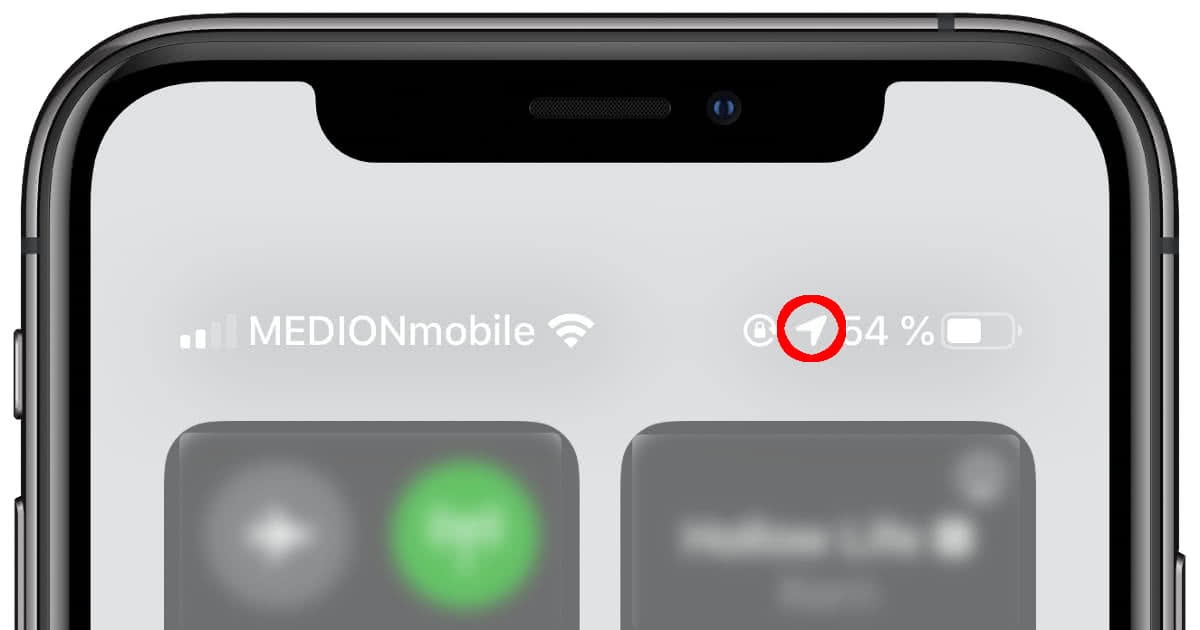
The primary reason an arrow appears in your iPhone’s status bar (next to the clock or in the Control Center) is to indicate that “Location Services” are active. Apple uses these visual cues to alert you whenever an app or a system service is accessing your GPS, Wi-Fi, or cellular data to determine your geographical coordinates. However, the arrow is not a monolithic symbol; its color and fill state communicate different levels of activity.
The Hollow vs. Solid Arrow
The distinction between a filled-in arrow and an outline is one of the most important lessons in iOS navigation.
- The Solid Arrow (Purple or Black): When you see a solid, filled-in arrow, it means that an app or system service is currently using your location data in real-time. This is common when using navigation apps like Apple Maps or Google Maps, or when a fitness app is tracking your running route.
- The Hollow Arrow (Outline): A hollow or outlined arrow indicates that an item may receive your location data under certain conditions. This is often triggered by “geofencing,” where an app is waiting for you to enter or leave a specific area (such as a reminder app that alerts you when you get home).
Decoding the Color Palette: Purple and Gray
In the “Privacy & Security” settings menu, you will notice that these arrows are color-coded to provide a historical record of data usage.
- Purple Arrow: This signifies that an app has recently used your location. If you see this in your settings, it means the app was active or running in the background within the last few minutes.
- Gray Arrow: A gray arrow indicates that an app has used your location at some point within the last 24 hours. This is an excellent tool for auditing which apps are “pinging” your location periodically without your direct interaction.
System Services and Hidden Tracking
Not every arrow is triggered by a third-party app like Instagram or Yelp. Often, the arrow appears because of “System Services.” These are core iOS functions—such as “Setting Time Zone,” “Emergency Calls & SOS,” or “Find My iPhone”—that require location data to function correctly. Apple allows users to toggle these on or off, but many are essential for the device’s basic utility and security features.
Navigation and Communication: Arrows Beyond the Status Bar
While the location arrow is the most prominent, the iPhone interface utilizes various other arrow icons to facilitate user interaction and data flow. These are found within the software’s functional layers, such as the Mail app, Safari, and the Share Sheet.
The Upward Arrow: The Share Sheet Icon
Perhaps the most powerful arrow in the iOS ecosystem is the square with an upward-pointing arrow. This is the “Share” icon. In the context of modern software, this symbol represents the gateway to interoperability. It allows users to move data from one app to another, whether it’s sending a photo via AirDrop, saving a PDF to the Files app, or posting a link to social media. It is the universal symbol for “outbound data,” signaling that you are taking information from its current location and distributing it elsewhere.
The Reply and Forward Arrows in Messaging
In communication apps like Mail and Messages, the arrow serves as a directional indicator for the flow of conversation.
- Left-pointing Arrow: This is the universal symbol for “Reply.” It indicates that your current action is moving backward to the sender of the original message.
- Right-pointing Arrow: This represents “Forwarding,” indicating that the data is moving onward to a new recipient who was not part of the original thread.
- Double Left-pointing Arrow: In the Mail app, this signifies a “Reply All” action, indicating a broader scope of communication.
Safari and Browser Navigation
Within the Safari browser, the left and right arrows at the bottom of the screen represent your browsing history. These are purely functional “Back” and “Forward” buttons. However, Apple has evolved this UI; in newer versions of iOS, these arrows may disappear when scrolling to provide a more immersive “full-screen” experience, reappearing only when the user taps near the bottom of the display.
Advanced Settings: Managing Your Privacy Footprint
For the tech-savvy user, knowing what the arrow means is only the first step. The second step is learning how to manage it. Apple provides granular controls that allow you to balance the convenience of location-based services with the necessity of digital security and battery preservation.
How to Customize Location Icon Visibility
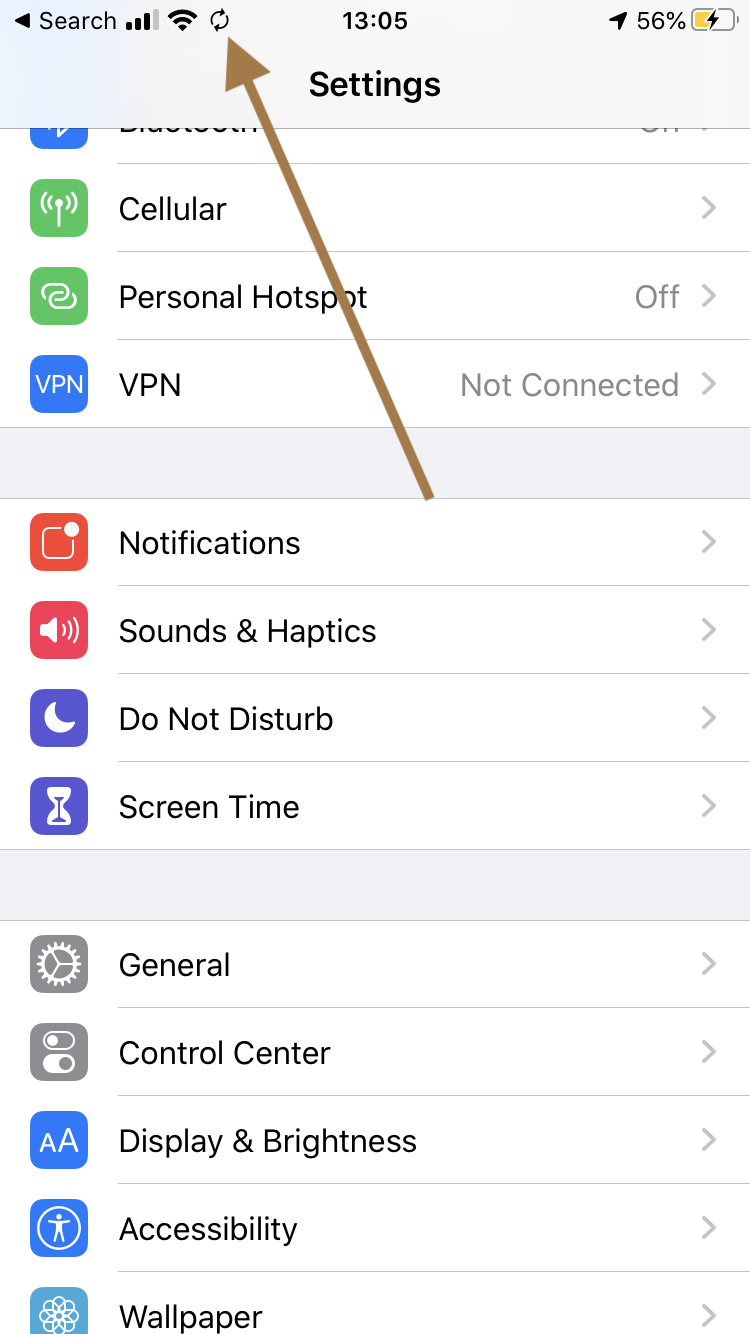
If you find the constant appearance of the arrow in your status bar distracting, or if you want to know exactly when a system service is “spying” on you, you can customize these alerts. By navigating to Settings > Privacy & Security > Location Services > System Services, you can scroll to the very bottom to find the “Status Bar Icon” toggle. Turning this on ensures that even when background system processes use your location, the arrow will appear, providing a higher level of transparency.
Understanding “Precise Location” vs. General Proximity
In recent iOS updates, Apple introduced a feature that adds another layer to the “arrow” logic: Precise Location. When an app asks for permission to use your location, you can choose to give it your exact coordinates or just a general vicinity. If an app only has “Approximate” access, the data it receives is less granular, which is often reflected in how frequently the location arrow appears. Using approximate location is a sophisticated way to keep the arrow “off” more often, saving battery life and enhancing privacy.
Reviewing App Permissions for Better Security
The “Location Services” menu is essentially a security dashboard. Tech professionals recommend performing a “Privacy Audit” once a month. Look for apps that have a purple arrow next to them—if you haven’t opened that app recently, it indicates it is tracking you in the background. You can change these permissions to “While Using the App” or “Never” to ensure that the arrow only appears when you are actively engaging with the software.
The Evolution of the Arrow: From iOS 14 to the AI Era
The iPhone arrow has evolved significantly as Apple moves toward a more “indicator-heavy” interface design. In older versions of iOS, the arrow was almost always present. Today, it is part of a sophisticated family of privacy indicators that include the “Green Dot” (camera active) and “Orange Dot” (microphone active).
The Rise of Privacy Indicators
The location arrow was the precursor to the recording indicators we see today. Apple realized that users feel more secure when they have visual confirmation of hardware activity. This “Tech-First” approach to design ensures that software cannot access hardware (like the GPS chip, camera, or mic) without a visual “whistleblower” appearing in the UI.
How Modern AI Integration Uses Location Data
As we move into the era of “Apple Intelligence” and more advanced AI tools, the location arrow will likely become even more active. AI tools often require contextual awareness to be useful—such as knowing you are at a grocery store to surface your shopping list. Understanding the meaning of the arrow will be crucial as these AI features begin to predict our needs based on our physical movements.
Impact on Battery and Performance
From a technical standpoint, the arrow is also a “battery health” indicator. Frequent appearances of the solid location arrow suggest that the GPS chip is being taxed. If you notice your battery draining rapidly and the arrow is constantly visible, it is a clear sign that a rogue app or a high-intensity system service is consuming resources. Managing the “arrow” is, therefore, a key strategy for extending the daily life of your iPhone’s hardware.
Conclusion: Visual Cues as a Tool for Empowerment
The arrow on your iPhone is more than just a piece of graphic design; it is a real-time report on your device’s internal operations. Whether it is a solid purple icon signaling active navigation, a hollow outline indicating a geofence, or a Share icon facilitating the movement of data, these symbols are designed to keep the user in the driver’s seat.
By mastering the language of iOS icons, you transition from being a passive user to an informed manager of your personal technology. In an age where digital privacy is a premium commodity, the little arrow in the corner of your screen is one of your most valuable allies. It serves as a constant reminder that while your phone is a powerful tool for navigating the world, you remain the one in control of who is watching your journey.
aViewFromTheCave is a participant in the Amazon Services LLC Associates Program, an affiliate advertising program designed to provide a means for sites to earn advertising fees by advertising and linking to Amazon.com. Amazon, the Amazon logo, AmazonSupply, and the AmazonSupply logo are trademarks of Amazon.com, Inc. or its affiliates. As an Amazon Associate we earn affiliate commissions from qualifying purchases.