
The term “null” can appear in various contexts on an iPhone, often causing confusion for users who encounter it without a clear explanation. Unlike a straightforward error message like “No Internet Connection” or “Software Update Failed,” “null” is more abstract. It doesn’t signify a problem in itself, but rather a state of absence or a placeholder for information that could exist but currently doesn’t. Understanding what “null” implies on your iPhone is crucial for deciphering system behaviors, troubleshooting minor glitches, and gaining a deeper appreciation for how your device manages data.
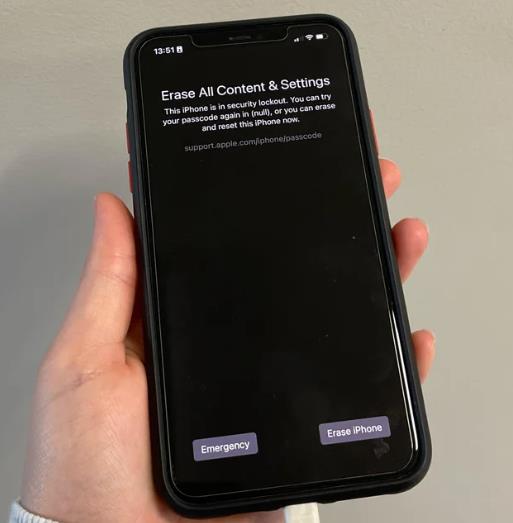
In the realm of technology, “null” is a fundamental concept, originating from programming and database management. It’s not a value, but rather the lack of a value. Think of it as an empty box, a void, or a placeholder. When you see “null” on your iPhone, it generally points to a situation where a piece of data is expected but is not present or hasn’t been assigned. This can manifest in a surprising number of ways, from app settings to network indicators. This article will delve into the common scenarios where you might encounter “null” on your iPhone, explore its technical underpinnings in a way that’s accessible to the average user, and offer practical advice on how to interpret and address these occurrences.
Understanding the Technical Foundation: What “Null” Signifies
At its core, “null” is a programming term used to represent the absence of a meaningful value. In the context of an iPhone, this absence can arise from several factors, often related to software operations, data retrieval, or configuration. It’s essential to differentiate “null” from “zero” or “empty string.” A zero is a numerical value, and an empty string is a string of characters with zero length. “Null,” however, signifies that there is no value at all.
The Concept of “Absence of Value”
Imagine a database table designed to store user preferences. Each user might have a setting for “Preferred Notification Sound.” If a user hasn’t selected a specific sound, or if that setting hasn’t been configured yet, the value for that particular user’s preference would be “null.” This is a deliberate state indicating that no choice has been made, rather than the system defaulting to a generic sound (which would be a value, even if it’s a default one).
On your iPhone, this translates to various operational states. For instance, if an app is attempting to retrieve a user’s location data but hasn’t yet received it (perhaps due to permissions not being granted or GPS signal being unavailable), the underlying data might be represented internally as “null.” This prevents the app from crashing due to an expected data field being missing. Instead, it can gracefully handle this “null” state, perhaps by displaying a placeholder or prompting the user for action.
How “Null” Differs from Errors and Default Values
It’s important to distinguish “null” from outright errors or default values. An error typically indicates something has gone wrong, preventing a process from completing successfully. For example, an error message might appear if the iPhone fails to connect to Wi-Fi. “Null,” on the other hand, is a valid state that the system can understand and work with. It’s a deliberate representation of missing information.
Similarly, default values are pre-assigned settings that the system uses when no specific preference is set. For instance, if you haven’t chosen a wallpaper, your iPhone might default to a standard image. This default image is a value. “Null” signifies that even a default hasn’t been established or that the system is actively waiting for a specific input before assigning any value. This distinction is critical because it informs how you should approach situations where “null” appears; it’s less about fixing an error and more about ensuring data is properly populated or configured.
Common Scenarios Where “Null” Appears on iPhone
While “null” might not be a visually prominent element for most users, it can surface in specific contexts. Understanding these situations can help demystify its presence and allow for more effective troubleshooting or system comprehension.
App Settings and Data Synchronization
One of the most frequent places where you might indirectly encounter “null” is within app settings or when data is being synchronized. If an app is designed to store a particular piece of information about your usage, but you haven’t interacted with that feature or provided the necessary input, the corresponding data field might register as “null” internally.
For example, consider a fitness tracking app. If you haven’t manually logged a specific type of workout, or if the app hasn’t yet recorded data for that category (e.g., a new activity type), the data point for that activity might be “null.” When the app tries to display this information, it needs a way to represent this absence. Sometimes, this might be displayed as a blank space, a dash, or even a message indicating no data available, all of which are user-facing interpretations of an underlying “null” value. Data synchronization issues, where information fails to transfer between your iPhone and a cloud service, can also lead to fields appearing as “null” on one of the devices or in the interface.
Network Connectivity and Carrier Information
Occasionally, “null” can appear in relation to network status or carrier information, particularly in more technical diagnostic screens or during initial setup phases. For instance, if your iPhone is attempting to connect to a cellular network but hasn’t yet successfully registered with a carrier, certain network parameters might display as “null.” This indicates that the device is not yet receiving the necessary information to establish a connection.

This is often temporary and resolves itself once the device connects to a network. However, in rare cases, persistent “null” values in network settings might point to deeper issues with your SIM card, carrier settings, or the device’s network hardware. Understanding that “null” here signifies an incomplete network handshake or missing configuration data can guide troubleshooting efforts. For example, restarting your iPhone, toggling airplane mode, or even contacting your carrier might be necessary steps if this state persists.
System Logs and Developer Tools
For users who delve into the more technical aspects of their iPhone, such as using developer tools or examining system logs, “null” will appear more frequently. Developers use “null” extensively in their code to signify unset variables, uninitialized data, or the absence of a return value from a function. When debugging an application or analyzing system behavior, encountering “null” in these logs provides insight into the state of variables and the flow of data.
For instance, a system log might indicate that a specific service attempted to retrieve a user ID but received “null.” This tells the developer that the user ID was not available at that point in the process, which can be a crucial clue in identifying the root cause of a bug or unexpected behavior. While most average users won’t interact with these logs directly, understanding that “null” is a standard part of technical diagnostics can alleviate concerns if such information is inadvertently encountered.
Interpreting and Addressing “Null” on Your iPhone
Encountering “null” doesn’t always require immediate action, as it often represents a normal, albeit unpopulated, state. However, in certain persistent scenarios, it can indicate a need for intervention. The key is to understand the context in which “null” appears.
When “Null” is Normal Behavior
In many instances, “null” is simply a sign that certain data hasn’t been entered or generated yet. For example, if you open a brand new app and it asks for your favorite color, but you haven’t provided it, the internal storage for “favorite color” might be “null.” This is perfectly normal. Similarly, if you’re checking a feature that relies on receiving data from an external source, and that source hasn’t yet sent the information, you might see a placeholder representing “null.”
The good news is that these instances of “null” usually resolve themselves as you interact with the app or the system establishes the necessary connections. For example, once you set your favorite color in the app, the “null” value will be replaced with your chosen color. If it’s related to network connectivity, a successful connection will populate the necessary data fields. Therefore, the first step is often observation: does the “null” state resolve on its own over time or with typical usage?
When to Investigate Further
If “null” appears in a context where you expect data to be present, or if it persists across multiple interactions or reboots, it might warrant further investigation. For example, if a critical app setting that you know you’ve configured consistently shows as “null,” or if your cellular signal indicators are perpetually showing “null” even when you’re in a known good coverage area, it could indicate an underlying issue.
In such cases, the troubleshooting steps are similar to those for other iPhone glitches. This might include:
- Restarting your iPhone: A simple reboot can often clear temporary glitches and re-initialize data states.
- Checking app updates: Ensure the app in question is updated to the latest version, as bugs related to data handling are frequently fixed in updates.
- Resetting Network Settings: If “null” appears in network-related contexts, resetting network settings (Settings > General > Transfer or Reset iPhone > Reset > Reset Network Settings) can resolve configuration issues. Be aware that this will remove all saved Wi-Fi passwords and VPN configurations.
- Restoring from a backup: If the issue started after a software update or a significant change, restoring from a recent iCloud or computer backup might revert the system to a state where the issue wasn’t present.
- Contacting Apple Support or the App Developer: If none of the above steps resolve the persistent “null” issue, it’s time to seek professional help. Apple Support can diagnose hardware or system-level problems, while app developers can provide insights into specific app behavior and potential bugs.
The Role of Software Updates and Maintenance
Apple frequently releases iOS updates that not only introduce new features but also address bugs and improve system stability. These updates can often resolve issues where data states, including those represented by “null,” are incorrectly handled. Keeping your iPhone updated to the latest version of iOS is therefore a crucial part of maintaining optimal performance and preventing unexpected behaviors.
Regular maintenance also involves managing your storage and ensuring that apps are not consuming excessive resources, which can sometimes lead to data corruption or missed synchronization. While “null” itself isn’t a symptom of corruption, the underlying processes that lead to it can sometimes be exacerbated by a system under strain. By adopting good digital hygiene, you can minimize the chances of encountering problematic “null” states on your iPhone.
Conclusion: Navigating the Data Landscape of Your iPhone
The presence of “null” on an iPhone, while potentially perplexing, is usually a technical indicator of an absent data value rather than a sign of a critical failure. By understanding its roots in programming and its various manifestations across app settings, network indicators, and system logs, users can better interpret what their device is communicating. Most instances of “null” are transient and resolve themselves through normal device operation. However, when “null” becomes persistent or appears in contexts where data is expected, it signals an opportunity for informed troubleshooting.
Ultimately, “null” serves as a reminder of the complex data landscape that underpins the seemingly seamless user experience of an iPhone. It highlights the system’s ability to gracefully manage missing information and the importance of well-defined states in software. By demystifying “null,” users can approach their device with greater confidence, better equipped to understand its behavior and address any anomalies that may arise.
aViewFromTheCave is a participant in the Amazon Services LLC Associates Program, an affiliate advertising program designed to provide a means for sites to earn advertising fees by advertising and linking to Amazon.com. Amazon, the Amazon logo, AmazonSupply, and the AmazonSupply logo are trademarks of Amazon.com, Inc. or its affiliates. As an Amazon Associate we earn affiliate commissions from qualifying purchases.