
The ubiquitous nature of digital information has made our devices – from personal computers and smartphones to servers powering the cloud – essential tools for work, communication, and entertainment. At the heart of these devices lies storage, the digital real estate where our operating systems, applications, photos, documents, and memories reside. When this real estate becomes crowded, we encounter the frustrating and often disruptive phenomenon of “not enough disk space.” This isn’t just a minor inconvenience; it signifies a critical limitation within our technological infrastructure that can cascade into a range of performance issues, security vulnerabilities, and a complete halt to productivity. Understanding what insufficient disk space truly means is paramount for anyone relying on digital devices in the modern world.
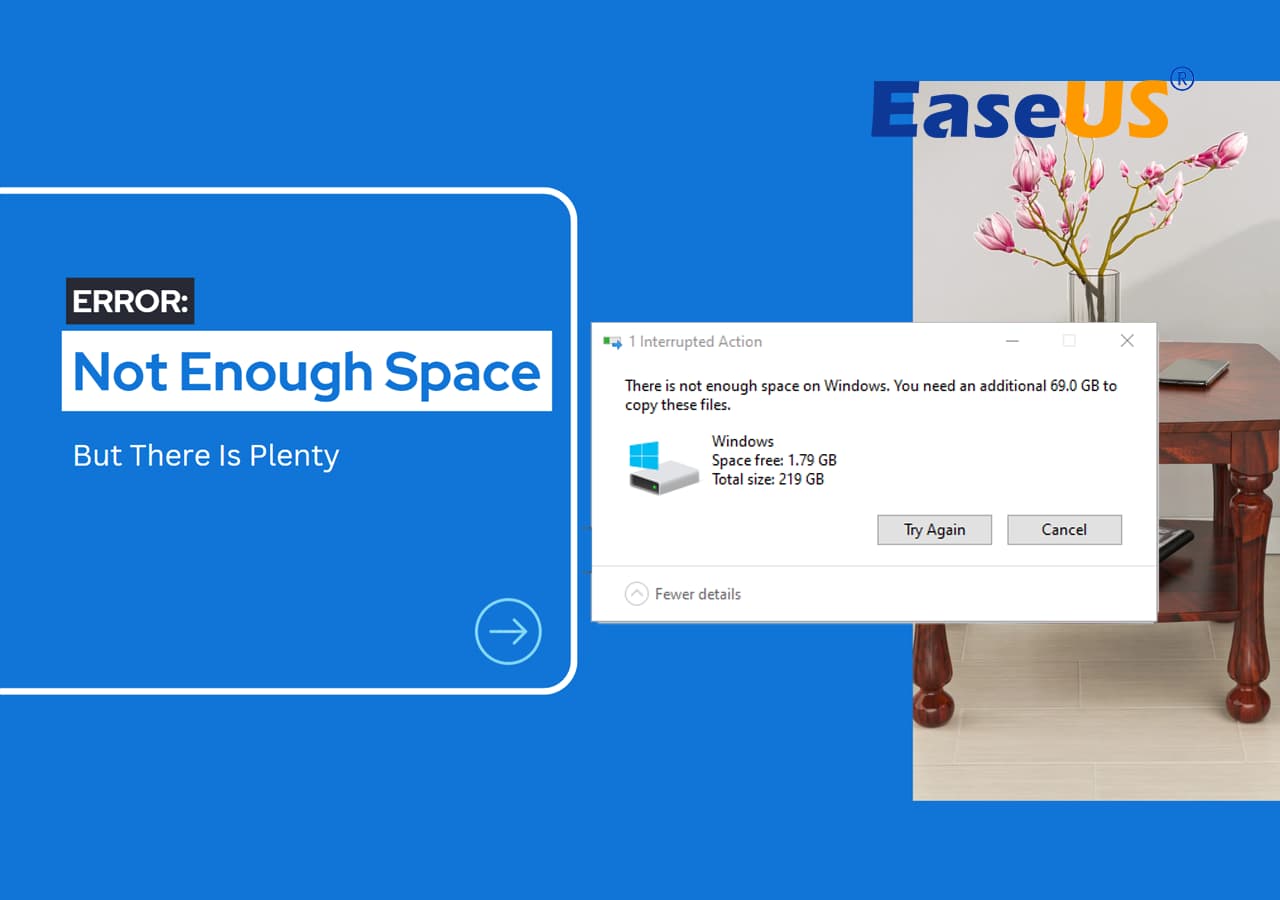
The Tangible Ramifications of a Full Drive
When your device signals that its disk space is insufficient, it’s not merely a passive notification. It’s an active constraint that directly impacts your ability to interact with your technology. This limitation manifests in several key areas, each with its own set of consequences.
Slowing Down Your Digital Life
One of the most immediate and noticeable effects of a full hard drive or SSD is a significant degradation in performance. Operating systems and applications rely on available space not just to store their files but also to function efficiently.
System Responsiveness and Application Lag
Modern operating systems employ virtual memory, also known as swap files or paging files. When your RAM (Random Access Memory) runs out of immediate capacity, the system temporarily moves less frequently accessed data from RAM to a designated space on your storage drive. This process allows your computer to handle more tasks than its physical RAM alone would permit. However, if your storage drive is nearly full, there’s little to no room for this virtual memory to operate effectively. This leads to:
- Increased Latency: Applications will take longer to launch, respond to clicks, and process commands. Tasks that were once instantaneous can become sluggish, forcing you to wait for operations to complete.
- Frequent Freezing and Unresponsiveness: The system may become completely unresponsive, requiring a forced restart. This is a direct consequence of the operating system’s inability to manage its memory effectively due to lack of disk space.
- Application Crashes: If an application requires temporary space for its operations and cannot find it, it may terminate unexpectedly, leading to data loss if your work wasn’t saved.
Difficulty in Installing and Updating Software
Software installation and updates are inherently resource-intensive processes. They often require significant temporary space for unpacking files, compiling data, and creating necessary system entries.
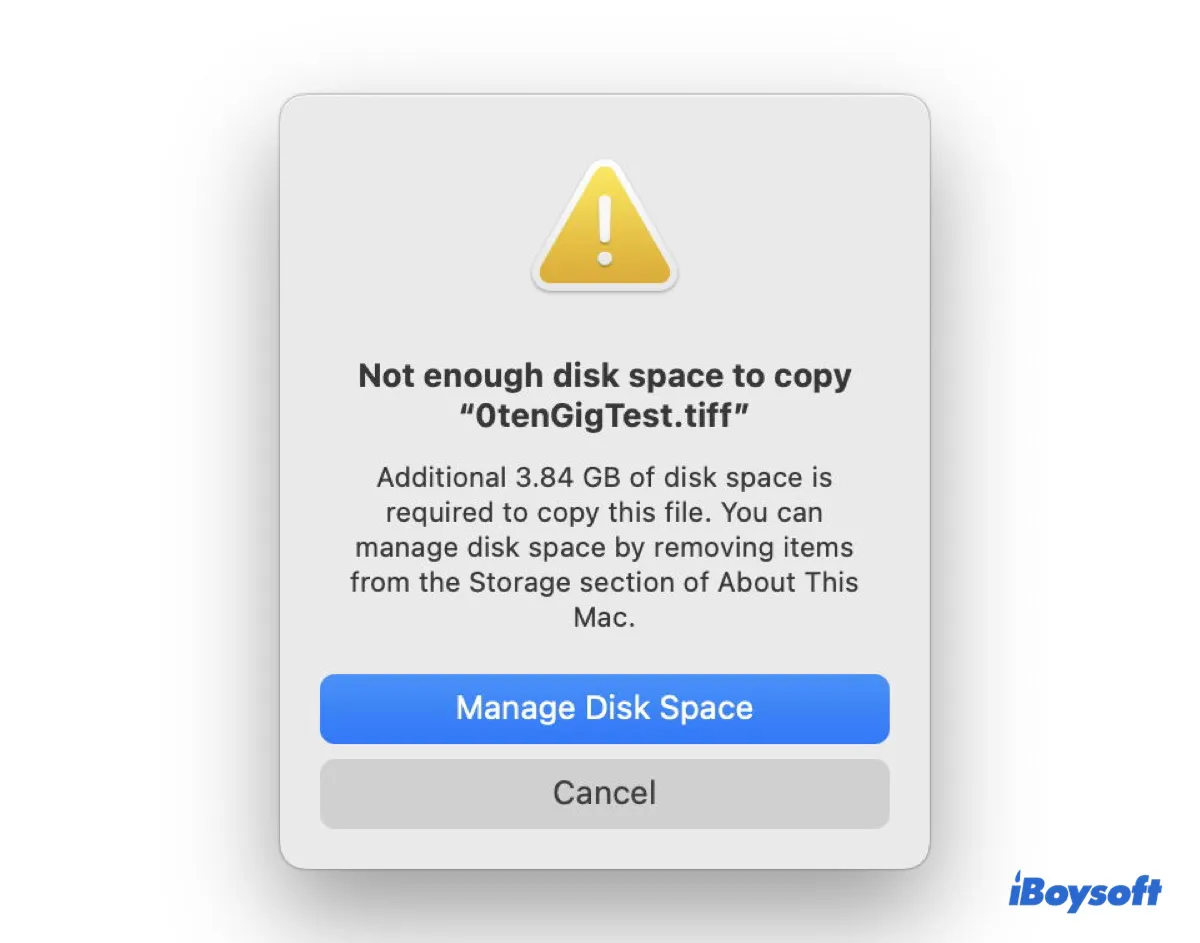
- Installation Failures: New applications will simply fail to install, with error messages clearly stating insufficient disk space. This is a fundamental barrier to expanding your digital toolkit or replacing outdated software.
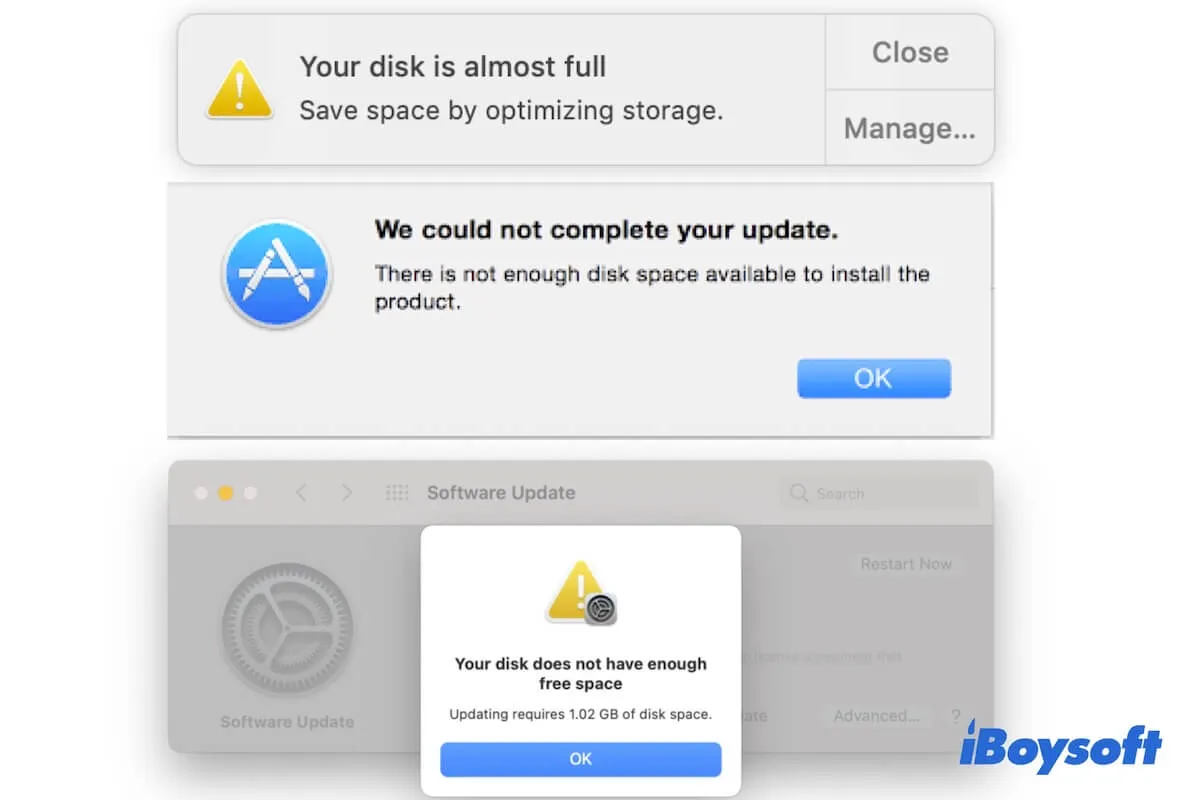
- Update Stoppages: Crucially, operating system and application updates are often blocked. These updates are vital for security patches, bug fixes, and new features. Being unable to update leaves your system vulnerable to exploits and prevents you from benefiting from the latest technological advancements. For instance, security updates often address critical vulnerabilities; failing to apply them can make your entire digital ecosystem susceptible to malware and data breaches.
Hindering Data Management and Creation
Beyond performance, insufficient disk space directly impedes your ability to work with your data, whether it’s creating new files or managing existing ones.
Inability to Save New Files
This is perhaps the most straightforward and frustrating consequence. When your storage is full, you cannot save new documents, photos, videos, or any other type of file.
- Loss of Productivity: Imagine working diligently on a report or a creative project only to be met with an error message preventing you from saving your progress. This can lead to significant lost work and extreme frustration.
- Interrupted Workflows: Many digital workflows are continuous. If you’re a photographer editing images, a video editor working on a project, or a programmer writing code, the inability to save intermediate or final files brings your entire workflow to a grinding halt.
Problems with File Operations
Even existing files can become problematic. Operations like copying, moving, or deleting files may also fail or become excessively slow if the drive is nearing its capacity.
- Corrupted Files: In rare but serious cases, the system might struggle to properly write or modify files when disk space is critically low, potentially leading to file corruption.
- Ineffective Cleanup: Even attempts to free up space by deleting files can be hampered. If the system needs temporary space to manage the deletion process or to consolidate free space, a nearly full drive can complicate even these basic maintenance tasks.
The Underlying Technical Mechanics of Storage Limitations
To truly understand what “not enough disk space” means, it’s beneficial to delve into the underlying technical principles that govern digital storage and its limitations. This involves understanding how data is organized and managed within a storage device.
The Role of the File System
At its core, your storage drive is managed by a file system. This is the method and data structure that an operating system uses to control how data is stored and retrieved. Common file systems include NTFS (Windows), HFS+ and APFS (macOS), and ext4 (Linux). The file system is responsible for:
- Organizing Data: It creates a hierarchical structure of directories (folders) and files, allowing you to locate and access your data.
- Tracking Free Space: It maintains a record of which blocks on the storage device are in use and which are available. This is the crucial element that triggers the “not enough disk space” warning.
- Metadata Management: It stores metadata about each file, such as its name, size, creation date, and permissions.
When the file system reports that there’s insufficient space, it means that the allocated space for available data blocks has been exhausted. It’s akin to a library where all the shelves are full, and there’s no room to place new books.
Beyond User Files: System and Application Footprints
It’s a common misconception that “not enough disk space” solely refers to the user’s personal documents, photos, and videos. In reality, a significant portion of storage is occupied by the operating system itself, installed applications, and temporary system files.
Operating System Essentials
The operating system is the foundation of your digital experience. It requires substantial disk space for:
- Core System Files: These are the fundamental binaries, libraries, and configuration files that allow your OS to boot, run, and manage hardware.
- System Updates: As mentioned earlier, updates are crucial and often download as large packages, requiring temporary space for installation and older versions for rollback capabilities.
- Temporary Files (Temp Files): The OS and applications create temporary files for various operations, such as holding data during program execution, logging events, or caching information for faster access. These can accumulate over time and consume considerable space if not managed properly.
- Hibernation and Swap Files: As discussed in the performance section, hibernation files and swap/paging files are essential for memory management and resuming your system from a low-power state. These can be quite large, often a significant fraction of your installed RAM.
Application Installations and Dependencies
Every application you install, from your web browser and office suite to games and creative software, occupies space.
- Program Files: This includes the executable files, libraries, and resources required for the application to run.
- User Data and Settings: Many applications store user-specific settings, preferences, and cached data within their installation directories or in designated user profile folders, further contributing to the storage footprint.
- Cache and Temporary Data: Similar to the OS, applications also generate their own cache files and temporary data during operation, which can grow over time.
Understanding these components highlights that “not enough disk space” is a holistic system issue, not just a reflection of personal file hoarding. It’s the aggregate demand for storage that overwhelms the available capacity managed by the file system.
Strategies for Addressing and Preventing Insufficient Disk Space
The consequences of insufficient disk space are clear, and the underlying mechanics are understandable. The critical next step is to implement practical strategies for both addressing the immediate problem and preventing it from recurring.
Proactive Space Management and Optimization
Regular maintenance and conscious usage habits are key to keeping your storage healthy and your devices running smoothly.
Regular File Cleanup and Organization
This is the most direct method for reclaiming space.
- Identify Large Files: Utilize your operating system’s built-in tools or third-party disk analysis applications (like TreeSize Free, WinDirStat, Disk Inventory X) to identify which folders and files are consuming the most space.
- Delete Unnecessary Files: Purge old downloads, temporary installation files, duplicate photos or videos, and any other data you no longer need.
- Archive or Move Older Data: For files you want to keep but don’t need immediate access to, consider archiving them to external hard drives, cloud storage services, or network-attached storage (NAS) devices.
- Empty Recycle Bin/Trash: Remember that deleting files often moves them to the Recycle Bin or Trash, where they still occupy space until permanently removed.
Leveraging Cloud Storage and External Drives
Offloading data is an effective way to reduce the burden on your primary storage.
- Cloud Synchronization: Services like Google Drive, Dropbox, OneDrive, and iCloud allow you to store files online and sync them with your devices. Many offer options to keep only recently accessed files on your local drive, freeing up significant space.
- External Storage Solutions: External hard drives and SSDs provide a cost-effective way to back up and store large amounts of data that don’t need to be constantly accessible on your primary device. This is especially useful for media libraries, large project files, or system backups.
System and Application Optimization
Beyond just deleting files, optimizing how your system uses space is crucial.
- Uninstall Unused Applications: Regularly review your installed programs and remove any that you no longer use. These applications can take up considerable space and may also run background processes that consume resources.
- Manage System Restore Points and Hibernation Files: While valuable, these features can consume significant disk space. Configure their usage or disable them if you have robust backup solutions in place and rarely use hibernation.
- Disk Cleanup Utilities: Windows’ built-in Disk Cleanup tool can effectively remove temporary files, system logs, and other unnecessary data. macOS has similar tools and features within its storage management settings.
The Long-Term Solution: Upgrading Storage
When proactive management reaches its limits, or if your needs consistently outstrip your current storage capacity, upgrading your hardware becomes the most effective long-term solution.
Understanding Storage Types and Capacities
The world of storage technology has evolved rapidly, offering various options to suit different needs and budgets.
- Hard Disk Drives (HDDs): These traditional drives use spinning platters and magnetic heads to store data. They offer high capacities at a relatively low cost per gigabyte, making them ideal for mass storage. However, they are slower and more susceptible to physical damage than SSDs.
- Solid State Drives (SSDs): SSDs use flash memory to store data, offering significantly faster read/write speeds, better durability, and quieter operation compared to HDDs. While historically more expensive, their prices have become more competitive, making them a popular choice for operating system drives and frequently accessed applications.
- NVMe SSDs: A newer generation of SSDs that utilize the NVMe protocol, offering even faster performance by directly connecting to the PCIe bus, bypassing the SATA interface.
Planning Your Upgrade
- Assess Your Needs: Determine how much storage you currently use and how much you anticipate needing in the future. Consider your typical workflows, the types of files you work with, and any future software or media requirements.
- Compatibility: Ensure that any new storage device is compatible with your computer’s motherboard and form factor (e.g., 2.5-inch SATA, M.2 NVMe).
- Professional Installation: For internal drive upgrades, especially in laptops or complex desktop systems, professional installation might be advisable if you are not comfortable with hardware work. External drives are generally plug-and-play.
By understanding the multifaceted meaning of “not enough disk space,” from the user experience of slowdowns and errors to the underlying technical mechanisms, and by implementing proactive management strategies and considering hardware upgrades, you can ensure your digital life remains fluid, productive, and secure.
aViewFromTheCave is a participant in the Amazon Services LLC Associates Program, an affiliate advertising program designed to provide a means for sites to earn advertising fees by advertising and linking to Amazon.com. Amazon, the Amazon logo, AmazonSupply, and the AmazonSupply logo are trademarks of Amazon.com, Inc. or its affiliates. As an Amazon Associate we earn affiliate commissions from qualifying purchases.