
In the modern digital workspace, Microsoft Excel remains the undisputed backbone of data management, algorithmic modeling, and technical reporting. For software engineers, data analysts, and tech-savvy professionals, understanding the granular mechanics of Excel is just as critical as knowing a programming language. One of the most common yet misunderstood symbols within this software is the dollar sign ($).
While a casual user might assume the dollar sign is purely for denoting currency, its role in the “Tech” niche of spreadsheet logic is far more sophisticated. In Excel, the dollar sign serves a dual purpose: it acts as a structural anchor for cell references and as a formatting layer for numerical data. Understanding these two distinct functions is the difference between a static, error-prone spreadsheet and a dynamic, scalable data tool.

The Dual Role of the Dollar Sign in Excel: Syntax vs. Style
To master Excel as a technical tool, one must first distinguish between data logic and data presentation. The dollar sign is unique because it inhabits both worlds simultaneously, depending on how it is applied within the interface.
Functional Syntax: The Absolute Reference Anchor
In the realm of software logic, the dollar sign is used within formulas to create “Absolute References.” This is a syntax-heavy application where the symbol tells Excel’s calculation engine to “lock” a specific coordinate. When you are writing scripts or complex formulas that need to point to a constant variable—such as a fixed API limit, a static tax rate, or a baseline server cost—the $ sign ensures that your logic remains intact even when formulas are replicated across thousands of rows.
Aesthetic Formatting: The Currency Representation
The second role is more visual. When applied through the “Number Format” menu, the dollar sign behaves as a metadata layer. It doesn’t change the underlying numerical value (e.g., 50.00 remains 50.00 in the system’s memory), but it instructs the software’s UI to display it as currency. For tech professionals building dashboards or financial models, knowing how the software distinguishes between the symbol as a character and the symbol as a format is vital for data integrity and successful exports to other software via CSV or JSON.
Decoding Absolute, Relative, and Mixed Cell References
The most powerful technical application of the dollar sign in Excel is managing cell references. By default, Excel uses “Relative References.” If you write a formula in cell B1 that says =A1 and drag it down to B2, the formula automatically updates to =A2. While this automation is often helpful, it can break complex models.
The Problem with Relative References
In technical data modeling, relative referencing can lead to “data drift.” Imagine a scenario where you have a list of software subscription prices in Column A and a single exchange rate in cell E1. If you try to multiply every price in Column A by cell E1 using relative references, the second row will try to multiply by E2, the third by E3, and so on. Since those cells are likely empty, your calculations will fail.
How the $ Sign Creates an Absolute Reference
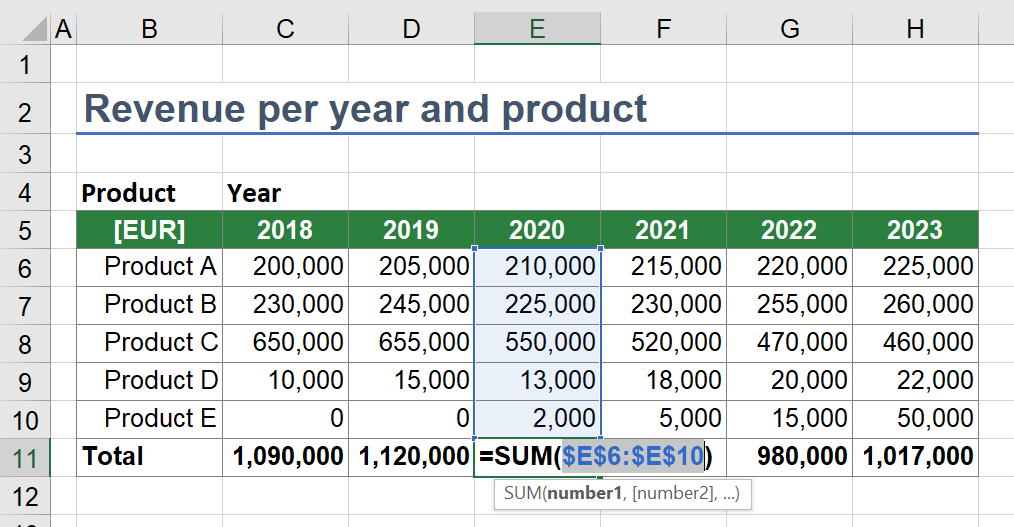
By inserting a dollar sign before the column letter and the row number (e.g., $E$1), you create an Absolute Reference. This tells Excel: “No matter where I copy this formula, always look exactly at Column E, Row 1.”
- A1: Relative reference (changes when moved).
- $A$1: Absolute reference (stays fixed on both column and row).
The Power of Mixed References: Row vs. Column Locking
Advanced Excel users leverage “Mixed References” to build sophisticated multiplication tables or dynamic data arrays.
- $A1: This locks the column but allows the row to change. This is useful when you are pulling data from a single vertical list but applying it across multiple columns.
- A$1: This locks the row but allows the column to change. This is ideal for headers or horizontal data points that stay constant as you drag formulas vertically.
Practical Applications: Efficiency in Data Modeling
In a tech-driven environment, Excel is often used for capacity planning, budget forecasting for DevOps, or tracking sprint velocity. The dollar sign is the tool that makes these models scalable.
Using $ for Fixed Constants and Global Variables
In programming, we use global variables to avoid “magic numbers” in our code. Excel functions similarly. If you are calculating the projected cost of cloud storage across fifty different departments, you should place the “Cost per GB” in a single, isolated cell. By using an absolute reference ($B$1) to that cell in all your formulas, you can update the cost in one place, and the entire technical model will update instantly. This minimizes the risk of manual entry errors across large datasets.
Streamlining VLOOKUP, HLOOKUP, and XLOOKUP Functions
Lookup functions are the bread and butter of data manipulation. When you define a “table array” in a VLOOKUP (e.g., VLOOKUP(A2, D2:F100, 2, FALSE)), you almost always want that range (D2:F100) to stay exactly where it is as you drag the formula down. Without the dollar sign, the range will shift down as you copy the formula, eventually missing the data at the top of your list. Converting this to $D$2:$F$100 ensures your lookup range is “pinned” to the correct data coordinates.
Beyond the Keyboard: Financial Formatting and Custom Currency
While the syntax of cell referencing is about logic, the formatting side of the dollar sign is about communication and data standards. This is particularly relevant when dealing with international tech operations.
Currency vs. Accounting Formats
Excel offers two primary ways to display the dollar sign: “Currency” and “Accounting.”
- Currency Format: Places the $ sign immediately to the left of the number.
- Accounting Format: Aligns the $ sign to the far left of the cell and ensures that decimal points stay perfectly aligned vertically.
From a technical documentation standpoint, the Accounting format is preferred for readability in long reports, as it makes it easier to scan large columns of numbers and quickly identify magnitudes of scale.
Custom Number Formats for Global Tech Operations
For teams working across borders, the dollar sign is just one of many symbols. Excel allow users to create “Custom Number Formats.” In the “Format Cells” dialog, tech users can define exactly how they want their data to appear. You can set the software to display a “$” for USD, but also handle “CAD” or “HKD” prefixes while keeping the underlying value as a raw number. This is essential when preparing data for visualization tools like Tableau or Power BI, which require clean numerical input despite how it is visually represented in the spreadsheet.
Pro-Tips for Automating Reference Locking
Efficiency is the hallmark of a high-level tech professional. Manually typing dollar signs into formulas is slow and prone to error.
The F4 Shortcut: A Must-Know for Tech Power Users
The most important keyboard shortcut for managing the dollar sign is the F4 key (or Fn+F4 on some laptops). When you are typing a cell reference in a formula, pressing F4 will cycle through the different types of references:
- Press once: Adds $ to both row and column (
$A$1). - Press twice: Adds $ to the row only (
A$1). - Press three times: Adds $ to the column only (
$A1). - Press four times: Removes all dollar signs (
A1).
Mastering this shortcut allows for rapid formula building and ensures that your technical models are built with the correct “locking” logic from the start.
Avoiding Common Reference Errors in Complex Workbooks
When building large-scale workbooks with multiple linked sheets, the dollar sign becomes even more critical. A common error occurs when users copy formulas from one sheet to another without checking their absolute references. This can lead to “Circular References” or, worse, formulas that pull data from the wrong tab entirely.
To troubleshoot this, tech professionals use the “Show Formulas” mode (Ctrl + `) or the “Trace Precedents” tool. These tools allow you to see exactly where the dollar signs are anchored. If a formula is returning an error or an unexpected value, the culprit is often a missing or misplaced $ sign that allowed a reference to drift into an empty or incorrect cell.

Conclusion: The Anchor of Data Integrity
In the ecosystem of technical software, the dollar sign in Excel is far more than a symbol for money. It is a fundamental operator that dictates how data behaves, how formulas replicate, and how information is presented to stakeholders. By mastering the use of the dollar sign for absolute and mixed references, you move beyond basic spreadsheet entry and into the realm of robust data modeling and technical analysis. Whether you are locking a variable for a cloud infrastructure budget or formatting a report for a C-suite presentation, the humble $ sign is your most reliable tool for ensuring accuracy, scalability, and clarity in the digital age.
aViewFromTheCave is a participant in the Amazon Services LLC Associates Program, an affiliate advertising program designed to provide a means for sites to earn advertising fees by advertising and linking to Amazon.com. Amazon, the Amazon logo, AmazonSupply, and the AmazonSupply logo are trademarks of Amazon.com, Inc. or its affiliates. As an Amazon Associate we earn affiliate commissions from qualifying purchases.