
In our increasingly connected world, location-sharing features have become a ubiquitous part of our digital lives. From keeping tabs on loved ones to coordinating meetups and even for enhanced digital security, knowing where someone is has never been easier. However, what happens when this seemingly seamless flow of information falters? When you glance at your app, expecting a real-time update on a friend’s or family member’s whereabouts, and are met with the same static point on the map as hours, or even days, ago, it can spark a range of questions and, sometimes, anxieties.
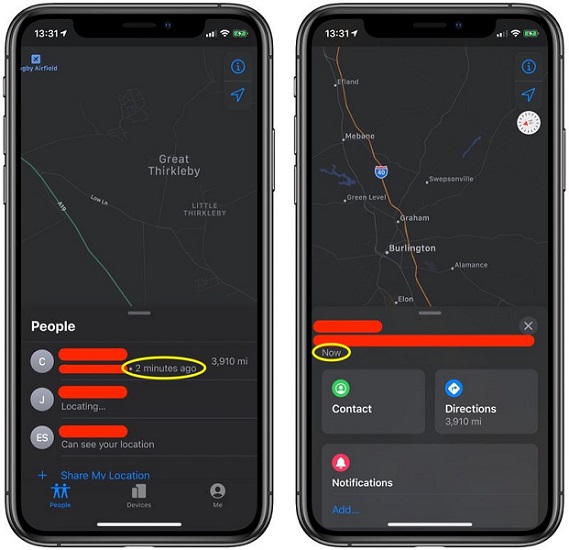
This phenomenon, where a person’s location fails to update, isn’t usually a singular, simple cause. It’s a complex interplay of technological factors, user choices, and device-specific issues. Understanding the various reasons behind a non-updating location can demystify the experience, equip you with troubleshooting knowledge, and provide insights into the mechanics of the digital tools we rely on daily. This article will delve into the technical intricacies of why someone’s location might not be updating, exploring the common culprits from the device itself to the underlying network infrastructure and the app’s own operational parameters. We’ll navigate through the essential components that enable location tracking and pinpoint where the signal might be lost.
The Foundation of Location Sharing: How Devices Pinpoint Our Position
Before we can understand why location sharing fails, it’s crucial to grasp how it works in the first place. Modern location services on smartphones and other devices are sophisticated systems that integrate multiple technologies to achieve accuracy and reliability. When you see a pin drop on a map, it’s the result of a coordinated effort by several sophisticated systems.
GPS: The Global Positioning System
At its core, accurate location tracking often relies on the Global Positioning System (GPS). GPS is a satellite-based navigation system owned by the United States government and operated by the United States Space Force. It consists of a constellation of satellites orbiting the Earth, each transmitting precise timing and positional data. A GPS receiver in your device listens for signals from multiple satellites simultaneously. By calculating the time it takes for signals from at least four different satellites to arrive, the receiver can triangulate its position on Earth with remarkable accuracy.
However, GPS isn’t always perfect. Its accuracy can be affected by several factors:
- Signal Obstruction: GPS signals are relatively weak and can be easily blocked or reflected by physical barriers. This is why GPS accuracy can degrade significantly indoors, in dense urban areas with tall buildings (the “urban canyon” effect), or under thick foliage. The device needs a clear “line of sight” to multiple satellites to get a fix.
- Atmospheric Conditions: Variations in the Earth’s atmosphere can slightly alter the speed of GPS signals, leading to minor inaccuracies in position calculations.
- Device Hardware: The quality and sensitivity of the GPS antenna and receiver in a device can vary, impacting its ability to acquire and maintain a strong signal. Older or lower-cost devices might have less capable GPS hardware.
Assisted GPS (A-GPS): Bridging the Gap
While GPS provides the foundational accuracy, Assisted GPS (A-GPS) enhances its speed and reliability, especially in situations where a direct GPS fix might be slow or impossible. A-GPS uses cellular network data and Wi-Fi positioning to provide the GPS receiver with preliminary information about its location.
Here’s how it works:
- Faster Time-to-First-Fix (TTFF): Instead of waiting to download ephemeris data (orbital information for satellites) directly from the satellites, A-GPS can download this data much faster over the cellular network or Wi-Fi. This significantly reduces the time it takes for the device to get an initial GPS lock.
- Leveraging Wi-Fi and Cellular Triangulation: When GPS signals are weak or unavailable, A-GPS can still provide an estimated location by triangulating signals from nearby Wi-Fi access points and cellular towers. Databases maintained by service providers map the geographic locations of these networks. While less precise than GPS, this method can be sufficient for many applications, especially in urban environments.
- Dependence on Network Connectivity: The effectiveness of A-GPS is directly tied to the device’s ability to connect to cellular data or Wi-Fi networks. If a device has no data connection, it loses a significant part of its A-GPS capability.
Other Positioning Technologies: A Layered Approach
Beyond GPS and A-GPS, devices often employ other technologies to refine location data or provide a fallback when satellite signals are unavailable:
- Wi-Fi Positioning: This method uses the known locations of Wi-Fi hotspots to estimate a device’s position. Many devices scan for nearby Wi-Fi networks and compare their identifiers (SSIDs and MAC addresses) against a vast database of known Wi-Fi access point locations. This is particularly effective indoors where GPS signals are poor.
- Cellular Tower Triangulation: Similar to A-GPS, this involves using signals from multiple cell towers to estimate a device’s location. The more towers a device can connect to, and the further apart they are, the more accurate the triangulation can be. This is generally the least accurate method but provides a basic location estimate when other methods fail.
- Bluetooth Beacons: In specific environments like large venues or retail stores, Bluetooth beacons can be used for precise indoor positioning. These small devices broadcast a signal that compatible smartphones can detect to pinpoint a user’s location within a very small area.
The combination of these technologies allows for a robust and adaptable location-tracking system that aims to provide the best possible accuracy under various conditions. When any of these components falter, location updates can cease.
Dissecting the System: Common Technical Glitches and Their Impact
When a person’s location fails to update, it’s rarely a single, isolated incident. More often than not, it’s a symptom of a breakdown in one or more of the interconnected systems that enable location sharing. Understanding these common technical glitches is key to diagnosing and resolving the issue.
Device-Level Issues: The Source of the Problem
The device itself is the primary nexus of location data. Any malfunction or misconfiguration here will directly impact its ability to transmit accurate location information.
Location Services Disabled
This is arguably the most straightforward and common reason. For privacy or battery-saving reasons, a user might have explicitly disabled location services for the device or for specific applications.
- System-Wide Setting: Most smartphones have a master “Location Services” toggle. If this is off, no app can access the device’s location.
- App-Specific Permissions: Even if system-wide location services are enabled, individual apps require explicit permission to access that data. If the location permission for the specific sharing app has been revoked or set to “never,” the app won’t be able to retrieve or transmit location updates.
Outdated Operating System or App Versions
Software, including operating systems and individual applications, is constantly being updated to fix bugs, improve performance, and enhance features.
- OS Bugs: Older versions of an operating system might contain bugs that interfere with the proper functioning of location services or the background processes required for location updates.
- App Compatibility: Location-sharing apps rely on the underlying operating system’s location APIs. If the app is not updated to be compatible with the latest OS version, it might encounter errors. Conversely, if the app is significantly outdated, it may not support newer location technologies or protocols.
Battery Optimization and Background App Restrictions
Modern mobile operating systems employ aggressive battery optimization techniques to prolong battery life. This can inadvertently interfere with background processes, including those responsible for location tracking.
- Background App Refresh: Many OS versions limit or completely disable background activity for apps to save power. If location sharing is running in the background, and its background activity is restricted, it won’t be able to fetch and send location data periodically.
- Low Power Modes: When a device enters a low power mode, it often significantly restricts background processes, network activity, and GPS usage to conserve energy. This is a common culprit for delayed or stopped location updates.
Device Malfunctions and Hardware Failures
While less common, underlying hardware issues can also prevent location services from working.
- GPS Chip Malfunction: The GPS receiver chip within the device could be faulty, preventing it from acquiring satellite signals.
- Antenna Issues: Damage to the device’s internal antennas can impair its ability to communicate with GPS satellites or cellular networks.
Network Connectivity: The Invisible Link
Location data needs to be transmitted from the device to a server and then to the recipient. This transmission relies entirely on robust network connectivity.
Lack of Internet Connection (Wi-Fi or Cellular Data)
This is a critical bottleneck. If the device cannot connect to the internet, it cannot send its location data to the app’s servers, regardless of how accurately it determines its position.
- No Wi-Fi Signal: If the user is out of range of any Wi-Fi networks and has Wi-Fi turned off.
- No Cellular Signal: If the user is in an area with no cellular coverage or has their cellular data turned off.
- Airplane Mode: If the device is in airplane mode, all wireless communication, including cellular data and Wi-Fi, is disabled.
Poor Network Signal Strength
Even if a connection exists, a weak or intermittent signal can cause transmission failures.
- Fading Cellular Service: Moving through areas with fluctuating cell tower signals can lead to dropped data packets or slow transmission speeds, delaying location updates.
- Unreliable Wi-Fi: Connecting to a weak or congested Wi-Fi network can also result in a poor data connection.
Network Configuration Issues or Restrictions
Sometimes, network settings can unintentionally hinder location sharing.
- Firewalls or VPNs: In some corporate or public networks, firewalls or VPNs might block the specific ports or protocols used by location-sharing apps.
- Data Caps or Throttling: While unlikely to completely stop updates, severe data throttling after reaching a data cap could slow down transmissions to the point of appearing non-functional.
Application-Specific Constraints: The Software’s Role
The application itself plays a crucial role in managing and transmitting location data, and issues within the app can also lead to non-updating locations.
App Server Issues or Downtime
The location-sharing app relies on its own servers to process and distribute location data. If these servers are experiencing problems, it can affect all users.
- Server Overload: High user traffic can sometimes overwhelm an app’s servers, leading to delays or temporary outages.
- Maintenance or Bugs: The app developers might be performing scheduled maintenance or may have introduced a bug that affects their server-side location processing.
In-App Location Settings and Privacy Controls
Beyond device-level permissions, many apps offer granular controls for location sharing.
- “Pause Sharing” Feature: Some apps allow users to temporarily pause their location sharing without fully disabling the service.
- Location Update Frequency: Apps often have settings that determine how frequently they request and send location updates. If this frequency is set very low (e.g., only once an hour or only when the app is in use), it can appear as though the location isn’t updating in real-time.
- Accuracy Settings: Some apps allow users to choose between high accuracy (which uses more battery) and battery-saving modes (which might use less precise location data or update less frequently).
Outdated App Cache or Corrupted Data
Like any software, apps can accumulate corrupted data or cache files that interfere with their normal operation.
- Cache Issues: A bloated or corrupted cache for the location-sharing app can prevent it from accessing or processing location data correctly.
- Data Conflicts: Sometimes, conflicts within the app’s stored data can cause unexpected behavior.
Troubleshooting and Resolution: Restoring the Location Flow
When you encounter a situation where someone’s location isn’t updating, it’s natural to want to resolve it. Fortunately, many of the common causes have straightforward troubleshooting steps. A systematic approach, starting with the most likely culprits, can help you pinpoint and fix the issue.
Basic Checks: The First Line of Defense
Before diving into complex settings, it’s always best to start with the simplest checks. These often resolve the majority of non-updating location problems.
Verify Device and App Status
- Is the Device On? This might sound obvious, but a powered-off device cannot share its location. Ensure the person whose location you’re trying to track has their device on.
- Is the Device Connected to the Internet? Check for Wi-Fi or cellular data indicators. If there’s no signal, location updates will cease. If possible, ask the person to check their internet connectivity.
- Has the App Been Force-Closed? Sometimes, apps might be accidentally or intentionally closed by the user or by the operating system. Ensure the location-sharing app is running in the background.
- Check for Airplane Mode: Ensure the device is not in airplane mode, as this disables all wireless communication.
Restarting is Key: The Universal Fix
- Restart the Device: A simple device restart can resolve many temporary software glitches that might be affecting location services or background processes. This is often the first and most effective troubleshooting step.
- Restart the App: Force-quitting and then reopening the location-sharing app can also clear temporary issues within the app itself.
Check Location Permissions
This is a critical step, as incorrect permissions are a frequent cause of location sharing failures.
- Device-Level Location Services: Navigate to the device’s main settings menu and ensure “Location Services” (or a similar option) is turned ON.
- App-Specific Location Permissions: Within the device’s settings, find the specific location-sharing app and verify that it has been granted permission to access location. The ideal setting is usually “Always” or “Allow all the time” for continuous sharing, or “While Using the App” if the app is designed to only share when actively open. If it’s set to “Never” or “Ask next time,” it won’t work.
Advanced Troubleshooting: Digging Deeper
If the basic checks don’t resolve the issue, it’s time to investigate more deeply into the technical configurations.
Reviewing Battery Optimization Settings
Aggressive battery-saving features are notorious for interfering with background location updates.
- Disable Battery Optimization for the App: On most Android devices, you can go to Settings > Apps > [Location App] > Battery > Battery Optimization and set it to “Unrestricted” or “Don’t optimize.” On iOS, ensure “Background App Refresh” is enabled for the app in Settings > General > Background App Refresh.
- Avoid Low Power Modes: If the device is in a low power mode, location updates are often severely restricted. Advise the user to disable low power mode for continuous sharing.
Updating Software and Applications
Outdated software can lead to compatibility issues and bugs.
- Update the Operating System: Check for any available operating system updates for the device. Install them if found.
- Update the Location-Sharing App: Go to your device’s app store (Google Play Store or Apple App Store) and check if there are any updates available for the specific location-sharing app. Install any pending updates.
Clearing App Cache and Data
Corrupted cache or data within the app can cause erratic behavior.
- For Android: Go to Settings > Apps > [Location App] > Storage. You can then tap “Clear Cache.” If the problem persists, you might consider “Clear Data,” but be aware this will reset the app to its default state, requiring re-login.
- For iOS: While iOS doesn’t have a direct “Clear Cache” option for individual apps in the same way as Android, you can often achieve a similar result by uninstalling and then reinstalling the app.
Checking Network Settings and VPNs
- Reset Network Settings: On both iOS and Android, there’s an option to “Reset Network Settings.” This will revert Wi-Fi passwords, cellular settings, and VPN configurations to their defaults. It can resolve underlying network configuration issues. Note: You will need to re-enter Wi-Fi passwords afterward.
- Temporarily Disable VPN: If the user is running a VPN, try disabling it temporarily to see if it’s interfering with the app’s connectivity.
When to Seek Further Assistance
If you’ve gone through all these troubleshooting steps and the location still isn’t updating, there might be more complex issues at play.
Check App Server Status
- Visit the app’s official website or social media pages. Developers often post information about server status or ongoing issues.
Contact App Support
- Reach out to the customer support team for the specific location-sharing app. They can provide assistance tailored to their platform and may be aware of known bugs or issues.
Consider Hardware Issues
- If multiple location-based apps are failing and none of the software troubleshooting steps work, it’s possible the device’s GPS hardware is failing. In this case, professional repair or device replacement might be necessary.
By systematically working through these troubleshooting steps, you can significantly increase your chances of identifying and resolving the reasons why someone’s location might not be updating, restoring the flow of vital digital information.
aViewFromTheCave is a participant in the Amazon Services LLC Associates Program, an affiliate advertising program designed to provide a means for sites to earn advertising fees by advertising and linking to Amazon.com. Amazon, the Amazon logo, AmazonSupply, and the AmazonSupply logo are trademarks of Amazon.com, Inc. or its affiliates. As an Amazon Associate we earn affiliate commissions from qualifying purchases.