
In the realm of personal computing, few interface elements are as ubiquitous yet as overlooked as the “Ctrl” key. Found on nearly every computer keyboard in existence since the early 1980s, this small rectangular button serves as the gateway to a hidden layer of functionality. To the casual user, it is the first half of a copy-paste command. To the power user and software developer, it is a critical modifier that transforms a standard keyboard into a high-speed control console. But what does “Ctrl” actually mean, how did it originate, and why does it remain indispensable in an era increasingly dominated by touchscreens and voice commands?
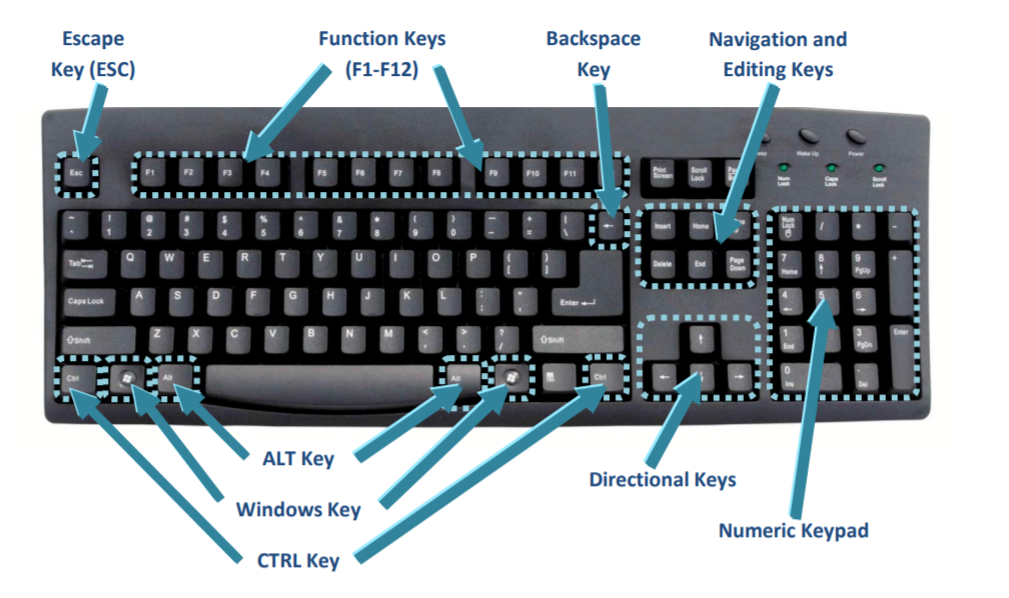
Understanding the “Ctrl” (Control) key requires a dive into the history of telecommunications, the architecture of operating systems, and the evolution of human-computer interaction (HCI). This article explores the technical foundations of the Control key, its practical applications in modern software, and its enduring relevance in a rapidly changing tech landscape.
The Origins of Ctrl: From Teletype to Today’s Desktop
The “Ctrl” key is not a modern invention of the personal computer era; its roots stretch back to the mechanical and electromechanical communication systems of the mid-20th century. Before we had graphical user interfaces (GUIs), computers were navigated through text-based terminals and teletypewriter machines.
Etymology and Hardware Foundations
The label “Ctrl” is an abbreviation for “Control.” On early mechanical teletype machines, the keyboard was limited in its ability to send signals. While standard keys could produce letters, numbers, and punctuation, there was a need to send “non-printing” instructions to the machine—such as a signal to start a new line, ring a bell, or indicate the end of a message.
To achieve this without adding dozens of physical buttons, engineers developed the concept of a “modifier” key. By holding down a “Control” key while pressing another letter, the machine would generate a specific ASCII (American Standard Code for Information Interchange) control character. For example, pressing “Ctrl” and “G” would not print the letter G; instead, it would trigger the “BEL” (Bell) code, causing the teletype machine to physically ring a bell to alert the operator.
The Transition to Personal Computing
As computing moved from giant mainframes to desktop units like the IBM PC in 1981, the Control key was integrated into the standard keyboard layout. IBM’s original 83-key keyboard placed the Ctrl key in a prominent position, recognizing its utility in the “Command Line Interface” (CLI) environments of MS-DOS.
During this era, the Ctrl key became the primary tool for navigating software. Without a mouse, users relied on Ctrl-based combinations to save files, exit programs, and manipulate text. The logic was simple: the standard keys were for content creation, while the Ctrl-modified keys were for “controlling” the software itself. This distinction laid the groundwork for the productivity workflows we use today.
The Mechanics of a Modifier: How the Ctrl Key Works
Technically speaking, the Ctrl key is a “modifier key.” It does not perform an action on its own. When you press “Ctrl,” the keyboard sends a specific scan code to the computer’s operating system, indicating that the next key pressed should be interpreted differently than its standard output.
The Technical Role of Control Characters
In modern computing, the Ctrl key still interfaces with the ASCII and Unicode standards. When you press a combination like Ctrl + C, the keyboard hardware sends a signal that the operating system intercepts. In a programming or terminal environment (like Linux Bash or Windows PowerShell), this combination often sends a “SIGINT” (Signal Interrupt) to the running process, telling it to stop immediately.
This technical lineage explains why Ctrl is so deeply embedded in software development. It provides a “meta-layer” of communication between the human and the hardware that bypasses the standard text input stream. This is essential for debugging, system management, and high-level software configuration.
Ctrl vs. Command: The Mac/PC Divide
One of the most common points of confusion for users switching between hardware ecosystems is the difference between the “Ctrl” key on Windows/Linux and the “Command” key (⌘) on macOS.
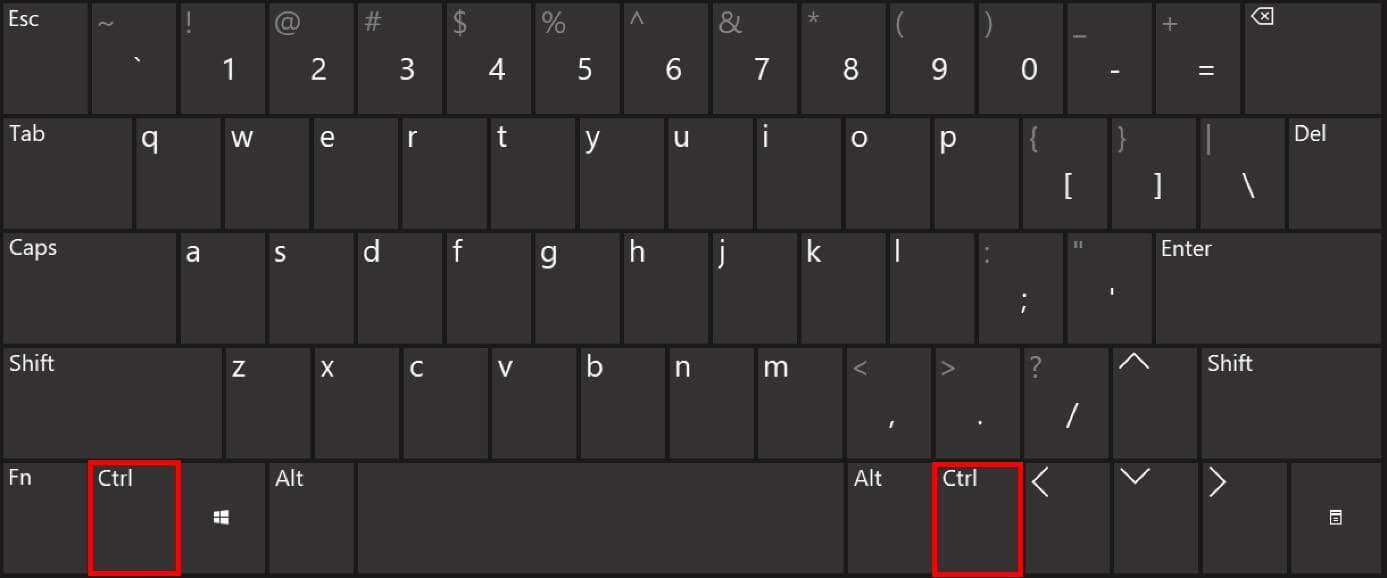
When Apple developed the Macintosh, they prioritized user-friendly design. They introduced the Command key to handle most GUI-based shortcuts (like Command+C for copy), while reserving the Ctrl key for more technical, terminal-based tasks. In contrast, Windows and Linux stuck to the IBM legacy, using Ctrl as the primary modifier for almost all keyboard shortcuts. While the physical location and name differ, the underlying philosophy—using a dedicated key to modify the function of standard keys—remains the same across all platforms.
Productivity Powerhouse: Essential Ctrl Shortcuts Every User Should Know
While the technical history of the Control key is fascinating, its primary value today lies in efficiency. In the world of software and professional workflows, the ability to use Ctrl shortcuts is often the difference between a novice and a power user.
File Management and Editing Essentials
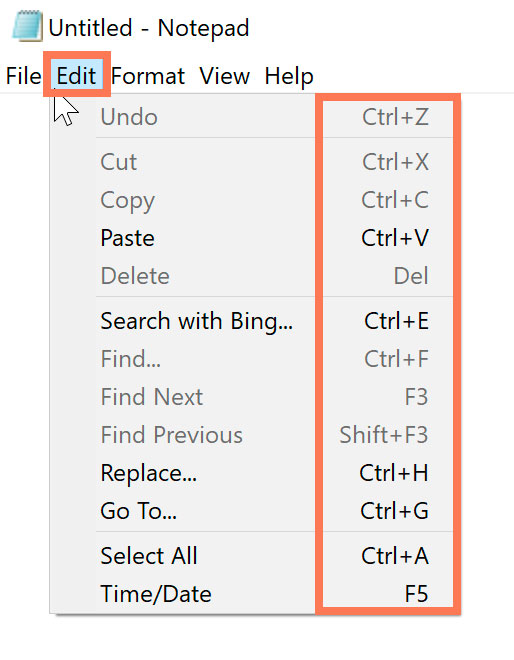
The “Big Four” shortcuts—Ctrl+C (Copy), Ctrl+V (Paste), Ctrl+X (Cut), and Ctrl+Z (Undo)—are the cornerstone of modern digital productivity. These were popularized largely by Xerox PARC and later adopted by Microsoft and Apple, creating a universal language for data manipulation.
Beyond these basics, professional software relies heavily on Ctrl for advanced functions:
- Ctrl + S: The universal “Save” command. Despite the rise of “Auto-save” in cloud apps like Google Docs, this remains a vital habit for developers and creative professionals.
- Ctrl + F: “Find.” This shortcut changed how we consume information, allowing users to instantly locate specific data within massive documents or webpages.
- Ctrl + P: “Print.” A legacy command that remains standard across virtually all productivity suites.
Advanced System and Browser Navigation
In web browsers like Chrome, Firefox, and Edge, the Ctrl key acts as a navigation accelerator.
- Ctrl + T: Opens a new tab.
- Ctrl + Shift + T: Reopens the last closed tab (a lifesaver for accidental clicks).
- Ctrl + L: Instantly highlights the address bar, allowing you to type a new URL without touching the mouse.
Furthermore, the famous Ctrl + Alt + Delete sequence (originally designed by David Bradley at IBM) remains the “emergency exit” for the Windows operating system. It provides a hardware-level interrupt that allows users to access the Task Manager or reboot a frozen system, proving that the Ctrl key is essential for system stability and security management.
Beyond the Keyboard: The Symbolic and Cultural Meaning of “Ctrl”
In the digital age, “Ctrl” has transcended its physical presence on the keyboard to become a symbol of agency and power within technology. Its meaning has evolved from a simple hardware signal to a broader concept in software architecture and user experience design.
Control in Software Architecture and Digital Security
In the context of digital security and IT administration, “Control” refers to the permissions and access levels granted to a user. We see this in terms like “Access Control Lists” (ACLs) or “User Account Control” (UAC) in Windows. The “Ctrl” key is often the physical gateway to these high-level functions. For instance, in many secure environments, users must press Ctrl + Alt + Del to reach the login screen, a move designed to prevent “spoofing” by malicious software that might try to fake a login prompt.
The Future of Interaction: From Hardware Keys to AI Commands
As we move into an era of Artificial Intelligence (AI) and gesture-based computing, some have questioned whether physical keys like “Ctrl” will become obsolete. Microsoft recently introduced the “Copilot” key, the first major change to the standard PC keyboard in decades, designed to launch AI assistants.
However, the “Ctrl” key is unlikely to disappear. Its strength lies in its haptic reliability and its “zero-latency” nature. While voice commands are useful for simple tasks, they cannot match the speed and precision of a Ctrl+Shift+Escape to instantly open a system monitor. As AI tools become more integrated into our workflows, the Ctrl key will likely evolve to modify AI interactions—perhaps Ctrl + AI Prompt will become the new standard for generating content or refactoring code.
Conclusion: The Ubiquitous Command
What does “Ctrl” mean? At its simplest, it is an abbreviation for “Control.” But in the context of technology, it represents the vital link between human intent and machine execution. It is a legacy of the teletype era that has survived the transition to personal computers, the internet revolution, and the rise of mobile tech.
For the professional, the “Ctrl” key is a tool of mastery, enabling a level of speed and efficiency that a mouse or touchscreen cannot replicate. For the developer, it is a fundamental component of system interaction. As technology continues to advance, the Control key remains a reminder that, despite the complexity of modern software, we still require a simple, reliable way to tell our machines exactly what to do. Whether you are undoing a mistake with Ctrl+Z or managing a server via a terminal, you are participating in a decades-old tradition of digital mastery, one keystroke at a time.