
In the landscape of modern professional networking, LinkedIn stands as the preeminent platform for career development, recruitment, and industry discourse. To the uninitiated, the interface can sometimes appear cluttered with specific icons and numerical notations that dictate how users interact with one another. One of the most frequently asked questions by new and intermediate users alike is: “What does the ‘2nd’ icon next to a person’s name mean?”
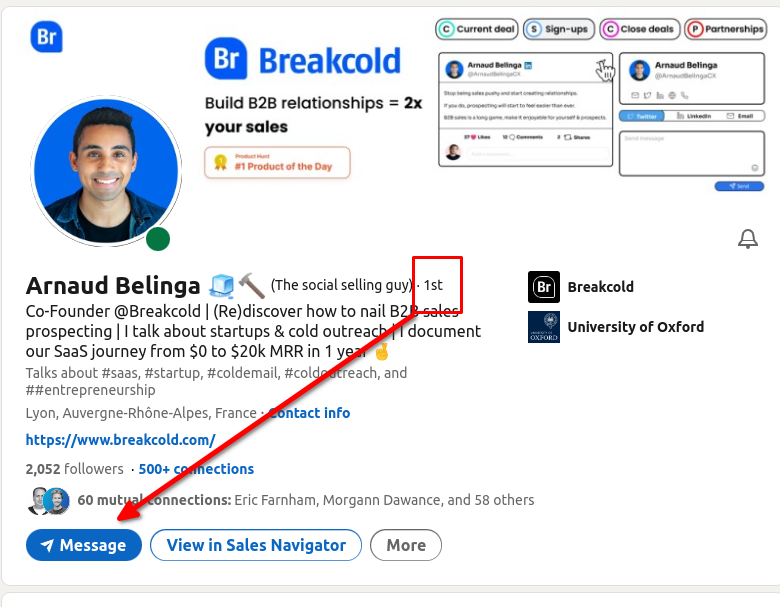
This numerical tag is not a ranking of importance, nor is it a badge of seniority. Instead, it is a crucial component of LinkedIn’s network architecture. Understanding what a 2nd-degree connection is—and how to leverage it—is fundamental to mastering the platform’s technological capabilities and expanding your professional reach.
Understanding the Architecture: The Three Tiers of LinkedIn Connections
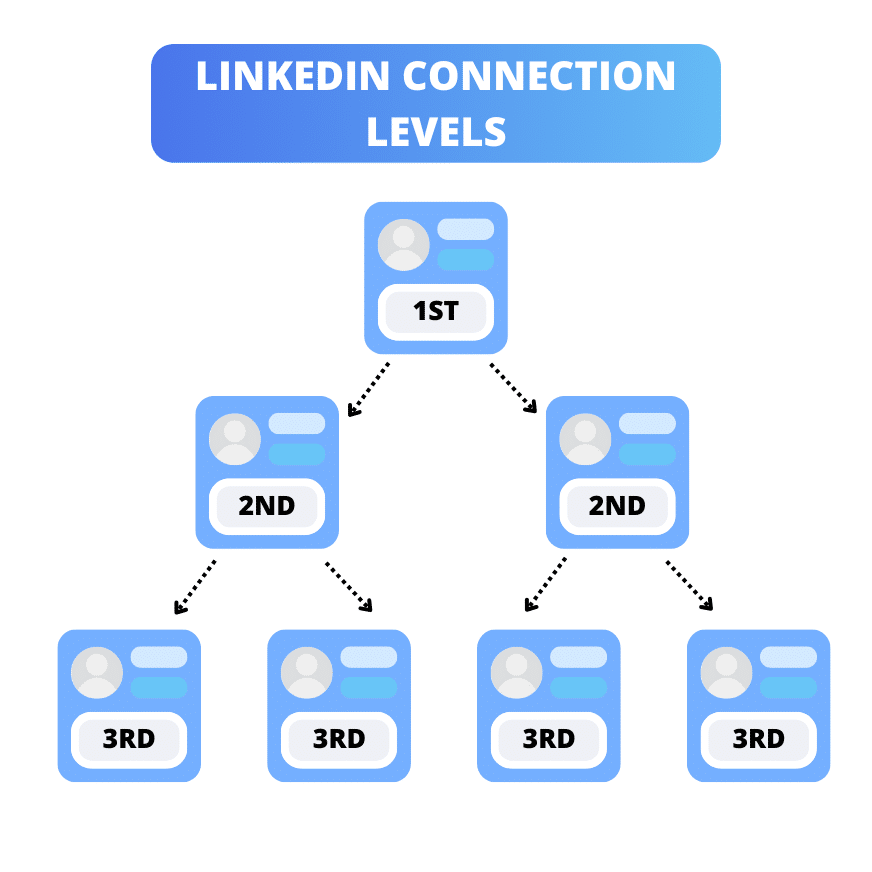
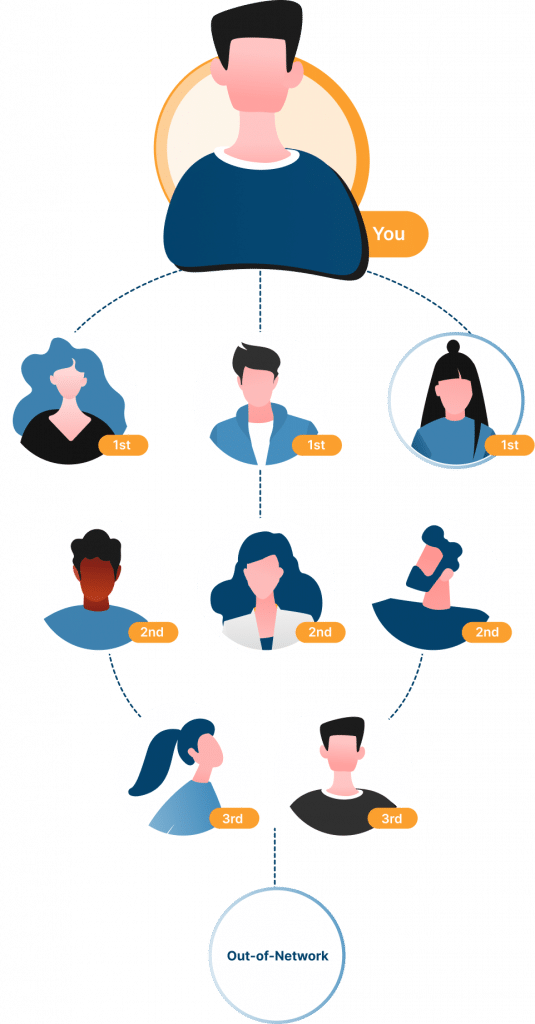
LinkedIn’s software is built upon a “social graph” model, which maps relationships between users. This architecture categorizes your relationship with every other member on the platform into three primary tiers: 1st, 2nd, and 3rd-degree connections. This system is inspired by the “six degrees of separation” theory, suggesting that everyone is linked by a short chain of acquaintances.
1st-Degree Connections: Your Inner Circle
A 1st-degree connection is someone you are directly connected to because one of you accepted an invitation from the other. You can see each other’s full profiles, share direct messages without using InMail credits, and see each other’s contact information (depending on privacy settings). These individuals form the core of your digital professional network.
2nd-Degree Connections: The Bridge to Opportunity
The “2nd” icon indicates that a person is a “friend of a friend.” In technical terms, you are not directly connected, but you share at least one mutual 1st-degree connection. If User A is connected to User B, and User B is connected to User C, then User A and User C are 2nd-degree connections. On LinkedIn, these individuals represent the most fertile ground for networking because there is already a layer of “social proof” or a shared acquaintance between you.
3rd-Degree Connections: The Outer Perimeter
A 3rd-degree connection is someone connected to your 2nd-degree connections. They are further removed from your immediate circle. While you can still view their profiles (usually with limited visibility) and send them invitations, the lack of a direct mutual acquaintance makes the “warm introduction” more difficult to facilitate.
The Logic of the 2nd-Degree Connection: How the Platform Connects the Dots
The LinkedIn algorithm prioritizes 2nd-degree connections in several ways. From a technical standpoint, the platform’s search engine and “People You May Know” feature are designed to surface these individuals because they are statistically the most likely people you should know or might want to meet.
Mutual Connections: The Digital Social Proof
When you click on a 2nd-degree profile, LinkedIn prominently displays your “Mutual Connections.” This is a key UI/UX feature designed to build trust. From a software perspective, this allows users to quickly vet a profile. If you see that a 2nd-degree connection is connected to your former boss or a respected colleague, the platform has successfully used its data to provide you with a reason to trust that individual’s professional standing.
Visibility and Search Ranking Algorithms
LinkedIn’s search algorithm does not treat all profiles equally. When you search for a job title or a company, the results are often weighted by connection degree. 2nd-degree connections frequently appear higher in search results than 3rd-degree connections or those outside your network. This is because the software assumes relevance based on your existing network’s composition. If many people in your circle know a specific software engineer, the algorithm concludes that that engineer is likely relevant to your professional interests as well.
Technical Features and Functionality for 2nd-Degree Profiles
Interacting with a 2nd-degree connection differs significantly from interacting with a 1st-degree connection. There are specific technical limitations and tools designed to maintain the platform’s integrity and prevent spam.
The “Connect” vs. “Follow” Button Logic
On a 2nd-degree profile, you will typically see a “Connect” button. However, depending on the user’s settings or if they have “Creator Mode” turned on, the primary button might be “Follow.”
- Connect: Sending a connection request to a 2nd-degree user usually requires you to send a personalized note (which is highly recommended). Once they accept, you both become 1st-degree connections.
- Follow: Following allows you to see their public posts in your feed without being a direct connection. This is a “one-way” technical relationship.
Messaging Mechanics: InMail and Introduction Requests
One of the most significant technical barriers between 2nd-degree connections is messaging.
- Direct Messaging: Unlike 1st-degree connections, you cannot send a standard direct message to a 2nd-degree connection for free unless you are both in the same LinkedIn Group.
- InMail: To message a 2nd-degree connection without a prior connection, you must use LinkedIn’s Premium feature called “InMail.” This allows you to bypass the connection requirement.
- Requesting an Intro: A more traditional and often more successful approach involves the “Request an Introduction” method. Technically, this isn’t a single button anymore, but a process where you message your mutual 1st-degree connection and ask them to introduce you to the 2nd-degree person.
Advanced Search Filters: Targeted Networking
LinkedIn’s “All Filters” tool allows you to specifically filter search results by “2nd Degree.” For technical recruiters or sales professionals, this is a powerful way to narrow down a list of thousands to a manageable group of people where a “warm” introduction is possible. By selecting the “2nd” checkbox in the search filters, the app excludes everyone you already know and everyone too far removed, leaving you with a list of high-potential prospects.
The Strategy: Moving from 2nd to 1st Degree
Understanding the “2nd” icon is the first step; the second is knowing how to bridge the gap. Moving a 2nd-degree connection into your 1st-degree circle is the primary way to grow a meaningful professional network.
Crafting the Personalized Invitation
Because the 2nd-degree icon signifies a mutual connection, your invitation should always reference that shared link. Technically, when you click “Connect” on a desktop, a prompt appears asking if you want to add a note. On mobile, this is often hidden under the “More” or “…” menu. Always take the extra technical step to add a note. A message like, “I noticed we are both connected to [Mutual Friend], and I’ve been following your work in [Industry],” transforms a cold tech interaction into a warm professional outreach.
Leveraging the Feed
The LinkedIn algorithm frequently shows you activity from 2nd-degree connections. If a 1st-degree connection likes or comments on a 2nd-degree connection’s post, that post may appear in your feed. This provides a technical “window” into their professional world. Engaging with that content (liking or commenting) before sending a connection request can increase the likelihood that your 2nd-degree connection will recognize your name when you finally hit the “Connect” button.
Security, Privacy, and Technical Limits
While 2nd-degree connections are vital for growth, LinkedIn incorporates several digital security measures to protect users from harassment and “connection farming.”
Profile Visibility Settings
Under the “Settings & Privacy” menu, users can control how much 2nd-degree connections can see. You can choose to hide your last name, your email address, or even your list of connections from anyone who is not a 1st-degree contact. If you visit a 2nd-degree profile and see very little information, it is because their privacy settings are configured to restrict data access to their immediate network.
The “Commercial Use Limit”
For users on the free version of LinkedIn, there is a technical “Commercial Use Limit” on searches. If the platform detects that you are performing an unusually high number of searches for 2nd and 3rd-degree connections (behavior typical of recruiters or lead generators), it may temporarily restrict your ability to view full profiles or search results until the next month or until you upgrade to a Premium account.
“I Don’t Know This Person”
If you send too many connection requests to 2nd-degree connections who then click “I don’t know this person” upon declining, LinkedIn’s security algorithms may flag your account. This can lead to technical restrictions, such as being required to enter an email address for every future connection request you send.
Conclusion
The “2nd” icon on LinkedIn is a powerful indicator of potential. It represents the “sweet spot” of digital networking: individuals who are far enough away to expand your horizons, but close enough to be reachable through a mutual acquaintance. By understanding the software mechanics behind these tiers—from search algorithms and messaging restrictions to privacy settings and social graph architecture—you can move beyond being a passive user of the app. Instead, you become a strategic navigator of the professional digital world, effectively turning 2nd-degree possibilities into 1st-degree professional realities.
aViewFromTheCave is a participant in the Amazon Services LLC Associates Program, an affiliate advertising program designed to provide a means for sites to earn advertising fees by advertising and linking to Amazon.com. Amazon, the Amazon logo, AmazonSupply, and the AmazonSupply logo are trademarks of Amazon.com, Inc. or its affiliates. As an Amazon Associate we earn affiliate commissions from qualifying purchases.