
In the vast landscape of data management and analysis, Microsoft Excel stands as an undisputed titan. Its array of functions provides users with unparalleled capabilities to organize, calculate, and interpret data. Among these powerful tools, the IF function reigns supreme as a cornerstone of conditional logic, enabling users to automate decision-making within their spreadsheets. Far from being a mere technicality, understanding and mastering the IF function unlocks a new level of efficiency, accuracy, and insight in any data-driven task. This article delves deep into the essence of Excel’s IF functions, exploring their mechanics, applications, advanced techniques, and best practices, empowering you to harness their full potential.
The Power of Conditional Logic in Excel
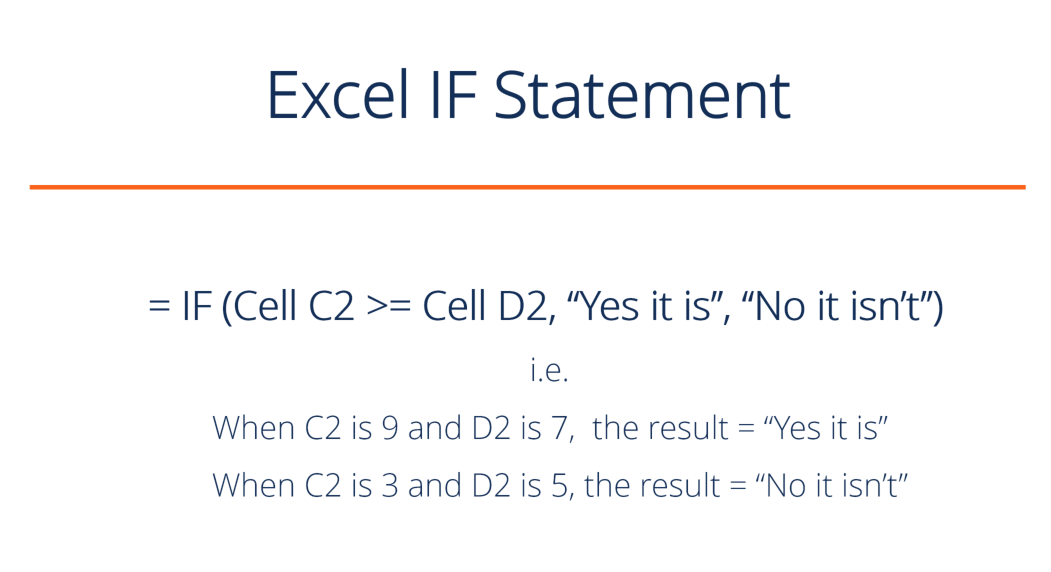
At its heart, the IF function in Excel is an embodiment of conditional logic – a fundamental concept in computing and problem-solving. It allows your spreadsheet to perform different actions or return different values based on whether a specified condition is true or false. This simple yet profound capability transforms static data into dynamic, responsive information.
Understanding the Core Concept: True or False
Every IF function operates on a straightforward premise: test a condition, and if that condition is met (evaluates to TRUE), do one thing; otherwise (if it evaluates to FALSE), do another. This binary decision-making process mirrors how we make countless decisions in daily life, from “If it rains, I’ll take an umbrella” to “If the light is green, I’ll go.” In Excel, these conditions can involve comparing numbers, checking for specific text, verifying if a cell is empty, or even evaluating the result of another function. The elegance lies in its simplicity, making complex rules manageable.
Why Conditional Logic is Essential for Data Analysis
The ability to introduce conditional logic is not just a convenience; it’s a necessity for robust data analysis. Imagine manually going through thousands of rows to assign a “Pass” or “Fail” status, categorize sales, or flag items that meet specific criteria. Such tasks are not only tedious and time-consuming but also highly prone to human error. The IF function automates these decisions, ensuring consistency and accuracy across your entire dataset, regardless of its size. It enables you to quickly identify trends, highlight exceptions, and streamline reporting, transforming raw data into actionable intelligence.
Real-World Scenarios Where IF Shines
The versatility of the IF function is evident in its wide range of practical applications across various industries and roles:
- Performance Evaluation: Automatically assign “Exceeds Expectations,” “Meets Expectations,” or “Needs Improvement” based on performance scores.
- Sales and Marketing: Categorize customers as “High Value” or “Standard” based on purchase history, or apply different discount rates based on order volume.
- Financial Analysis: Flag transactions that exceed a certain limit, categorize expenses as “Fixed” or “Variable,” or calculate commissions based on sales targets.
- Inventory Management: Alert users when stock levels fall below a reorder point (“Low Stock”) or identify items that have been in storage for too long.
- Project Management: Update task statuses to “On Track,” “Delayed,” or “Completed” based on deadlines and completion percentages.
These examples only scratch the surface, illustrating how the IF function injects intelligence into your spreadsheets, making them more than just calculators.
Dissecting the Basic IF Function Syntax
To begin leveraging the power of conditional logic, it’s crucial to understand the fundamental structure of the IF function. Like all Excel functions, IF follows a specific syntax, requiring particular pieces of information, known as arguments, to operate correctly.
The Three Arguments: Logic, Value_if_true, Value_if_false
The IF function has three primary arguments, each playing a distinct role in its operation:
logical_test: This is the condition you want to evaluate. It must be an expression that can result in either TRUE or FALSE. Examples includeA1>100,B2="Complete",C3<>""(C3 is not empty), orD4<=TODAY().value_if_true: This is the value or action that Excel will return or perform if thelogical_testevaluates to TRUE. This can be a number, text (enclosed in double quotes), another formula, a cell reference, or even an empty string ("").value_if_false: This is the value or action that Excel will return or perform if thelogical_testevaluates to FALSE. Likevalue_if_true, it can be a number, text, another formula, a cell reference, or an empty string.
The general syntax is therefore: =IF(logical_test, value_if_true, value_if_false).
Step-by-Step Construction of a Simple IF Formula
Let’s walk through an example to illustrate how to build a basic IF formula. Suppose you have a list of student scores in column B, and you want to assign a “Pass” or “Fail” status in column C, where a score of 70 or higher is a pass.
- Identify the
logical_test: You want to check if the score in cell B2 is greater than or equal to 70. So,B2>=70. - Identify the
value_if_true: If the score is 70 or higher, the student “Passes”. Since “Pass” is text, it needs to be in quotes:"Pass". - Identify the
value_if_false: If the score is less than 70, the student “Fails”. Again, it’s text:"Fail".
Combining these, the formula in cell C2 would be: =IF(B2>=70, "Pass", "Fail").
You can then drag this formula down column C to apply it to all students, instantly generating their pass/fail status.
Practical Examples: Grading, Status Updates, Discounts
-
Grading System:
=IF(B2>=90, "A", IF(B2>=80, "B", IF(B2>=70, "C", IF(B2>=60, "D", "F"))))- (Note: This is an example of a nested IF, which we’ll cover next, but demonstrates how grades can be assigned.)
-
Project Status:
- In cell C2 (Status), if B2 (Days Remaining) is less than or equal to 0, mark as “Overdue”; otherwise, “On Track”.
=IF(B2<=0, "Overdue", "On Track")
-
Discount Calculation:
- In cell C2 (Discount), if B2 (Order Total) is greater than 1000, apply a 10% discount (0.1); otherwise, apply no discount (0).
=IF(B2>1000, 0.1, 0)- To get the discounted price:
=A2*(1-IF(B2>1000, 0.1, 0))(where A2 is the original price).
These basic applications underscore the versatility and direct utility of the IF function in everyday Excel tasks.
Mastering Advanced IF Scenarios
While the basic IF function is powerful, real-world data often demands more complex decision-making. Excel provides several ways to extend IF‘s capabilities, allowing you to handle multiple conditions and intricate logic seamlessly.
Nesting IF Functions for Multiple Conditions
When you need to evaluate more than two outcomes (the true/false of a single IF), you can “nest” IF functions. This means placing one IF function inside another’s value_if_true or value_if_false argument.
Consider a grading system where you want to assign A, B, C, D, or F based on a score:
- 90 and above: A
- 80-89: B
- 70-79: C
- 60-69: D
- Below 60: F
Here’s how a nested IF would look:
=IF(B2>=90, "A", IF(B2>=80, "B", IF(B2>=70, "C", IF(B2>=60, "D", "F"))))
Explanation:
- The first
IFchecksB2>=90. If TRUE, it returns “A”. - If FALSE (meaning score is <90), it moves to the
value_if_falseargument, which is anotherIFfunction. - This second
IFchecksB2>=80. If TRUE (and we know it’s <90), it returns “B”. - This pattern continues until a condition is met or the final
value_if_false(“F”) is returned.
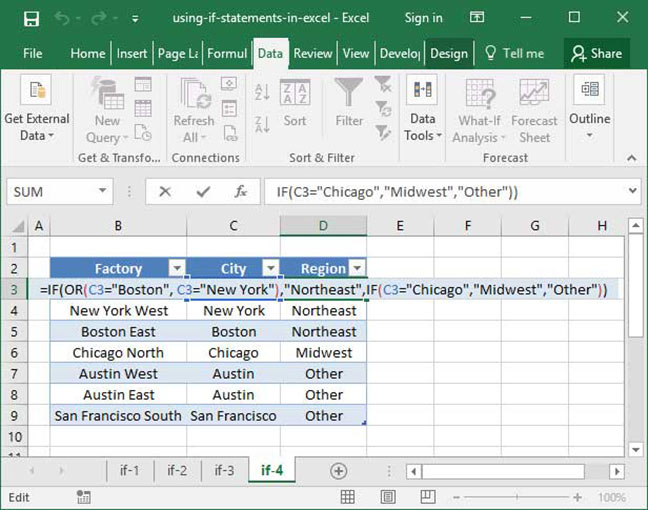
While powerful, nested IFs can become difficult to read and manage as the number of conditions grows. Excel has a limit to how many IFs you can nest (typically 64 in modern versions), but practical readability often diminishes long before that limit.
Introducing the IFS Function: A Modern Alternative for Multiple Conditions
Recognizing the complexity of deeply nested IF statements, Excel introduced the IFS function (available in Excel 2016 and later), which significantly simplifies handling multiple conditions. Instead of nesting, IFS allows you to specify multiple [logical_test, value_if_true] pairs sequentially.
The syntax for IFS is: =IFS(logical_test1, value_if_true1, [logical_test2, value_if_true2], ...)
Using the same grading example with IFS:
=IFS(B2>=90, "A", B2>=80, "B", B2>=70, "C", B2>=60, "D", TRUE, "F")
Key differences and advantages of IFS:
- Readability: Much easier to read and understand compared to deeply nested
IFs. - Simplicity: No need to meticulously track closing parentheses.
- Efficiency: Each
logical_testis evaluated in order. As soon as a condition is TRUE, the correspondingvalue_if_trueis returned, and the function stops. TRUEas a final argument: Notice theTRUE, "F"at the end. This acts as a catch-all. If none of the preceding conditions are met,TRUEwill always evaluate to true, and “F” will be returned, mirroring the finalvalue_if_falsein a nestedIF. This is crucial becauseIFSrequires alogical_testfor everyvalue_if_true, and it doesn’t have a defaultvalue_if_falseargument.
For scenarios with more than a couple of conditions, IFS is almost always the preferred and more elegant solution.
Combining IF with Other Logical Functions (AND, OR, NOT)
The IF function becomes even more versatile when combined with other logical functions like AND, OR, and NOT. These functions allow you to create more sophisticated logical_test arguments.
-
ANDFunction: Returns TRUE if all its arguments are TRUE; otherwise, it returns FALSE.- Scenario: Give a bonus if sales are over $10,000 AND customer satisfaction is “Excellent”.
=IF(AND(B2>10000, C2="Excellent"), "Bonus", "No Bonus")- Here, both conditions must be met for the bonus to be awarded.
-
ORFunction: Returns TRUE if any of its arguments are TRUE; it only returns FALSE if all arguments are FALSE.- Scenario: Flag an item for review if its quantity is below 10 OR its last order date is more than 6 months ago.
=IF(OR(B2<10, C2<EDATE(TODAY(),-6)), "Review", "OK")- If either condition is met, the item is flagged.
-
NOTFunction: Reverses the logical value of its argument. If a condition is TRUE,NOTmakes it FALSE, and vice versa.- Scenario: If a cell is not empty, return “Data Present”; otherwise, return “Empty”.
=IF(NOT(ISBLANK(B2)), "Data Present", "Empty")- (Alternatively, a simpler
IF(B2<>"", "Data Present", "Empty")achieves the same for non-blank checks).
By integrating AND, OR, and NOT into the logical_test of an IF statement, you can build exceptionally precise and nuanced decision-making rules within your spreadsheets, moving beyond simple true/false checks to evaluate complex sets of criteria.
Common Pitfalls and Best Practices
While IF functions are incredibly useful, they can lead to frustration if not used carefully. Awareness of common pitfalls and adherence to best practices will save you time and ensure the accuracy of your formulas.
Avoiding Errors: Parentheses, Text vs. Numbers, Quoted Strings
- Parentheses Matching: Especially with nested
IFs, ensure every opening parenthesis has a corresponding closing one. Excel often helps with color-coding, but careful counting is key. Mismatched parentheses are a common syntax error. - Text vs. Numbers: Remember that text values in formulas must always be enclosed in double quotes (e.g.,
"Complete","N/A"). Numbers, cell references, and Boolean values (TRUE/FALSE) do not need quotes. Mixing them incorrectly can lead to#VALUE!errors or unexpected results. - Case Sensitivity (for Text): By default, Excel’s comparisons (e.g.,
="Yes") are case-insensitive. However, if you are using functions likeEXACTor working with specific data cleaning scenarios, case sensitivity might become relevant. For standardIFusage, it’s generally not an issue, but be mindful of leading/trailing spaces, which will affect matches. - Empty Cells: An empty cell is often treated as 0 in numerical comparisons and
""(an empty string) in text comparisons. Be explicit if you need to test for emptiness usingISBLANK(cell)orcell="".
Performance Considerations for Large Datasets
While IF functions are efficient for most uses, extremely complex or numerous IF statements in very large datasets (hundreds of thousands of rows) can sometimes impact recalculation speed.
- Minimize Volatile Functions: Avoid nesting
IFwith volatile functions likeTODAY(),NOW(), orRAND()if possible, as these force recalculation of the entire sheet more often. - Optimize Nesting: If using many nested
IFs, consider ifIFS(if available),VLOOKUP/XLOOKUPwith a lookup table, or theCHOOSEfunction might be more efficient or readable for your specific scenario. These alternatives can often process multiple conditions more directly. - Array Formulas: Be cautious with array formulas containing
IFon very large ranges, as they can be resource-intensive.
When to Use IF vs. Other Excel Functions (e.g., VLOOKUP, SUMIF, CHOOSE)
The IF function is powerful, but it’s not always the best tool for every conditional scenario. Knowing when to choose an alternative function can lead to more robust and simpler solutions:
VLOOKUP/XLOOKUP: For mapping a value to a corresponding result from a lookup table (e.g., assigning grades A-F based on scores in a separate table, or retrieving pricing tiers).XLOOKUP(Excel 365/2019+) is generally superior toVLOOKUPfor its flexibility and ease of use. This is often far more efficient and manageable than deeply nestedIFstatements for tiered conditions.SUMIF/SUMIFS/COUNTIF/COUNTIFS/AVERAGEIF/AVERAGEIFS: For summing, counting, or averaging values based on one or more criteria. These functions are purpose-built for conditional aggregation and are much more efficient than trying to build complexIFstatements for summing specific ranges.CHOOSE: If you have a numerical index and want to pick a corresponding value from a list (e.g.,CHOOSE(A2, "Red", "Green", "Blue")where A2 contains 1, 2, or 3). It can sometimes replace a sequence ofIFstatements for very specific integer-based conditions.- Data Validation: For restricting cell inputs based on conditions rather than returning results.
Choosing the right tool for the job is a hallmark of an advanced Excel user.
Documenting Your Formulas for Clarity
Complex IF formulas, especially nested ones or those combined with AND/OR, can become difficult to decipher months down the line, both for you and for others who might use your spreadsheet.
- Add Comments: Use Excel’s “Insert Comment” feature on the cell containing the formula to explain its logic.
- Break Down Complex Logic: For extremely intricate formulas, consider breaking them down into multiple helper columns, each handling a part of the
logical_test, and then referencing those helper columns in your finalIFstatement. - Consistent Formatting: Use clear cell names and consistent formatting for related data to improve overall readability.
Clear documentation is an investment that pays dividends in maintainability and error reduction.
Beyond the Basics: The Broader Impact of IF Functions
The journey into IF functions is more than just learning a formula; it’s about adopting a conditional mindset that permeates advanced spreadsheet design and data management strategies.
Automation and Decision-Making
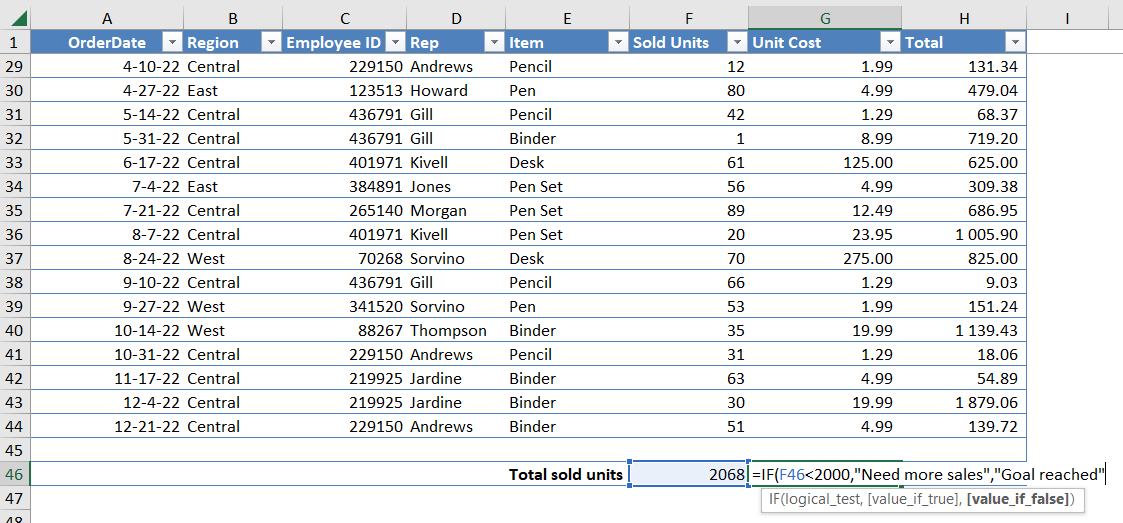
IF functions are fundamental to creating dynamic and semi-automated spreadsheets. They allow models to react to changing inputs, display real-time status updates, and guide users through processes without manual intervention. This automation frees up valuable time, reduces the potential for human error, and ensures consistency in decision-making across an organization. From flagging sales leads that meet specific criteria to automating financial calculations, IF functions are at the core of making Excel a powerful decision-support system.
Enhancing Data Visualization and Reporting
Conditional logic extends beyond just returning text or numbers. IF statements can be used indirectly to enhance data visualization and reporting:
- Conditional Formatting: While not an
IFfunction directly, many conditional formatting rules are based onIF-like logic (e.g., “If cell value is greater than X, highlight red”). UnderstandingIFlogic makes creating complex conditional formatting rules much easier. - Dynamic Chart Labels:
IFcan help create dynamic labels or data points for charts, highlighting specific thresholds or conditions. - Report Generation: By categorizing data using
IFfunctions, you can then easily filter, pivot, and summarize information for targeted reports, ensuring that only relevant data is presented based on specific criteria.
A Gateway to Advanced Excel Skills
Mastering IF functions is often a pivotal step in developing more advanced Excel skills. It builds a foundational understanding of:
- Logical Operations: Essential for any programming or scripting.
- Formula Debugging: Learning to trace how
IFevaluates conditions helps in troubleshooting other complex formulas. - Algorithmic Thinking: Breaking down problems into conditional steps is a core aspect of creating sophisticated spreadsheets and even dabbling in VBA (Visual Basic for Applications) for macro automation.
By becoming proficient with IF functions, you’re not just learning a single formula; you’re cultivating a logical approach to problem-solving that will serve you well in all areas of technology and data management.
In conclusion, the IF function in Excel is far more than a simple conditional operator. It is a fundamental building block for creating intelligent, responsive, and dynamic spreadsheets. From basic true/false decisions to sophisticated multi-criteria evaluations using IFS or combinations with AND/OR, its applications are virtually limitless. By understanding its mechanics, exploring advanced techniques, and adhering to best practices, you can unlock a new level of productivity and analytical power in your Excel endeavors, transforming your data into a source of clear, automated, and actionable insights.