
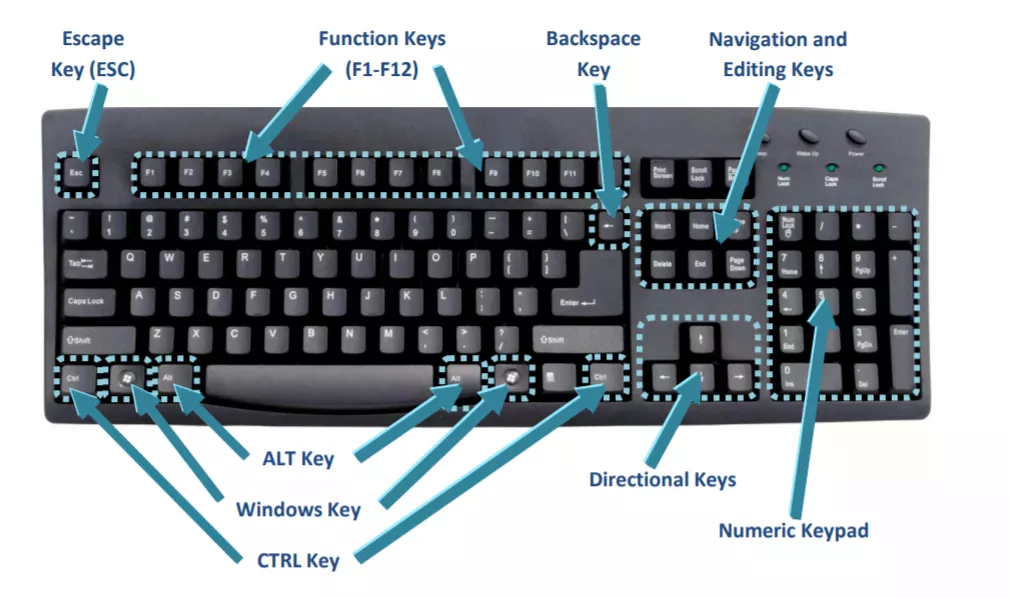
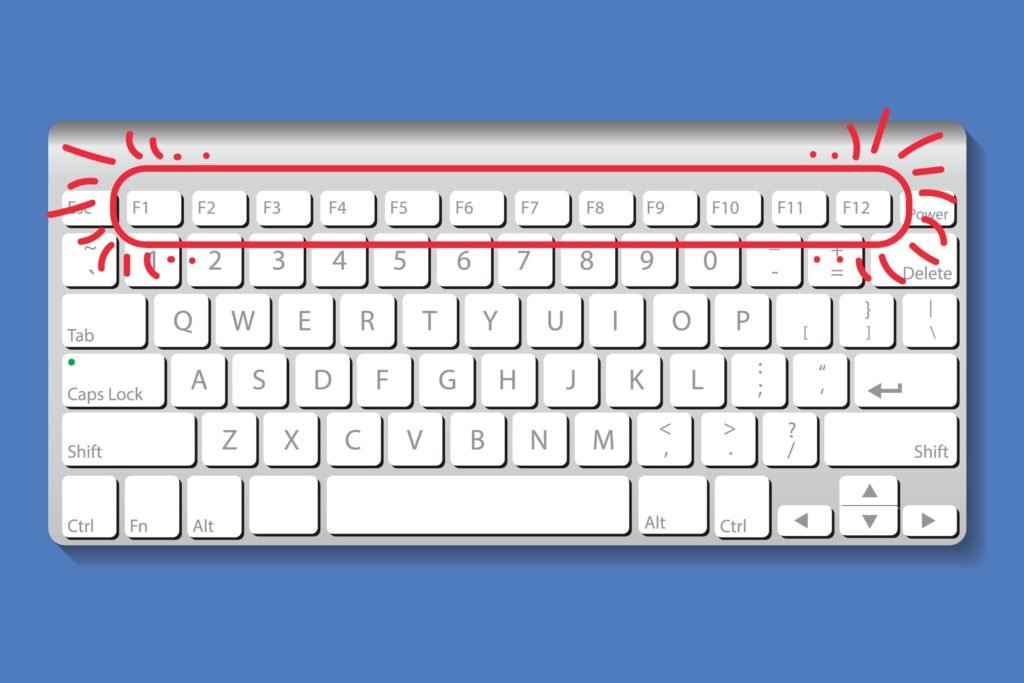
The row of keys labeled F1 through F12—and sometimes F13 through F24 on specialized hardware—perched at the very top of your keyboard is often the most overlooked section of your primary input device. Known as function keys, these twelve (or more) buttons serve as a gateway to shortcuts, system commands, and application-specific controls that can drastically accelerate your digital workflow. Understanding what these keys do and how to leverage them is a foundational skill for anyone looking to master their computer’s interface and improve their overall productivity.
The Evolution and Anatomy of Function Keys
Function keys were not always standard. In the early days of computing, keyboards were designed to be simple, but as operating systems grew more complex, developers needed a way to trigger common tasks without navigating deep, nested menus.
From Typewriters to Programmable Inputs
The concept of the “F-key” traces its roots back to the late 1960s and early 1970s. As terminal interfaces began to replace punch cards, programmers realized they needed dedicated buttons to handle repetitive tasks like “Help,” “Save,” or “Execute.” By the time the IBM PC was introduced in the early 1980s, the 12-key function block became the standard. Unlike character keys (letters and numbers) that generate specific symbols on the screen, function keys send a signal to the computer’s Basic Input/Output System (BIOS) or the operating system, which then decides what action to perform based on the active application.
The Modern Dual-Layer Design
On modern laptops and compact keyboards, physical space is at a premium. To accommodate this, manufacturers implemented the “Fn” (Function) modifier key. This allows a single key to serve two purposes. For example, pressing “F5” might perform a standard software refresh, while holding the “Fn” key and pressing “F5” might toggle your keyboard backlight or adjust the volume. This dual-layer architecture has made function keys even more versatile in the mobile computing era.
Decoding the Standard Function Key Actions
While developers can assign almost any command to these keys, there are several “de facto” standards that have emerged over the decades. These shortcuts are supported by most mainstream software, ranging from web browsers to word processors.
The Universal Command Set
- F1 (The Universal Help Key): Across almost every program on Windows and macOS, F1 is the go-to button for opening the software’s help documentation or support web page.
- F2 (The Rename Key): In Windows Explorer, clicking a file and pressing F2 allows you to immediately rename the file. It is the fastest way to organize your digital assets.
- F3 (The Search Key): In most apps, F3 opens the “Find” or “Search” dialogue box, allowing you to locate specific text or files within an open window.
- F5 (The Refresh Key): Perhaps the most widely recognized key, F5 refreshes the current window. In a web browser, it reloads the page. In a desktop folder, it refreshes the view to reflect recent file changes.
- F11 (The Full-Screen Toggle): This key is essential for immersive workflows. It toggles your active window into full-screen mode, hiding the browser bars and taskbar so you can focus entirely on the content.
- F12 (The Developer Gateway): In web browsers like Chrome or Firefox, F12 opens the “Developer Tools,” a robust suite of options used by programmers to inspect code, analyze network performance, and troubleshoot website errors.
Software-Specific Implementations
The behavior of these keys shifts entirely when you step into professional creative or technical software. In Microsoft Excel, for example, pressing F4 repeats your last action—a massive time-saver for repetitive data entry. In Adobe Premiere Pro or After Effects, the function keys are often pre-mapped to complex editing tools, such as clearing the work area, toggling snapping, or jumping to specific marker points. Mastering your specific software’s “F-key” map is often the dividing line between an average user and a power user.
Customizing Your Workflow for Peak Efficiency
You are not restricted to the default settings of your keyboard. The power of modern computing lies in the ability to remap your hardware to suit your unique needs. If you find that you never use the “Insert” key but find yourself constantly needing to launch your email client, you can reconfigure your keyboard to bridge that gap.
Software Solutions for Key Mapping
For Windows users, “Microsoft PowerToys” is an essential utility. It includes a tool called “Keyboard Manager” that allows you to remap any key on your keyboard to perform a different function. You can even create application-specific shortcuts, meaning your F-keys could perform one set of actions while you are in your web browser and a completely different set while you are inside a video editor.
macOS users have similar capabilities built into the “System Settings.” By navigating to the “Keyboard” section, users can create custom shortcuts for specific application menu items, allowing for high-level automation of tasks that would otherwise require multiple mouse clicks.
Macro Keys and Layers
For those who need extreme customization, mechanical keyboards often support “Layers.” With software like VIA or QMK, you can program your keyboard to have multiple layouts. Imagine pressing a toggle key that turns your row of function keys into a command center for your smart home, triggering lights or music playback without leaving your workstation. This level of customization transforms your keyboard from a passive input device into an active extension of your creative process.
Troubleshooting and Hardware Considerations
Sometimes, function keys may stop responding or behave unexpectedly. Understanding the hardware side of these keys is just as important as knowing their software functions.
The “Fn Lock” Conundrum
One of the most common “issues” users face is when the media controls (volume, brightness) activate instead of the standard function commands. If your keyboard has an “Fn Lock” key—often located as a secondary command on the Esc key—you may have inadvertently activated it. Pressing Fn + Esc will typically toggle this mode, restoring your standard F1–F12 functionality.
Firmware and Driver Issues
If your function keys are unresponsive, the problem is rarely the hardware itself. It is usually a driver conflict. If you are using a gaming keyboard (like those from Corsair, Razer, or Logitech), these devices often require proprietary software to function at their full potential. Ensuring your keyboard firmware is updated through the manufacturer’s application is usually enough to resolve any erratic behavior.

Physical Cleaning and Maintenance
Because function keys are often hit with high frequency, they can collect dust and debris beneath the switches. If a key begins to stick or register double-taps, a simple compressed air treatment is usually sufficient. For mechanical keyboards, you have the advantage of being able to pull the keycap off and clean the switch directly.
As you continue to refine your digital workflow, remember that the function row is not merely a set of extra buttons—it is a toolkit designed for speed. By moving your hands less and using shortcuts more, you reduce the physical strain of mouse-heavy computing and significantly increase the velocity of your work. Start by integrating just one or two new F-key shortcuts into your daily routine this week, and you will quickly see how these twelve buttons can redefine your efficiency.
aViewFromTheCave is a participant in the Amazon Services LLC Associates Program, an affiliate advertising program designed to provide a means for sites to earn advertising fees by advertising and linking to Amazon.com. Amazon, the Amazon logo, AmazonSupply, and the AmazonSupply logo are trademarks of Amazon.com, Inc. or its affiliates. As an Amazon Associate we earn affiliate commissions from qualifying purchases.