
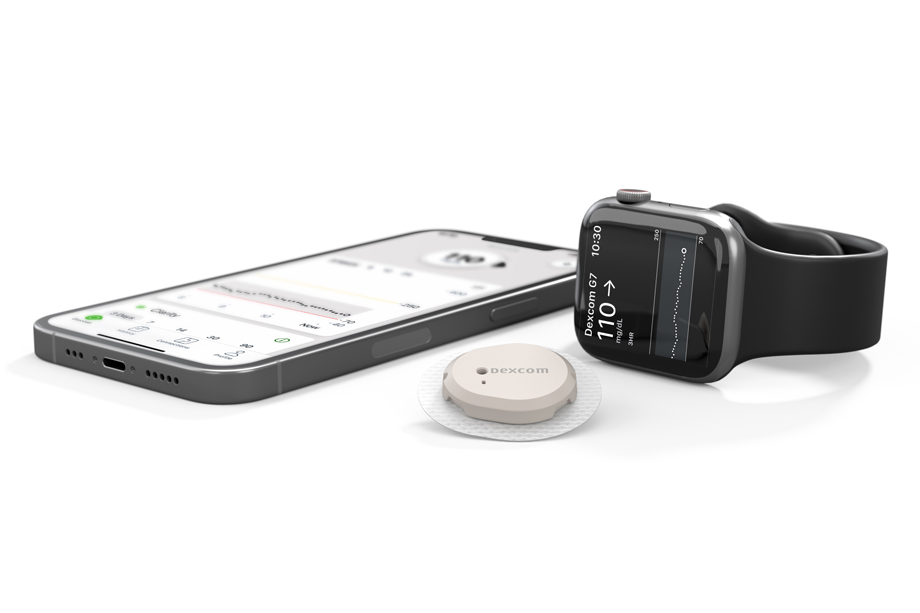
The Dexcom G7 Continuous Glucose Monitoring (CGM) system represents a significant leap in diabetes management technology, offering users a smaller, all-in-one sensor that provides real-time glucose readings directly to a compatible smart device. For Android users, understanding device compatibility is crucial for a seamless and reliable experience. The intricate interplay between the Dexcom G7 app, the Android operating system, and specific phone hardware means that not all Android devices can support the system effectively. Navigating the landscape of compatible smartphones requires a nuanced understanding of software requirements, hardware specifications, and regional availability to ensure accurate data transmission and alert functionality.

Understanding Dexcom G7 Compatibility
Dexcom G7’s functionality hinges on a stable and secure connection between the sensor and its accompanying mobile application. This connection is fundamental for displaying glucose readings, tracking trends, and delivering critical alerts. When a phone is “compatible,” it means it has been rigorously tested and validated by Dexcom to ensure that its hardware and software can reliably perform all necessary functions of the G7 system without interference or data loss.
The Role of Software and Hardware
At its core, compatibility is a fusion of software and hardware capabilities. The Dexcom G7 app is designed to run on specific versions of the Android operating system. Each OS version introduces new APIs (Application Programming Interfaces) and security features that the app might leverage or depend on. Older OS versions might lack these necessary components, leading to instability or outright failure to run the app. Beyond the OS, the phone’s internal hardware, particularly its Bluetooth module, plays a critical role. The G7 sensor communicates wirelessly via Bluetooth Low Energy (BLE), and the phone’s Bluetooth chip must be capable of maintaining a consistent, low-power connection for extended periods without dropping data. Furthermore, the phone’s processing power and memory are essential for the app to run smoothly in the background, continuously receiving and processing data without impacting other phone functions or draining the battery excessively. Dexcom’s validation process includes extensive testing to confirm these hardware and software components work harmoniously under various real-world conditions.
Why Compatibility Matters for CGM Users
For individuals managing diabetes, the reliability of their CGM system is paramount. Incompatible devices can lead to a range of critical issues that directly impact health management. Delayed or dropped glucose readings mean users might miss important trends or high/low alerts, potentially leading to dangerous glycemic events. Inaccurate data display can result in incorrect insulin dosing or dietary decisions. Frequent app crashes or connection interruptions can cause significant frustration and erode trust in the system. Moreover, the G7 system includes urgent low alerts and predictive warnings, which are vital safety features. If a device cannot reliably deliver these alerts due to compatibility issues, it compromises patient safety. Therefore, using a tested and validated compatible device is not merely a convenience; it is a clinical necessity that ensures the G7 system functions as intended, providing the continuous, accurate, and timely information needed for effective diabetes self-management.
Key Factors Affecting Android Compatibility
The sheer diversity of the Android ecosystem presents unique challenges for ensuring universal compatibility. Unlike the more controlled environment of iOS, Android phones come in myriad brands, models, and custom software overlays, all of which can influence how an app like Dexcom G7 performs. Identifying the key factors that determine compatibility is essential for users to make informed decisions.
Android OS Version Requirements
The most immediate and fundamental compatibility factor is the Android operating system version. Dexcom G7, like many advanced applications, requires a minimum Android OS version to function correctly. This is because newer OS versions often include critical system-level optimizations, security enhancements, and Bluetooth stack improvements that the Dexcom app relies upon. For example, a specific Android version might introduce better background process management, ensuring the Dexcom app continues to receive data even when other apps are active. Attempting to install the app on a device running an older, unsupported OS version will often result in an error, or if it does install, the app may be unstable, prone to crashes, or fail to connect reliably to the G7 sensor. Dexcom typically updates its minimum OS requirements as new Android versions are released, making it important for users to keep their devices updated to the latest supported firmware.
Device-Specific Hardware Limitations
Beyond the operating system, the hardware configuration of individual Android phone models plays a significant role. Even if two phones run the same Android OS version, their underlying hardware can differ substantially. Key hardware considerations for Dexcom G7 compatibility include:
- Bluetooth Module: The quality and implementation of the Bluetooth Low Energy (BLE) module are crucial. Some budget or older devices may have less robust Bluetooth chips that struggle to maintain a consistent connection with the G7 sensor, especially in environments with wireless interference.
- Processor and RAM: While not a power-intensive gaming app, the Dexcom G7 app needs sufficient processing power and memory to run continuously in the background, process incoming glucose data, and manage alerts without significant lag or system strain. Devices with very low-end specifications might struggle to keep the app active and responsive.
- Antenna Design: The physical design and placement of the phone’s antennas can influence Bluetooth signal strength and reliability.
- Battery Management: Aggressive battery optimization features on some Android phones can inadvertently terminate background apps like Dexcom G7, disrupting data transmission. Dexcom’s app often requires specific battery optimization settings to be disabled for reliable operation.
Due to these variations, Dexcom must individually test and validate specific phone models, even within the same brand. This explains why one model from a manufacturer might be compatible while another, seemingly similar model, is not.
Regional and Carrier Variations
Adding another layer of complexity are regional and carrier-specific variations. Smartphone models often have slightly different hardware configurations or software builds depending on the market they are sold in (e.g., North America vs. Europe vs. Asia). These differences can include different chipsets, radio bands, or even customized Android overlays imposed by mobile carriers. Furthermore, regulatory approvals for medical devices like Dexcom G7 vary by country. Dexcom must secure approval in each region, and this approval often includes a list of validated devices for that specific market. This means a phone model compatible in the US might not be listed as compatible in Germany, even if the hardware appears identical. Users importing phones or using devices purchased from a different region may encounter compatibility issues not listed on their local Dexcom compatibility page. Therefore, it is essential to check compatibility lists specific to the user’s geographic location and device variant.
How to Verify Your Android Phone’s Compatibility
Given the complexities of Android compatibility, relying on official sources is the most reliable method to determine if your specific device will work with Dexcom G7. Guessing or assuming compatibility based on similar models can lead to significant frustration and potential safety risks.
Utilizing the Official Dexcom Compatibility Tool
Dexcom provides a dedicated online compatibility checker on its official website, which is the definitive resource for verifying device support. This tool typically allows users to select their country, device manufacturer, and specific phone model. The database is regularly updated to reflect new compatible devices, operating system updates, and regional approvals.
When using the tool:
- Select Your Region: Start by choosing your specific country, as compatibility lists can vary geographically.
- Choose Manufacturer and Model: Accurately select your phone’s brand and then its exact model number. Be precise, as variations like “Samsung Galaxy S22” versus “Samsung Galaxy S22 Ultra” or “S22 FE” can have different compatibility statuses.
- Check OS Version: The tool will often specify the required Android OS version. Ensure your phone is running this version or newer. If your phone is on an older version, you may need to update its operating system before it becomes compatible.
If your device is listed as compatible, it means Dexcom has thoroughly tested it and deems it reliable for use with the G7 system. If it’s not listed, proceed with caution.
Checking Device Specifications Manually
While the official tool is primary, understanding your phone’s specifications can provide context. You can find your phone’s OS version by navigating to “Settings” > “About Phone” (or similar) > “Android version.” This allows you to cross-reference with Dexcom’s stated minimum OS requirement. For Bluetooth specifications, most modern Android phones support Bluetooth 5.0 or higher with Low Energy (LE) capabilities, which is typically sufficient. However, the quality of the Bluetooth implementation (firmware and drivers) is what truly matters, and this cannot be easily discerned from basic specifications alone. Manual checking is best used to confirm you meet the minimum OS requirements once you’ve found an officially listed compatible device, rather than as a primary method for determining unlisted device compatibility.
Consulting User Forums and Support Channels
While unofficial, user forums and online communities can sometimes offer insights, especially for devices that are new or on the cusp of official compatibility. Users often share their experiences, workarounds (though often not recommended), and any unofficial news regarding upcoming compatibility. However, information from these sources should always be treated with caution. An anecdotal report of a device working does not equate to official validation, and what works for one user might not work reliably for another. These forums can be useful for gauging community sentiment or discovering if a particular unlisted device might work, but they should never override official Dexcom guidance. For direct, reliable information, contacting Dexcom customer support is always recommended if your specific device isn’t clear on the official compatibility checker. They can provide the most current and authoritative advice.
The Future of Dexcom G7 on Android
The Android ecosystem is constantly evolving, with new devices and OS versions released regularly. Dexcom, recognizing the vast user base of Android, is committed to expanding compatibility, albeit with the necessary caution that comes with a medical device. The trajectory points towards broader support and improved user experiences.
Expanding Device Support
Dexcom’s strategy involves continuously testing and validating new Android devices as they become available on the market. This is a perpetual process, driven by user demand and the pace of smartphone innovation. As device manufacturers streamline their hardware and software, and as Dexcom refines its application, the list of compatible Android phones is expected to grow. This expansion is crucial for making the G7 system accessible to a wider demographic, reducing the barrier of needing a specific, often expensive, smartphone. Users can anticipate seeing more mid-range and even some budget-friendly Android devices added to the compatibility list over time, reflecting the diverse choices available in the Android market. The goal is to provide reliable performance across a broader spectrum of devices, ensuring that more individuals living with diabetes can benefit from advanced CGM technology.
Beta Programs and Early Access
In some cases, Dexcom may engage in beta programs or early access initiatives for upcoming app versions or device compatibility testing. These programs allow a select group of users to test the Dexcom G7 app on new or currently unsupported devices under real-world conditions. Participants provide valuable feedback, helping Dexcom identify and address potential issues before a wider public release. While such programs are typically limited and require specific enrollment, they signify Dexcom’s proactive approach to expanding compatibility. For users keenly awaiting support for their specific device, keeping an eye on official Dexcom announcements regarding beta opportunities can be a way to contribute to, and potentially benefit from, early access to new compatibility features.
Best Practices for Unlisted Devices
While using an officially listed compatible device is always the strongest recommendation, some users may find themselves with an Android phone not yet on the official list. In such scenarios, while not officially supported and at the user’s own risk, there are a few best practices to consider if one chooses to proceed:
- Ensure Minimum OS: At a bare minimum, ensure your device runs the latest stable Android OS version that is equal to or newer than the lowest version required by Dexcom G7 for any compatible device.
- Disable Aggressive Battery Optimization: Many Android phones have aggressive battery-saving features that can kill background apps. Locate these settings (often under “Battery” > “App power management” or similar) and exempt the Dexcom G7 app from optimization. This is critical for continuous data reception.
- Maintain Ample Storage and RAM: Ensure your phone has sufficient free storage and RAM. A device bogged down by too many apps or low on memory is more likely to experience performance issues, even if technically capable.
- Monitor Performance Diligently: If using an unlisted device, closely monitor the app’s performance. Watch for frequent disconnections, delayed readings, missed alerts, or app crashes. Any inconsistency should be a red flag, prompting a switch to an officially compatible device for safety.
- Update Regularly: Keep your phone’s Android OS and the Dexcom G7 app updated to their latest versions. Updates often include bug fixes and performance improvements that could inadvertently enhance stability on a broader range of devices.
Ultimately, while the desire to use one’s current phone is understandable, the accuracy and reliability of the Dexcom G7 system are paramount for effective diabetes management. Prioritizing officially supported devices ensures the highest level of safety and functionality.
aViewFromTheCave is a participant in the Amazon Services LLC Associates Program, an affiliate advertising program designed to provide a means for sites to earn advertising fees by advertising and linking to Amazon.com. Amazon, the Amazon logo, AmazonSupply, and the AmazonSupply logo are trademarks of Amazon.com, Inc. or its affiliates. As an Amazon Associate we earn affiliate commissions from qualifying purchases.