
In today’s digital landscape, a website is no longer a luxury; it’s a necessity for businesses, individuals, and brands alike. And when it comes to building a powerful and professional online presence, WordPress reigns supreme. Its flexibility, user-friendliness, and vast ecosystem of themes and plugins make it the go-to platform for millions worldwide. At the heart of a compelling WordPress website lies its theme – the visual blueprint that dictates its look, feel, and overall user experience.
This guide is your definitive resource on how to install a WordPress theme. Whether you’re a complete beginner just dipping your toes into website creation or a seasoned pro looking to streamline your workflow, we’ll cover every essential step. We’ll explore the different methods of installation, delve into best practices for theme selection, and touch upon how a well-chosen theme can impact your brand, productivity, and even your online income.

Understanding WordPress Themes: More Than Just Aesthetics
Before we dive into the installation process, it’s crucial to understand what a WordPress theme truly is and why it’s so important. Think of your website’s theme as the entire user interface. It’s responsible for:
- Visual Design: This encompasses the layout, color schemes, typography, spacing, and overall aesthetic of your website. A well-designed theme creates an inviting and professional first impression.
- User Experience (UX): Beyond just looking good, a theme dictates how users navigate your site, interact with content, and find information. An intuitive UX is vital for keeping visitors engaged.
- Functionality Integration: Many themes come bundled with built-in features or are designed to work seamlessly with specific plugins, enhancing your website’s capabilities.
- Brand Consistency: For businesses and personal brands, a theme is instrumental in reinforcing brand identity. It ensures that your online presence aligns with your established visual language and messaging.
Choosing the right theme is a strategic decision that can significantly influence your website’s success, impacting everything from brand perception to your ability to convert visitors into customers or subscribers.
Methods for Installing a WordPress Theme
WordPress offers several straightforward ways to install new themes. The method you choose will often depend on where you obtained your theme and your comfort level with the WordPress dashboard.
Installing Themes from the Official WordPress.org Repository (The Easiest Way)
For most users, especially beginners, this is the recommended and most straightforward method. The official WordPress.org theme directory boasts thousands of free themes, all vetted for quality and security.
Step-by-Step Installation:
- Log in to your WordPress Dashboard: Access your website’s administrative area by navigating to
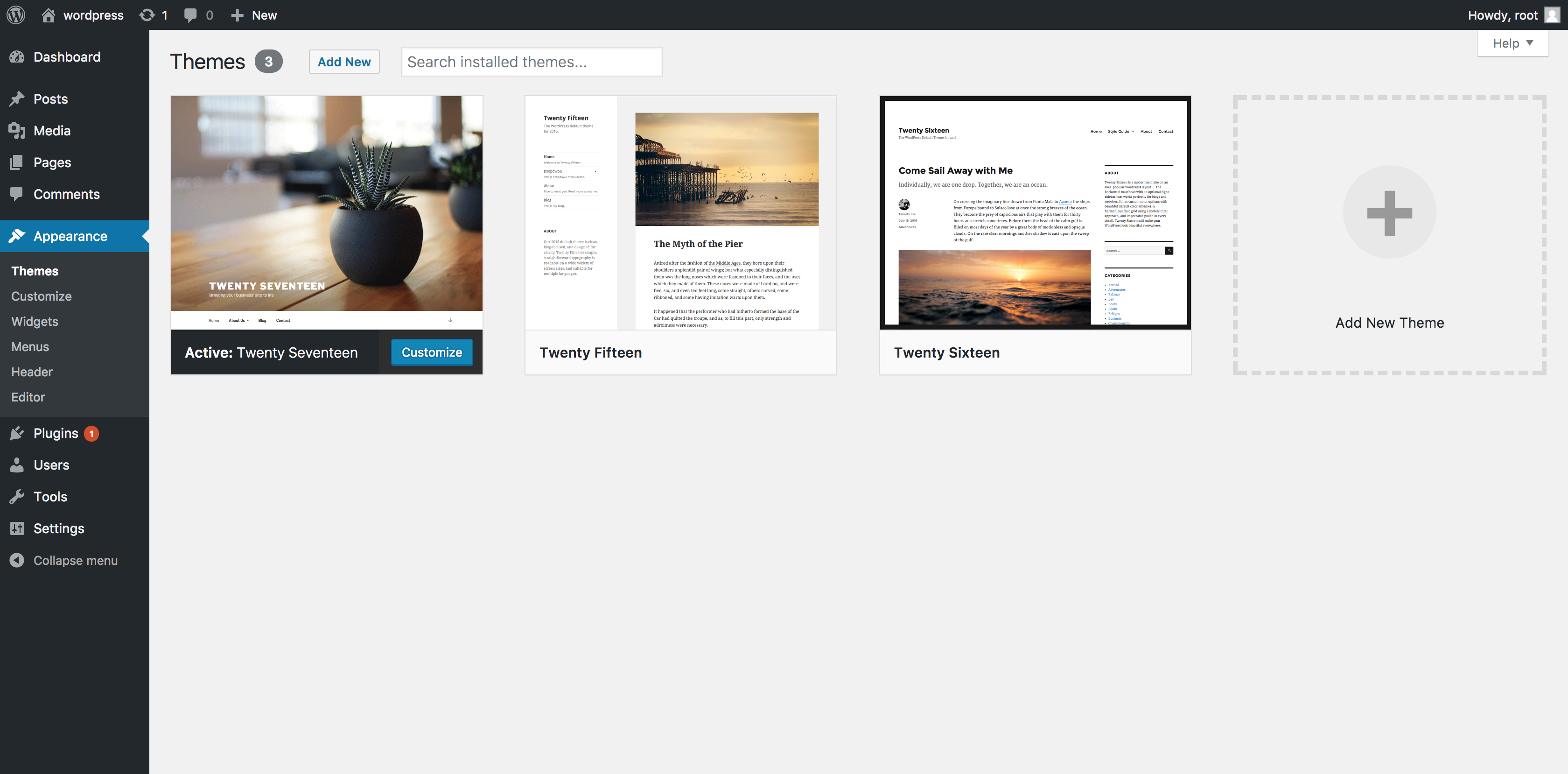
yourwebsite.com/wp-admin(replaceyourwebsite.comwith your actual domain name) and entering your username and password. - Navigate to Appearance > Themes: In the left-hand sidebar menu, hover over “Appearance” and then click on “Themes.”
- Add New Theme: You’ll see a list of currently installed themes. Click the “Add New” button at the top of the page.
- Browse and Search: You’re now in the WordPress Theme Directory. You can:
- Browse Featured, Popular, or Latest: Explore curated selections or see what’s trending.
- Use the Search Bar: If you have a specific theme in mind (e.g., “portfolio theme,” “e-commerce theme,” “minimalist theme”), type keywords into the search bar.
- Filter by Features: Click the “Feature Filter” button to narrow down your options based on layout, features (like e-commerce readiness or sticky posts), and subject matter.
- Preview the Theme: Hover over any theme you’re interested in, and you’ll see options to “Details & Preview” or “Live Preview.” Clicking “Live Preview” is highly recommended, as it allows you to see how the theme would look with your existing content (or sample content) without activating it.
- Install the Theme: Once you’ve found a theme you like and are satisfied with its preview, click the “Install” button. WordPress will download and install the theme automatically.
- Activate the Theme: After installation, the “Install” button will change to “Activate.” Click “Activate” to make the newly installed theme live on your website.
Congratulations! You’ve just installed and activated a theme from the official repository.
Installing a Theme via Upload (For Premium or Custom Themes)
Premium themes purchased from third-party marketplaces (like ThemeForest, Elegant Themes, StudioPress) or custom-built themes are typically distributed as .zip files. You’ll need to use the upload method to install these.
Step-by-Step Installation:
- Obtain the Theme File: Download the
.zipfile of your theme from the provider’s website. Ensure you’re downloading the correct file; sometimes, marketplaces offer a main theme file and separate files for child themes or documentation. - Log in to your WordPress Dashboard: As before, access your admin area.
- Navigate to Appearance > Themes: Go to
Appearance > Themes. - Add New Theme: Click the “Add New” button.
- Upload Theme: Instead of browsing, click the “Upload Theme” button at the top of the page.
- Choose File: Click the “Choose File” button and select the
.zipfile of your theme that you downloaded earlier. - Install Now: Click the “Install Now” button. WordPress will upload and unpack the theme.
- Activate the Theme: Once the installation is complete, you’ll see a success message with options to “Live Preview” or “Activate.” Click “Activate” to make your new premium or custom theme live.
Important Note: Never try to unzip the theme file and then upload individual files. WordPress requires the .zip archive for direct installation.
Installing a Theme via FTP (For Advanced Users)

This method is less common for everyday theme installations but can be useful in specific scenarios, such as when you encounter upload limits on your hosting account or need to troubleshoot installation errors. It requires basic knowledge of File Transfer Protocol (FTP).
Step-by-Step Installation:
- Obtain Theme Files and FTP Credentials: Download the theme’s
.zipfile and make sure you have your FTP client (like FileZilla) and your hosting account’s FTP credentials (hostname, username, password, port). - Unzip the Theme File: Extract the contents of the theme
.zipfile on your local computer. You should have a folder containing the theme’s files. - Connect to your Server via FTP: Open your FTP client and connect to your web server using your credentials.
- Navigate to the Themes Directory: Once connected, navigate to the
wp-content/themes/directory on your web server. - Upload the Theme Folder: Drag and drop the unzipped theme folder from your local computer into the
wp-content/themes/directory on your server. - Log in to your WordPress Dashboard: Access your WordPress admin area.
- Navigate to Appearance > Themes: Go to
Appearance > Themes. - Activate the Theme: You should now see the uploaded theme listed among your installed themes. Hover over it and click “Activate.”
This method requires more technical expertise but offers greater control, especially when dealing with larger files or specific server configurations.
Beyond Installation: Optimizing Your Theme’s Impact
Installing a theme is just the first step. To truly leverage its potential and ensure your website achieves its goals, consider these crucial aspects:
Choosing the Right Theme: A Strategic Decision
Selecting a theme isn’t just about picking one that looks pretty. It’s a decision that impacts your brand, user experience, and even your productivity.
Key Considerations for Theme Selection:
- Purpose and Niche: Does the theme cater to your specific needs? For instance, if you’re a photographer, a portfolio-focused theme is essential. For e-commerce, a theme with built-in shopping cart functionality is key.
- Responsiveness and Mobile-Friendliness: With the majority of web traffic coming from mobile devices, a responsive theme that adapts seamlessly to all screen sizes is non-negotiable.
- Performance and Speed: Bloated themes can significantly slow down your website. Look for themes that are lightweight, well-coded, and optimized for speed. This directly impacts user experience and SEO.
- Customization Options: Does the theme offer sufficient customization options to match your brand identity without requiring extensive coding knowledge? Look for themes with intuitive theme options panels or integration with page builders.
- SEO Friendliness: A theme built with SEO best practices in mind will help your content rank higher in search engine results. This includes clean code, proper heading structures, and schema markup compatibility.
- Regular Updates and Support: For premium themes, ensure the developer provides regular updates to maintain compatibility with the latest WordPress versions and for security. Good support is also invaluable if you encounter issues.
- Reviews and Ratings: Check what other users are saying about the theme. High ratings and positive reviews are good indicators of quality.
Post-Installation Essentials: Configuration and Content Integration
Once your theme is activated, the real work begins.
Essential Steps After Activation:
- Theme Options and Customizer: Explore the theme’s specific settings. Most themes offer a dedicated “Theme Options” panel or integrate with the WordPress Customizer (
Appearance > Customize). This is where you’ll adjust colors, fonts, layouts, header/footer settings, and more. - Widget Areas: Themes often come with pre-defined widget areas (e.g., sidebar, footer). Navigate to
Appearance > Widgetsto add and arrange widgets like search bars, recent posts, social media links, or custom text. - Menu Setup: Ensure your navigation menus are correctly configured under
Appearance > Menus. Assign your created menus to the theme’s designated menu locations. - Homepage Setup: Decide whether your homepage will display your latest blog posts or a static page. This can be configured under
Settings > Reading. - Content Migration and Creation: Start populating your website with high-quality content. Your theme provides the structure, but your content is what attracts and engages visitors.
- Plugin Integration: Install and configure any necessary plugins that complement your theme and enhance your website’s functionality (e.g., SEO plugins, security plugins, contact form plugins).
The Theme’s Role in Brand Identity and Productivity
Your WordPress theme is a powerful tool that directly influences your brand’s online persona and your overall productivity.
- Brand Reinforcement: A consistent visual identity across all platforms is crucial for brand recognition. Your theme should reflect your brand’s colors, fonts, and overall aesthetic, creating a cohesive and professional image. This builds trust and reinforces your unique selling proposition.
- User Engagement and Conversion: A well-designed, user-friendly theme encourages visitors to stay longer, explore more content, and take desired actions. This can lead to increased leads, sales, or subscriptions – directly impacting your online income potential.
- Streamlined Workflow: Themes with intuitive settings, pre-built layouts, and easy customization options can significantly boost your productivity. Instead of spending hours on custom coding, you can focus on creating content and growing your brand.
- Professionalism and Credibility: A polished and professional-looking website instills confidence in your audience. It signals that you’re serious about your online presence and, by extension, your business or personal brand.
Conclusion: Empowering Your Online Presence
Mastering how to install a WordPress theme is a fundamental skill for anyone looking to establish a strong and effective online presence. From the vast library of free themes on WordPress.org to the feature-rich premium options available elsewhere, the power to transform your website’s look and feel is at your fingertips.
By understanding the different installation methods, carefully selecting a theme that aligns with your brand and goals, and diligently configuring it after activation, you’re well on your way to creating a website that not only looks professional but also performs exceptionally. Remember, your theme is more than just a visual shell; it’s a crucial component of your digital strategy, influencing user experience, brand perception, and ultimately, your online success. Happy theming!
aViewFromTheCave is a participant in the Amazon Services LLC Associates Program, an affiliate advertising program designed to provide a means for sites to earn advertising fees by advertising and linking to Amazon.com. Amazon, the Amazon logo, AmazonSupply, and the AmazonSupply logo are trademarks of Amazon.com, Inc. or its affiliates. As an Amazon Associate we earn affiliate commissions from qualifying purchases.