
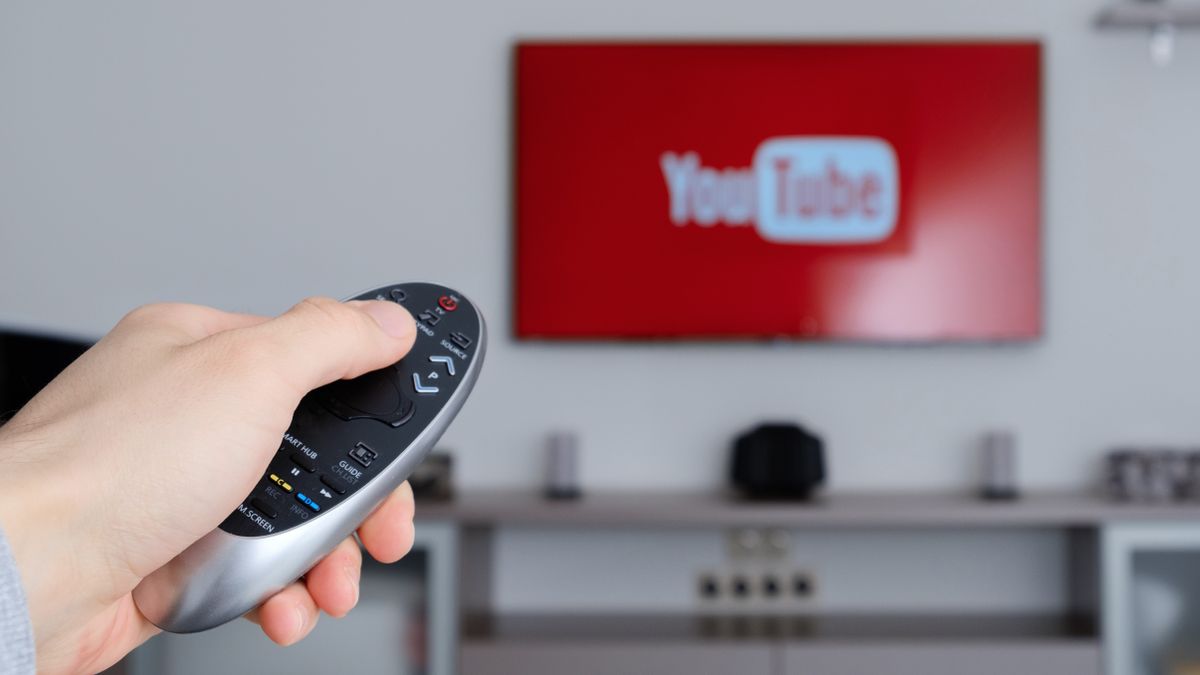
In an age where digital content reigns supreme, YouTube has transcended its origins as a mere video-sharing platform to become a cornerstone of global entertainment, education, and information dissemination. While its ubiquity on smartphones, tablets, and computers is undisputed, the desire to experience its vast library on the expansive, immersive canvas of a television screen remains a primary goal for countless users. The shift from solitary, small-screen viewing to a shared, communal experience in the living room mirrors a broader evolution in how we consume media. This article delves into the comprehensive methods and technological pathways that enable seamless YouTube integration with your television, transforming your viewing habits and unlocking a richer, more engaging digital experience.
The Evolution of TV and Digital Content Consumption
The landscape of television has undergone a radical transformation over the past two decades, moving far beyond the traditional broadcast model. This evolution has paved the way for platforms like YouTube to find a natural home in our living rooms, fundamentally altering how we interact with visual media.
From Broadcast to Streaming
For decades, television was defined by scheduled programming delivered via antennas, cables, or satellites. Viewers were passive recipients, bound by fixed schedules. The advent of the internet, coupled with advancements in data compression and bandwidth, gave rise to streaming technology. This paradigm shift empowered viewers with on-demand access to an unprecedented volume of content, breaking free from traditional broadcasters’ limitations. Platforms like YouTube, initially a pioneer in user-generated content, quickly capitalized on this shift, offering a dynamic alternative to static TV schedules. The ability to watch what you want, when you want, became the new norm, setting the stage for digital platforms to compete directly with traditional television.
The Rise of Smart TVs and Connected Devices
The concept of a “smart TV” – a television with integrated internet connectivity and an operating system capable of running apps – was a pivotal innovation. These devices inherently blurred the lines between a traditional display and a computer, making it possible to access streaming services directly without additional hardware. Concurrently, dedicated streaming devices like Roku, Amazon Fire TV, Apple TV, and Google Chromecast emerged, offering a cost-effective way to imbue older, “dumb” TVs with smart capabilities. These devices, alongside gaming consoles like PlayStation and Xbox, created a robust ecosystem for digital content consumption, placing YouTube squarely at the forefront of living room entertainment. They democratized access to online content, making it a standard feature rather than a niche pursuit.
YouTube’s Pervasive Influence
YouTube’s journey from a nascent platform in 2005 to a global media powerhouse is a testament to its adaptability and the universal appeal of video content. Its colossal library spans every imaginable genre, from educational tutorials and documentary films to music videos, gaming streams, and vlogs. This sheer breadth ensures that there is something for everyone, making it an indispensable part of many households’ daily routines. The transition of YouTube from a mobile-first or desktop-first experience to a TV-friendly one was a natural progression, driven by user demand for a more comfortable and communal viewing environment. The platform’s commitment to developing TV-optimized interfaces and ensuring broad device compatibility solidified its position as a primary source of entertainment on the largest screen in the house.
Direct Methods for Casting and Streaming YouTube
The most straightforward ways to watch YouTube on your TV involve using devices with built-in YouTube applications or casting capabilities. These methods offer convenience and often the most optimized viewing experience.
Smart TV Integration (Built-in YouTube App)
Virtually every smart TV manufactured today, regardless of brand (Samsung, LG, Sony, Vizio, etc.), comes with a pre-installed YouTube app or the ability to download it from its app store. This is often the simplest and most integrated solution. Users merely need to connect their smart TV to the internet, navigate to the app launcher, and select the YouTube icon.
- Setup: Ensure your smart TV is connected to your home Wi-Fi network.
- Access: Locate the YouTube app on your TV’s home screen or app menu. If it’s not present, visit the TV’s app store (e.g., LG Content Store, Samsung Smart Hub, Google Play Store for Android TVs) and download it.
- Login: Sign in with your Google account to access your subscriptions, watch history, personalized recommendations, and playlists. This synchronizes your YouTube experience across all devices.
- Navigation: Use your TV remote to browse videos, search, and control playback. Most modern smart TV remotes also feature voice control, making searching for content even easier.
Streaming Devices (Roku, Fire TV, Apple TV, Chromecast)
For televisions that aren’t “smart” or for users who prefer a different interface, dedicated streaming devices are an excellent choice. These compact gadgets plug into an HDMI port on your TV and provide access to a multitude of streaming services, including YouTube.
- Roku Devices (Roku Streaming Stick, Roku Express, Roku Ultra): Roku’s platform is renowned for its user-friendly interface and vast channel selection. Simply plug in the Roku device, connect it to Wi-Fi, and add the YouTube “channel” from the Roku Channel Store.
- Amazon Fire TV Devices (Fire TV Stick, Fire TV Cube): Fire TV devices run on Amazon’s Fire OS, offering a seamless integration with Amazon services but also robust support for YouTube. Install the YouTube app from the Amazon Appstore.
- Apple TV: Apple’s premium streaming box provides a sleek interface and strong integration with the Apple ecosystem, alongside a dedicated YouTube app available from the App Store.
- Google Chromecast (and Chromecast built-in TVs): Chromecast is unique in that it’s primarily a “cast receiver.” It doesn’t have its own remote or on-screen interface for browsing YouTube directly. Instead, you initiate playback from a mobile device or computer using the YouTube app or website, and then “cast” the video to the Chromecast-connected TV. Many Android TVs and other smart TVs now have Chromecast built-in, offering the same functionality without a separate dongle.
Gaming Consoles (PlayStation, Xbox)
Modern gaming consoles have evolved into comprehensive entertainment hubs, capable of far more than just playing video games. Both PlayStation (PS4, PS5) and Xbox (Xbox One, Xbox Series X/S) consoles offer dedicated YouTube apps that provide a full-fledged viewing experience.
- Installation: Access the console’s respective store (PlayStation Store, Microsoft Store), search for the YouTube app, and download it.
- Login & Control: Log in with your Google account. Navigation is typically done using the console’s game controller, which may take some getting used to compared to a traditional TV remote.
Wireless Casting from Mobile Devices and Computers
Beyond direct app integration, wireless casting technologies provide flexible ways to send YouTube content from your smaller devices to your TV screen. These methods leverage your home Wi-Fi network to stream content, offering convenience and control from your preferred personal device.

Google Cast/Chromecast Built-in
Google Cast is a proprietary technology developed by Google that allows users to send content from their mobile devices or web browsers to a compatible display. Devices with “Chromecast built-in” (like many Android TVs, smart displays, and soundbars) can receive cast signals directly, while external Chromecast dongles add this functionality to any TV with an HDMI port.
- How it Works: Ensure your mobile device/computer and the Chromecast/Chromecast Built-in TV are on the same Wi-Fi network. Open the YouTube app on your smartphone/tablet or the YouTube website in a Chrome browser on your computer. Look for the “Cast” icon (a rectangle with a Wi-Fi signal in the bottom left corner). Tap or click it, then select your Chromecast device from the list. The video will then play on your TV, and your mobile device acts as a remote.
- Advantages: Seamless integration, energy efficiency (the device streams directly, not constantly re-encoding from your phone), and your phone remains free for other tasks.
Apple AirPlay
AirPlay is Apple’s wireless streaming protocol, primarily found on Apple devices (iPhones, iPads, Macs) and compatible smart TVs (AirPlay 2 enabled). It allows you to mirror your entire device screen or stream specific media content, like YouTube videos, to an Apple TV box or an AirPlay 2-compatible smart TV.
- How it Works: Ensure your Apple device and the AirPlay receiver (Apple TV or AirPlay 2 TV) are on the same Wi-Fi network. Open the YouTube app or website on your Apple device. Look for the AirPlay icon (a rectangle with an upward-pointing arrow). Tap it, then choose your AirPlay-enabled TV or Apple TV. You can choose to mirror your entire screen or simply cast the video.
- Advantages: Deep integration within the Apple ecosystem, high-quality video and audio transmission.
Screen Mirroring and Miracast
Screen mirroring technologies allow you to display your entire mobile device or computer screen directly onto your TV. While less efficient for dedicated video streaming than casting protocols, it’s a versatile option if a direct YouTube app or casting feature isn’t available. Miracast is an industry standard for wireless display, often found on Windows devices and many Android phones, and compatible with certain smart TVs or Miracast dongles.
- How it Works: On an Android phone, look for options like “Smart View,” “Screen Cast,” “Wireless Display,” or “Cast” in your quick settings panel. On a Windows PC, use the “Connect” option in the Action Center. The TV must support Miracast or have a compatible receiver. Select your TV from the list, and your device’s screen will appear on the TV. You can then open YouTube and play videos.
- Limitations: Can be more susceptible to lag and quality degradation compared to dedicated casting, and your device’s screen must remain on.
Wired Connections for Displaying YouTube
While wireless methods offer convenience, wired connections provide unparalleled reliability and often the highest quality signal, especially when dealing with older equipment or troubleshooting network issues.
HDMI Cables (Laptop to TV)
The High-Definition Multimedia Interface (HDMI) cable is the standard for transmitting high-definition video and audio signals between devices. Connecting a laptop directly to a TV via an HDMI cable is a simple and effective way to display YouTube content.
- Requirements: A laptop with an HDMI output port and a TV with an HDMI input port. You’ll need an HDMI cable.
- Setup: Connect one end of the HDMI cable to your laptop and the other to an available HDMI input on your TV. Use your TV remote to select the correct HDMI input source. Your TV will then act as a second monitor for your laptop. You can configure your laptop’s display settings to either mirror its screen or extend the desktop, allowing you to drag the YouTube browser window onto the TV display.
- Advantages: Excellent video and audio quality, no reliance on network connectivity, ideal for presentations or longer viewing sessions where stability is key.
USB-C to HDMI Adapters
Many modern ultrabooks and even some newer tablets and smartphones are increasingly ditching the traditional HDMI port in favor of the more versatile USB-C. If your device only has a USB-C port, you can still connect it to your TV using a USB-C to HDMI adapter or a USB-C hub with an HDMI output.
- Requirements: A device with a USB-C port that supports “DisplayPort Alternate Mode” (DP Alt Mode) or Thunderbolt 3/4, a USB-C to HDMI adapter, and an HDMI cable.
- Setup: Connect the adapter to your device’s USB-C port, then connect an HDMI cable from the adapter to your TV. Select the correct HDMI input on your TV.
- Considerations: Ensure your USB-C port supports video output, as not all USB-C ports have this capability. Check your device’s specifications.
Optimizing Your YouTube Viewing Experience on TV
Once you’ve successfully connected YouTube to your television, a few steps can enhance your viewing pleasure and resolve common technical hiccups.
Ensuring Optimal Network Connectivity
A stable and fast internet connection is paramount for high-quality streaming.
- Wi-Fi Strength: Position your Wi-Fi router centrally and as close as possible to your TV or streaming device to ensure a strong signal. If possible, consider using a Wi-Fi extender or mesh system for larger homes.
- Ethernet Connection: For the most reliable and fastest connection, use an Ethernet cable to connect your smart TV, streaming device, or gaming console directly to your router. This bypasses potential Wi-Fi interference and ensures consistent bandwidth.
- Bandwidth: Ensure your internet plan provides sufficient bandwidth for streaming HD or 4K content, especially if multiple devices are active on your network. YouTube recommends at least 2.5 Mbps for standard definition, 5 Mbps for HD, and 20 Mbps for 4K.
Adjusting TV Picture and Sound Settings
Your TV’s default settings might not be optimized for streaming digital content.
- Picture Mode: Experiment with picture modes like “Cinema,” “Movie,” or “Custom” which often provide a more natural and accurate color representation than vivid or dynamic modes. Turn off motion smoothing (“Soap Opera Effect”) if you find it distracting.
- Aspect Ratio: Ensure your TV is set to the correct aspect ratio (usually 16:9) to avoid stretched or cropped images.
- Sound Settings: Adjust bass, treble, and surround sound settings to suit your preferences. If you’re using an external soundbar or home theater system, ensure your TV’s audio output is configured correctly (e.g., HDMI ARC/eARC, Optical Digital).
Utilizing YouTube’s TV Interface Features
The YouTube app on smart TVs and streaming devices offers features tailored for the big screen.
- Remote Control Pairing: Many YouTube TV apps allow you to pair your phone to the app, turning your phone into a sophisticated remote for easier searching and playlist management.
- Voice Search: Leverage voice control features on your smart TV remote or streaming device for hands-free content discovery.
- Ambient Mode/Screensavers: Some YouTube TV apps offer ambient modes or custom screensavers to prevent screen burn-in and display aesthetic content when idle.
- Playback Quality: Manually adjust video quality if you’re experiencing buffering, though the app usually auto-selects the best quality based on your internet speed.
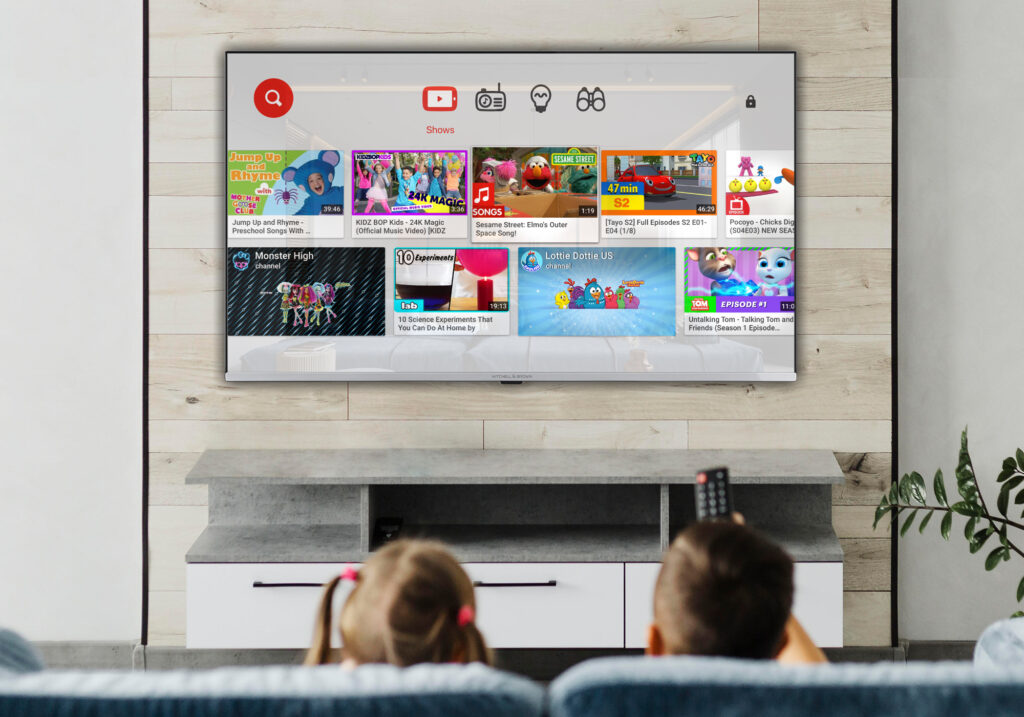
Troubleshooting Common Issues
Encountering problems is inevitable, but many are easily fixable.
- Buffering/Lag: Check your internet connection speed. Restart your router, TV, and streaming device. Clear the YouTube app’s cache if applicable.
- App Not Working: Try force-closing and restarting the YouTube app. If that doesn’t work, uninstall and reinstall the app. Ensure your TV’s firmware and the YouTube app are updated to the latest versions.
- No Sound/Video: Check all cable connections (HDMI, power). Ensure the correct input source is selected on your TV. Test with other apps to determine if the issue is specific to YouTube or your TV/device.
- Casting Issues: Ensure both devices are on the same Wi-Fi network. Restart both the casting device (phone/computer) and the receiving device (Chromecast/TV). Check for app updates on your phone.
By understanding the diverse range of technologies available and applying these optimization and troubleshooting tips, watching YouTube on your television becomes a seamless and enriching experience, solidifying its place as a staple of modern home entertainment. The journey from a small screen to the largest display in your home is now more accessible and integrated than ever before, inviting you to explore the boundless world of YouTube in comfort and clarity.
aViewFromTheCave is a participant in the Amazon Services LLC Associates Program, an affiliate advertising program designed to provide a means for sites to earn advertising fees by advertising and linking to Amazon.com. Amazon, the Amazon logo, AmazonSupply, and the AmazonSupply logo are trademarks of Amazon.com, Inc. or its affiliates. As an Amazon Associate we earn affiliate commissions from qualifying purchases.