
In an age dominated by digital content, YouTube has become a cornerstone for entertainment, education, and news. While its origins were firmly rooted in desktop and mobile viewing, the desire to enjoy this vast library of videos on the biggest screen in the house – the television – has grown exponentially. Moving from a cramped phone screen to a expansive display transforms the viewing experience, making it more immersive and social. This guide delves into the myriad ways you can bring YouTube from your pocket or desktop directly to your living room TV, exploring the technology, setup, and optimization for each method. Whether you own a cutting-edge smart TV, a dedicated streaming device, or simply want to cast from your phone, understanding these options will unlock a world of big-screen YouTube enjoyment.
The Smart TV Advantage: Native YouTube Experience
Modern smart televisions are, by design, powerful media hubs equipped to handle a wide array of online content. Most contemporary smart TVs come with built-in internet connectivity and pre-installed or easily downloadable applications, making them one of the most straightforward ways to access YouTube. This native integration offers a streamlined user experience, often leveraging the TV’s remote control for intuitive navigation.
Accessing the YouTube App
For the vast majority of smart TVs (Samsung, LG, Sony, Vizio, Hisense, TCL, etc.), the process begins by ensuring your television is connected to your home Wi-Fi network. Once online, navigate to your TV’s “Apps” or “Smart Hub” section. You’ll typically find the YouTube app pre-installed and prominently displayed. If it’s not immediately visible, search the app store for “YouTube” and download it. The app will require you to either sign in with your existing Google account or create a new one to access personalized recommendations, subscriptions, watch history, and playlists. Signing in is highly recommended as it replicates your familiar YouTube experience from other devices, ensuring continuity in your content consumption.
Navigating and Searching
Using the YouTube app on a smart TV is remarkably similar to its mobile or desktop counterparts, albeit adapted for remote control interaction. Most smart TV remotes feature directional pads, an “OK” or “Enter” button, and often a dedicated home or back button. You’ll use these to scroll through feeds, select videos, and access menus. Many modern smart remotes also include voice control capabilities, allowing you to simply speak your search queries (e.g., “Play latest tech reviews” or “Search for documentary on space”) directly into the remote, significantly speeding up content discovery compared to typing with an on-screen keyboard. Explore the app’s interface to find your subscriptions, recommended videos, trending content, and watch history, all presented in a large-format, user-friendly layout.
Troubleshooting Common Smart TV Issues
While convenient, smart TVs can sometimes encounter minor glitches. If the YouTube app is slow, freezes, or fails to load, a few simple troubleshooting steps can often resolve the issue. First, check your internet connection; a weak Wi-Fi signal is a common culprit. Try restarting your TV by unplugging it from the power outlet for a minute, then plugging it back in – this performs a soft reset of the TV’s operating system. Ensure the YouTube app and your TV’s firmware are up to date, as updates often include bug fixes and performance enhancements. If problems persist, clearing the app’s cache or reinstalling the YouTube app might be necessary. In rare cases, a factory reset of the TV could be an option, but this should be a last resort as it will erase all settings and installed apps.
Unlocking Your TV’s Potential with Dedicated Streaming Devices
For TVs that aren’t “smart” or for users who prefer a more unified and feature-rich streaming experience, dedicated streaming devices offer an excellent alternative. These compact gadgets plug into your TV’s HDMI port and connect to your Wi-Fi, providing access to a vast ecosystem of apps, including YouTube, often with a more robust interface and better performance than some integrated smart TV platforms.
Google Chromecast: Simple Casting Power
The Google Chromecast stands out for its elegant simplicity. Unlike traditional streaming boxes with their own user interface, Chromecast is primarily a “casting” device. You initiate playback on your smartphone, tablet, or computer using the YouTube app (or Chrome browser), and then “cast” the video to your TV. The Chromecast then takes over the streaming directly from the internet, freeing up your mobile device for other tasks. Setup involves plugging the device into an HDMI port and power, then using the Google Home app on your smartphone to connect it to your Wi-Fi network. Once configured, a small cast icon (a TV with a Wi-Fi symbol) will appear in compatible apps like YouTube; tapping it allows you to select your Chromecast and send the video to your TV.
Amazon Fire TV Stick: Feature-Rich Entertainment
Amazon’s Fire TV Stick is a popular choice due to its affordability and comprehensive feature set. It runs on Amazon’s Fire OS, providing a complete user interface navigable with a dedicated remote control, often featuring Alexa voice control. After plugging the Fire TV Stick into an HDMI port and power, and connecting it to Wi-Fi, you can download the YouTube app from the Amazon Appstore. The Fire TV interface is intuitive, allowing you to browse, search, and watch YouTube videos directly from the device’s home screen or through voice commands to Alexa. The various models (Lite, standard, 4K, 4K Max, Cube) offer different levels of performance and video quality, including HDR and Dolby Vision support for compatible content.
Roku Devices: A Universe of Channels
Roku offers a diverse lineup of streaming devices, from compact sticks to powerful boxes, all running the user-friendly Roku OS. Known for its vast “Channel Store” (Roku’s term for apps), Roku provides access to nearly every major streaming service, including YouTube. Installation is similar to other devices: plug into HDMI, connect to power, and follow on-screen prompts to connect to Wi-Fi. Once set up, you can add the YouTube channel from the Channel Store. Roku’s interface is clean and straightforward, making it easy to find and watch content using its physical remote control, which often includes dedicated service buttons and voice search capabilities. Roku devices are particularly praised for their unbiased search, showing results from all available services rather than prioritizing specific content providers.
Apple TV: Seamless Integration for Apple Users
For those deeply embedded in the Apple ecosystem, the Apple TV streaming box offers a premium experience. While it comes at a higher price point, it boasts powerful hardware, a sleek interface, and unparalleled integration with other Apple services like Apple Music, Apple Arcade, and AirPlay. After connecting the Apple TV to your TV via HDMI and power, and linking it to your Wi-Fi, you can download the YouTube app from the App Store. Navigation is primarily through the Siri Remote, which features a touch-enabled surface and Siri voice control, allowing for precise control and quick content discovery. Apple TV supports high-quality video and audio formats, making it an excellent choice for cinephiles and audiophiles, and its robust performance ensures a smooth YouTube streaming experience.
Wireless Wonders: Casting and Screen Mirroring

Beyond dedicated streaming devices, your existing mobile devices and computers can serve as powerful conduits for bringing YouTube to your TV, often without requiring any additional hardware beyond what you already own. These methods leverage wireless technologies to either “cast” content or “mirror” your device’s screen onto the big display.
Google Cast Protocol: From Mobile to Big Screen
The Google Cast protocol (which powers Chromecast devices) is also integrated into many smart TVs and Android TV devices. If your TV supports Google Cast natively, you can bypass needing a physical Chromecast dongle. Simply ensure your phone or tablet is on the same Wi-Fi network as your Google Cast-enabled TV. Open the YouTube app on your mobile device, start playing a video, and then tap the “Cast” icon (the square with a Wi-Fi symbol in the corner). A list of available casting devices, including your TV, will appear. Select your TV, and the video will begin playing on the big screen, allowing you to continue using your phone for other tasks while retaining playback controls on your mobile device.
Apple AirPlay: Effortless iOS and Mac Integration
For Apple users, AirPlay provides a seamless way to share content from iPhones, iPads, and Mac computers to AirPlay-compatible smart TVs (many major brands like Samsung, LG, Sony, Vizio now support AirPlay 2) or Apple TV devices. Similar to Google Cast, ensure your Apple device and your TV are on the same Wi-Fi network. Open the YouTube app on your iPhone or iPad, start a video, and then tap the AirPlay icon (a rectangle with an upward-pointing triangle). Choose your AirPlay-enabled TV from the list, and the video will begin streaming. AirPlay allows for both direct casting of video (where the TV streams independently) and screen mirroring, which duplicates your entire device screen on the TV, useful for showing off app interfaces or presentations.
Universal Screen Mirroring: Android and Windows Options
Most modern Android smartphones and Windows PCs offer some form of screen mirroring technology, often referred to as “Smart View,” “Screen Share,” “Cast,” or “Wireless Display.” These features project your device’s entire screen, including whatever is playing on YouTube, onto a compatible smart TV or a TV connected to a Miracast dongle. The exact steps vary by device and TV manufacturer but generally involve navigating to your phone’s quick settings panel (by swiping down from the top) or a display settings menu on your PC. Look for options like “Cast,” “Screen Mirroring,” or “Connect to a wireless display.” Select your TV from the list of detected devices. While generally effective, screen mirroring can sometimes introduce latency or result in a less optimized video stream compared to direct casting protocols like Google Cast or AirPlay, as it’s transmitting the full device screen rather than just the video stream.
Beyond Streaming Boxes: Game Consoles and Wired Connections
While smart TVs and dedicated streaming devices offer the most polished experiences, other gadgets you might already own can also double as YouTube viewers. Gaming consoles and even a direct physical connection provide viable, if sometimes less elegant, alternatives.
Gaming Consoles: A Versatile Media Hub
Modern gaming consoles like the PlayStation (PS4, PS5) and Xbox (Xbox One, Xbox Series X|S) have evolved far beyond mere gaming machines. They are robust entertainment hubs capable of streaming video, music, and more. Both PlayStation and Xbox platforms offer the YouTube app in their respective digital stores. You’ll need to download and install it, then sign in with your Google account. Navigation is handled through the game controller, which might feel less intuitive than a dedicated media remote but is perfectly functional. Consoles are particularly adept at handling high-resolution video and surround sound, making them excellent choices for experiencing YouTube’s premium content, including 4K videos and live streams, especially if your console is already hooked up to a high-end audio-visual setup.
HDMI Direct Connection: The Old Reliable Method
For the ultimate in simplicity and reliability, or when wireless options fail, a direct wired connection using an HDMI cable remains a foolproof method. This involves connecting a laptop or desktop computer directly to your TV using an HDMI cable. Most modern laptops and desktop graphics cards feature an HDMI output port. Simply connect one end of the HDMI cable to your computer and the other to an available HDMI input on your TV. Then, use your TV’s remote to select the corresponding HDMI input source. Your TV will then act as an external monitor for your computer. You can then open YouTube in your web browser on your computer, play any video, and it will display on your TV. You might need to adjust your computer’s display settings to “Duplicate” or “Extend” your desktop, and ensure the audio output is routed through the HDMI connection to your TV or sound system. While perhaps less convenient for casual viewing, this method guarantees a stable connection and full control from your computer, making it ideal for presentations, specific playlists, or when internet connectivity on your TV or streaming device is an issue.
Optimizing Your YouTube TV Viewing Experience
Getting YouTube onto your TV is just the first step. To truly enjoy the vast content library, optimizing your setup for the best possible video quality, audio, and user experience is crucial. A few tweaks can significantly enhance your binge-watching sessions or casual viewing.
Ensuring Optimal Internet Connectivity
The quality of your YouTube stream is heavily dependent on your internet connection. For standard definition videos, a modest connection suffices, but for 4K UHD content, you’ll need significantly more bandwidth – typically 20-25 Mbps or higher, consistently. If you’re experiencing buffering or low-quality streams, consider the following:
- Wi-Fi Signal Strength: Ensure your TV or streaming device is within good range of your Wi-Fi router. Obstacles like walls and furniture can degrade the signal.
- Ethernet Connection: Whenever possible, use an Ethernet cable to directly connect your smart TV, streaming box, or game console to your router. A wired connection is inherently more stable and faster than Wi-Fi.
- Router Performance: An older or underpowered router might struggle with multiple devices streaming simultaneously. Upgrading your router can make a noticeable difference.
- Reduce Network Congestion: Limit other bandwidth-intensive activities (large downloads, other simultaneous streams) on your network while watching YouTube.
Enhancing Video and Audio Quality
Most YouTube apps on smart TVs and streaming devices allow you to manually adjust video quality, though it often defaults to “Auto” based on your internet speed. For the best picture, ensure your TV’s display settings are correctly calibrated (brightness, contrast, color, sharpness). If you’re watching 4K or HDR content, verify that your TV and streaming device support these technologies and that the settings are enabled. For audio, if you have a soundbar or home theater system, make sure your TV is configured to output audio through it (often via HDMI ARC/eARC or optical digital audio cable) rather than its internal speakers. The YouTube app itself usually has minimal audio settings, so the main optimization happens at the TV and external audio system level.
Personalizing Your Viewing: Profiles and Parental Controls
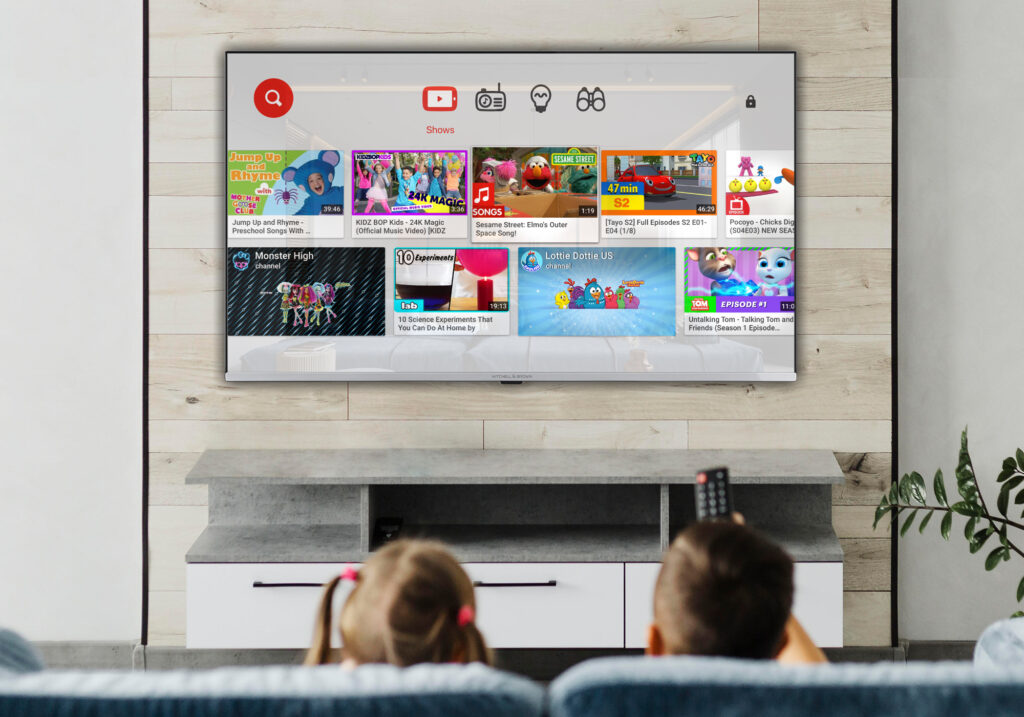
YouTube offers robust personalization features that translate well to the TV experience. By signing into your Google account, you gain access to your subscriptions, watch history, and personalized recommendations, making content discovery much easier. If multiple people use the TV, ensure each person signs into their own YouTube profile within the app (if supported by the device) or utilizes separate Google accounts to maintain individual viewing preferences. For families with children, leveraging YouTube Kids (a separate app specifically designed for younger audiences with curated content) or utilizing parental controls within the main YouTube app and on your smart TV or streaming device is essential. These controls can restrict access to certain content categories or set viewing time limits, ensuring a safe and age-appropriate viewing environment for everyone.
Watching YouTube on your TV transforms the experience from solitary consumption to a shared, immersive event. With the multitude of available methods – from intelligent smart TV apps and powerful streaming sticks to wireless casting and direct wired connections – there’s a solution tailored for every setup and technical comfort level. By understanding these options and optimizing your home network and device settings, you can unlock the full potential of YouTube on the big screen, bringing endless hours of entertainment, learning, and discovery directly to your living room.
aViewFromTheCave is a participant in the Amazon Services LLC Associates Program, an affiliate advertising program designed to provide a means for sites to earn advertising fees by advertising and linking to Amazon.com. Amazon, the Amazon logo, AmazonSupply, and the AmazonSupply logo are trademarks of Amazon.com, Inc. or its affiliates. As an Amazon Associate we earn affiliate commissions from qualifying purchases.