
In an era defined by digital convenience and on-demand entertainment, streaming services have become indispensable for countless households. Among the titans of this industry, Amazon Prime Video stands out, offering an expansive library of movies, TV shows, and exclusive originals, all bundled with the comprehensive benefits of an Amazon Prime membership. While the allure of binge-watching your favorite series or catching the latest blockbuster on the go via a smartphone or tablet is undeniable, the true cinematic experience often calls for a larger screen. Bringing Amazon Prime Video from the confines of a handheld device to the expansive canvas of your television set transforms mere viewing into an immersive entertainment event.

This guide delves into the various technological avenues available to connect Amazon Prime Video to your TV, ensuring you can enjoy high-quality content with ease and efficiency. Whether you’re a tech novice or an experienced streamer, understanding these methods will empower you to unlock the full potential of your Prime Video subscription, transforming your living room into a personal theater.
The Foundation: Amazon Prime Membership and Device Compatibility
Before diving into the specifics of connecting your TV, it’s crucial to establish the fundamental prerequisites. Accessing Amazon Prime Video is intrinsically linked to your Amazon Prime account and the technological readiness of your viewing equipment.
Understanding Amazon Prime Video
Amazon Prime Video is the video-on-demand streaming and rental service of Amazon.com, offered as a standalone service or included as part of an Amazon Prime subscription. It hosts a vast catalog of content, ranging from licensed third-party productions to Amazon Originals, including critically acclaimed series like “The Boys,” “The Marvelous Mrs. Maisel,” and an ever-growing selection of movies and documentaries. The service often supports resolutions up to 4K Ultra HD and offers features like X-Ray (providing IMDb data about actors and music on screen) and offline downloads for mobile viewing.
Essential Prerequisites: Prime Membership
The foremost requirement for watching Amazon Prime Video is an active Amazon Prime membership. Without it, your access will be limited to content available for rental or purchase, not the vast library included with Prime. If you don’t already have one, signing up for an Amazon Prime membership is a straightforward process, typically involving a monthly or annual fee, often with a free trial period for new subscribers. Once your membership is active, you’re ready to proceed with setting up your TV. Ensure you have your Amazon account login credentials (email and password) readily available, as you will need them to authenticate your device.
Checking Your TV’s Smart Capabilities
The ease with which you can watch Prime Video on your TV often hinges on whether your television is a “smart TV.” A smart TV is essentially a television set with integrated internet connectivity and the ability to run apps, much like a smartphone or computer.
- Smart TVs: Most modern smart TVs (manufactured in the last 5-7 years) from brands like Samsung, LG, Sony, Vizio, TCL, and others come pre-loaded with or have the capability to download the Amazon Prime Video app directly from their respective app stores. This is typically the most seamless method.
- Non-Smart TVs (Legacy TVs): If you own an older television that lacks internet connectivity or app functionality, don’t despair. There are numerous external devices designed to bridge this gap, effectively transforming your “dumb” TV into a smart one, capable of streaming Prime Video and a host of other services. Identifying your TV’s capabilities is the first step in choosing the right setup method.
Direct Connection: Smart TVs and Built-in Apps
For many, the most straightforward path to streaming Amazon Prime Video is through their smart television’s integrated functionalities. Modern smart TVs are designed to be all-in-one entertainment hubs, and popular streaming apps are often at their core.
Smart TVs with Native Prime Video App
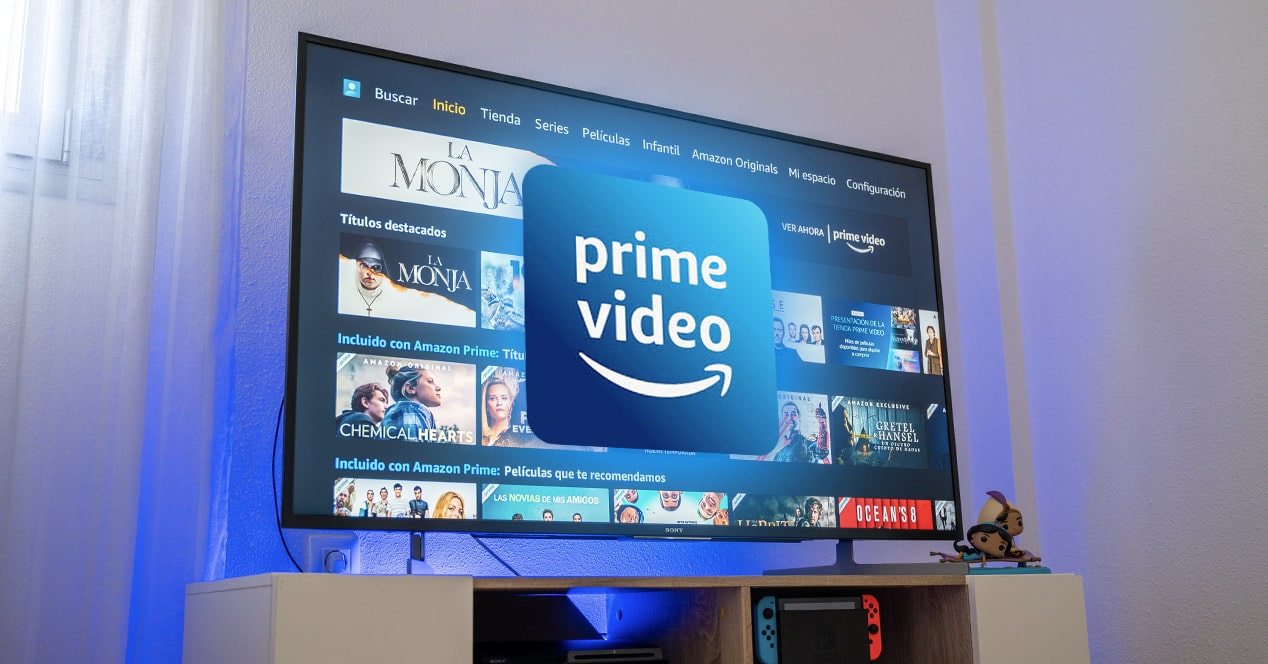
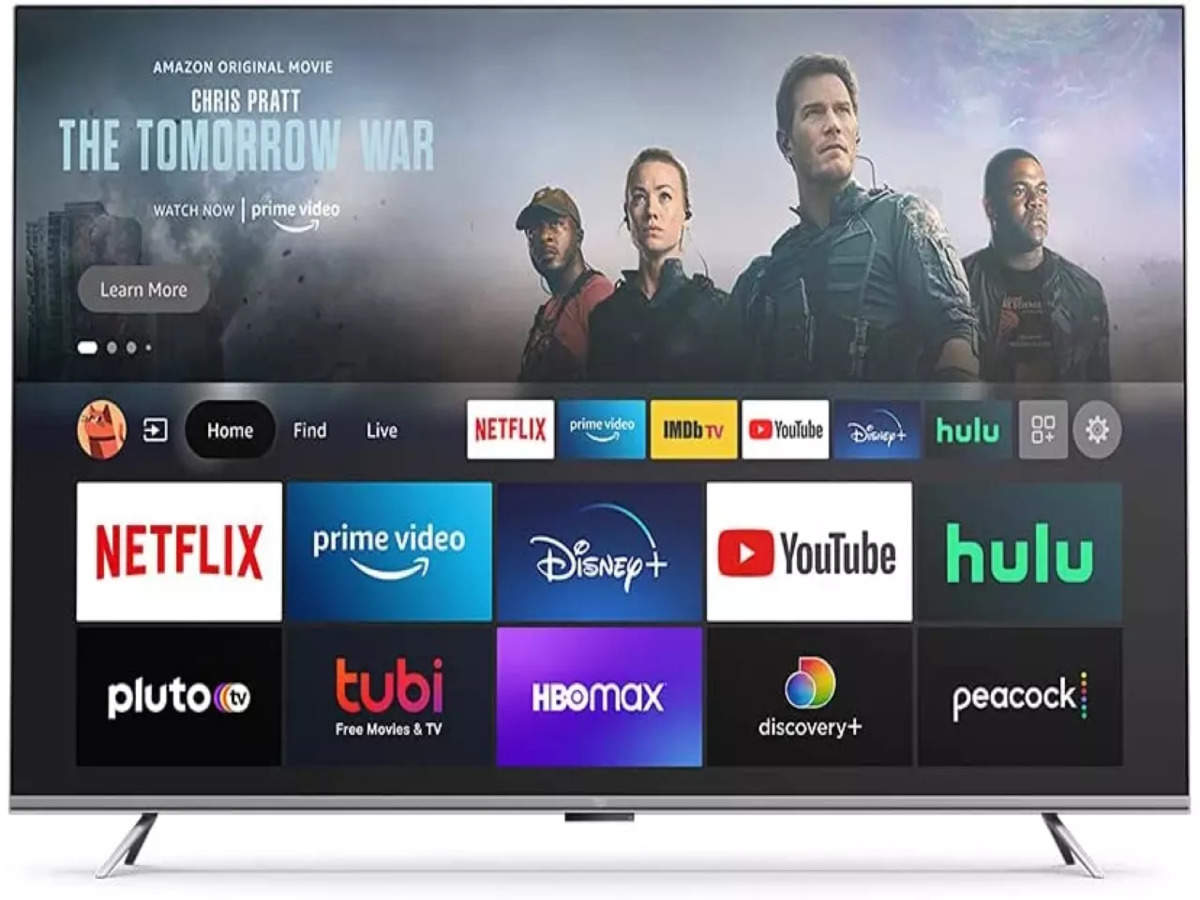
If your TV is a smart TV, there’s a high probability that it either comes with the Amazon Prime Video app pre-installed or it’s readily available for download. These apps are specifically optimized for your TV’s operating system, ensuring a smooth and intuitive user experience. The app typically resides within your TV’s main menu, alongside other streaming services like Netflix, Hulu, or YouTube. Look for the distinctive “Prime Video” logo.
Navigating Your Smart TV’s App Store
Should the Prime Video app not be immediately visible on your TV’s home screen, you’ll need to venture into its app store or app hub. The name and appearance of this store vary by manufacturer:
- Samsung: Tizen OS, typically accessed via the Smart Hub button on your remote.
- LG: webOS, accessed via the Home button and the LG Content Store.
- Sony/Hisense/TCL (select models): Android TV or Google TV, accessed via the Apps menu or Google Play Store.
- Roku TV/Fire TV Edition: Integrated directly into the home screen interface.
Once in the app store, use the search function to look for “Amazon Prime Video.” Select the app, and follow the on-screen prompts to download and install it. The installation process is usually quick, depending on your internet speed.
Signing In and Starting Your Viewing Experience
After the app is installed, launch it. The Prime Video app will typically present you with one of two login methods:
- Direct Login: Enter your Amazon account email and password directly using your TV’s on-screen keyboard. This can be cumbersome but is universally available.
- Code Activation (Recommended): The app will display a unique alphanumeric code and instruct you to visit a specific Amazon activation website (e.g., amazon.com/mytv) on a separate device like a computer or smartphone. Once on the website, log into your Amazon account and enter the code. This method is generally faster and less prone to typing errors.
Once successfully logged in, you’ll be greeted by the Prime Video interface, categorized by genres, recommendations, and your watchlist. You can then browse, search, and start streaming your desired content directly from your TV.
Bridging the Gap: Streaming Devices
For non-smart TVs, or even for smart TV owners who prefer a unified interface or additional features, dedicated streaming devices offer a robust and often superior streaming experience. These devices plug into your TV via an HDMI port and provide access to a plethora of apps, including Amazon Prime Video.
Popular Streaming Sticks and Boxes
The market for streaming devices is diverse, offering options across various price points and feature sets. The most popular choices include:
- Amazon Fire TV Stick/Cube: Amazon’s own line of streaming devices. They are deeply integrated with Prime Video and Alexa voice control, offering a seamless experience for Amazon users. Various models offer different resolutions (HD, 4K, 4K Max) and performance levels.
- Roku Devices (Express, Streaming Stick, Ultra): Roku offers a wide range of devices known for their simple, user-friendly interface and extensive channel store. They support all major streaming services, including Prime Video.
- Apple TV: Geared towards Apple ecosystem users, Apple TV offers a premium experience with robust hardware, a polished interface, and integration with Apple services. It also supports the Prime Video app.
- Google Chromecast (with Google TV): While original Chromecasts required casting from a phone, the newer Chromecast with Google TV acts as a full-fledged streaming device with its own remote and on-screen interface, giving direct access to apps like Prime Video.
Setup and Installation of Streaming Devices
Installing a streaming device is generally straightforward:
- Connect to TV: Plug the streaming device into an available HDMI port on your television.
- Power: Connect the device to a power source, usually a wall outlet via an included power adapter, though some devices can draw power from a TV’s USB port.
- Select Input: Use your TV remote to select the correct HDMI input (e.g., HDMI 1, HDMI 2) that your streaming device is connected to.
- Initial Setup: Follow the on-screen instructions provided by the device. This typically involves connecting to your home Wi-Fi network, agreeing to terms and conditions, and potentially downloading software updates.
- Install Prime Video App: Navigate to the device’s app store (e.g., Amazon Appstore, Roku Channel Store, Google Play Store) and search for the Amazon Prime Video app. Download and install it.
Accessing Prime Video Through a Streaming Device
Once the Prime Video app is installed on your streaming device, launch it. Similar to smart TVs, you’ll be prompted to log in using your Amazon credentials. Again, the code activation method (visiting amazon.com/mytv on another device) is often the most convenient. After successful authentication, you can browse and stream your Prime Video content through the device’s interface, using its dedicated remote control for navigation.
Alternative Methods: Gaming Consoles and Screen Mirroring
Beyond dedicated streaming devices and smart TV apps, there are several other ingenious ways to bring Amazon Prime Video to your big screen, utilizing existing hardware you might already own.
Using Gaming Consoles (PlayStation, Xbox)
Modern gaming consoles have evolved beyond their primary function to become comprehensive entertainment systems, complete with app stores and streaming capabilities.
- PlayStation (PS4, PS5): From the PlayStation home screen, navigate to the “Media” or “TV & Video” section. You’ll find a “TV & Video” icon or a PlayStation Store where you can download the Amazon Prime Video app. Once installed, launch it and sign in with your Amazon credentials.
- Xbox (Xbox One, Xbox Series X/S): On your Xbox console, go to the “Store” or “Apps” section. Search for “Amazon Prime Video,” download, and install it. After installation, open the app and log in.
Both PlayStation and Xbox offer robust performance for streaming, often supporting 4K resolution and surround sound, making them excellent choices for a high-quality Prime Video experience.
Screen Mirroring and Casting
For those who prefer to initiate playback from a mobile device or computer, screen mirroring and casting technologies offer a flexible solution.
- Chromecast (Older Models): If you have an older Google Chromecast (without Google TV), you’ll need to cast content from your phone, tablet, or Chrome browser. Open the Prime Video app on your mobile device (or primevideo.com in Chrome), start playing a video, and then tap the “Cast” icon (a rectangle with a Wi-Fi symbol) to send the video to your Chromecast-connected TV.
- AirPlay (Apple Devices): If you own an Apple TV or an AirPlay 2-compatible smart TV, you can use AirPlay from your iPhone, iPad, or Mac. Open the Prime Video app (or website) on your Apple device, start playback, tap the AirPlay icon (a rectangle with an upward-pointing arrow), and select your AirPlay-enabled TV.
- Built-in Screen Mirroring (Smart TVs): Many smart TVs include built-in screen mirroring technologies (e.g., Miracast for Android/Windows, or proprietary solutions). You can often mirror your entire phone or tablet screen to the TV, and then play Prime Video. However, this method can sometimes result in lower video quality or latency compared to direct casting or app usage.
HDMI Connection for Laptops/Computers
The most low-tech yet universally compatible method is connecting your laptop or desktop computer directly to your TV using an HDMI cable.
- Connect Cable: Plug one end of an HDMI cable into your computer’s HDMI output port and the other end into an available HDMI input port on your TV.
- Select Input: Use your TV remote to switch to the correct HDMI input channel.
- Configure Display: On your computer, you might need to adjust display settings. In Windows, right-click on the desktop, go to “Display settings,” and choose “Duplicate these displays” or “Extend these displays.” On macOS, go to “System Settings” > “Displays” and arrange displays as needed.
- Browse and Play: Open a web browser (Chrome, Firefox, Edge, Safari) on your computer, navigate to primevideo.com, log in, and start playing your desired content. The audio and video will be routed through the HDMI cable to your TV.
This method is excellent if you have a non-smart TV and don’t wish to invest in a streaming device, or if you’re troubleshooting other methods.
Optimizing Your Prime Video Experience
Once you’ve successfully connected Amazon Prime Video to your TV, a few additional steps can enhance your viewing pleasure and prevent common frustrations.
Ensuring a Stable Internet Connection
Streaming high-definition (HD) or Ultra HD (4K) content requires a robust and consistent internet connection.
- Bandwidth: Amazon recommends a minimum of 1 Mbps for standard definition (SD), 3.5 Mbps for HD, and 15 Mbps for 4K Ultra HD. For optimal performance, especially with multiple devices streaming simultaneously, higher bandwidth is always better.
- Wi-Fi vs. Wired: Whenever possible, use an Ethernet cable to connect your TV or streaming device directly to your router. A wired connection is generally more stable and faster than Wi-Fi, which can be subject to interference and signal degradation. If Wi-Fi is your only option, ensure your router is centrally located, updated, and supports modern Wi-Fi standards (like Wi-Fi 5 or Wi-Fi 6).
Adjusting Video Quality and Parental Controls
Most Prime Video apps on TVs and streaming devices allow you to control video quality and parental restrictions.
- Video Quality: Within the Prime Video app’s settings, you can often select your preferred streaming quality. While auto-detect is usually best, if you experience buffering, manually lowering the quality can help. Conversely, if your internet is fast, ensure it’s set to the highest available (e.g., Best, 4K UHD).
- Parental Controls: Amazon Prime Video offers robust parental control features, allowing you to restrict content based on age ratings and require a PIN for purchases or viewing restricted titles. Access these settings via the Prime Video app or through your Amazon account settings on the web to ensure age-appropriate viewing for all family members.
Troubleshooting Common Issues
Despite the seamless nature of modern streaming, occasional glitches can occur. Here’s a quick troubleshooting guide:
- Buffering/Lag: Check your internet connection speed. Restart your router and modem. Try moving your Wi-Fi device closer to the router or using an Ethernet cable. Close other applications or devices consuming bandwidth.
- App Crashes/Freezing: Try closing and restarting the Prime Video app. If that doesn’t work, clear the app’s cache (usually in the TV/device settings under “Apps” or “Storage”) or uninstall and reinstall the app.
- Login Issues: Double-check your Amazon login credentials. If using the code activation method, ensure the code is entered correctly and quickly, as they often expire after a few minutes.
- No Sound/Picture: Verify your TV’s input source is correct. Check all HDMI cables are securely connected. Ensure your TV’s volume is up and not muted.
By systematically addressing these common issues, you can often quickly resolve minor hiccups and get back to your entertainment.
Conclusion
The journey from a small screen to the big screen for Amazon Prime Video is filled with diverse technological pathways, each offering a unique balance of convenience, performance, and cost. Whether through the integrated intelligence of a smart TV, the versatility of a dedicated streaming device, the power of a gaming console, or the simple reliability of an HDMI cable, enjoying Prime Video on your television is more accessible than ever. By understanding your options and optimizing your setup, you can transform your viewing experience, immersing yourself in the vast world of entertainment that Amazon Prime Video has to offer, right from the comfort of your living room. The technology is designed to serve you; take advantage of it to unlock a world of cinematic possibilities.
aViewFromTheCave is a participant in the Amazon Services LLC Associates Program, an affiliate advertising program designed to provide a means for sites to earn advertising fees by advertising and linking to Amazon.com. Amazon, the Amazon logo, AmazonSupply, and the AmazonSupply logo are trademarks of Amazon.com, Inc. or its affiliates. As an Amazon Associate we earn affiliate commissions from qualifying purchases.