
Viewing Amazon Prime movies and TV shows offers a vast library of entertainment readily accessible across a multitude of devices. As a cornerstone of the Amazon Prime membership, or available as a standalone subscription, Prime Video has evolved into a comprehensive streaming platform. Understanding the technical requirements and navigation of this service is key to maximizing your digital entertainment experience. This guide delves into the practical aspects of accessing and enjoying Prime Video content, from compatible devices and interface navigation to optimizing your streaming quality and troubleshooting common issues.
Understanding Amazon Prime Video Access
To begin streaming Amazon Prime movies, it’s essential to understand the underlying service and its access requirements. Prime Video is more than just a collection of films; it’s an integrated streaming ecosystem.
What is Amazon Prime Video?
Amazon Prime Video is Amazon’s dedicated video streaming service, offering a diverse catalog that includes thousands of movies, TV shows, Amazon Originals, and live sports. This content can be streamed on-demand, and in many cases, downloaded for offline viewing. The service is continuously updated with new releases and exclusive titles, catering to a wide range of tastes and preferences. It’s designed to be intuitive for users, irrespective of their technical proficiency, providing a seamless entertainment experience.
Membership Requirements
Accessing the core library of Amazon Prime Video content primarily hinges on an Amazon Prime membership. A full Amazon Prime subscription grants access to Prime Video, alongside other benefits like faster shipping, Prime Music, and Prime Reading. For users solely interested in the video content, Amazon also offers a standalone Prime Video subscription, which includes only the streaming service. Both options typically come with a free trial period, allowing new users to explore the service before committing to a full subscription. To sign up, users simply need an Amazon account and a valid payment method. Once subscribed, the digital rights management (DRM) system ensures that only authorized accounts can access the content, safeguarding copyrighted material.
Devices Compatible with Prime Video
One of Prime Video’s strengths lies in its extensive device compatibility. Whether you prefer viewing on a large screen or on the go, the platform supports a broad array of hardware.
Smart TVs and Streaming Sticks
For a cinematic experience, Smart TVs and dedicated streaming devices are often the preferred choice.
-
Smart TVs: Most modern Smart TVs from manufacturers like Samsung, LG, Sony, Panasonic, and Vizio come with the Prime Video app pre-installed or available for download from their respective app stores. The installation process typically involves navigating to the TV’s app store, searching for “Prime Video,” and following the on-screen prompts. Once installed, users log in using their Amazon account credentials.
-
Streaming Sticks and Boxes: Devices such as Amazon Fire TV Sticks, Roku devices, Apple TV, and Google Chromecast offer a convenient way to bring Prime Video to any HDMI-enabled television. After plugging in the device and connecting it to Wi-Fi, users can download the Prime Video app from the device’s app store. For Chromecast, content is cast from a mobile device or web browser. These devices often support high-resolution streaming (HD, 4K) and surround sound, provided the TV and internet connection can handle it.
Computers and Web Browsers
Viewing Prime Video on a computer offers flexibility and ease of access.
-
Web Browsers: The primary method for computer viewing is through a web browser. Prime Video officially supports popular browsers such as Google Chrome, Mozilla Firefox, Microsoft Edge, and Apple Safari. Users simply navigate to
primevideo.com, log in with their Amazon account, and can immediately start streaming. The web interface provides full functionality, including searching, managing watchlists, and adjusting playback settings. Ensuring your browser is up-to-date helps prevent playback issues. -
System Requirements: While Prime Video is not resource-intensive, a stable internet connection and a reasonably modern computer with sufficient RAM and processing power will ensure smooth playback, especially for high-definition content.
Mobile Devices and Tablets
For on-the-go entertainment, Prime Video offers robust mobile applications.
-
iOS and Android Apps: The Prime Video app is available for free download on both Apple App Store (for iPhones and iPads) and Google Play Store (for Android smartphones and tablets). Once installed, users log in with their Amazon credentials. The mobile app features a user-friendly interface optimized for smaller screens, allowing users to browse, stream, and manage their content.
-
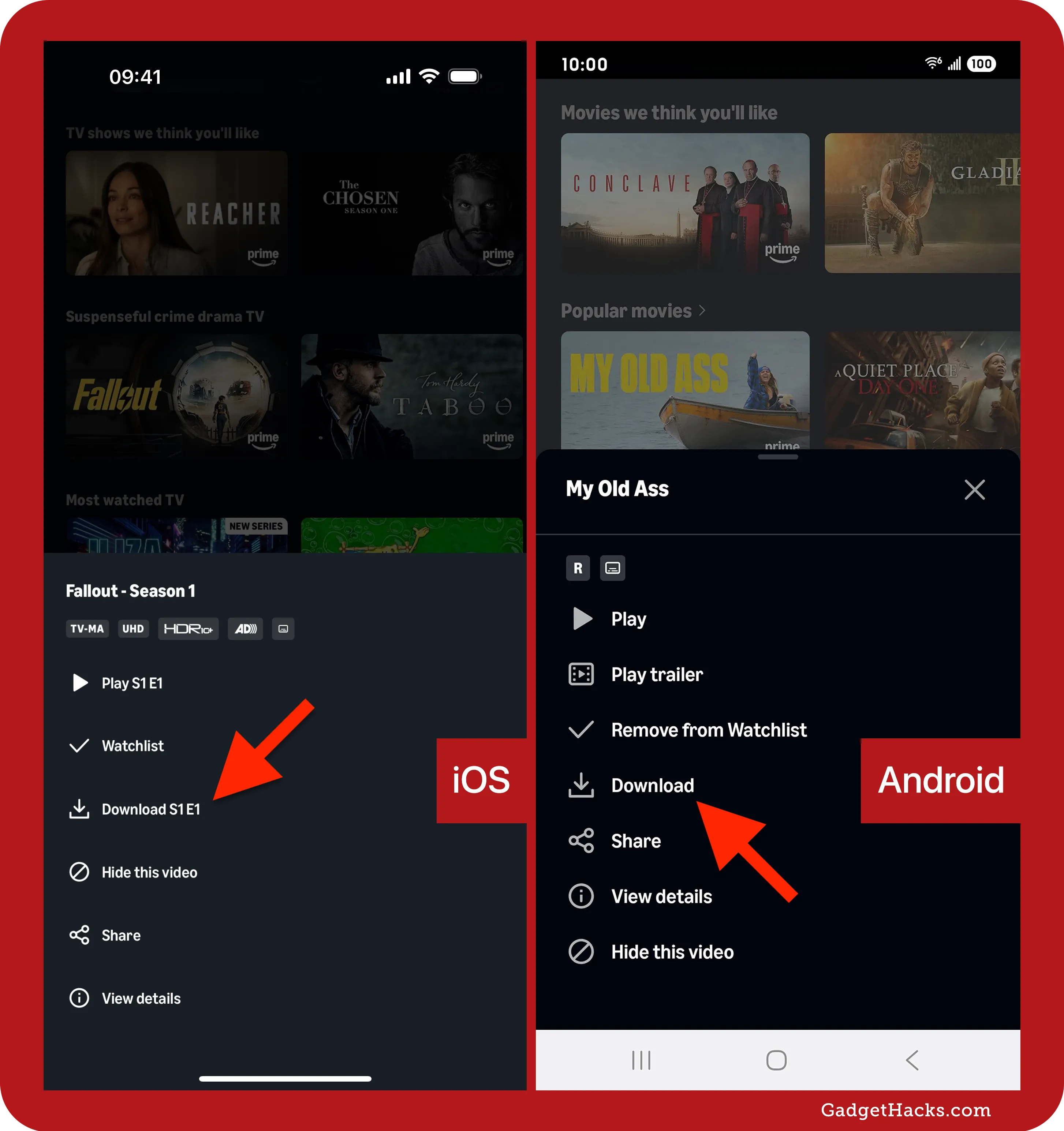
Downloading Content: A significant advantage of the mobile apps is the ability to download selected movies and TV episodes for offline viewing. This is particularly useful for travel or areas with limited internet access. Users can usually find a “Download” icon next to eligible titles. Downloads are stored within the app and are typically accessible for a limited time, depending on the content’s licensing agreements. Storage space on the device should be considered before downloading multiple titles.
Game Consoles
Gaming consoles have evolved into comprehensive entertainment hubs, and Prime Video is well-integrated.
- PlayStation and Xbox: The Prime Video app can be downloaded from the PlayStation Store (for PS4, PS5) and Xbox Store (for Xbox One, Xbox Series X/S). The experience is similar to Smart TVs, offering full functionality through the console’s interface and controller navigation. These consoles, especially the latest generations, are capable of streaming in 4K HDR, providing a high-quality viewing experience when connected to a compatible display.
Navigating the Prime Video Interface
Once you’ve accessed Prime Video on your chosen device, understanding its interface is crucial for finding and enjoying content efficiently.
Finding Content
The Prime Video interface is designed for intuitive discovery.
-
Search Bar: The most direct way to find specific titles is by using the search bar, typically located at the top of the screen or accessible via a search icon. You can search by title, actor, director, or genre.
-
Categories and Genres: Content is organized into various categories and genres (e.g., Action & Adventure, Comedy, Drama, Sci-Fi, Documentaries, Kids & Family). Browsing these sections allows for discovery based on mood or interest.
-
Recommendations: Prime Video utilizes algorithms to suggest content based on your viewing history and ratings, often displayed prominently on the home screen.
-
Watchlists: The “Watchlist” feature allows you to save titles you want to watch later, making it easy to keep track of your desired content.
Understanding Different Content Types
Not all content on Prime Video is included with your Prime membership.
-
Included with Prime: These titles are marked with a “Prime” badge or banner and are available for unlimited streaming as part of your subscription.
-
Rent/Buy: Many new releases and some catalog titles are available for rent or purchase. These require an additional payment, even if you have a Prime membership. The options are clearly indicated on the title’s detail page. Rented content typically has a limited viewing window after purchase and a shorter window once you start watching. Purchased content is added to your digital library for indefinite access.
-
Freevee: Amazon’s ad-supported free streaming service, Freevee (formerly IMDb TV), is integrated into the Prime Video app. Titles from Freevee are clearly marked and include advertisements, but do not require a Prime subscription.
Playback Controls and Settings
During playback, a standard set of controls is available.
-
Basic Controls: Play, pause, fast forward, and rewind are standard. On most devices, these appear when you interact with the screen or remote.
-
Subtitles/Closed Captions: An icon (often a speech bubble or “CC”) allows you to select available subtitle languages or turn them off. You can often customize subtitle appearance (size, color) in the app’s settings.
-
Audio Tracks: For content with multiple language options, an audio icon allows switching between available audio tracks.
-
Video Quality: Prime Video automatically adjusts video quality based on your internet speed to prevent buffering. However, on some devices, you can manually select a lower quality to save data or reduce buffering on slower connections. For 4K UHD content, ensure your device, TV, and HDMI cables are all 4K compatible.
Parental Controls
Prime Video offers robust parental control features to manage what content children can access.
-
Profile Management: You can create individual user profiles, including dedicated “Kids” profiles that automatically filter content appropriate for younger viewers.
-
PIN Protection: Setting a Parental Controls PIN prevents unauthorized purchases or access to restricted content. This PIN is required to bypass restrictions or complete transactions.
-
Content Restrictions: You can set age restrictions for purchases and viewing based on age ratings (e.g., G, PG, PG-13, R) across all profiles or specific ones. This ensures a safe viewing environment for families.
Optimizing Your Viewing Experience
To ensure a smooth and high-quality streaming experience, consider these technical aspects and troubleshooting tips.
Internet Connection Requirements
A stable and sufficiently fast internet connection is paramount for streaming.
-
Recommended Speeds:
-
Standard Definition (SD): 1-2 Mbps
-
High Definition (HD): 3-5 Mbps
-
Ultra High Definition (4K UHD): 15-25 Mbps
-
-
Buffering Troubleshooting: If you experience frequent buffering, try reducing the video quality (if an option), closing other bandwidth-heavy applications, moving closer to your Wi-Fi router, or connecting your streaming device via an Ethernet cable for a more stable connection. Running a speed test on your device can help identify if your internet speed is the bottleneck.
Managing Downloads for Offline Viewing
As mentioned, mobile devices allow for content downloads.
-
How to Download: Navigate to the title’s detail page in the Prime Video app and tap the “Download” button. You can often choose the download quality (e.g., “Good,” “Better,” “Best”) to manage storage space.
-
Storage Considerations: Downloads consume significant storage space on your device. Regularly review and delete downloaded content you’ve already watched to free up space.
-
Limitations: Downloaded content typically has an expiration period (e.g., 30 days to start watching, 48 hours once started) and cannot be transferred to other devices due to DRM restrictions. Some titles may also not be available for download due to licensing.

Troubleshooting Common Issues
Even with robust technology, issues can arise.
-
App Not Loading or Crashing: Try restarting the app, clearing the app’s cache (in device settings), or reinstalling the app. Ensure your device’s operating system and the Prime Video app are updated to their latest versions.
-
Login Problems: Double-check your Amazon account credentials. If you’ve forgotten your password, use the “Forgot Password” link on the Amazon website to reset it. Ensure you are logging in with the correct Amazon account associated with your Prime membership.
-
Buffering or Poor Picture Quality: Aside from internet speed, try restarting your Wi-Fi router and modem. If streaming wirelessly, try moving your device closer to the router or reduce Wi-Fi interference from other devices. Ensure your device is not overheating, as this can sometimes affect performance.
-
No Sound or Picture: Check your device’s volume settings, TV input, and cable connections. For specific audio issues, check the audio track selection within the Prime Video playback settings.
By understanding these technical facets, from device compatibility and interface navigation to optimizing settings and troubleshooting, users can fully leverage the extensive capabilities of Amazon Prime Video and enjoy a seamless streaming experience.
aViewFromTheCave is a participant in the Amazon Services LLC Associates Program, an affiliate advertising program designed to provide a means for sites to earn advertising fees by advertising and linking to Amazon.com. Amazon, the Amazon logo, AmazonSupply, and the AmazonSupply logo are trademarks of Amazon.com, Inc. or its affiliates. As an Amazon Associate we earn affiliate commissions from qualifying purchases.