
Venmo has revolutionized the way millions of people send and receive money, transforming casual transactions between friends, family, and even small businesses. As a leading peer-to-peer (P2P) payment application, it offers a seamless digital alternative to cash and checks, making it indispensable in the modern financial landscape. Understanding the mechanics of Venmo isn’t just about initiating a transfer; it’s about navigating its interface, leveraging its features, and ensuring secure transactions. This comprehensive guide will walk you through everything you need to know to master the Venmo app, from initial setup to advanced functionalities and security best practices.

Getting Started: Setting Up Your Venmo Account
Before you can send or receive a dime, you need to establish your presence on the Venmo platform. The setup process is straightforward, designed to get users up and running quickly while ensuring essential security checks.
Downloading and Installing the Venmo App
The first step is to download the official Venmo application. It is available for free on both the Apple App Store for iOS devices and the Google Play Store for Android devices. Search for “Venmo” and ensure you select the app published by “Venmo” (a PayPal service) to avoid unofficial or fraudulent applications. Once downloaded, open the app to begin the registration process.
Creating Your Venmo Profile
Upon opening the app for the first time, you’ll be prompted to create an account. This typically involves:
-
Providing Basic Information: You’ll need to enter your legal first and last name, email address, phone number, and create a strong, unique password. It’s crucial to use accurate information, as this will be verified later.
-
Verifying Your Phone Number and Email: Venmo will send a verification code to your provided phone number via SMS and a verification link to your email address. Follow the instructions to confirm ownership of these communication channels, which are vital for account security and recovery.
-
Choosing a Username: Your Venmo username (e.g., @yourname) is how others will easily find and pay you. Choose something recognizable and professional, especially if you plan to use Venmo for business or semi-professional transactions. This username can often be changed later, but a consistent one is recommended.
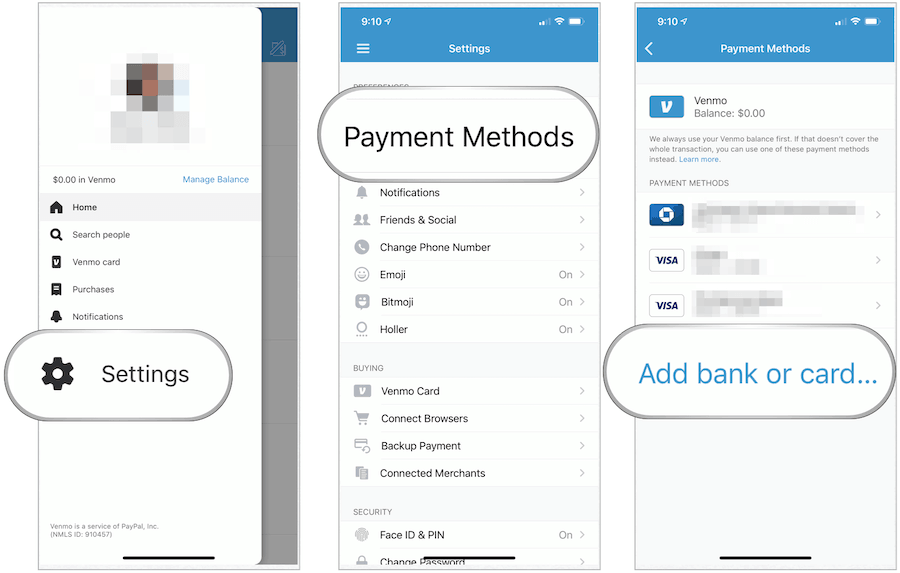
Linking Your Bank Account or Debit Card
To send money, you’ll need a funding source. Venmo allows users to link either a bank account or a debit card.
-
Linking a Debit Card: This is often the quickest way to get started. You’ll enter your debit card number, expiration date, and CVV code. Transactions funded directly from a debit card usually process instantly, though some banks may incur small fees (typically 3%) for credit card transactions through Venmo, so it’s best to use a debit card.
-
Linking a Bank Account: This method involves a slightly longer verification process but typically allows for larger transaction limits and avoids debit card fees for standard transfers. You can link your bank account in one of two ways:
-
Instant Verification: Venmo partners with services like Plaid to allow you to log in directly to your online banking portal through the Venmo app. This securely links your account in seconds.
-
Manual Verification: If instant verification isn’t an option or you prefer not to use it, you can manually enter your bank’s routing number and your account number. Venmo will then send two small deposits (micro-deposits) to your bank account, which usually appear within 1-3 business days. You’ll then return to the Venmo app, enter the amounts of these deposits, and your bank account will be verified.
-
Once a funding source is linked, you’re ready to start sending money.
Sending Money with the Venmo App
Sending money through Venmo is designed to be intuitive and fast, making it a popular choice for splitting bills, paying for services, or reimbursing friends.
Finding and Selecting a Recipient
To initiate a payment, tap the “Pay/Request” button, usually located at the bottom center of the app screen. You can find a recipient in several ways:
-
Search by Username, Phone, or Email: Use the search bar to type in your recipient’s Venmo username, their phone number (if it’s linked to their Venmo account), or their email address.
-
Scan QR Code: If you’re physically with the person, you can tap the QR code icon and scan their unique Venmo QR code for instant identification.
-
From Recent Contacts: If you’ve transacted with them before, they’ll appear in your list of recent contacts.
-
Sync Phone Contacts: You can allow Venmo to access your phone’s contacts to find friends who are already on Venmo, making it easier to connect.
Always double-check the recipient’s username or phone number to ensure you’re sending money to the correct person. Venmo payments are often difficult to reverse once sent.
Entering the Amount and Adding a Note
Once you’ve selected your recipient, you’ll be taken to the payment screen:
-
Enter the Amount: Type in the exact amount you wish to send.
-
Add a Note: This is a mandatory field. Enter a brief description of the payment (e.g., “Dinner last night,” “Rent for May,” “Concert tickets”). While informal, these notes can be surprisingly useful for record-keeping and remembering the purpose of past transactions. You can also add emojis for a more personal touch.
-
Set Privacy (Optional): Below the note, you’ll see privacy options. By default, many transactions on Venmo are public, meaning your friends (or even the public, depending on your settings) can see who you paid and the note. You can change this to “Friends” (only your Venmo friends see it) or “Private” (only you and the recipient see it).
Reviewing and Confirming Your Payment
Before finalizing the transaction, Venmo will display a summary of your payment: the recipient, the amount, the note, and the funding source.
-
Select Funding Source: Confirm or change the funding source (e.g., your linked debit card or Venmo balance). Be mindful of potential fees if using a credit card.
-
Double-Check Details: This is your last chance to verify all information. Ensure the amount and recipient are correct.
-
Tap “Pay”: Once you’re confident, tap the “Pay” button to complete the transaction. The money will be sent almost instantly to the recipient’s Venmo balance.
Receiving and Managing Funds on Venmo
Equally important as sending money is understanding how to receive funds and manage your balance.
Getting Paid on Venmo
When someone sends you money via Venmo, you’ll receive a notification within the app and usually an email. The funds will appear almost immediately in your Venmo balance. Unlike some other platforms, Venmo funds aren’t automatically transferred to your bank; they reside in your Venmo account until you decide to move them.
Transferring Funds to Your Bank
You have two primary options for moving money from your Venmo balance to your linked bank account:
-
Standard Transfer: This option is free and typically takes 1-3 business days to process. The funds will appear in your bank account once your bank processes the transaction. This is suitable for non-urgent transfers.
-
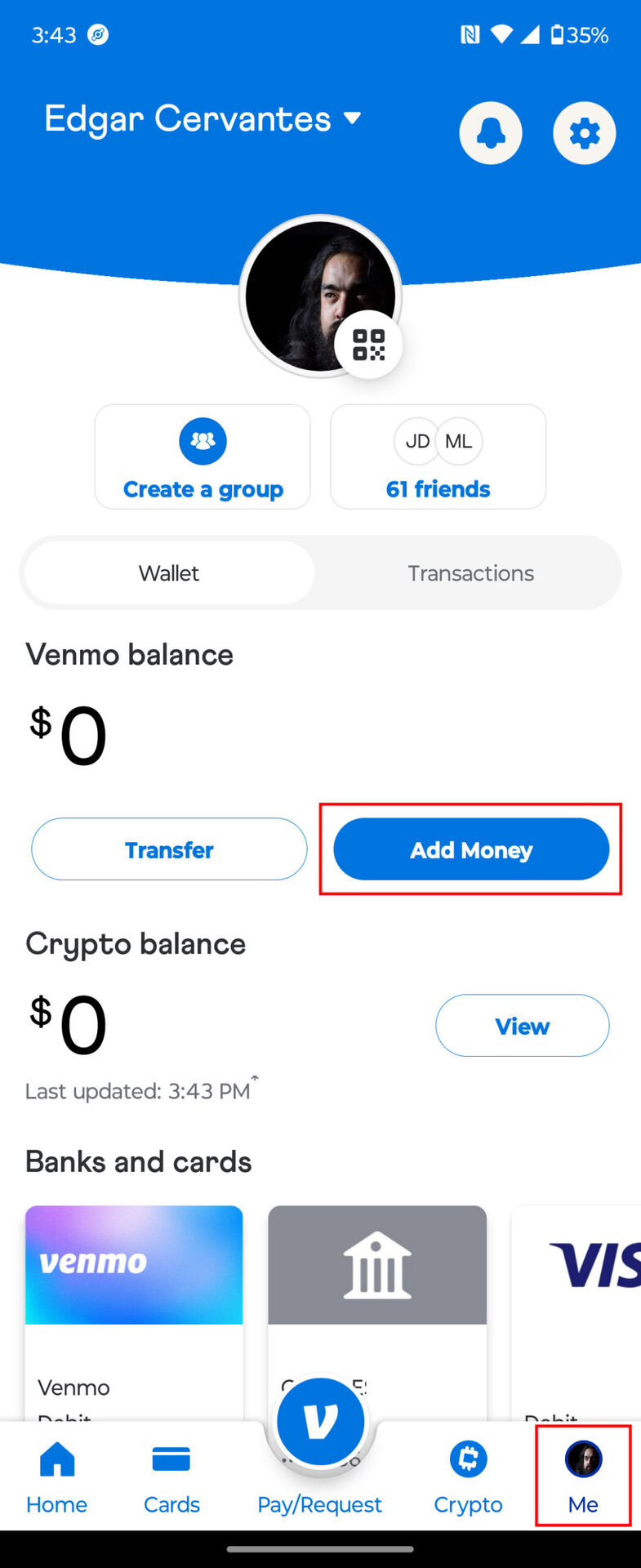
Instant Transfer: For a small fee (typically 1.75% of the transfer amount, with a minimum fee of $0.25 and a maximum fee of $25), you can transfer money to your linked debit card or bank account in minutes. This is ideal if you need immediate access to your funds. To use this, tap “Transfer to Bank” and select the “Instant” option.
Keeping Money in Your Venmo Balance
You are not required to transfer funds out of your Venmo account. Money held in your Venmo balance can be used to make future payments to other Venmo users or for purchases at merchants that accept Venmo. Many users opt to keep a small balance for routine transactions, though it’s generally advisable not to store large sums in any P2P app for extended periods, as they may not offer the same FDIC insurance protections as traditional bank accounts.
Advanced Venmo Features and Digital Security
Venmo offers more than just simple send-and-receive functionality. It also incorporates features for requesting money, splitting bills, and even making purchases, all while emphasizing user security.
Requesting Money from Others
If someone owes you money, you can use Venmo’s “Request” feature. This process is similar to sending money:
-
Tap the “Pay/Request” button.
-
Select the person from whom you want to request money.
-
Enter the amount and a note explaining the request.
-
Tap “Request.” The person will receive a notification and can easily pay you back.
Splitting Bills
Venmo’s “Split” feature is a popular tool for group expenses:
-
Initiate a “Request” as described above.
-
After entering the amount and recipient, you’ll see an option to “Split” the bill among multiple Venmo users.
-
Add the other individuals who need to pay, and Venmo will divide the total equally. You can adjust individual amounts if needed.
-
Send the requests, and each person will be prompted to pay their share.
Venmo Business Profiles and Purchases
Venmo has expanded its capabilities to support business transactions:
-
Business Profiles: Small businesses and freelancers can create a separate “Business Profile” linked to their personal account. This allows them to accept payments from customers for goods and services, often with lower transaction fees compared to credit card processing.
-
Paying Merchants: You can use your Venmo balance or linked funding sources to pay at various online and in-store merchants that accept Venmo as a payment method. Look for the Venmo payment option at checkout.
Privacy Settings and Digital Security Best Practices
Security is paramount when dealing with financial transactions. Venmo employs various security measures, but user vigilance is also crucial.
-
Privacy Settings: Regularly review and adjust your transaction privacy settings (Public, Friends, Private) in the app’s settings menu. Consider making most of your transactions “Private” or “Friends” to protect your financial activity.
-
Strong Passwords: Always use a strong, unique password for your Venmo account and enable two-factor authentication (2FA) for an extra layer of security. This requires a code from your phone in addition to your password when logging in from a new device.
-
Link Verified Accounts: Only link bank accounts and debit cards that you own and are fully verified.
-
Beware of Scams: Be cautious of requests from unknown individuals, especially for large sums. Venmo is primarily for transactions between trusted parties. Do not send money to someone you don’t know for products or services unless you are absolutely sure of their legitimacy, and even then, understand Venmo’s buyer protection policies (which are limited for P2P transactions).
-
Public Wi-Fi: Avoid logging into Venmo or conducting transactions over unsecured public Wi-Fi networks, as these can be vulnerable to eavesdropping.
-
Monitor Activity: Regularly check your Venmo transaction history for any unauthorized activity. Report suspicious transactions immediately.
-
Update App Regularly: Keep your Venmo app updated to the latest version to ensure you have the most recent security patches and features.
By following these guidelines, you can leverage Venmo’s convenience while maintaining the security of your financial data and transactions. The app’s design prioritizes ease of use, but an informed user is always the best defense against potential issues.
aViewFromTheCave is a participant in the Amazon Services LLC Associates Program, an affiliate advertising program designed to provide a means for sites to earn advertising fees by advertising and linking to Amazon.com. Amazon, the Amazon logo, AmazonSupply, and the AmazonSupply logo are trademarks of Amazon.com, Inc. or its affiliates. As an Amazon Associate we earn affiliate commissions from qualifying purchases.