
In an increasingly digital world, managing business finances demands tools that are not only robust but also accessible and intuitive. QuickBooks Online stands as a towering solution in this landscape, offering a cloud-based platform that revolutionizes how businesses handle their accounting. Moving beyond traditional desktop software, QuickBooks Online leverages the power of the internet to provide real-time financial insights, streamlined operations, and unparalleled flexibility. This comprehensive guide will walk you through the essential steps and advanced functionalities of QuickBooks Online, ensuring you harness its full technological potential to manage your business’s financial health with precision and ease.
Embracing Cloud-Based Financial Management: The QuickBooks Online Advantage
The shift from localized desktop software to cloud-based applications marks one of the most significant technological evolutions in business operations. QuickBooks Online embodies this shift, offering a dynamic platform accessible from anywhere, at any time, on almost any device. Understanding the underlying technology and its inherent benefits is the first step to truly mastering this powerful tool.
The Shift to Cloud Computing for Business Operations
Cloud computing has transformed how businesses store, process, and access data. For accounting software like QuickBooks, this means financial data is hosted on secure, remote servers rather than on a single computer. This fundamental change provides several immediate technological benefits: automatic backups, enhanced data security measures implemented by cloud providers, and the ability to distribute software updates seamlessly without user intervention. It abstracts away the complexity of server maintenance and infrastructure, allowing businesses to focus on their core operations. The “online” aspect of QuickBooks isn’t just a descriptor; it’s a paradigm shift towards greater efficiency and resilience in financial management.
Accessibility, Scalability, and Collaboration Features
One of the most compelling technological advantages of QuickBooks Online is its accessibility. Users can log in from a web browser on a laptop, a tablet, or a smartphone, provided there’s an internet connection. This unparalleled flexibility supports modern work models, enabling remote teams and mobile entrepreneurs to stay connected to their financial data. Furthermore, QuickBooks Online is inherently scalable. As a business grows, its subscription can be easily upgraded to accommodate more users, complex features, and larger transaction volumes without needing a complete software overhaul. Collaboration is also streamlined; multiple users can access and work on the same financial data simultaneously, with role-based permissions ensuring data integrity and security, a feature that would be cumbersome and prone to error with traditional desktop solutions.
Security Protocols in a Cloud Environment
For many, the transition to cloud-based financial software raises questions about data security. QuickBooks Online, leveraging Intuit’s robust infrastructure, employs a multi-layered security approach designed to protect sensitive financial information. This includes 128-bit SSL encryption, similar to that used by online banking services, to secure data transmissions. Data centers are protected by physical and electronic safeguards, and regular security audits are conducted. Furthermore, users benefit from two-factor authentication, helping to prevent unauthorized access to their accounts. While no system is entirely impervious, the security measures implemented by Intuit for QuickBooks Online often surpass what a small or medium-sized business could reasonably maintain on its own local servers, offering a technologically advanced and more secure environment for financial data.
Getting Started: Setting Up Your QuickBooks Online Account
Once you appreciate the technological underpinnings of QuickBooks Online, the next step is to get your account properly configured. A methodical setup ensures that the software correctly reflects your business’s financial structure and provides accurate data from day one. This initial configuration is crucial for leveraging the platform’s full capabilities.
Initial Configuration and Company Profile Setup
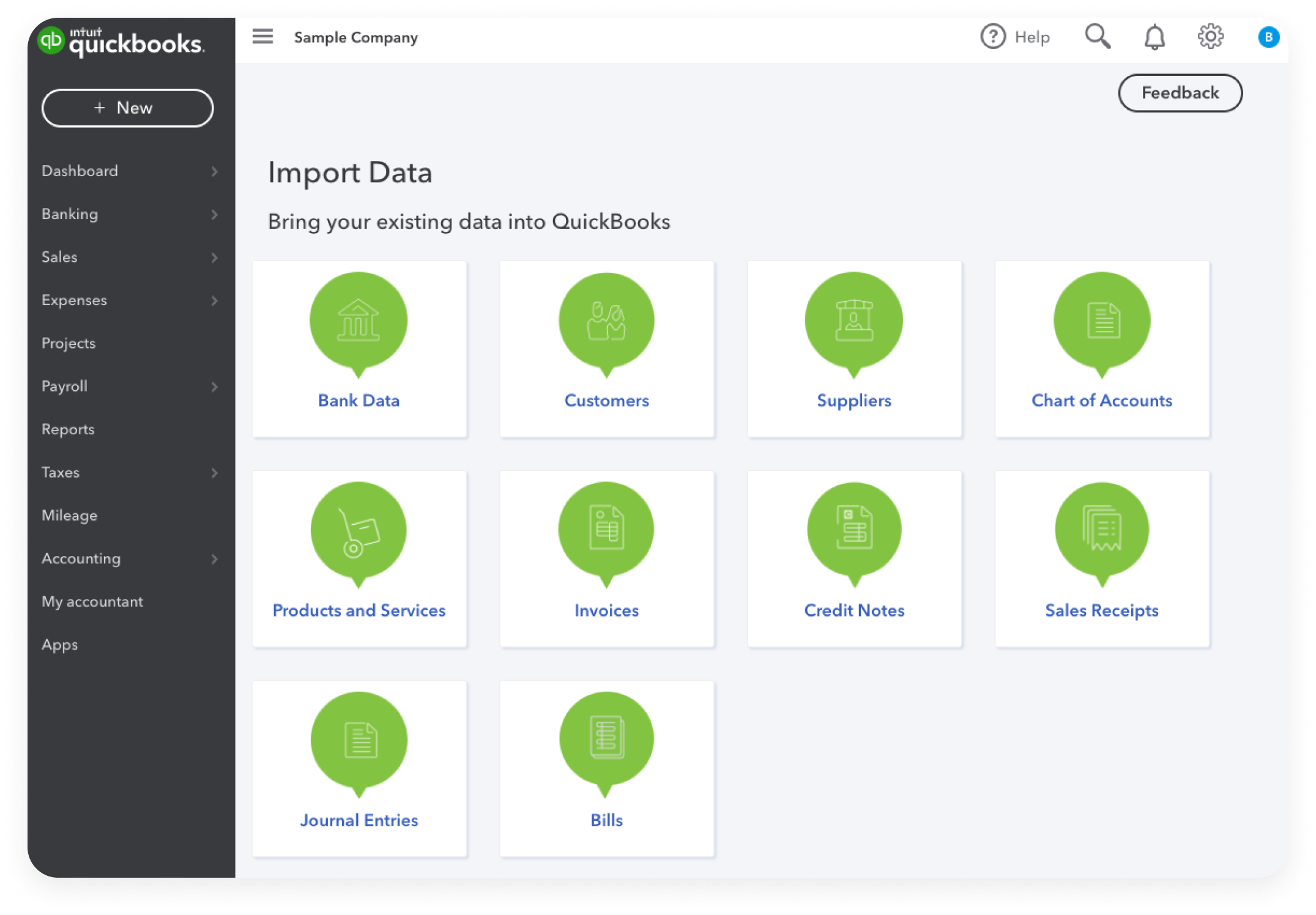
Upon subscribing to QuickBooks Online, the first task involves setting up your company profile. This includes entering basic information such as your business name, address, contact details, and the type of business entity (e.g., sole proprietorship, LLC, corporation). This information is critical as it populates various financial documents like invoices and reports. During this phase, you’ll also specify your industry, which helps QuickBooks tailor certain features and default settings to your specific business needs. The setup wizard guides you through these steps, making the initial configuration straightforward even for those new to accounting software.
Connecting Bank Accounts and Financial Institutions
One of QuickBooks Online’s most powerful features is its ability to directly connect with your bank accounts, credit card accounts, and other financial institutions. This technological integration automates the import of transactions, significantly reducing manual data entry and minimizing errors. To set this up, you navigate to the “Banking” or “Transactions” section, select “Link account,” and then search for your financial institution. You’ll log in using your bank credentials, and QuickBooks Online will securely establish a connection. Once linked, transactions are automatically downloaded, often daily, allowing you to categorize and reconcile them with ease. This real-time synchronization is a cornerstone of efficient online accounting.
Customizing Your Chart of Accounts
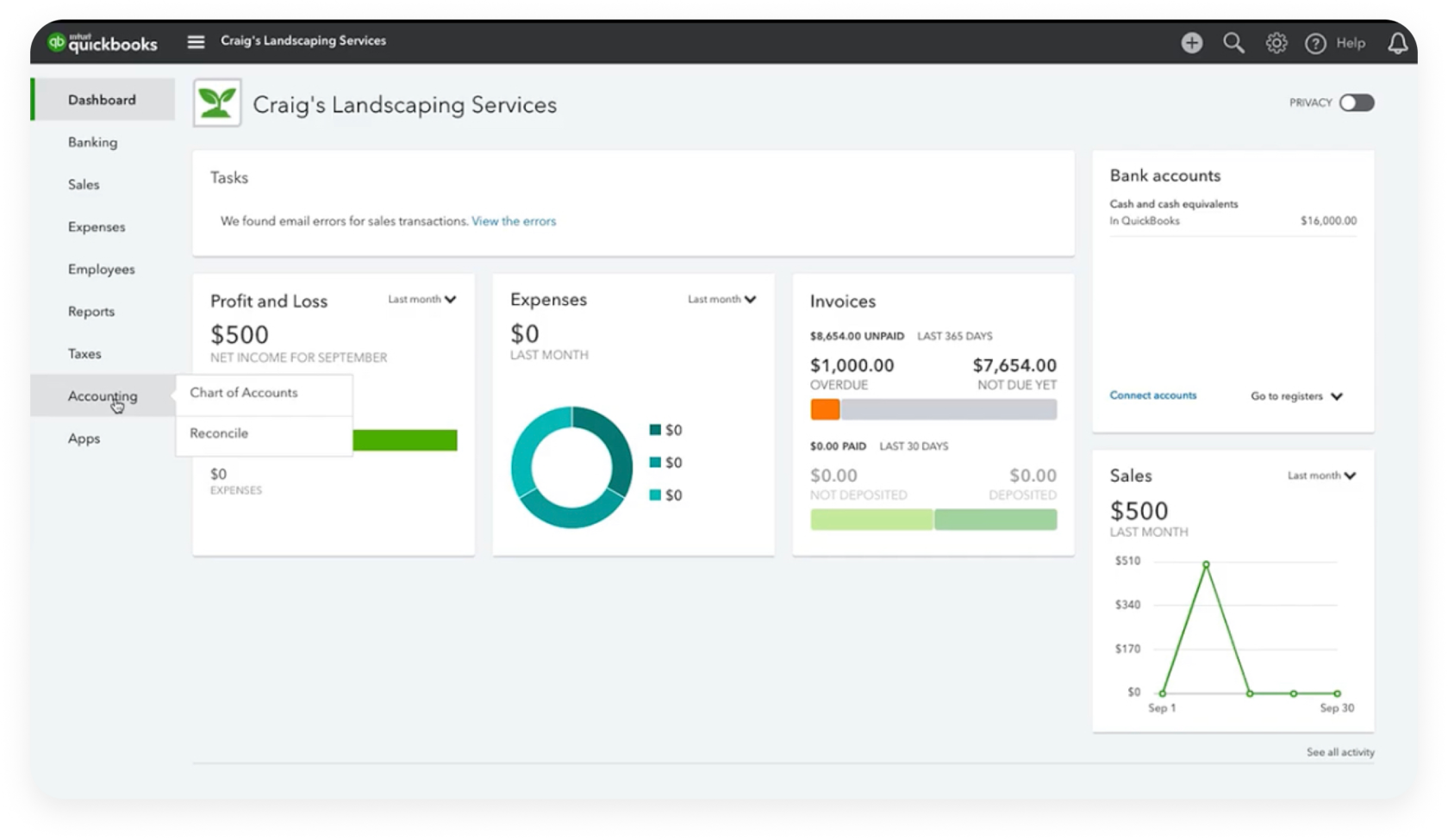
The Chart of Accounts is the backbone of any accounting system, defining the categories used to track all financial transactions. QuickBooks Online comes with a default Chart of Accounts tailored to common business types, but customization is often necessary to accurately reflect your unique business operations. You can add new accounts, rename existing ones, or even make certain accounts inactive if they are not relevant to your business. This customization ensures that your financial reports provide meaningful insights specific to your enterprise. Navigating to the “Chart of Accounts” under the “Accounting” menu allows for this precise tailoring, ensuring the software’s structure aligns perfectly with your business’s financial logic.
Navigating the Interface and Core Features
With your account set up, understanding the QuickBooks Online interface and its core features becomes paramount. The software is designed with an intuitive user experience in mind, but knowing where to find key functionalities will greatly enhance your efficiency. This section delves into the practical aspects of daily operation, focusing on the technological solutions provided for common accounting tasks.
Understanding the Dashboard and Navigation Menu
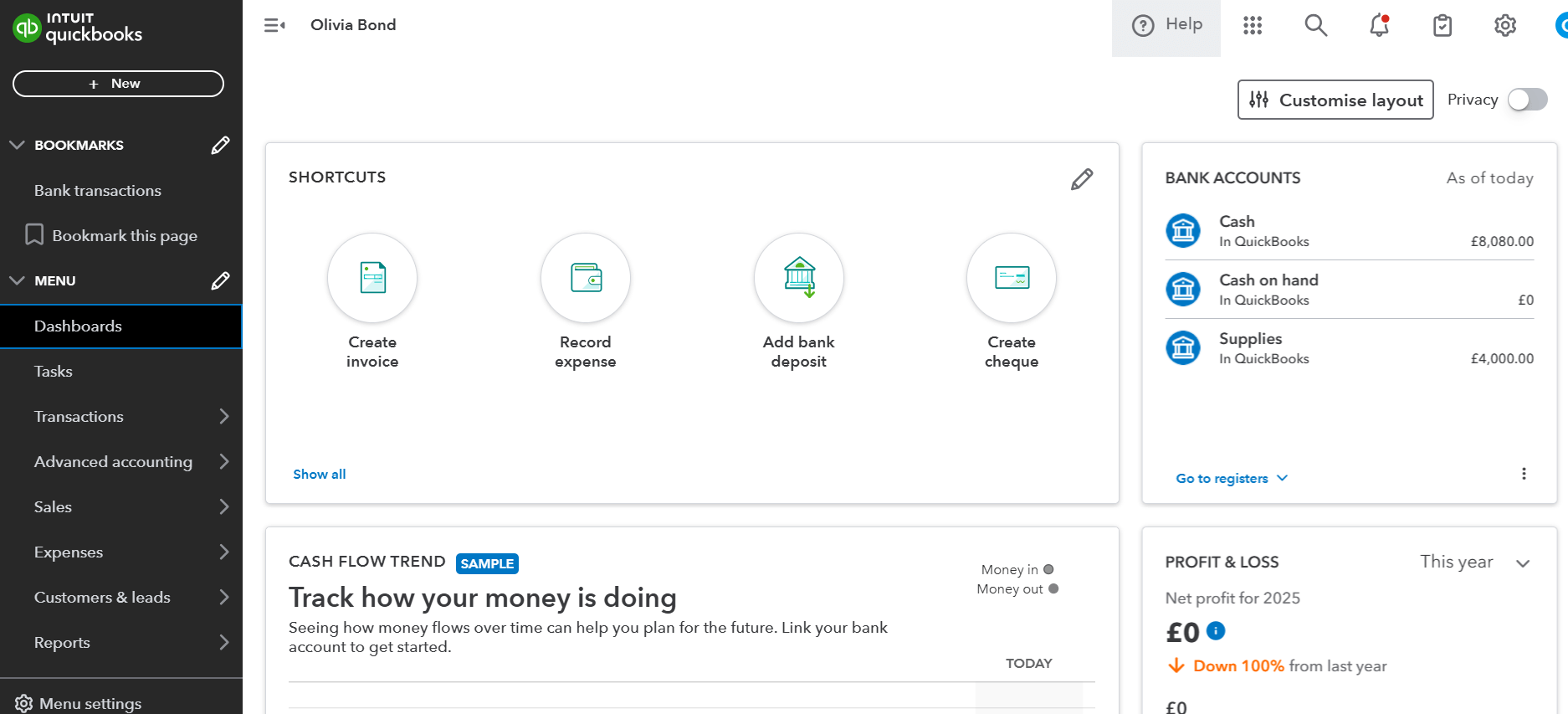
Upon logging in, you’re greeted by the Dashboard, a central hub providing an overview of your business’s financial health. It displays key metrics like profit and loss, sales, expenses, and bank balances through interactive widgets. This real-time data visualization is a crucial technological feature, offering immediate insights without having to run complex reports. The left-hand navigation menu is your primary tool for moving between different sections of the software, including Sales, Expenses, Banking, Payroll, Reports, and Accounting. Each menu item expands to reveal sub-sections, making it easy to access specific tasks like creating an invoice or recording an expense. Familiarity with this layout is key to efficient navigation.
Managing Invoices and Sales Receipts Electronically
QuickBooks Online streamlines the process of getting paid. Under the “Sales” menu, you can easily create and send professional invoices directly from the platform. The software allows for customization of invoice templates with your company logo and branding. Once an invoice is created, it can be emailed to clients, and QuickBooks can even track its status (sent, viewed, paid). For immediate sales, such as retail transactions, sales receipts can be issued. The electronic delivery and tracking of these documents significantly reduce administrative overhead and improve cash flow by ensuring timely communication with clients. Furthermore, the system can send automatic payment reminders, a technological nudge that helps maintain healthy accounts receivable.
Streamlining Expense Tracking and Categorization
Tracking expenses is crucial for accurate financial reporting and tax purposes. QuickBooks Online simplifies this process through various technological means. When you connect your bank and credit card accounts, transactions are automatically imported. You can then quickly review, categorize, and add details to each transaction. For cash transactions or receipts, the mobile app allows you to snap a photo, and QuickBooks uses optical character recognition (OCR) technology to extract key information, automatically creating an expense entry. This automation not only saves time but also reduces the chances of human error, ensuring that every expense is accounted for and correctly categorized, providing a complete financial picture.
Leveraging Automated Recurring Transactions
Many businesses have recurring revenues or expenses, such as monthly subscriptions, rent payments, or regular client retainers. QuickBooks Online offers a powerful automation feature for these transactions. You can set up recurring invoices, sales receipts, expenses, and even journal entries to generate automatically on a scheduled basis. This feature is a significant technological time-saver, eliminating the need for manual re-entry of repetitive transactions. It ensures consistency, reduces the risk of forgetting to send an invoice or record an expense, and provides a predictable financial rhythm, allowing you to focus on more strategic tasks rather than administrative ones.
Advanced Functionalities and Integrations for Enhanced Workflow
Beyond the core functionalities, QuickBooks Online extends its utility through advanced features and seamless integrations with a vast ecosystem of third-party applications. These technological enhancements are designed to create a more comprehensive and automated workflow, further streamlining business operations.
Harnessing Report Generation and Data Visualization Tools
QuickBooks Online provides a robust reporting engine, allowing businesses to generate a wide array of financial reports with just a few clicks. From Profit & Loss statements and Balance Sheets to Accounts Receivable aging and Sales by Customer reports, the software offers deep insights into financial performance. These reports are customizable, allowing users to filter by date ranges, specific accounts, or customers. The data visualization capabilities, particularly within the dashboard and certain reports, present complex financial data in easily digestible charts and graphs. This technological ability to transform raw data into actionable intelligence is invaluable for strategic decision-making and performance monitoring.
Payroll Management and Time Tracking Integration
For businesses with employees, managing payroll can be a complex and time-consuming task. QuickBooks Online offers integrated payroll solutions that simplify this process. Depending on the subscription level, you can calculate wages, deduct taxes, generate paychecks, and file payroll taxes directly within the software. This integration ensures that payroll expenses are accurately recorded in your books. Furthermore, QuickBooks Online integrates with its own time tracking app, QuickBooks Time (formerly TSheets), or other third-party time tracking solutions. This allows employees to log their hours, which are then automatically imported into payroll for processing, creating a seamless workflow from time entry to paycheck generation and expense recording.
Connecting Third-Party Apps for a Seamless Ecosystem
One of the most powerful technological aspects of QuickBooks Online is its open API, which facilitates integration with thousands of third-party applications. This vast ecosystem includes apps for e-commerce, CRM, inventory management, project management, expense reporting, and more. By connecting these apps to QuickBooks Online, businesses can create a highly customized and automated workflow, eliminating data silos and manual data transfer between different systems. For example, sales from an e-commerce platform can automatically sync with QuickBooks, or expenses from a travel management app can be directly imported. This interoperability significantly enhances the software’s utility, making it a central hub for all business-critical operations.
Optimizing Your QuickBooks Online Experience: Best Practices
To fully leverage the technological capabilities of QuickBooks Online, adopting certain best practices is essential. These practices ensure data accuracy, enhance security, and maximize the efficiency gains offered by the cloud-based platform.
Regular Reconciliation and Data Maintenance
Regularly reconciling your bank and credit card accounts within QuickBooks Online is a critical best practice. Reconciliation involves comparing your QuickBooks entries with your actual bank statements to ensure that all transactions are accounted for and that your books match your bank’s records. This process helps catch errors, identify missing transactions, and prevent fraud. Schedule this task weekly or monthly. Additionally, periodically review your Chart of Accounts, customer and vendor lists, and inventory items to keep your data clean and current. Good data hygiene is fundamental to accurate financial reporting and the reliable functioning of the software.
Utilizing Mobile Access for On-the-Go Management
The QuickBooks Online mobile app is not just a companion; it’s a powerful tool for managing your finances from anywhere. Available for iOS and Android, the app allows you to send invoices, record expenses (using receipt capture), check bank balances, and review reports on the go. Leveraging this mobile functionality can significantly improve productivity, especially for business owners and employees who spend a lot of time outside the office. It ensures that critical financial tasks don’t get delayed, offering real-time financial control at your fingertips – a testament to the flexibility of cloud technology.
Data Backup and Disaster Recovery Considerations
While QuickBooks Online automatically backs up your data in the cloud, understanding the implications for disaster recovery is important. Your data is stored redundantly across multiple servers, minimizing the risk of data loss due to hardware failure. However, user-induced errors (like accidentally deleting critical data) still require careful attention. Although QuickBooks Online offers some recovery features, consider periodically exporting your financial data for an additional layer of personal backup. This practice, though less critical than with desktop software, provides peace of mind and an extra safeguard against unforeseen circumstances, ensuring continuous access to your vital financial records.
By embracing these technological aspects and best practices, businesses can transform their financial management, moving from reactive bookkeeping to proactive strategic oversight. QuickBooks Online is more than just an accounting tool; it’s a comprehensive cloud-based financial ecosystem designed to empower businesses in the digital age.
aViewFromTheCave is a participant in the Amazon Services LLC Associates Program, an affiliate advertising program designed to provide a means for sites to earn advertising fees by advertising and linking to Amazon.com. Amazon, the Amazon logo, AmazonSupply, and the AmazonSupply logo are trademarks of Amazon.com, Inc. or its affiliates. As an Amazon Associate we earn affiliate commissions from qualifying purchases.