
In the vast and ever-expanding universe of digital entertainment and productivity, Google Play stands as a formidable gateway, offering an unparalleled selection of apps, games, movies, TV shows, books, and more. Central to accessing this rich ecosystem is the Google Play card – a simple yet powerful tool that provides a secure and convenient way to add funds to your Google Play balance. Whether you’re a seasoned Android user, a new smartphone owner, or looking for the perfect gift for a tech-savvy friend, understanding how to effectively use Google Play cards is essential. This guide will walk you through everything from purchasing and redeeming to maximizing your balance, ensuring you can effortlessly unlock the digital content you desire.
Understanding Google Play Cards: The Gateway to Google’s Digital Ecosystem
Before diving into the redemption process, it’s crucial to grasp what Google Play cards are and how they fit into the broader Google ecosystem. These cards serve as a prepaid payment method, enabling users to make purchases on the Google Play Store without the need for a credit card linked directly to their device.
What is a Google Play Card?
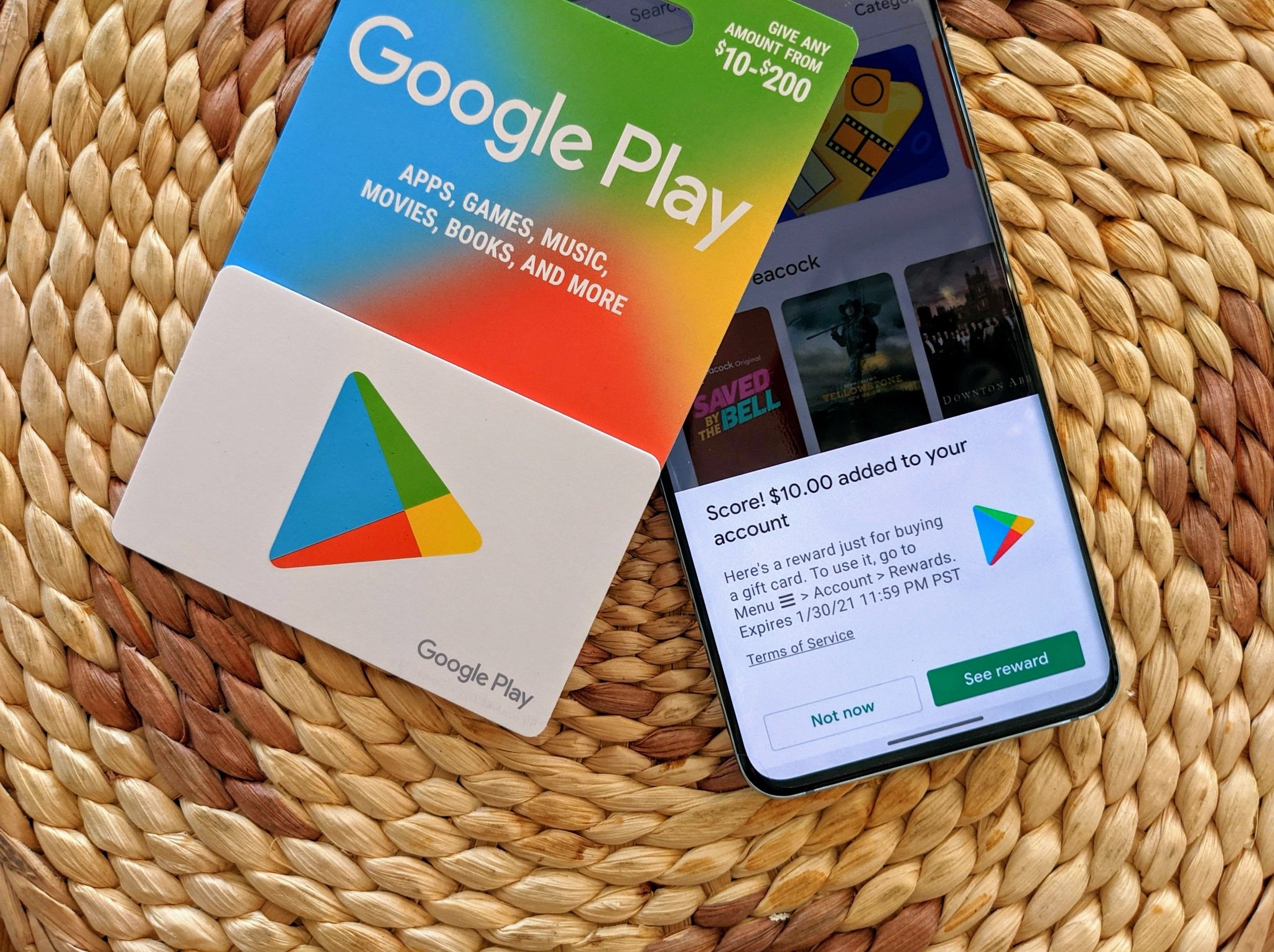
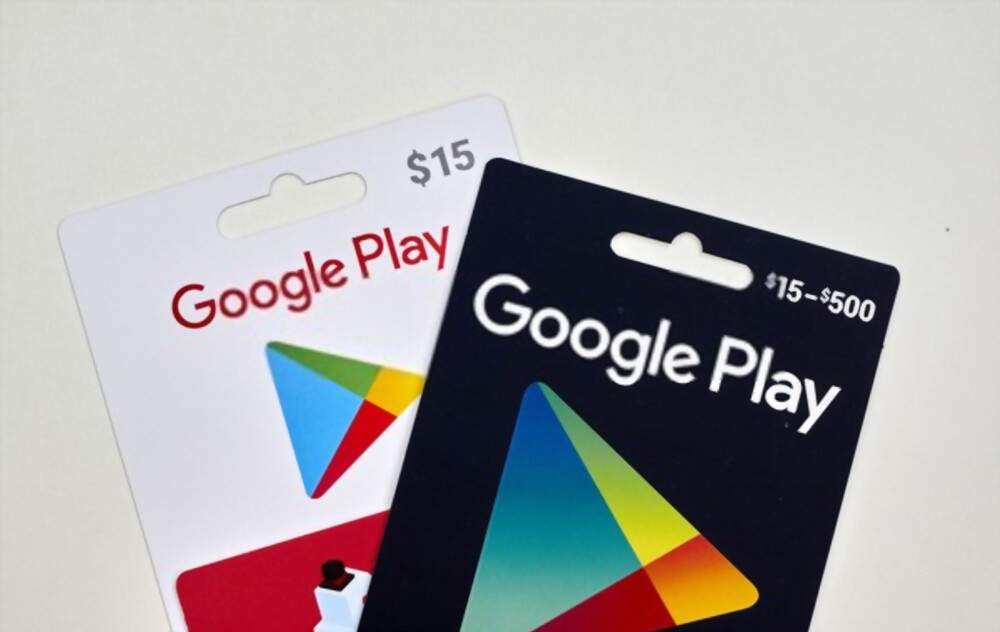
A Google Play card is essentially a prepaid voucher that carries a specific monetary value, which can then be added to a user’s Google Play balance. These cards come in various denominations, ranging from smaller amounts like $10 or $15 to larger sums such as $50, $100, or even custom amounts. They can be purchased in two primary formats: physical cards, often found with a scratch-off strip revealing a unique 16-digit code, and digital codes, which are typically emailed directly to the recipient after an online purchase. Once redeemed, the card’s value is converted into Google Play credit, which is then tied to the user’s Google Account and can be spent across the entire Google Play Store. This system provides a flexible and secure way to manage digital spending and access a wealth of content.
Where to Purchase Google Play Cards
The accessibility of Google Play cards makes them a popular choice for many. You can acquire them from a wide array of authorized retailers, both brick-and-mortar and online. For physical cards, major supermarkets, convenience stores, electronics retailers (like Best Buy, Walmart, Target), and drugstores are common outlets. These stores often display the cards prominently near gift card sections or checkout counters. For those who prefer digital convenience, Google Play cards can be purchased online through Google’s own store, Amazon, or various other authorized digital retailers. When purchasing online, the code is typically delivered instantly via email, making it an excellent last-minute gifting option. It’s important to always purchase from reputable sources to avoid fraudulent or invalid cards, and to be aware that cards are generally region-specific, meaning a card purchased in the US can only be redeemed on a US Google Play account.
The Benefits of Using Google Play Cards
Google Play cards offer a multitude of advantages beyond just serving as a payment method. One significant benefit is budgeting and spending control. For individuals, it’s an excellent way to pre-determine how much they want to spend on digital content, preventing impulse overspending. For parents, it provides a safe method to give children access to apps and games without exposing credit card details, teaching them responsible digital spending. Privacy is another key advantage, as users can enjoy the full range of Google Play content without having to link sensitive credit card information to their Google Account. They also serve as an incredibly versatile gifting option, perfect for birthdays, holidays, or as a simple thank-you. Furthermore, Google Play cards often facilitate access to special promotions or discounts when used strategically, although the balance itself doesn’t expire once redeemed. They simplify the process of acquiring digital goods, making the overall experience smooth and enjoyable.
Step-by-Step Guide to Redeeming Your Google Play Card
Redeeming a Google Play card is a straightforward process, designed to be user-friendly whether you’re on a mobile device or a desktop computer. Follow these steps to add funds to your account and start exploring the Play Store.
Before You Begin: Prerequisites
Before you attempt to redeem your Google Play card, ensure you have a few essentials in place. First, you must have an active Google Account. If you don’t have one, creating a Google Account is free and takes only a few minutes. This account will be linked to your Google Play balance. Second, ensure you have a stable internet connection, as the redemption process requires online verification. Finally, have your Google Play card or digital code ready. If it’s a physical card, gently scratch off the silver strip on the back to reveal the 16-digit alphanumeric code. For digital codes, ensure you have the email open or the code copied.
Redeeming via the Google Play Store App (Mobile/Tablet)
This is the most common method for redeeming codes, directly from your Android device.
- Open the Google Play Store App: Locate and tap the Play Store icon on your smartphone or tablet’s home screen or app drawer.
- Access Your Profile: In the top right corner of the screen, tap your profile icon (this might be your initial or profile picture).
- Navigate to Payments & Subscriptions: From the pop-up menu, select “Payments & subscriptions.”
- Choose “Redeem gift code”: Tap on this option.
- Enter the Code: Carefully type in the 16-digit code from your Google Play card or paste it if it’s a digital code you copied. Double-check for any typos (e.g., ‘0’ instead of ‘O’, ‘1’ instead of ‘I’).
- Confirm Redemption: Tap the “Redeem” button.
- Review and Confirm Account: A confirmation screen will appear, showing the amount you’re adding and the Google Account it will be applied to. Ensure this is the correct account. Tap “Confirm.”
- Balance Update: Your Google Play balance will instantly update with the newly added funds, and you’ll receive a confirmation notification.
Redeeming via a Web Browser (Desktop/Laptop)
If you prefer using a computer or don’t have immediate access to your Android device, you can redeem your card through a web browser.
- Go to the Redemption Page: Open your web browser and navigate to
play.google.com/redeem. - Sign In: If you’re not already signed in, you’ll be prompted to sign in to your Google Account. Make sure you sign into the account you wish to add the balance to.
- Enter the Code: In the provided field, carefully type or paste your 16-digit Google Play code.
- Click “Redeem”: Confirm your entry.
- Confirm Account: A pop-up will display the amount and the Google Account. Click “Confirm.”
- Balance Updated: Your Google Play balance will be updated, and you can now use these funds for purchases across all your linked devices.
Redeeming During a Purchase
Sometimes, you might find an app or item you want to buy, and realize your balance is insufficient, or you’re using a card for the first time. The Play Store allows you to redeem a code directly during the checkout process.
- Initiate a Purchase: Select the app, game, movie, or other digital content you wish to buy from the Google Play Store.
- Proceed to Checkout: Tap the price button and then “Buy.”
- Choose Payment Method: On the “Payment methods” screen, you’ll see your current Google Play balance (if any).
- Select “Redeem code”: If your balance is insufficient, or if you want to use a new card, look for the “Redeem code” option. It’s usually found by tapping on your current payment method or “More payment options.”
- Enter and Confirm Code: Enter your 16-digit code and tap “Redeem.” The balance will be added to your account, and the purchase amount will be deducted from your updated balance.
- Complete Purchase: Confirm the purchase to finalize the transaction.
Maximizing Your Google Play Balance: What You Can Buy
Once your Google Play balance is loaded, a universe of digital content becomes accessible. The Google Play Store is far more than just an app marketplace; it’s a comprehensive hub for various forms of entertainment and productivity tools.
Apps and Games
This is perhaps the most well-known category on Google Play. Your balance can be used to purchase premium apps that offer advanced features or an ad-free experience, as well as a vast selection of paid games. Furthermore, the balance is perfect for in-app purchases within free games and applications. This includes buying virtual currency (like gems, coins, or gold), unlocking new levels or characters, subscribing to premium features, or removing advertisements. For avid mobile gamers or users who rely on specific productivity tools, this is an invaluable resource.
Movies and TV Shows

Google Play Movies & TV offers a robust platform for film and television enthusiasts. You can use your Google Play balance to rent or purchase the latest blockbuster movies, classic films, and independent features. Similarly, individual episodes or entire seasons of your favorite TV shows are available for purchase. Content is often available in high definition (HD) or even ultra-high definition (UHD/4K), providing a premium viewing experience across compatible devices, from smartphones and tablets to smart TVs and streaming sticks.
Books and Audiobooks
For readers and listeners alike, Google Play Books is a treasure trove. Your balance can be spent on a staggering array of ebooks across every genre imaginable, from bestsellers and new releases to academic texts and graphic novels. Beyond traditional reading, the platform also offers a growing collection of audiobooks, perfect for listening on your commute, during workouts, or simply relaxing at home. The ability to switch between reading an ebook and listening to its audiobook counterpart (where available) adds another layer of flexibility.
Music
While streaming services have largely revolutionized music consumption, Google Play still allows for the purchase of individual songs and full albums. This is particularly useful for users who prefer to own their music collection outright rather than rely on subscriptions, or for acquiring specific tracks that might not be available on certain streaming platforms. Additionally, your Google Play balance can sometimes be used towards subscriptions to services like YouTube Music Premium, although this often involves linking a recurring payment method.
Subscriptions and Other Digital Content
Beyond one-off purchases, your Google Play balance can also contribute to certain subscription services offered within the Google Play ecosystem. For instance, Google Play Pass, which provides access to hundreds of apps and games without ads or in-app purchases for a monthly fee, can often be paid for using your balance. Many individual apps offer their own premium subscriptions which can also draw from your Play balance. It’s important to note, however, that Google Play balance typically cannot be used for physical goods from the Google Store (e.g., Pixel phones, Nest devices) or for subscriptions to services entirely outside of the Google Play Store (e.g., Netflix, Spotify directly). Always check the specific terms and conditions of a subscription to confirm payment eligibility.
Troubleshooting Common Google Play Card Issues
While the redemption process is generally smooth, users can occasionally encounter issues. Knowing how to troubleshoot these common problems can save time and frustration.
“Code Not Found” or “Invalid Code”
This is one of the most frequent error messages. If you receive it, first double-check the 16-digit code you entered. Common mistakes include confusing similar-looking characters like ‘0’ (zero) and ‘O’ (the letter), ‘1’ (one) and ‘I’ (the letter), or ‘5’ (five) and ‘S’ (the letter). Take your time to re-enter the code carefully. Second, ensure the card hasn’t already been redeemed by yourself or someone else. If it’s a physical card, check that the scratch-off area wasn’t tampered with, indicating potential prior use. If you continue to receive the error after careful re-entry, it might indicate a printing error or a faulty card, in which case you’ll need to contact the retailer or Google Play support.
Region Restrictions
Google Play cards are typically region-locked. A card purchased in one country (e.g., the United States) can only be redeemed on a Google Play account that is registered to that same country. Attempting to redeem a foreign card on an account with a different country setting will result in a region mismatch error. To check your Google Play account’s country, go to the Play Store app, tap your profile icon, then “Payments & subscriptions,” and then “Payment methods.” Your country will be listed there. If you’ve recently moved or are trying to use a gifted card from another country, you may need to update your Google Play country (which has its own set of requirements and limitations, often only allowed once a year).
“Card Requires Verification” or “Unexpected Error”
Occasionally, you might encounter a message indicating that the card requires further verification or simply an “unexpected error.” This can happen for various reasons, including potential security flags, unusual activity, or system glitches. In such cases, the best course of action is to contact Google Play support directly. You’ll usually need to provide proof of purchase for the card (e.g., a receipt, transaction ID for digital purchases, or a clear photo of the card’s front and back) to help them verify the card’s legitimacy and resolve the issue. Avoid making multiple redemption attempts as this can sometimes trigger further security measures.
Scams and Fraud Prevention
It’s crucial to be vigilant against scams involving Google Play cards. Never share your 16-digit redemption code with unknown individuals or websites claiming to offer free Google Play credit. Google Play cards are a common target for scammers who trick victims into buying cards and then demanding the codes as payment for fake services, taxes, bail, or utilities. Remember, legitimate businesses and government agencies will never request payment in the form of Google Play cards. Only purchase cards from authorized and reputable retailers to minimize the risk of acquiring a fraudulent or invalid card. If something feels suspicious, err on the side of caution and do not proceed with the transaction.
Advanced Tips for Google Play Users
Beyond basic redemption, there are several ways to enhance your Google Play experience and manage your digital content effectively.
Checking Your Google Play Balance
Keeping track of your available funds is simple. To quickly check your Google Play balance on your mobile device, open the Google Play Store app, tap your profile icon in the top right corner, then select “Payments & subscriptions”. Your current Google Play balance will be clearly displayed at the top of the “Payment methods” section. On a desktop browser, you can view your balance by visiting play.google.com and signing into your account, or navigating directly to the payment methods section within your Google Account settings. This allows you to plan your purchases and ensure you have enough funds before committing to a digital item.
Gifting Google Play Cards
Google Play cards make excellent gifts, offering flexibility and choice. When gifting, consider whether a physical card or a digital code delivered via email is more appropriate. Digital codes offer immediate delivery, making them perfect for last-minute presents or for recipients who live far away. Many online retailers allow you to personalize the gift message and even schedule the delivery date. Physical cards can be a more tangible and traditional gift, often presented in attractive packaging. Emphasize to the recipient the region-specific nature of the card to ensure they can redeem it without issues.
Setting Up a Family Library
For households with multiple Android users, Google Play’s Family Library feature is incredibly useful. It allows family members (up to 6) to share eligible purchased apps, games, movies, TV shows, and books from a central Family Library, without having to buy them multiple times. When you purchase content using your Google Play balance, you can often add it to the Family Library, allowing all registered family members to access it. This feature maximizes the value of your Google Play balance and creates a shared digital resource for the entire family, streamlining content management and reducing redundant purchases.
Monitoring Purchase History
Understanding your digital spending is part of being a savvy tech user. Google Play provides a clear and accessible purchase history that lists all your transactions, including app purchases, in-app purchases, movie rentals, and more. To view this, go to the Play Store app, tap your profile icon, then “Payments & subscriptions,” and then “Budget & history.” This section allows you to review past purchases, track your spending, and understand what your Google Play balance has been used for. It’s also where you can initiate requests for refunds on eligible purchases, adhering to Google’s refund policies.
Conclusion
Google Play cards are an indispensable tool for navigating the vast digital landscape offered by Google. They provide a secure, convenient, and flexible method for accessing a wealth of apps, games, movies, books, and other digital content. By understanding how to purchase, redeem, and troubleshoot common issues, you can effortlessly unlock new experiences and tools that enrich your digital life. Whether you’re expanding your gaming library, settling in for a movie night, or diving into a new ebook, your Google Play balance ensures you have immediate access to the content that matters most to you, empowering you to make the most of your Android devices and Google’s powerful ecosystem.
aViewFromTheCave is a participant in the Amazon Services LLC Associates Program, an affiliate advertising program designed to provide a means for sites to earn advertising fees by advertising and linking to Amazon.com. Amazon, the Amazon logo, AmazonSupply, and the AmazonSupply logo are trademarks of Amazon.com, Inc. or its affiliates. As an Amazon Associate we earn affiliate commissions from qualifying purchases.