
In the rapidly evolving landscape of financial technology, the transition from physical wallets to digital ecosystems has become more than a convenience—it is a standard. At the forefront of this revolution is Google Pay (often integrated with the Google Wallet framework), a sophisticated software solution designed to streamline how we interact with currency, transit, and identity. For the modern user, understanding how to leverage this application is essential for navigating a contactless world. This guide provides an in-depth technical analysis and tutorial on how to master Google Pay, from initial configuration to advanced security protocols.
1. Getting Started with the Google Pay Ecosystem
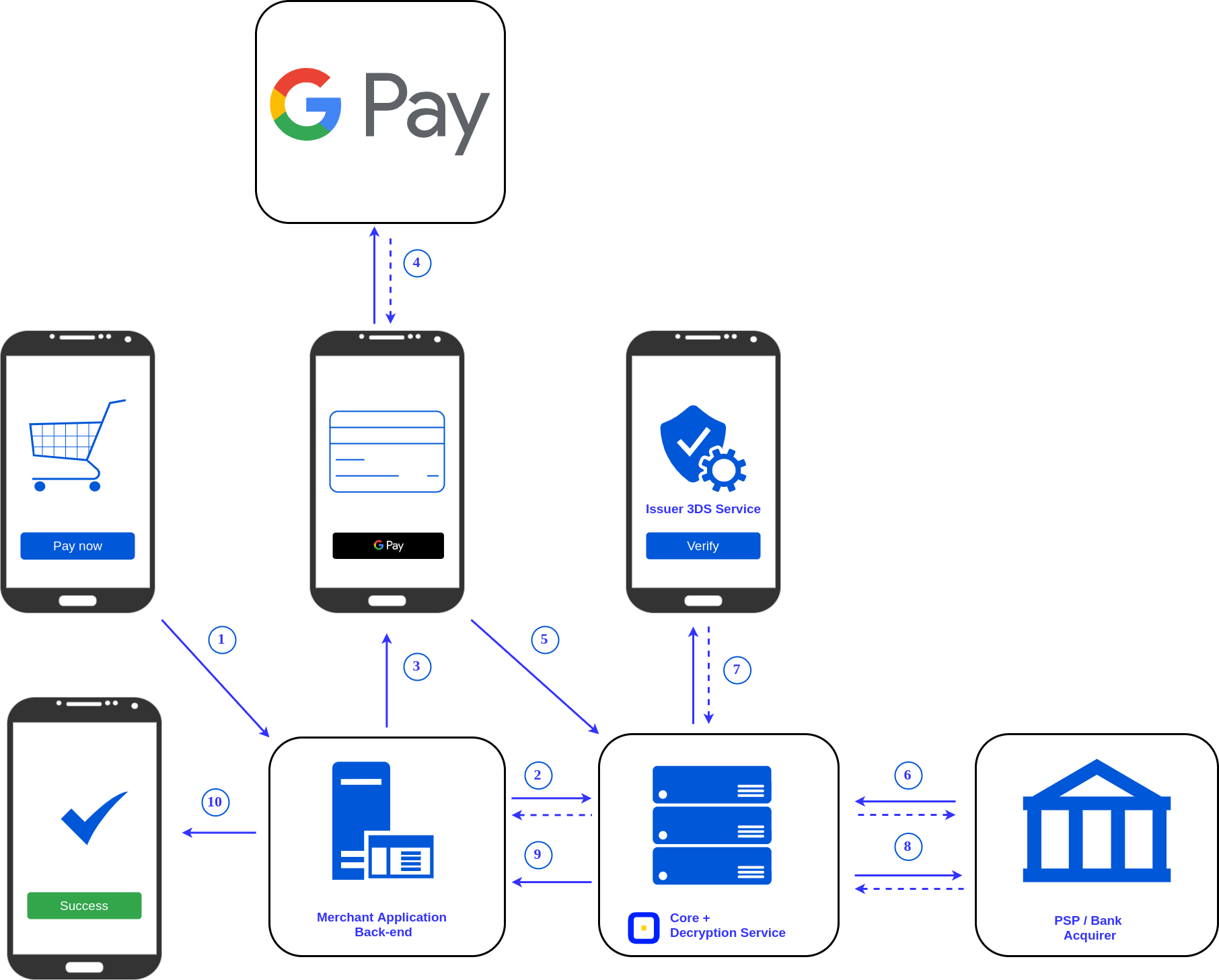
Google Pay is not merely an app; it is a complex middleware that bridges the gap between your banking institution’s encrypted data and a merchant’s Point of Sale (POS) terminal. To begin, one must understand the hardware and software prerequisites required to ensure a seamless experience.
Downloading and Device Compatibility
The first step involves ensuring your hardware is up to the task. For Android users, Google Pay requires a device running Android 7.0 (Nougat) or higher. Crucially, the device must support Near Field Communication (NFC) for in-store payments. You can verify this in your device’s “Connected Devices” or “Connection Preferences” settings. While Google Pay is available on iOS, its functionality is slightly more restricted due to Apple’s proprietary control over the NFC chip, focusing more on peer-to-peer transfers and online shopping rather than tap-to-pay at physical terminals.
Adding Payment Methods: Cards and Bank Accounts
Once the application is installed from the Google Play Store or Apple App Store, the onboarding process begins with digitizing your financial instruments. To add a card, you can use the device’s camera to scan the physical card, allowing the software’s Optical Character Recognition (OCR) to populate the card number and expiration date automatically. Alternatively, data can be entered manually.
Google Pay supports a vast array of credit and debit cards, as well as integration with PayPal in certain regions. During this phase, the software communicates with your bank to verify that the card is eligible for mobile payments. This leads to the crucial “tokenization” phase, where the software creates a virtual account number so your actual card details are never stored on the device or shared with merchants.
Verification and Security Protocols
Security is the cornerstone of the Google Pay architecture. After adding a card, your bank will require a verification step. This usually involves a Multi-Factor Authentication (MFA) code sent via SMS or email, or a quick verification through your bank’s own mobile app. This ensures that the digital clone of your card is authorized by the rightful owner. Furthermore, Google Pay requires a screen lock (PIN, pattern, or biometrics) to be active on the device. If the screen lock is disabled, the app automatically wipes cached payment tokens to protect the user.
2. Seamlessly Navigating the User Interface
Google’s design philosophy, Material You, is deeply integrated into the Google Pay interface, making it intuitive yet feature-rich. Navigating the app requires an understanding of its three primary pillars: payment, organization, and exploration.
The Home Screen and Insights
Upon launching the app, the home screen serves as your command center. It displays your default payment card at the top, ready for immediate use. Below this, the interface provides a chronological feed of recent transactions. Unlike a standard bank statement, Google Pay often enriches this data with merchant logos and map locations, providing a more visual and “tech-forward” way to track digital footprints.
Managing Your Digital Wallet
The “Wallet” tab is where the software transcends simple payments. Here, users can store digital versions of loyalty cards, boarding passes, event tickets, and even digital car keys for compatible vehicles. The technical beauty of this section lies in its ability to pull information from other Google services. For instance, if a flight confirmation is sent to your Gmail, Google Pay can automatically generate a boarding pass notification, demonstrating the power of ecosystem integration.
Exploring Rewards and Offers
Google Pay includes an “Explore” tab that leverages data analytics to present users with relevant cashback offers and discounts. From a technical standpoint, this is managed through secure merchant partnerships where “activated” offers are automatically applied when the software detects a qualifying transaction. This automation eliminates the need for manual coupon entry, representing a significant optimization in the digital shopping journey.
3. Executing Transactions in the Physical and Digital World
The primary utility of Google Pay is its ability to facilitate transactions across various mediums. Whether you are at a local cafe or browsing an e-commerce site, the software handles the heavy lifting of data encryption and transmission.

Contactless Payments via NFC
The most common use case is the “Tap to Pay” feature. When you hold your phone near a contactless symbol on a card reader, the device utilizes NFC technology—a short-range wireless communication standard—to send a one-time cryptographic token to the terminal.
To execute this, the device must be awake and NFC must be toggled on. For smaller transactions, simply waking the screen may suffice, but for larger amounts, the OS will require biometric authentication (Fingerprint or Face Unlock) to complete the handshake. This “two-step” hardware-to-software verification makes digital wallets significantly more secure than traditional magnetic stripe cards.
Peer-to-Peer (P2P) Transfers
Google Pay allows for the instantaneous transfer of funds between individuals. By syncing with your contact list, you can send money to an email address or phone number. The backend handles the routing through the Automated Clearing House (ACH) or instant debit networks. This feature is particularly useful for splitting bills or sending gifts, providing a centralized platform that reduces the need for third-party “money-moving” apps.
Online Shopping and In-App Integration
When shopping via mobile browser or within other apps (like Uber or Airbnb), the “Buy with Google Pay” button acts as a high-speed checkout lane. By selecting this option, the app provides the merchant with your encrypted payment info and shipping address instantly. This reduces “cart abandonment” by removing the friction of manual data entry and ensures that your raw credit card data is not stored on multiple, potentially vulnerable merchant servers.
4. Advanced Security Features and Privacy Protection
In an era of frequent data breaches, the technical architecture of Google Pay is designed to be “privacy-first.” The app employs several layers of obfuscation to ensure that your financial identity remains shielded.
Tokenization: Protecting Your Identity
As mentioned previously, tokenization is the “secret sauce” of Google Pay. When you pay a merchant, they do not receive your 16-digit card number. Instead, they receive a “Virtual Account Number”—a randomly generated string of digits that is only valid for that specific transaction or merchant. Even if a merchant’s database is hacked, the tokens stored there are useless to attackers, as they cannot be used to recreate your actual card details.
Biometric Authentication and Device Locking
Google Pay leverages the Android Keystore system to protect your payment credentials. By requiring biometric authentication for transactions, the software ensures that “Possession” of the device is not enough to authorize a payment; “Inherence” (the biological proof of who you are) is also required. Furthermore, through the “Find My Device” integration, if your phone is lost or stolen, you can remotely wipe your Google Pay data, instantly de-authorizing all digital tokens without needing to cancel your physical plastic cards.
Managing Permissions and Data Privacy
Within the app settings, users have granular control over their data. You can opt-out of allowing Google to use your transaction history for personalizing other Google services. Technically, this involves toggling “Personalization within Google Pay” and “Google Pay balance” settings. Google employs industry-leading encryption for data in transit and at rest, ensuring that while the app is “smart,” it is also a “vault.”
5. Troubleshooting and Optimizing Your Google Pay Experience
Even the most robust software can encounter hurdles. Understanding the technical reasons behind common issues can help users resolve them quickly.
Dealing with Declined Transactions
If a transaction is declined, it is rarely a fault of the app itself. Common technical culprits include:
- NFC Interference: Thick phone cases or metal plates for magnetic car mounts can block the NFC signal.
- Outdated Tokens: If a device has been offline for an extended period, it may run out of “pre-loaded” security tokens. Connecting to the internet refreshes these.
- Bank Blocks: Sometimes, a bank’s fraud detection algorithm may flag a mobile payment if it’s the first time you’ve used the service in a new geographic location.
Battery Optimization and Background Processes
To ensure Google Pay is always ready, the “Google Play Services” framework runs in the background. If you have “Aggressive Battery Saving” modes active, the OS might kill the NFC polling process. For the best experience, ensure that Google Pay is excluded from battery optimization settings, allowing the software to “wake up” the moment it detects an NFC field.

The Future of Google Wallet and Global Integration
As we look forward, Google Pay is evolving into a more comprehensive “Google Wallet.” This shift signifies a move toward a holistic digital identity—storing not just money, but health passes, digital IDs, and office keys. This transition is being handled via server-side updates, meaning users will see their “Google Pay” app transition into “Google Wallet” automatically as the software matures.
In conclusion, mastering Google Pay is about more than just “tapping a phone.” It is about understanding the synergy between hardware (NFC), software (the GPay app), and security (Tokenization). By following the steps outlined in this guide, users can move through the digital economy with unparalleled speed, convenience, and peace of mind.
aViewFromTheCave is a participant in the Amazon Services LLC Associates Program, an affiliate advertising program designed to provide a means for sites to earn advertising fees by advertising and linking to Amazon.com. Amazon, the Amazon logo, AmazonSupply, and the AmazonSupply logo are trademarks of Amazon.com, Inc. or its affiliates. As an Amazon Associate we earn affiliate commissions from qualifying purchases.