
The transition from traditional cable to over-the-top (OTT) streaming services has redefined how we consume media, but perhaps no feature has been as radically transformed as the Digital Video Recorder (DVR). In the era of physical hardware, users were limited by hard drive capacity and the number of tuners in their set-top box. YouTube TV disrupted this model by introducing an unlimited Cloud DVR, a feature that has become the cornerstone of its value proposition.
Understanding how to leverage this technology effectively is essential for any cord-cutter looking to replicate or enhance their television viewing experience. This guide explores the technical nuances of the YouTube TV DVR, from the basic mechanics of “adding to library” to the sophisticated algorithms that handle live sports extensions.
Understanding the Cloud DVR Infrastructure
Unlike the local storage found in TiVo or standard cable boxes, YouTube TV utilizes Google’s massive data center infrastructure to manage recordings. This “Cloud DVR” model means that when you “record” a show, you aren’t actually saving a file to a local device; instead, you are flagging a specific broadcast to be accessible to your account via Google’s servers.
The Power of Unlimited Storage
The most significant technical advantage of YouTube TV is the lack of a storage cap. Traditional DVRs often forced users to choose which episodes to keep and which to delete to save space. With YouTube TV, you can record every single program aired on every channel provided by the service simultaneously. There is no limit on the number of hours recorded or the number of concurrent recordings. This shift allows users to build a massive personal “on-demand” library without worrying about technical overhead.
Retention and Expiration Rules
While the storage is unlimited in terms of volume, it is limited by time. Every recording is kept for nine months from the date of the broadcast. Once a recording hits the nine-month mark, it is automatically removed from your library. However, if the program airs again during that period, the nine-month timer resets for that specific airing. This creates a “rolling” availability that ensures popular syndicated shows are almost always available in your library.
DVR vs. VOD: The Technical Distinction
It is vital for users to distinguish between DVR recordings and Video On Demand (VOD) content. A DVR recording is a digital copy of a live broadcast, allowing you to fast-forward through commercials. VOD content is provided directly by the networks and typically includes unskippable advertisements. YouTube TV often provides both versions in your library; mastering the interface means knowing how to select the “DVR” version to maintain control over your playback experience.
Mastering the Library Interface
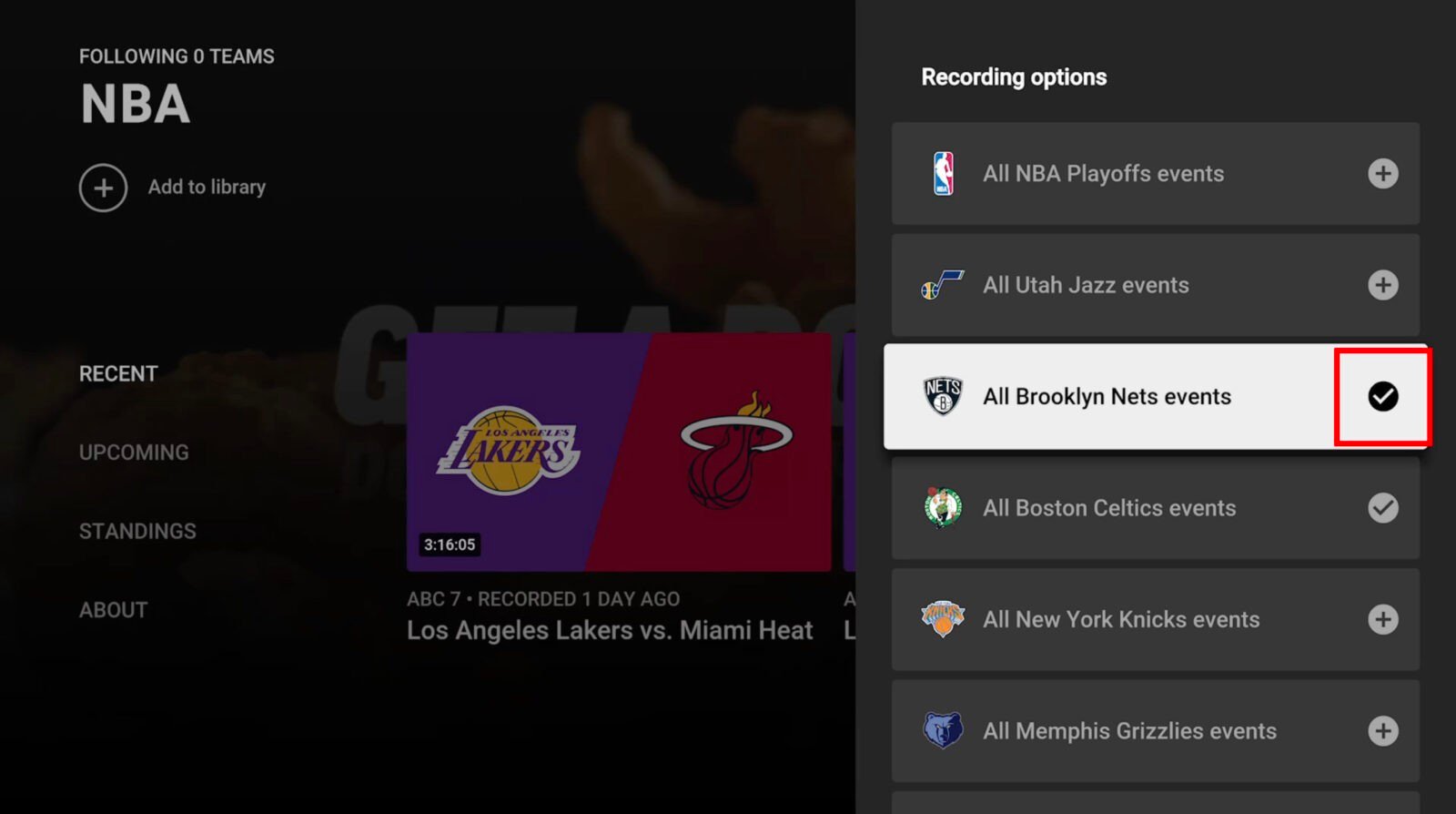
YouTube TV does not use a traditional “Record” button. Instead, the system uses a “Library” concept represented by a plus sign (+). When you add a show, movie, or sports team to your library, the system automatically tracks and records every upcoming airing across all channels.
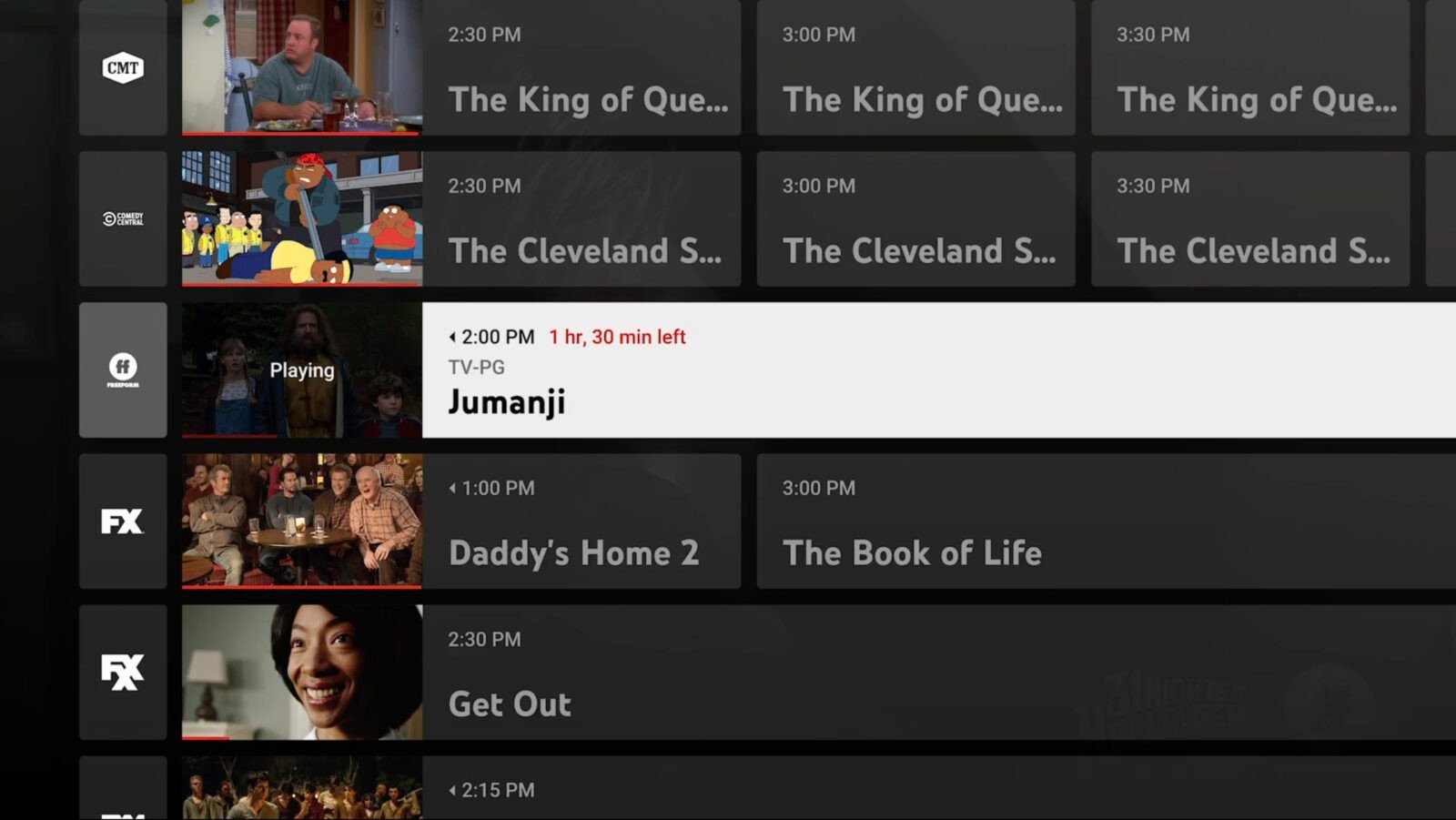
Adding Content from the Live Guide
The most common way to initiate a recording is through the Live Guide. By selecting a program currently airing or scheduled for the future, you can click the “Add to Library” button. From that moment forward, every episode of that series—whether it is a new premiere or a rerun on a different network—will be recorded. This global tracking is a significant technical leap over “series links” in legacy cable systems, which often struggled when shows moved to different time slots or channels.
Leveraging the Search Function for Bulk Recording
Because storage is unlimited, many power users utilize the search function to populate their library quickly. For instance, searching for “Major League Baseball” and adding it to your library will instruct the system to record every MLB game broadcast on any network included in your subscription (e.g., ESPN, FOX, TBS, and local affiliates). This “blanket recording” ensures you never miss a game without having to manually schedule individual events.
Categorization within the Library
The YouTube TV interface categorizes your recordings into several logical sections:
-
New for You: Highlights recently aired episodes of shows you follow that you haven’t watched yet.
-
Scheduled: Shows you what is slated to be recorded in the next 24 hours, allowing you to manage your viewing calendar.
-
Shows, Movies, and Sports: These tabs act as filters, allowing you to browse your massive collection of saved content by genre or format.

Advanced Playback Features and Navigation
Once content is recorded, the technical utility of the DVR comes down to how you interact with the playback engine. YouTube TV offers several features that enhance the viewing experience across various devices, from smart TVs to mobile handsets.
Precision Fast-Forwarding
YouTube TV provides a thumbnail-based scrubbing bar during playback. When you fast-forward through a DVR recording, you see a small preview window of the frames. This is a critical technical feature for skipping commercials accurately. Unlike older digital recorders that relied on “30-second skips,” the visual preview allows users to stop exactly when the show resumes, minimizing the frustration of overshooting the content.
The “Start From Beginning” Feature
One of the most useful aspects of the Cloud DVR is the ability to join a live broadcast already in progress and choose to “Start from Beginning.” If you have previously added the program to your library, YouTube TV’s servers are already capturing the stream. When you select the live show, the app gives you the option to jump to the start or join live. If you choose the start, you maintain full DVR controls (pause, rewind, fast-forward) for the remainder of the program.
Cross-Device Synchronization
Because the DVR lives in the cloud, your “watch position” is synced across every device linked to your account. You can start watching a recorded football game on your living room Apple TV, pause it, and resume at the exact second on your smartphone during your commute. This seamless transition is handled via Google’s unified account architecture, ensuring that metadata (like time stamps and watched status) is updated in real-time.
Optimization and Troubleshooting for Power Users
While the YouTube TV DVR is largely automated, there are technical nuances and optimizations that can improve the experience, particularly regarding sports and multi-user households.
The Sports “Overtime” Logic
A common failure point for legacy DVRs was the “overtime” problem, where a game would go long and the recording would cut off before the final play. YouTube TV uses a combination of scheduled data and real-time signal analysis to detect when sporting events exceed their allotted time. The system automatically extends the recording window for most major sporting events. While not 100% foolproof—especially for obscure or low-tier broadcasts—it is significantly more reliable than manual padding.
Managing Multiple Profiles
YouTube TV allows for up to six individual profiles per household. From a technical standpoint, each profile has its own completely independent DVR library. This is a crucial feature for families or roommates. If one person adds “The Voice” to their library, it does not clutter the library of another user. Each user gets their own unlimited storage space, and their “watched” history is kept private. This prevents the “Who deleted my show?” conflicts common in the era of shared physical DVRs.
Handling Recording Conflicts and Regional Restrictions
Because the DVR is cloud-based, “recording conflicts” are technically impossible. You can record 50 shows airing at the exact same time without issue. However, regional restrictions (blackouts) still apply. If a game is blacked out in your local market on a specific channel, the DVR will not be able to record it from that source. The system is location-aware, using your device’s IP address or GPS to determine which local affiliates you are permitted to record. If you travel, you can watch your home-area recordings, but you cannot record local programming from the city you are visiting.
Improving Video Quality in Recordings
The quality of a DVR recording is tied to the broadcast quality of the source. If a network broadcasts in 720p (like many sports-heavy networks), your DVR recording will be 720p. However, YouTube TV offers a “4K Plus” add-on. While most live broadcasts aren’t in 4K yet, this add-on allows for higher bitrate streams and, where available, 4K DVR playback for select events. To ensure the best quality, users should check their “Connection Speed” in the “Stats for Nerds” overlay, a technical tool built into the YouTube TV player that displays real-time resolution and dropped frames.
The Future of the DVR Experience
The “How to” of YouTube TV’s DVR is less about managing hardware and more about mastering a digital interface. By removing the anxiety of storage limits and the complexity of manual scheduling, Google has turned the DVR into a background utility that works on “set it and forget it” logic.
As AI and machine learning continue to integrate into the platform, we can expect the DVR to become even more proactive—perhaps suggesting recordings based on viewing habits or automatically creating “highlight reels” from recorded sports content. For now, the combination of unlimited cloud storage, multi-profile isolation, and cross-device fluidity makes the YouTube TV DVR the most advanced consumer-grade recording solution currently available in the streaming landscape. Mastering these tools ensures that the user remains the programmer of their own television experience, free from the constraints of traditional broadcast schedules.
aViewFromTheCave is a participant in the Amazon Services LLC Associates Program, an affiliate advertising program designed to provide a means for sites to earn advertising fees by advertising and linking to Amazon.com. Amazon, the Amazon logo, AmazonSupply, and the AmazonSupply logo are trademarks of Amazon.com, Inc. or its affiliates. As an Amazon Associate we earn affiliate commissions from qualifying purchases.