
Cash App has become a ubiquitous tool for managing personal finances, facilitating quick peer-to-peer transfers, and even serving as a digital wallet for everyday purchases. Understanding the intricate functionalities of this versatile application is key to maximizing its benefits, from initial setup to leveraging its advanced features while maintaining robust digital security. This guide offers a comprehensive walkthrough of using Cash App Pay, focusing on the technical aspects and user experience that define its utility.
Navigating the Cash App Ecosystem: Account Setup and Fundamentals
Embarking on your Cash App journey begins with establishing your digital presence within its ecosystem. The initial setup is designed for simplicity, yet it lays the groundwork for all subsequent transactions and interactions.
Downloading and Initializing Your Account
The first step is to download the Cash App from your device’s respective app store (App Store for iOS or Google Play Store for Android). Once installed, open the application, and you’ll be prompted to enter a phone number or email address. This serves as your primary identifier and is crucial for account verification. After entering your chosen contact method, a verification code will be sent to it. Input this code into the app to proceed. Next, you’ll be asked to create a unique Cashtag. This alphanumeric identifier (e.g., $YourName) is how others will find and send money to you, so choose something memorable and professional if using it for business. Finally, you’ll be prompted to link a debit card immediately, which kickstarts your ability to send and receive funds. While optional at this stage, it’s highly recommended for full functionality.
Linking Your Financial Instruments
For Cash App to function as a payment and receiving platform, it needs to be connected to your existing financial infrastructure. This primarily involves linking a bank account and a debit card. To link a debit card, navigate to the “Banking” tab (represented by a house icon) and tap on “Link Bank.” Follow the on-screen prompts, which will typically involve entering your card number, expiration date, CVV, and ZIP code. For linking a bank account, the process is similar; you might be prompted to log in to your online banking portal through a secure third-party provider like Plaid, which facilitates the secure connection without Cash App directly storing your bank credentials. This secure linking mechanism is a cornerstone of the app’s operational integrity, ensuring that funds can be seamlessly transferred between your Cash App balance and your traditional bank account.
Understanding Your Cashtag
Your Cashtag ($YourName) is more than just a username; it’s a unique identifier within the Cash App network, akin to a personalized bank account number for receiving payments. When someone wants to send you money, they can simply type your Cashtag into their app, verify your profile picture and name, and send the funds directly. This eliminates the need for exchanging sensitive bank details. You can customize your Cashtag by going to your profile icon in the top right corner, tapping on your Cashtag, and editing it. While you can change it, it’s generally advisable to choose one and stick with it to avoid confusion for those sending you money. A well-chosen Cashtag simplifies transactions and enhances your digital identity within the app.
Executing Transactions: Sending and Receiving Funds
The core utility of Cash App lies in its ability to facilitate swift and simple money transfers. Whether you’re splitting a bill with a friend or paying a business, the app streamlines the process.
Sending Money to Contacts and Cashtags
Sending money through Cash App is remarkably straightforward. From the main screen, enter the amount you wish to send. Tap the “Pay” button. You’ll then be prompted to select a recipient. You can choose from your phone contacts who also use Cash App, search for a recipient by their Cashtag, phone number, or email address. After selecting the recipient, you can add a note detailing the purpose of the payment (e.g., “Dinner,” “Rent,” “Gift”). Review the amount and recipient carefully, then tap “Pay” again to confirm the transaction. The funds are typically transferred instantly from your Cash App balance or linked debit card to the recipient’s account.
Paying Businesses with Cash App Pay
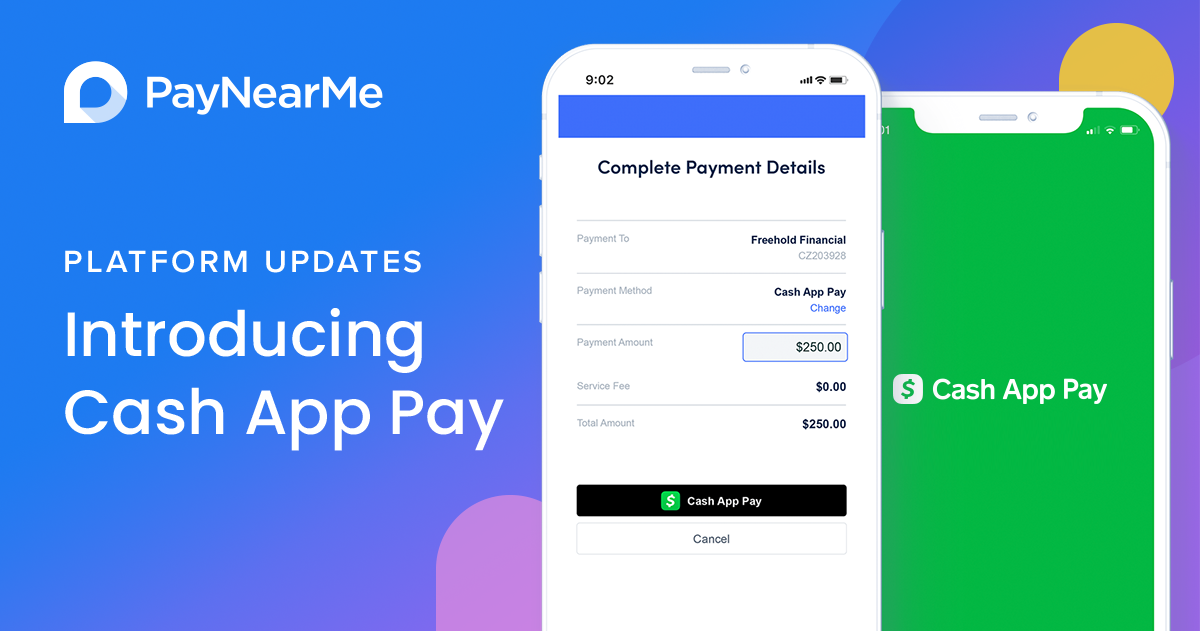
Cash App has extended its functionality to enable payments at various businesses, both online and in physical stores. For in-store payments, many merchants display a QR code that you can scan using the Cash App. To do this, tap the square QR code icon on the Cash App home screen (often located in the top left or center bottom). This will open your phone’s camera, allowing you to scan the merchant’s QR code. Once scanned, the app will display the business’s name and prompt you to enter the payment amount. Confirm the details, and the payment is processed. For online businesses, you might see “Cash App Pay” as an option at checkout. Selecting this will typically redirect you to the Cash App, where you authorize the payment, or prompt you to enter your Cashtag and PIN to complete the transaction. This integration offers a seamless way to pay without needing a physical card.
Receiving Payments and Managing Your Balance

Receiving money via Cash App is an equally simple process. When someone sends you funds, you’ll receive a notification within the app and, depending on your settings, via SMS or email. The funds will appear directly in your Cash App balance. To view your balance, simply refer to the large number displayed on the app’s main screen. From here, you can choose to keep the funds in your Cash App for future transactions or transfer them to your linked bank account. To transfer funds to your bank, tap the “Cash Out” button below your balance, enter the amount you wish to transfer, and choose between a “Standard” transfer (which is free and typically takes 1-3 business days) or “Instant” transfer (which incurs a small fee but makes funds available immediately).
Enhancing Your Experience: The Cash Card and Direct Deposit
Beyond basic money transfers, Cash App offers features that extend its utility as a primary financial tool. The Cash Card and Direct Deposit capabilities provide greater convenience and control over your funds.
Ordering and Activating Your Cash Card
The Cash Card is a free, customizable debit card linked directly to your Cash App balance. It allows you to spend your Cash App funds anywhere Visa is accepted, online or in physical stores. To order one, navigate to the “Cash Card” tab (represented by a card icon) and tap “Get Free Cash Card.” You can customize its design, add a signature, and then confirm your shipping address. Once the card arrives in the mail (typically within 5-9 business days), you’ll need to activate it within the app. Go back to the “Cash Card” tab, tap “Activate Cash Card,” and then follow the prompts to either scan the QR code on the card packaging or manually enter the CVV and expiration date found on the card. Activation links your physical card to your digital balance, making your Cash App funds readily accessible.
Utilizing Cash Card Boosts
One of the unique advantages of the Cash Card is its “Boosts” feature. Boosts are instant discounts applied to purchases made with your Cash Card at specific merchants. Examples include discounts at coffee shops, grocery stores, or online retailers. To use a Boost, go to the “Cash Card” tab in the app, browse the available Boosts, and select the one you want to apply. It’s crucial to select the Boost before making the purchase. Once activated, the discount is automatically applied when you use your Cash Card at the eligible merchant. You can only have one Boost active at a time, but you can swap them out as often as you like. Regularly checking for new Boosts can lead to significant savings on everyday spending.
Setting Up Direct Deposit
Cash App also functions as a bank account, complete with routing and account numbers, allowing you to set up direct deposit for your paycheck, government benefits, or tax refunds. To find your Cash App direct deposit information, tap the “Banking” tab (house icon) on the home screen. You’ll see your routing and account numbers listed. You can then provide these details to your employer’s payroll department or any other institution that supports direct deposit. Funds deposited this way will appear directly in your Cash App balance, typically on the same day as your traditional bank deposit, sometimes even earlier. This feature makes Cash App a viable alternative for managing your primary income.
Advanced Features and Digital Security Protocols
As Cash App continues to evolve, it incorporates advanced functionalities such as investing options, alongside critical security measures to protect user funds and data.
Exploring In-App Investing and Bitcoin Functionality
Cash App provides accessible entry points into investing in stocks and Bitcoin directly within the application. To access these features, tap the “Investing” tab (represented by a jagged line graph icon) or the “Bitcoin” tab (represented by a ‘B’ icon) on the main screen. For stocks, you can browse companies, search for specific stocks, and buy fractional shares, meaning you can invest any dollar amount you choose, rather than buying full shares. The interface simplifies the buying and selling process, showing current prices and your portfolio performance. Similarly, the Bitcoin tab allows you to buy, sell, send, and receive Bitcoin. You can set up recurring buys, track Bitcoin’s price fluctuations, and even withdraw Bitcoin to an external wallet or deposit Bitcoin into your Cash App wallet. It’s important to note that while these features make investing more accessible, they are subject to market risks, and users should understand the inherent volatility of these assets. The app facilitates the mechanics of these transactions, providing a user-friendly interface for digital asset management.
Fortifying Your Account with Security Measures
Digital security is paramount when dealing with financial applications. Cash App incorporates several layers of protection, and users are encouraged to utilize them fully. Upon setup, you’ll be prompted to create a PIN, which is required for transactions and accessing sensitive information. Beyond the PIN, enable biometric logins such as fingerprint recognition (Touch ID) or facial recognition (Face ID) if your device supports it. To do this, go to your profile icon, tap “Privacy & Security,” and toggle on the relevant biometric options.
Two-factor authentication (2FA) adds another critical layer of security. This requires a second form of verification, usually a code sent to your phone number or email, in addition to your PIN or biometrics, especially for large transactions or when logging in from a new device. Enable 2FA within the “Privacy & Security” settings. Regular monitoring of your transaction history within the app and setting up activity notifications are also good practices to quickly spot any unauthorized activity. Never share your PIN or sign-in codes with anyone, and be wary of phishing attempts that mimic Cash App communications.

Troubleshooting Common Technical Issues
Despite Cash App’s user-friendly design, technical glitches can occasionally arise. If a payment fails, first check your internet connection and ensure you have sufficient funds in your Cash App balance or linked account. If a transaction is pending or delayed, it’s often due to network congestion or verification processes; waiting a short period (15-30 minutes) can resolve this. For issues with the Cash Card, ensure it’s activated and that you have an active Boost selected if you expect a discount. If you encounter persistent problems or suspect unauthorized activity, the in-app support is your primary resource. Access support by tapping your profile icon, scrolling down to “Support,” and following the prompts to describe your issue. Cash App’s support team can assist with transaction discrepancies, account access issues, and security concerns, guiding you through troubleshooting steps or escalating your query as needed.
aViewFromTheCave is a participant in the Amazon Services LLC Associates Program, an affiliate advertising program designed to provide a means for sites to earn advertising fees by advertising and linking to Amazon.com. Amazon, the Amazon logo, AmazonSupply, and the AmazonSupply logo are trademarks of Amazon.com, Inc. or its affiliates. As an Amazon Associate we earn affiliate commissions from qualifying purchases.