
In the rapidly evolving landscape of personal computing, the video driver often remains an unsung hero, silently orchestrating the visual symphony displayed on your screen. Far from a mere background process, your video driver is a critical piece of software that facilitates communication between your operating system, applications, and the graphics processing unit (GPU) – whether it’s an integrated chip or a dedicated graphics card. Regularly updating this driver isn’t just about chasing the latest features; it’s a fundamental practice for ensuring peak performance, robust stability, and enhanced security for your entire system. This guide will walk you through the essential steps, considerations, and troubleshooting tips to keep your graphics drivers current and your visual experience seamless.
Why Updating Your Video Driver Matters
Neglecting your video driver updates can lead to a myriad of issues, from minor graphical glitches to significant performance bottlenecks. Understanding the benefits of a current driver highlights its importance in maintaining a healthy and efficient computing environment.
Enhanced Performance and Stability
One of the most immediate and tangible benefits of updating your video driver is improved performance. Graphics card manufacturers – like NVIDIA, AMD, and Intel – continuously optimize their drivers to extract more power from their hardware. These optimizations can translate into higher frame rates in games, smoother video playback, faster rendering times in creative applications, and an overall more responsive user interface. Beyond raw performance, updated drivers often contain critical bug fixes that address stability issues, reducing the likelihood of crashes, freezes, and unexpected errors that can disrupt your workflow or gaming session. For power users and gamers, these performance gains and stability improvements are non-negotiable, directly impacting productivity and enjoyment.
Unlocking New Features and Optimizations
Modern graphics cards are incredibly sophisticated pieces of hardware, and their full potential is often unlocked through software. New driver releases frequently introduce support for cutting-edge technologies and features. This could include support for new DirectX or Vulkan API versions, advanced rendering techniques like Ray Tracing or DLSS (Deep Learning Super Sampling), or even improved power management profiles. For creative professionals, new drivers might offer optimizations for specific applications, accelerating tasks in video editing suites, 3D modeling software, or CAD programs. Staying current ensures you’re leveraging your hardware to its fullest, gaining access to innovations that can significantly enhance your digital experience.
Crucial Security Patches
In an increasingly interconnected digital world, security is paramount. While less frequent than operating system or browser updates, graphics drivers can occasionally contain vulnerabilities that malicious actors could exploit. Manufacturers often release security patches within their driver updates to close these potential loopholes, protecting your system from threats. These patches are crucial for maintaining the integrity and privacy of your data, making driver updates a component of a holistic digital security strategy. Overlooking them could expose your system to unnecessary risks.
Resolving Common Graphics Issues
Are you experiencing screen flickering, artifacts, strange color anomalies, or applications crashing due to graphics errors? An outdated or corrupted video driver is a common culprit. Many driver updates specifically address known issues reported by users or discovered during internal testing. Installing the latest version can often resolve these persistent problems without requiring more drastic troubleshooting steps, saving you time and frustration. It’s often the first, simplest solution recommended for a wide range of visual display problems.
Identifying Your Current Graphics Card and Driver Version
Before you can update your video driver, you need to know what hardware you have and what driver version it’s currently running. This information is crucial for downloading the correct update package.
Using Device Manager (Windows)
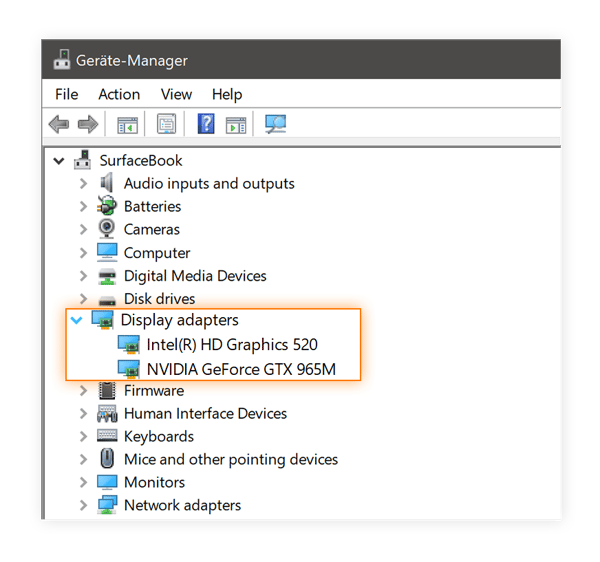
For Windows users, the Device Manager is your primary tool. You can access it by right-clicking the Start button and selecting “Device Manager,” or by typing “Device Manager” into the Windows search bar. Once open, expand the “Display adapters” section. Here, you’ll see your graphics card(s) listed (e.g., NVIDIA GeForce RTX 3080, AMD Radeon RX 6800, Intel Iris Xe Graphics). Right-click on your graphics card and select “Properties.” Navigate to the “Driver” tab, and you’ll find details like the “Driver Provider,” “Driver Date,” and “Driver Version.” This version number is key for comparison with what’s available online.
Utilizing Manufacturer-Specific Tools (NVIDIA GeForce Experience, AMD Radeon Software, Intel Graphics Command Center)
Most major GPU manufacturers provide their own software suites that not only offer various features and settings but also serve as excellent tools for identifying your hardware and driver status.
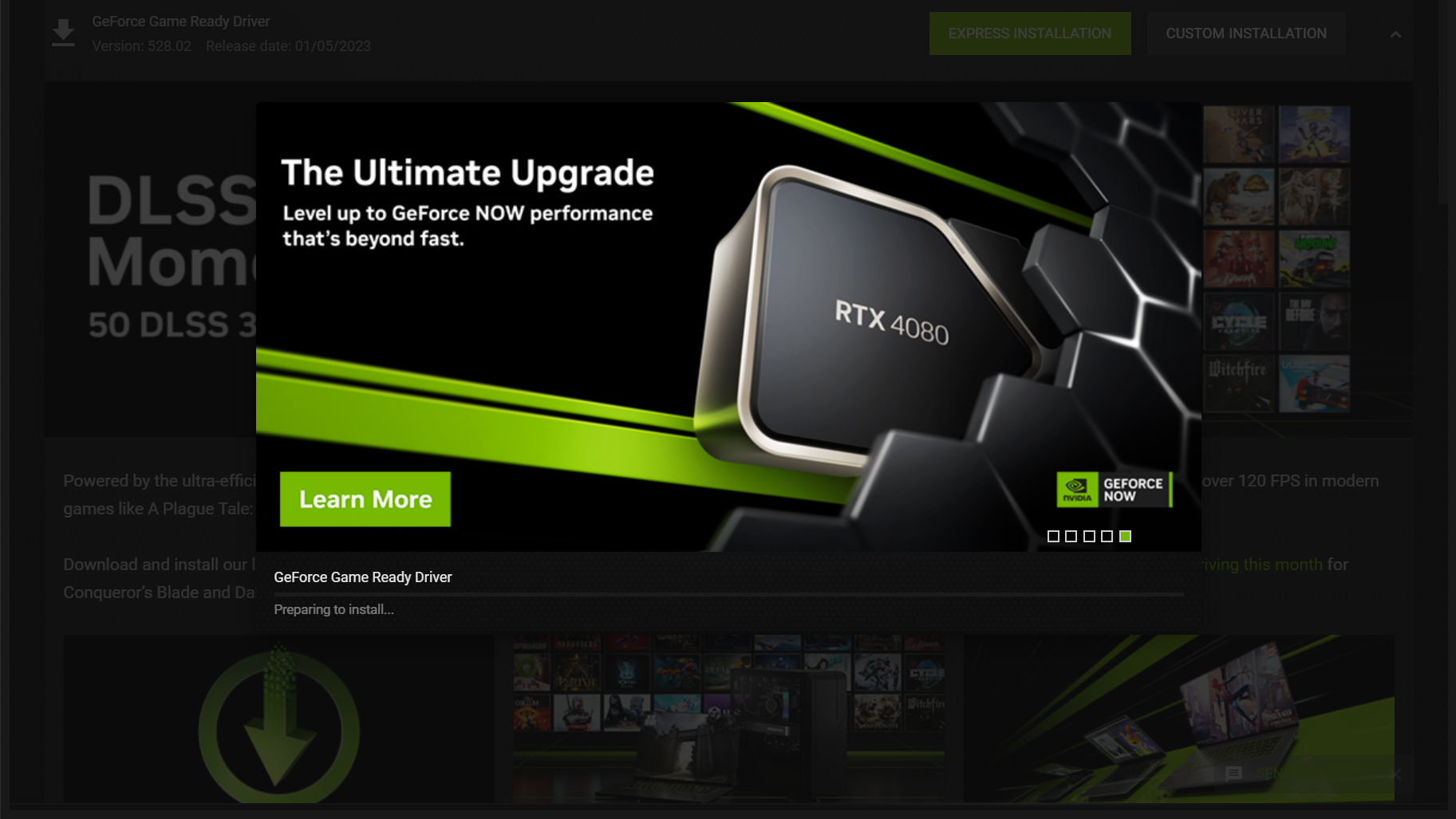
- NVIDIA GeForce Experience: If you have an NVIDIA card, this application (usually pre-installed or easily downloadable) will detect your GPU, notify you of new driver releases, and even provide an option for one-click installation. Inside the application, you can find your GPU model and current driver version.
- AMD Radeon Software: Similarly, AMD users have the Radeon Software Adrenalin Edition. This powerful tool provides detailed information about your GPU, monitors performance, and offers a straightforward way to check for and install driver updates.
- Intel Graphics Command Center: For systems with Intel integrated graphics, the Intel Graphics Command Center offers similar functionality, allowing you to view system information and manage display settings.
These tools are often the most user-friendly way to manage your graphics drivers.
Preparing for the Driver Update
A little preparation goes a long way in ensuring a smooth and problem-free driver update. These steps can help mitigate potential issues and provide a safety net if something goes awry.
Backing Up Important Data
While a driver update rarely causes data loss, it’s always good practice to have recent backups of your critical files before performing any significant system changes. This is a general computing best practice, but especially relevant when installing core system software. Consider using cloud storage, an external hard drive, or a network-attached storage (NAS) device for your backups.
Creating a System Restore Point
Before installing a new driver, creating a System Restore Point in Windows is highly recommended. This allows you to revert your system to a previous working state if the new driver causes instability or unexpected issues. To do this, search for “Create a restore point” in the Windows search bar, open the System Properties window, and click “Create…”. Give your restore point a descriptive name, like “Before Graphics Driver Update [Date],” and click “Create.” If problems arise, you can boot into Safe Mode and use System Restore to roll back.
Downloading the Correct Driver
This is perhaps the most critical preparation step. You must download the driver specifically designed for your graphics card model and your operating system version (e.g., Windows 10 64-bit, Windows 11 64-bit).
- NVIDIA: Visit the official NVIDIA driver download page, select your GeForce series, product, and operating system.
- AMD: Go to the official AMD driver download page, select your Radeon product family, model, and OS.
- Intel: Navigate to the Intel Download Center and use their utility or manually select your integrated graphics model and OS.
Avoid downloading drivers from third-party sites, as they may be outdated, incorrect, or even malicious. Always stick to the official manufacturer’s website.
Deciding Between Clean Installation and Standard Update
When installing a new driver, you typically have two main options:
- Standard Update: This method installs the new driver over the existing one, usually retaining your previous settings. It’s quicker and often sufficient.
- Clean Installation: This method involves completely removing all traces of the previous driver before installing the new one. This is generally recommended to prevent potential conflicts or corruption caused by leftover files from older drivers. Manufacturer software (like GeForce Experience or Radeon Software) often offers a “Custom” or “Clean Install” option during the installation process. For a truly thorough clean installation, you might consider using a third-party tool like Display Driver Uninstaller (DDU) in Safe Mode, which ensures a pristine slate before the new driver goes in. While more involved, DDU is highly effective for resolving persistent driver-related issues.
Step-by-Step Guide to Updating Your Video Driver
Once you’ve identified your hardware, prepared your system, and downloaded the correct driver, you’re ready to proceed with the installation.
Automatic Update via Manufacturer Software (NVIDIA, AMD, Intel)
This is often the simplest and recommended method for most users.
- Open the Software: Launch NVIDIA GeForce Experience, AMD Radeon Software, or Intel Graphics Command Center.
- Check for Updates: Navigate to the “Drivers” or “Updates” section within the application. It will usually automatically detect if a new driver is available.
- Download and Install: Click the “Download” or “Express Installation” button. If offered, select “Custom” or “Clean Installation” for a more thorough update. Follow the on-screen prompts. Your screen may flicker or go black momentarily during the installation, which is normal.
- Restart: Once the installation is complete, you’ll likely be prompted to restart your computer. Do so immediately to finalize the update.
Manual Update via Device Manager (Windows)
This method is useful if you prefer to install a driver manually or if the manufacturer software isn’t working as expected.
- Open Device Manager: Right-click the Start button and select “Device Manager.”
- Locate Graphics Card: Expand “Display adapters” and right-click on your graphics card.
- Update Driver: Select “Update driver.”
- Browse My Computer: Choose “Browse my computer for drivers.”
- Specify Location: Click “Browse” and navigate to the folder where you downloaded the driver files (you might need to extract the downloaded archive first). Ensure the “Include subfolders” box is checked.
- Install: Click “Next.” Windows will attempt to install the driver.
- Restart: After installation, restart your computer.
Clean Installation (Using DDU – Display Driver Uninstaller)
For troubleshooting or ensuring a pristine installation, DDU is the gold standard.
- Download DDU: Download the latest version of Display Driver Uninstaller from its official Wagnardsoft website.
- Download New Driver: Ensure you have the new driver package ready on your desktop or an easily accessible folder.
- Disconnect from Internet: Disconnect your computer from the internet to prevent Windows from automatically installing a generic driver after removal.
- Boot into Safe Mode: Restart your computer and repeatedly press the F8 (or Shift + F8, or a similar key combination depending on your system) during startup to access the Advanced Boot Options. Select “Safe Mode” or “Safe Mode with Networking.”
- Run DDU: Once in Safe Mode, launch DDU. Select “GPU” and then your graphics card manufacturer (NVIDIA, AMD, or Intel).
- Clean and Restart: Click “Clean and restart (Highly Recommended).” DDU will remove all traces of your old driver and restart your system into normal mode.
- Install New Driver: Once back in normal mode (and still offline), run the downloaded new driver installer package. Follow the prompts for a “Clean Installation” or “Custom” installation, ensuring you check the “Perform clean installation” box if available.
- Reconnect and Restart: After the new driver is installed and you’ve restarted your computer, you can reconnect to the internet.
Post-Update Verification
After the installation and system restart, it’s good practice to verify that the new driver is correctly installed.
- Check Device Manager: Open Device Manager again, go to “Display adapters,” right-click your GPU, select “Properties,” and then the “Driver” tab. Confirm that the “Driver Version” matches the one you just installed.
- Check Manufacturer Software: Open NVIDIA GeForce Experience or AMD Radeon Software. It should now display the latest driver version as installed.
- Test: Run a demanding game, a benchmark, or a graphics-intensive application to ensure everything is working correctly and to observe any performance improvements.
Troubleshooting Common Driver Update Issues
Despite careful preparation, issues can sometimes arise during or after a driver update. Here are solutions to common problems.
Screen Flickering or Black Screens
If your screen flickers excessively, goes black, or displays artifacts after an update:
- Wait it Out: Sometimes, the system needs a minute or two to settle. If it persists, try a full system restart.
- Boot into Safe Mode: If you can’t see anything, force shut down your PC (hold power button) and try to boot into Safe Mode.
- Roll Back Driver: In Safe Mode, go to Device Manager, right-click your GPU, select “Properties,” go to the “Driver” tab, and click “Roll Back Driver.”
- Use DDU and Reinstall: If rolling back doesn’t work, use DDU in Safe Mode to completely remove the problematic driver, then try reinstalling a known stable driver version (either the previous one or an older certified version).
Installation Failures
If the driver installer fails to complete:
- Check Compatibility: Double-check that you downloaded the correct driver for your exact GPU model and operating system.
- Disable Antivirus Temporarily: Sometimes, security software can interfere with driver installations. Temporarily disable your antivirus (remember to re-enable it afterward).
- Run as Administrator: Right-click the installer executable and select “Run as administrator.”
- Clean Installation with DDU: A clean installation using DDU is often the most effective solution for persistent installation failures, as it eliminates potential conflicts from previous driver remnants.
Performance Degradation After Update
Occasionally, a new driver might introduce performance regressions for certain games or applications.
- Check Release Notes: Review the driver’s release notes on the manufacturer’s website. They might mention specific known issues or changes.
- Adjust In-Game/App Settings: The new driver might have changed default optimization settings, requiring you to re-tweak your in-game graphics settings.
- Roll Back Driver: If performance significantly degrades, rolling back to the previous stable driver version is the simplest solution. Monitor official forums or wait for a subsequent driver update from the manufacturer.
Rolling Back to a Previous Driver Version
If all else fails, returning to a previous, stable driver version is a reliable solution.
- Device Manager: As mentioned, the “Roll Back Driver” option in Device Manager is the easiest method if available.
- System Restore: If you created a System Restore Point before the update, use it to revert your entire system to that state.
- Manual Clean Install of Old Driver: If neither of the above works, download the previous driver version from the manufacturer’s website and perform a clean installation using DDU to ensure a fresh start.
Maintaining current video drivers is a fundamental aspect of PC upkeep, crucial for unlocking performance, ensuring stability, bolstering security, and resolving graphical anomalies. By following these steps and understanding the underlying importance of these updates, you empower yourself to keep your system running optimally, providing a consistently smooth and visually rich computing experience.
aViewFromTheCave is a participant in the Amazon Services LLC Associates Program, an affiliate advertising program designed to provide a means for sites to earn advertising fees by advertising and linking to Amazon.com. Amazon, the Amazon logo, AmazonSupply, and the AmazonSupply logo are trademarks of Amazon.com, Inc. or its affiliates. As an Amazon Associate we earn affiliate commissions from qualifying purchases.