
In the rapidly evolving landscape of personal computing, the performance of your graphics processing unit (GPU) is paramount, especially for tasks ranging from high-fidelity gaming and professional content creation to everyday multimedia consumption. If you’re running an NVIDIA GPU, keeping its drivers updated isn’t merely a suggestion; it’s a critical maintenance practice that unlocks peak performance, ensures system stability, and provides access to the latest features and security enhancements.
NVIDIA drivers are the essential software bridge between your operating system, applications, and your graphics card. They dictate how your GPU interacts with your system, processes visual data, and renders images on your screen. Outdated drivers can lead to a host of problems, including reduced frame rates, graphical glitches, system crashes, and even compatibility issues with new software or games. This comprehensive guide will walk you through why and how to keep your NVIDIA drivers meticulously updated, ensuring your system runs smoothly, efficiently, and securely.
Why Keeping Your NVIDIA Drivers Up-to-Date Matters
The core reason for regular driver updates boils down to maximizing your hardware’s potential and protecting your investment. NVIDIA consistently releases new driver versions, each packed with improvements designed to enhance your user experience.
Enhanced Gaming Performance and Experience
For gamers, this is often the most compelling reason. NVIDIA’s “Game Ready Drivers” are specifically optimized for new game releases, often on the very day of their launch. These drivers can significantly boost frame rates, reduce stuttering, and introduce optimizations for cutting-edge technologies like Ray Tracing and DLSS (Deep Learning Super Sampling). Without these updates, you might experience suboptimal performance, graphical artifacts, or even an inability to run newer titles at their intended quality settings. Furthermore, updates often include performance profiles for popular esports titles, giving competitive players an edge.
Improved System Stability and Bug Fixes
Beyond performance, stability is a major benefit. New driver versions frequently address bugs and vulnerabilities discovered in previous iterations. These fixes can resolve common issues such as application crashes, “black screen” errors, display flickering, and general system instability. If you’ve been experiencing erratic behavior with your GPU-intensive applications or games, a driver update is often the first and most effective troubleshooting step. It’s a proactive measure that keeps your system reliable and minimizes frustrating interruptions.
Access to New Features and Technologies
NVIDIA is constantly innovating, and many of its groundbreaking features are delivered through driver updates. Technologies like NVIDIA Reflex (reducing system latency in competitive games), NVIDIA Broadcast (AI-powered voice and video enhancements for streamers), and NVIDIA Image Scaling (upscaling lower-resolution images with AI) are all integrated through driver updates. Similarly, for professionals, “Studio Drivers” provide optimized support for creative applications like Adobe Premiere Pro, Blender, and Autodesk Maya, often accelerating rendering times and improving workflow efficiency. By updating, you ensure you’re not missing out on tools that could dramatically enhance your productivity or entertainment.
Crucial Security Updates
In today’s digital landscape, security is paramount. Graphics drivers, like any complex piece of software, can have vulnerabilities that could potentially be exploited by malicious actors. NVIDIA regularly patches these security flaws through driver updates. By keeping your drivers current, you are actively safeguarding your system against potential threats, protecting your data, and ensuring your computing environment remains secure. Neglecting these updates could leave your system exposed to exploits that have already been identified and patched.
Preparing for Your Driver Update: Essential Pre-checks
Before diving into the update process, a few preparatory steps can help ensure a smooth, error-free installation. These checks are simple but crucial for a successful update.
Identify Your NVIDIA GPU Model
Knowing your specific GPU model is the foundation for downloading the correct driver. You can find this information in a few ways:
- NVIDIA Control Panel: Right-click on your desktop, select “NVIDIA Control Panel,” and then click “System Information” in the bottom-left corner. Your GPU model will be listed under “Display.”
- Device Manager: Press
Windows Key + Xand select “Device Manager.” Expand “Display adapters,” and your NVIDIA GPU will be listed. - GeForce Experience: If you have it installed, open GeForce Experience, navigate to the “Drivers” tab, and then “System Info.”
Understand Driver Types: Game Ready vs. Studio Drivers
NVIDIA offers two main types of drivers:
- Game Ready Drivers (GRD): These are designed for gamers, providing the best performance and compatibility for the latest game titles, often released in conjunction with new game launches. They prioritize gaming performance and features.
- Studio Drivers (SD): These are tailored for creative professionals and developers, offering stability and optimal performance with creative applications such as video editing suites, 3D rendering software, and graphic design tools. They undergo extensive testing with professional software.
Choose the driver type that best suits your primary use case. If you game and create, GRD is usually the default choice as it also offers stability for creative apps, but SD is superior for pure professional workloads.
Backup Your System (Optional but Recommended)
While driver updates are generally safe, it’s always wise to create a system restore point or perform a full backup before making significant system changes. This provides a safety net, allowing you to easily roll back your system to a previous state if any unforeseen issues arise after the update. Search for “Create a restore point” in Windows to get started.
Close All Open Applications
To prevent conflicts and ensure the installer has full access to necessary files, close all running applications, especially games, web browsers, and any software that heavily utilizes your GPU. This minimizes the chances of installation errors and prompts for restarts during the process.
Step-by-Step Methods to Update Your NVIDIA Drivers
NVIDIA provides several convenient methods to update your drivers, catering to different user preferences and technical proficiencies.
Method 1: Using NVIDIA GeForce Experience (Recommended for Gamers)
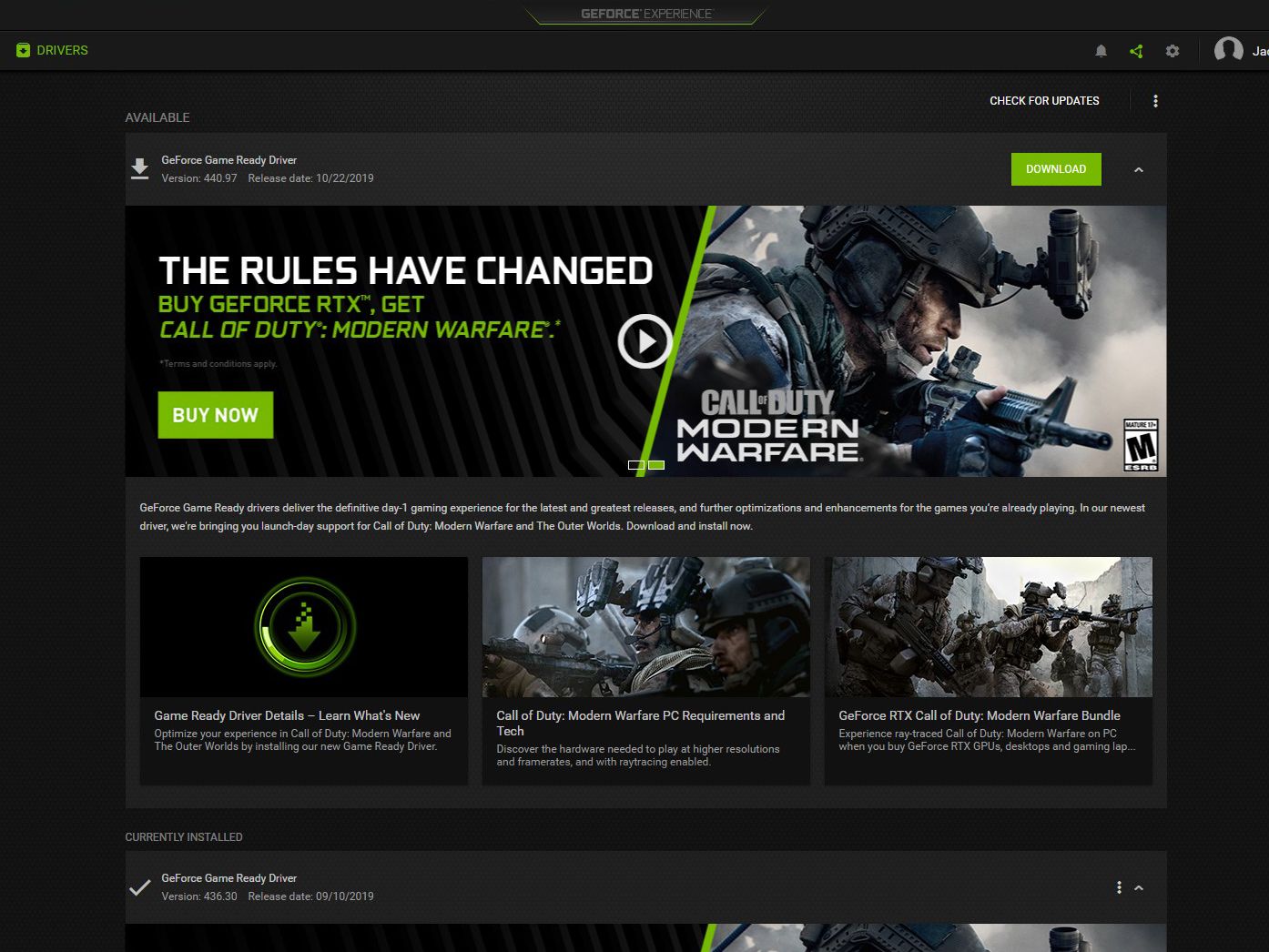
GeForce Experience is NVIDIA’s companion application that streamlines driver updates, optimizes game settings, and provides in-game features.
- Open GeForce Experience: Launch the application from your desktop or system tray. If you don’t have it, you can download it from the official NVIDIA website.
- Navigate to the Drivers Tab: Click on the “Drivers” tab located in the top-left corner of the application window.
- Check for Updates: GeForce Experience will automatically check for available updates. If a new driver is available, you’ll see a notification.
- Download Driver: Click “Download” to fetch the latest driver package.
- Choose Installation Type:
- Express Installation: This is the quickest and easiest option, automatically installing the driver with default settings. It’s suitable for most users.
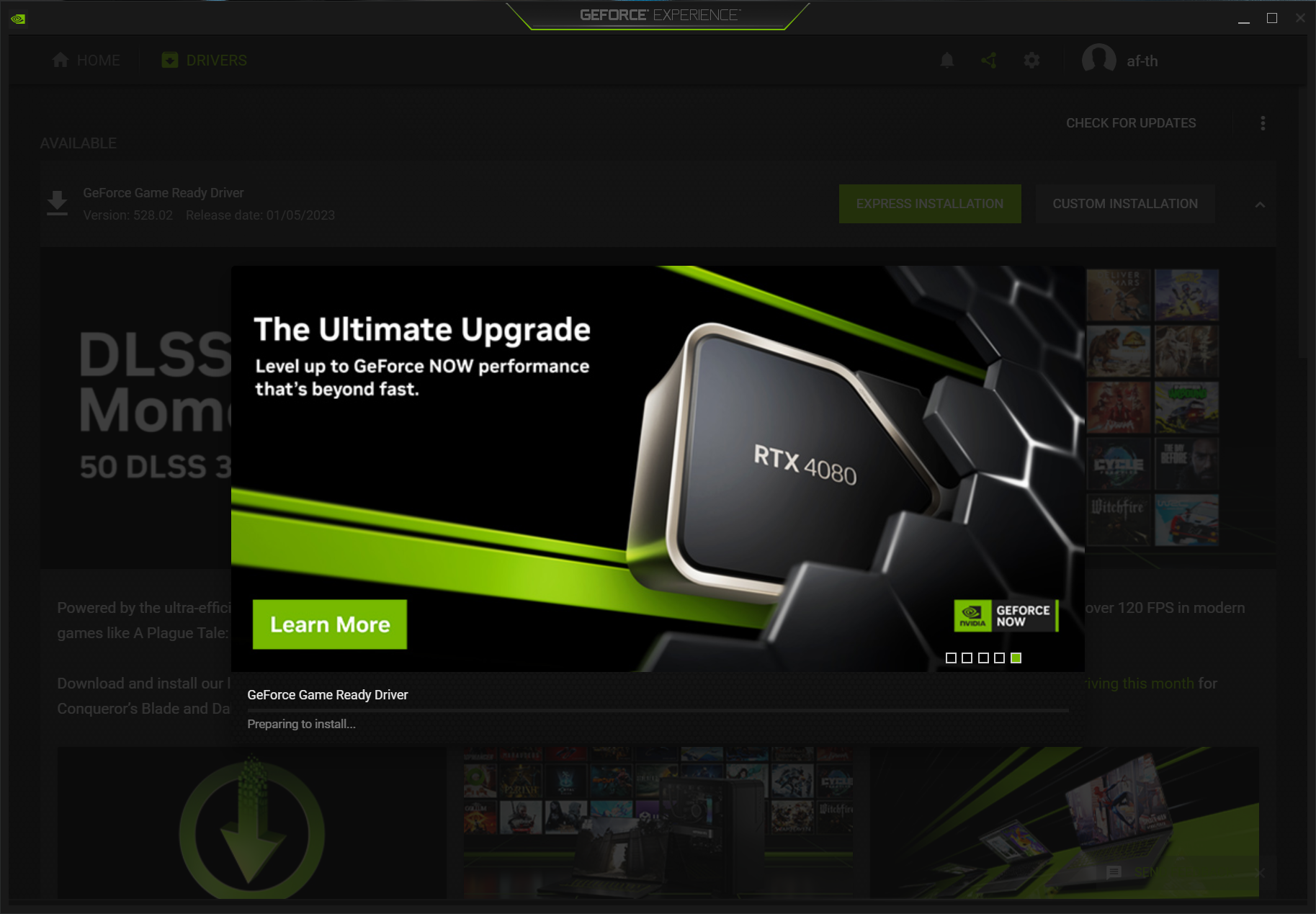
- Custom Installation: This option allows you to select specific components (e.g., PhysX, HD Audio Driver) and perform a “Clean Installation.” A clean installation removes all previous NVIDIA driver files before installing the new ones, which can help prevent conflicts and resolve persistent issues. This is often recommended if you’re upgrading from a very old driver or experiencing problems.
- Complete Installation: Follow the on-screen prompts. Your screen may flicker or temporarily go blank during the process. A system restart is usually required to finalize the installation.
Method 2: Manual Download from NVIDIA’s Official Website (Recommended for Professionals/Specific Needs)
This method gives you precise control over which driver you download, useful if you need a specific driver version or prefer not to use GeForce Experience.
- Visit NVIDIA’s Driver Download Page: Open your web browser and go to
www.nvidia.com/drivers. - Select Your Product: Use the drop-down menus to accurately select your:
- Product Type: GeForce, Quadro, NVS, etc.
- Product Series: GeForce RTX 40 Series, GeForce GTX 16 Series, etc.
- Product: Your specific GPU model (e.g., RTX 4090, GTX 1660 SUPER).
- Operating System: Your Windows version and architecture (e.g., Windows 11 64-bit).
- Driver Type: Game Ready Driver (GRD) or Studio Driver (SD).
- Search and Download: Click “Search,” then “Download” the latest recommended driver.
- Run the Installer: Once the download is complete, locate the
.exefile and run it. - Follow On-Screen Instructions: The installer interface will be similar to GeForce Experience, offering “Express” or “Custom” installation options. Again, a “Clean Installation” is a good practice, especially if you’re troubleshooting issues.
- Restart Your PC: Restart your computer when prompted to ensure the new drivers are fully integrated.
Method 3: Updating via Windows Device Manager (Least Recommended for Optimal Performance)
While possible, using Windows Device Manager to update your NVIDIA drivers is generally not recommended for optimal performance as it often fetches generic or older versions from Microsoft’s update catalog, rather than the latest, performance-optimized drivers directly from NVIDIA.
- Open Device Manager: Right-click the Start button and select “Device Manager.”
- Expand Display Adapters: Find and expand the “Display adapters” section.
- Update Driver: Right-click on your NVIDIA graphics card and select “Update driver.”
- Search Automatically: Choose “Search automatically for drivers.” Windows will then try to find and install a driver.
This method is best reserved for situations where you cannot access GeForce Experience or NVIDIA’s website, or when performing initial troubleshooting. For the best experience, always use Method 1 or 2.
Post-Installation Checklist and Troubleshooting
After the installation, it’s good practice to verify everything is working correctly and to know how to address common issues.
Verify Driver Installation
- Check NVIDIA Control Panel: Right-click on your desktop and open “NVIDIA Control Panel.” Look at the “System Information” link in the bottom-left corner to confirm the driver version matches the one you just installed.
- Check Device Manager: In Device Manager, right-click your NVIDIA GPU, go to “Properties,” then the “Driver” tab. Verify the driver date and version.
Adjust Settings and Re-optimize
New drivers might reset some NVIDIA Control Panel settings to default. Take a moment to review and re-apply any custom settings you prefer for gaming or professional applications. Re-run any in-game benchmarks to confirm performance improvements.
Common Troubleshooting Tips
- Driver Installation Failure: If the installation fails, try a “Clean Installation” (Method 1 or 2) again. If issues persist, consider using a third-party tool like Display Driver Uninstaller (DDU) in Windows Safe Mode to completely remove all traces of previous drivers, then perform a fresh installation.
- Black Screen/Display Issues: If your screen goes black and doesn’t recover after an update, try restarting your PC. If it persists, boot into Safe Mode (you might need to research how to do this for your Windows version) and use DDU to uninstall drivers, then try a fresh install.
- Performance Degradation After Update: While rare, a new driver might sometimes cause issues. If this happens, you can roll back to the previous driver version via Device Manager (Right-click GPU > Properties > Driver tab > Roll Back Driver) or install an older, stable version from NVIDIA’s website.
- Corrupted Download: If the driver installer fails to launch or errors out early, re-download the driver file. A corrupted download can happen due to internet issues.
Best Practices for Driver Management
Maintaining a healthy GPU environment is an ongoing process. Adopting a few best practices can save you headaches in the long run.
Regular Checks and Notifications
Enable notifications in GeForce Experience to be alerted about new driver releases. If you don’t use GeForce Experience, make it a habit to check NVIDIA’s official driver download page every few weeks or before starting a new demanding game.
Clean Installations
While express installations are convenient, consider performing a “Clean Installation” once every few major driver updates or whenever you encounter performance issues. This ensures you start fresh and eliminates potential conflicts from residual files of older drivers. Using DDU for a truly pristine clean-up is particularly recommended if you’re switching GPU brands or experiencing persistent display-related problems.
Avoid Beta Drivers Unless Necessary
NVIDIA sometimes releases beta drivers for specific games or to test new features. Unless you are a developer, an advanced user, or need a beta driver for a specific, compelling reason (e.g., early access to a new game that requires it), it’s generally best to stick to stable, WHQL-certified drivers. Beta drivers might contain unresolved bugs or introduce instability.
Keep Your Operating System Updated
Ensure your Windows operating system is also kept up-to-date. OS updates often include critical patches and improvements that can affect driver compatibility and overall system stability. A well-maintained OS provides the best foundation for your NVIDIA drivers to perform optimally.

Conclusion
Updating your NVIDIA drivers is a fundamental aspect of PC maintenance that yields significant benefits, from unlocking higher frame rates in the latest games to ensuring the smooth operation of demanding professional applications. By understanding the ‘why’ and meticulously following the ‘how-to’ outlined in this guide, you empower yourself to keep your system performing at its peak, free from unnecessary glitches, and secure against potential threats. Make driver updates a regular part of your digital routine, and your NVIDIA GPU will continue to deliver the powerful, immersive experiences it was designed for.
aViewFromTheCave is a participant in the Amazon Services LLC Associates Program, an affiliate advertising program designed to provide a means for sites to earn advertising fees by advertising and linking to Amazon.com. Amazon, the Amazon logo, AmazonSupply, and the AmazonSupply logo are trademarks of Amazon.com, Inc. or its affiliates. As an Amazon Associate we earn affiliate commissions from qualifying purchases.