
In the modern computing landscape, the Graphics Processing Unit (GPU) has evolved from a simple component used to render basic 2D interfaces into the powerhouse of the machine. Whether you are a professional video editor, a 3D designer, a competitive gamer, or an enthusiast exploring the frontiers of local Artificial Intelligence, your GPU is the primary engine driving your visual experience. However, the hardware is only as capable as the software that instructs it. Learning how to update your GPU drivers is not merely a maintenance task; it is an essential practice for ensuring system stability, security, and peak performance.

Identifying Your Graphics Hardware and Software Status
Before you can proceed with an update, you must accurately identify the hardware residing within your system. While many users know the brand of their computer, the specific model of the GPU—and whether it is an integrated or discrete unit—is crucial information. There are three primary manufacturers in the consumer GPU market: NVIDIA, AMD, and Intel. Each requires a distinct set of drivers and management software.
Utilizing System Information Tools
The most direct way to identify your GPU on a Windows-based system is through the Device Manager. By right-clicking the Start button and selecting “Device Manager,” you can navigate to the “Display adapters” section. This will list the specific model of your graphics card. For a more detailed look, including current driver versions and date of installation, the “System Information” app (type msinfo32 in the search bar) provides a granular overview of your hardware environment.
Understanding the Role of Drivers
A driver is a specialized piece of software that acts as a translator between your operating system (and its applications) and your hardware. Without an up-to-date driver, the operating system might not recognize the GPU’s full potential, leading to lower resolutions, stuttering performance, or “Black Screen of Death” errors. Furthermore, modern drivers often include “Game Ready” or “Studio” optimizations specifically designed to handle the code of newly released software, ensuring that the hardware can execute complex shaders and ray-tracing calculations efficiently.
Automated Updates via Manufacturer Software
For the vast majority of users, the most efficient way to keep a GPU updated is through the proprietary software suites provided by the manufacturers. These tools monitor for new releases and provide a streamlined, “one-click” installation process that minimizes the risk of user error.
NVIDIA GeForce Experience and the NVIDIA App
NVIDIA users traditionally rely on GeForce Experience, though the company is currently transitioning to a unified “NVIDIA App.” These platforms offer automatic notifications when a new driver is released. One of the primary benefits of using this software is the distinction between “Game Ready Drivers” and “Studio Drivers.”
Game Ready Drivers are optimized for the latest titles and provide the best experience for gamers. Studio Drivers, conversely, prioritize stability and are extensively tested against professional creative applications like Adobe Premiere Pro, Autodesk Maya, and DaVinci Resolve. Selecting the correct branch based on your primary use case is a critical step in the update process.
AMD Software: Adrenalin Edition
AMD’s software suite, Adrenalin Edition, is an all-in-one hub for performance tuning and driver management. Updating through Adrenalin is straightforward: the “Check for Updates” button on the home screen identifies if a newer version is available. AMD also offers a “Factory Reset” option during the installation process, which clears out old settings to prevent conflicts—a highly recommended step if you have been experiencing intermittent crashes or graphical glitches.
Intel Graphics Command Center and Arc Control
With the entry of Intel Arc discrete GPUs and the continued dominance of Intel Iris Xe integrated graphics, the Intel Graphics Command Center and the newer Intel Arc Control have become vital. These tools manage the frequent updates Intel releases to improve their driver stack, which has seen rapid architectural improvements over the last several years. For laptops utilizing integrated graphics, these tools are often the best way to bypass the slower update cycles of laptop manufacturers (OEMs).
Manual Driver Installation for Maximum Control
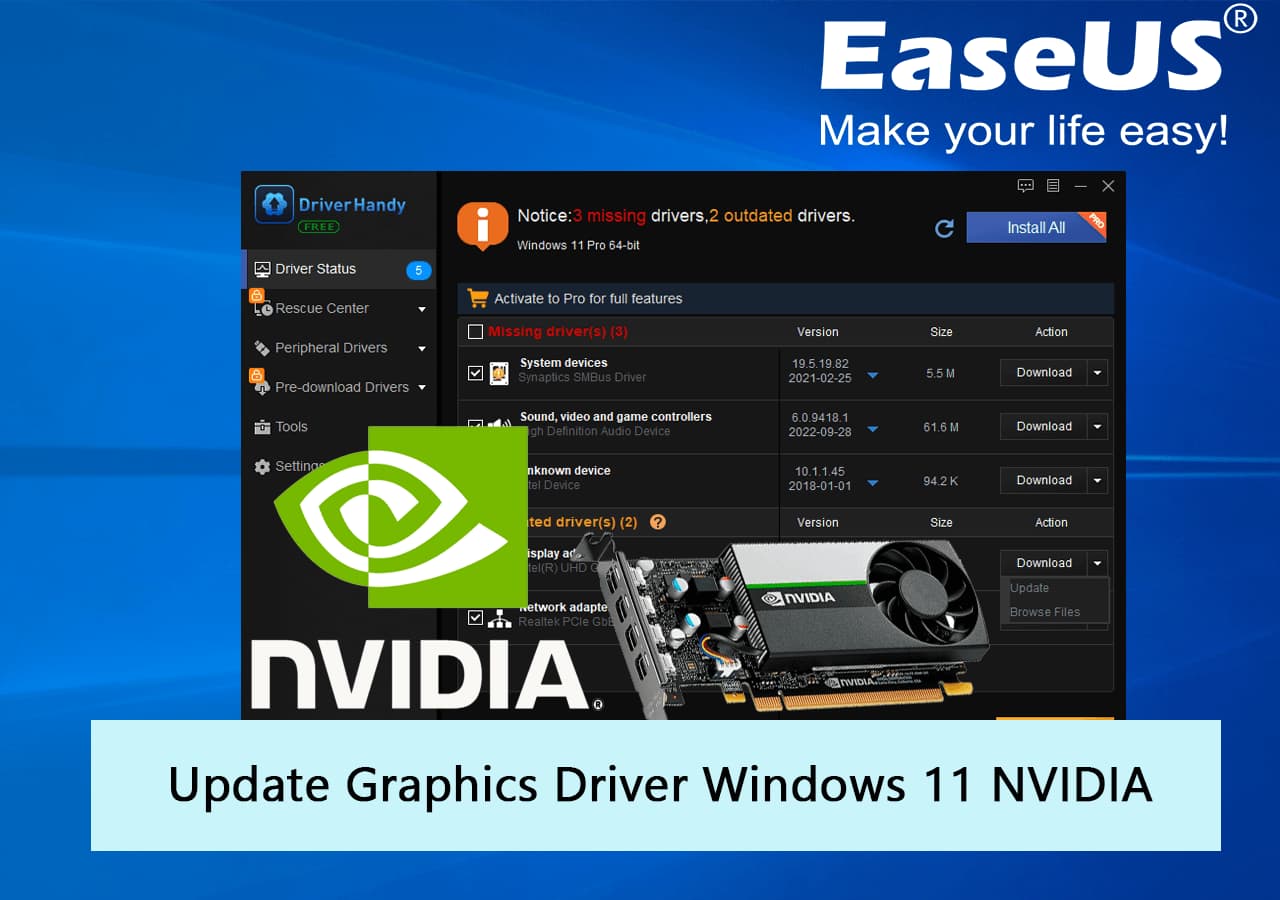
While automated tools are convenient, there are scenarios where a manual update is necessary. This is common when troubleshooting specific bugs, when a system is not connected to the internet permanently, or when a user needs to roll back to a specific older version that was known to be more stable for a particular workflow.
Navigating Manufacturer Repositories
To update manually, you must visit the official download page of the manufacturer. It is imperative to avoid third-party “driver updater” websites, as these often contain bundled bloatware or outdated files.
-
NVIDIA: Requires you to select your Product Type (e.g., GeForce), Product Series (e.g., RTX 40 Series), and Operating System.
-
AMD: Provides a similar dropdown menu or an “Auto-Detect and Install” tool for those unsure of their exact specifications.
-
Intel: Offers the “Download Center,” where users can search by the specific processor model or GPU name.
The Clean Installation Process
A “clean installation” is the gold standard for GPU updates. Over time, successive driver updates can leave behind “ghost” files or registry entries that conflict with new software. When running a manual installer, look for “Advanced” or “Custom” installation options. Checking the box for “Perform a clean installation” (NVIDIA) or “Factory Reset” (AMD) ensures that the old driver is completely purged before the new one is applied. This process will typically cause the screen to flicker or go black momentarily as the display adapter is reset; this is normal and expected behavior.
Troubleshooting Common GPU Update Issues
Despite the sophistication of modern installers, updates can occasionally go wrong. Common symptoms of a failed update include “Code 43” errors in Device Manager, persistent screen flickering, or the system defaulting to a low-resolution “Basic Display Adapter” mode.
Using Display Driver Uninstaller (DDU)
When a standard uninstallation fails to resolve an issue, professionals turn to a utility called Display Driver Uninstaller (DDU). This is a high-level tool that should be used in “Safe Mode.” It deep-cleans every trace of the GPU driver from the system registry and folders. After running DDU and restarting, the system will be in a “clean slate” state, allowing for a fresh, manual installation of the latest driver without interference from previous corrupted data.
Rolling Back Drivers
Sometimes, the latest driver isn’t the best one for your specific configuration. If you notice a performance drop immediately after an update, Windows provides a “Roll Back Driver” feature within the Device Manager. By navigating to the Properties of your GPU and selecting the “Driver” tab, you can revert to the previously installed version. This acts as an immediate safety net while you wait for the manufacturer to release a “hotfix” for the newly discovered bug.
Performance Optimization and Long-term Maintenance
Updating your GPU is more than just a software ritual; it is a gateway to new features that can extend the life of your hardware. Each year, manufacturers introduce technologies that are delivered purely through driver updates.
Unlocking New Technologies
Driver updates are frequently the delivery mechanism for performance-enhancing technologies such as NVIDIA DLSS (Deep Learning Super Sampling), AMD FSR (FidelityFX Super Resolution), and Intel XeSS. These AI-driven upscaling methods allow your GPU to render at a lower resolution and then upscale the image, providing a massive boost in frame rates with minimal loss in visual quality. Without the latest drivers, your hardware may not be able to utilize the most recent versions of these algorithms, leaving free performance on the table.
Security and VBIOS Updates
While less common than driver updates, the GPU’s firmware (VBIOS) may also require updates. These are typically released to address deep-level hardware issues, such as power delivery bugs or compatibility with newer motherboard features like Resizable BAR (Re-Size BAR). Resizable BAR allows the CPU to access the entire GPU frame buffer at once, rather than in small bursts, significantly increasing data transfer efficiency. Checking your manufacturer’s support page for VBIOS updates is a wise move for users looking to squeeze every ounce of efficiency out of their high-end rigs.

Physical Maintenance and Thermal Throttling
Finally, even the best software cannot overcome physical limitations. A GPU that is overheating will “throttle” its performance, regardless of how new the driver is. As part of your update routine, it is beneficial to check your GPU temperatures using software like HWMonitor or MSI Afterburner. If your GPU is consistently hitting its thermal limit (usually around 83°C to 90°C), it may be time to clear dust from the fans with compressed air or consider improving your case’s airflow.
By combining consistent software updates with occasional physical maintenance, you ensure that your GPU remains a reliable and powerful component of your digital life. Whether you are navigating the automated ease of manufacturer suites or performing surgical clean installs with DDU, staying current is the most effective way to protect your investment and enhance your computing experience.
aViewFromTheCave is a participant in the Amazon Services LLC Associates Program, an affiliate advertising program designed to provide a means for sites to earn advertising fees by advertising and linking to Amazon.com. Amazon, the Amazon logo, AmazonSupply, and the AmazonSupply logo are trademarks of Amazon.com, Inc. or its affiliates. As an Amazon Associate we earn affiliate commissions from qualifying purchases.