
The landscape of home entertainment has undergone a seismic shift over the last decade, transitioning from physical media and linear cable to the era of on-demand streaming. At the forefront of this revolution is Amazon Prime Video—formerly known as Amazon Instant Video. While the service is easily accessible on smartphones and laptops, the most immersive way to experience its vast library of 4K HDR content, original series, and live sports is on a large-screen television.
Getting Amazon Instant Video on your TV involves understanding the compatibility of your hardware, the nuances of your operating system, and the specific registration protocols required by Amazon. Whether you own the latest OLED Smart TV or an older “dumb” television, there is a technical pathway to bring the Amazon ecosystem into your living room.

Utilizing Built-in Smart TV Platforms
The most direct method to access Amazon’s streaming service is through the native operating system of a Smart TV. Most television manufacturers since 2016 have integrated Prime Video as a core application within their software ecosystems.
The App Installation Process
On major platforms such as Samsung’s Tizen, LG’s webOS, and Sony’s Android TV/Google TV, the Prime Video app is often pre-installed and located on the primary home ribbon. However, if the icon is missing, the process begins in the respective platform’s app store. For instance, on a Samsung TV, you would navigate to the “Apps” icon on the Smart Hub, use the search function to locate “Prime Video,” and select “Install.”
Legacy Smart TVs and App Availability
It is important to note that technical support for older Smart TVs (typically models manufactured before 2014) may have been phased out due to hardware limitations and security requirements. Amazon regularly updates its encryption standards and video codecs to support 4K and Dolby Vision. If your Smart TV’s app store no longer lists Amazon Prime Video, or if the app fails to launch, the hardware may no longer meet the minimum technical specifications for the current application version. In these instances, an external hardware solution is required.
Expanding Capability via External Streaming Media Players
If your TV lacks “smart” capabilities or if the built-in interface is sluggish, external streaming media players offer a powerful and often superior technical alternative. These devices connect via the HDMI port and bypass the TV’s internal software entirely.
Amazon Fire TV Ecosystem
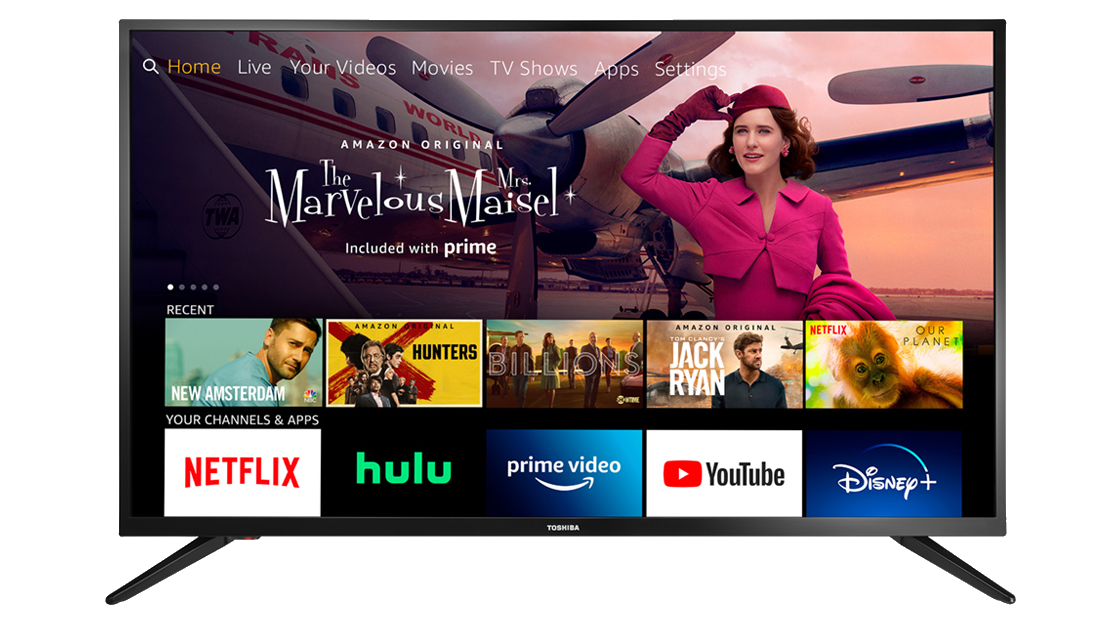
Unsurprisingly, the Amazon Fire TV Stick, Fire TV Stick 4K, and Fire TV Cube offer the most seamless integration with Amazon Instant Video. Because the hardware and software are both developed by Amazon, the interface is designed around the Prime Video library. Setup involves plugging the device into an HDMI port, connecting to Wi-Fi, and signing in with your Amazon credentials. The technical advantage here is “universal search,” where Alexa-enabled remotes allow you to launch specific titles using voice commands.
Roku, Apple TV, and Google TV
For those who prefer a different ecosystem, Amazon Prime Video is a “tier-one” app available on almost every major streaming device.
-
Roku: You can find the Prime Video channel in the Roku Channel Store. Roku is particularly valued for its neutral interface and support for diverse file formats.
-
Apple TV: On the Apple TV 4K, the Prime Video app integrates with the “Apple TV App” (the aggregator), allowing you to see your “Up Next” Amazon content alongside other services.
-
Chromecast with Google TV: Unlike older Chromecast models that required a phone to “push” content, the newer Google TV versions have a dedicated interface where the Prime Video app can be installed directly.
Integrating Gaming Consoles and Alternative Hardware
For many households, the gaming console serves as the primary media hub for the living room. Both Sony and Microsoft have prioritized media integration, making Amazon Instant Video a staple of their app galleries.
PlayStation 4 and PlayStation 5
On the PlayStation 5, the Prime Video app is located under the “Media” tab, separate from the “Games” tab. If it is not visible, it can be downloaded from the “All Apps” section. On the PlayStation 4, the app is found within the “TV & Video” folder. These consoles provide excellent hardware acceleration, ensuring that high-bitrate 4K streams remain stable, provided your home network can support the bandwidth.
Microsoft Xbox Series X|S and Xbox One
The Microsoft Store on Xbox platforms offers the Prime Video app for free. A unique technical benefit of using an Xbox Series X for streaming is its support for spatial audio technologies like Dolby Atmos and DTS:X, provided your home theater system is compatible. To get started, navigate to the Store, search for Prime Video, and pin the app to your “My Games & Apps” dashboard for quick access.
Blu-ray Players and Set-Top Boxes
Many modern 4K Blu-ray players from brands like Panasonic and Sony come equipped with streaming apps. Additionally, many cable and satellite providers (such as Comcast Xfinity or Cox) have integrated the Prime Video app directly into their cable boxes (e.g., the X1 platform). This allows users to switch between live cable TV and Amazon’s on-demand library without changing inputs.
Connecting via Mobile Devices and Casting
If you prefer to manage your viewing experience from a smartphone or tablet, or if you are using a TV that doesn’t support a native app, casting technologies offer a bridge between mobile and the big screen.
AirPlay 2 for iOS Users
If you have an iPhone or iPad and a TV that supports AirPlay 2 (many modern LG, Sony, and Vizio models), you can open the Prime Video app on your phone, start a video, and tap the AirPlay icon. The TV then takes over the stream, pulling the data directly from the internet rather than simply mirroring your phone’s screen. This preserves battery life and allows for higher resolution playback.
Google Cast (Chromecast)
For Android users or those using a standalone Chromecast dongle, the “Cast” icon within the Prime Video app allows you to send the video signal to your TV. The technical process here involves the mobile device sending a URL to the Chromecast, which then opens its own simplified browser to play the stream.
HDMI Mirroring: The Hardwired Approach
When all wireless options fail, a physical HDMI connection remains the most reliable fallback. By using a Lightning-to-HDMI or USB-C-to-HDMI adapter, you can connect your mobile device or laptop directly to the TV. In this setup, the TV acts as an external monitor. While effective, this method often lacks the optimized UI of a dedicated TV app and may be limited by the output resolution of the source device.
Technical Requirements and Troubleshooting
Successfully getting Amazon Instant Video on your TV is only the first step; ensuring a high-quality playback experience requires attention to network infrastructure and account configuration.
Network Bandwidth and Stability
Streaming high-definition (HD) content requires a minimum stable download speed of 5 Mbps. For 4K Ultra HD content, Amazon recommends at least 25 Mbps. If you experience buffering or a drop in visual quality, it is often due to fluctuations in the Wi-Fi signal. Using a wired Ethernet connection to your TV or streaming device is the gold standard for technical stability, eliminating the interference common in the 2.4GHz and 5GHz wireless bands.
Registration and Authentication
When you first open the Prime Video app on a new TV or device, you will likely be prompted to “Register Your Device.” There are two ways to do this:
-
On-Screen Login: Use the remote to type in your Amazon email and password.
-
Registration Code: The app displays a 5- or 6-character code. You then visit
amazon.com/mytvon a computer or smartphone, log in to your account, and enter the code. This is technically more secure and significantly faster than using a TV remote for text entry.
Updates and Cache Management
If the Prime Video app becomes unresponsive or fails to load specific titles, the issue often lies in the local cache. On Android-based TVs, you can navigate to Settings > Apps > Prime Video and select “Clear Cache.” Additionally, ensuring your TV’s firmware is up to date is critical. Manufacturers frequently release patches that improve the Handshake protocol between the TV and streaming apps, which can resolve issues related to HDCP (High-bandwidth Digital Content Protection) errors.
By identifying the specific capabilities of your hardware and choosing the appropriate connection method—whether native app, external player, or mobile casting—you can optimize your technical setup for the best possible viewing experience on Amazon Prime Video.
aViewFromTheCave is a participant in the Amazon Services LLC Associates Program, an affiliate advertising program designed to provide a means for sites to earn advertising fees by advertising and linking to Amazon.com. Amazon, the Amazon logo, AmazonSupply, and the AmazonSupply logo are trademarks of Amazon.com, Inc. or its affiliates. As an Amazon Associate we earn affiliate commissions from qualifying purchases.