
In the intricate ecosystem of a modern computer system, every component plays a vital role in delivering a seamless user experience. While the processor, RAM, and graphics card often steal the limelight, the monitor, and more specifically, its driver, is an unsung hero that significantly impacts visual performance, stability, and access to advanced features. Many users overlook the importance of keeping their monitor drivers up to date, assuming a plug-and-play experience is sufficient. However, neglecting this aspect can lead to a myriad of issues, from display glitches and resolution problems to compatibility conflicts and a failure to unlock the full potential of your high-end display.

This guide delves into the crucial process of updating your monitor driver, providing a professional, insightful, and engaging walkthrough designed to empower users with the knowledge and steps necessary to maintain optimal display performance. We’ll explore why driver updates are essential, detail various methods for performing these updates, and offer practical advice for troubleshooting common issues. By the end of this article, you’ll be equipped to ensure your monitor is always running at its best, delivering crisp visuals and a stable, efficient workflow.
The Crucial Role of Monitor Drivers in Your System
Before we dive into the “how-to,” it’s imperative to understand the “why.” What exactly is a monitor driver, and why does its current status matter so much for your computing experience?
What Exactly is a Monitor Driver?
At its core, a monitor driver is a piece of software that facilitates communication between your operating system (like Windows or macOS) and your physical display device. Think of it as a translator. Your operating system speaks one language, and your monitor speaks another. The driver bridges this linguistic gap, allowing your computer to understand the monitor’s capabilities (supported resolutions, refresh rates, color depths, special features like HDR or G-Sync/FreeSync) and to send appropriate instructions to it.
Without a proper driver, your operating system would only be able to interact with the monitor using generic, basic protocols. This often results in a sub-optimal display experience, characterized by limited resolution options, incorrect aspect ratios, flickering, or a complete lack of access to the monitor’s unique features. For instance, a high refresh rate gaming monitor might be stuck at 60Hz without the correct driver, or a professional design monitor might not display accurate colors.
Why Keeping Your Drivers Current Matters
The digital world is constantly evolving, with new hardware advancements and software updates being released regularly. Monitor drivers are not static; they are periodically updated by manufacturers for several critical reasons:
- Enhanced Performance and Stability: New driver versions often contain optimizations that improve the display’s performance, leading to smoother animations, faster response times, and reduced input lag. They can also fix bugs that cause screen flickering, display artifacts, or system crashes related to graphics output.
- Access to New Features and Technologies: As monitors evolve, they introduce new functionalities—be it advanced color profiles, improved HDR support, adaptive sync technologies, or energy-saving modes. Updated drivers are often necessary to unlock these features and ensure your operating system can properly utilize them.
- Improved Compatibility and Bug Fixes: Operating system updates or new graphics card drivers can sometimes introduce incompatibilities with older monitor drivers. Manufacturers release new drivers to ensure seamless compatibility with the latest software environments and to address any discovered vulnerabilities or glitches.
- Optimal Display Quality: For professionals in fields like graphic design, video editing, or photography, color accuracy and precise display calibration are paramount. Updated drivers can ensure the monitor’s color profiles are correctly interpreted and applied by the system, leading to more accurate visual representation.
- Security Patches: While less common for monitor-specific drivers compared to network or graphics drivers, security vulnerabilities can occasionally be discovered in any software. Updates can patch these to protect your system.
Ignoring driver updates is akin to running a high-performance vehicle with outdated engine software – it might run, but it won’t perform optimally, and you might miss out on crucial improvements and fixes.
Step-by-Step Methods for Updating Monitor Drivers
Now that we understand the importance, let’s explore the practical methods for updating your monitor driver. It’s always recommended to try the simplest methods first and progress to more involved ones if necessary.
Method 1: Utilizing Windows Device Manager
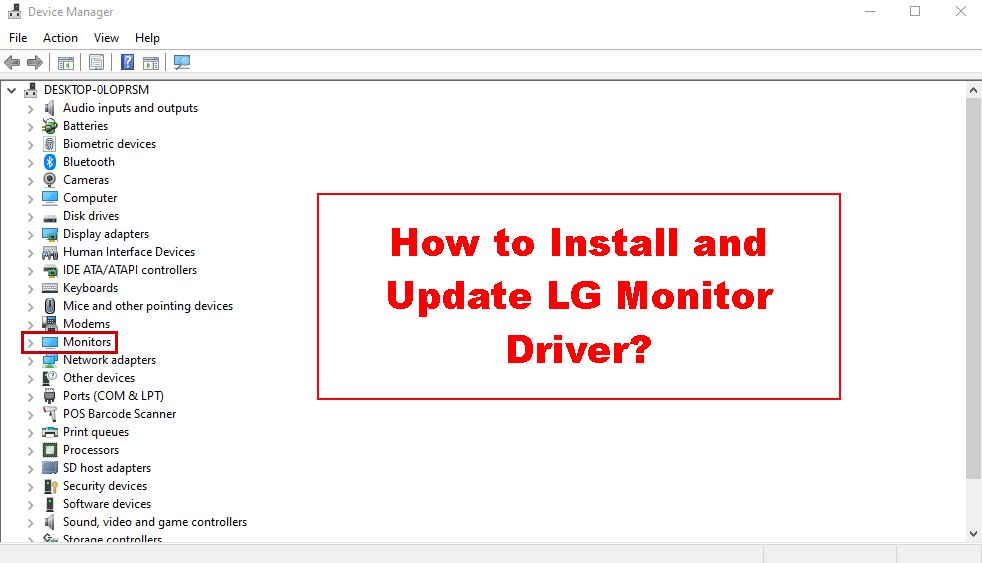
The Device Manager is Windows’ central hub for managing all hardware connected to your computer, including your monitor. This is often the first place to check for driver updates, especially if you’re experiencing minor display issues.
Automatic Driver Update
This method lets Windows search for and install the best available driver.
- Open Device Manager: Right-click on the Start button (or press
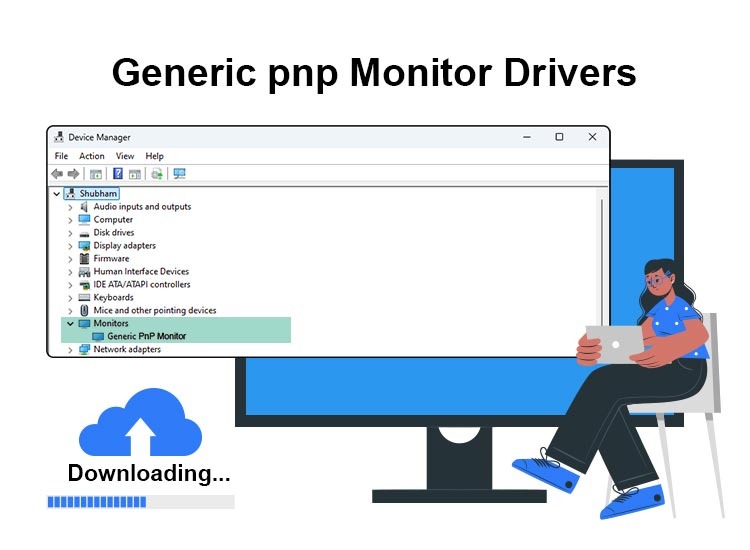
Windows Key + X) and select “Device Manager” from the context menu. - Locate Your Monitor: Expand the “Monitors” category. You’ll likely see an entry like “Generic PnP Monitor” if a specific driver isn’t installed, or the actual model name of your monitor.
- Initiate Update: Right-click on your monitor’s entry and select “Update driver.”
- Search Automatically: Choose “Search automatically for updated driver software.” Windows will then search your computer and the internet for the latest compatible driver.
- Follow Prompts: If a new driver is found, Windows will download and install it. You may be prompted to restart your computer.
While convenient, Windows’ automatic search isn’t always foolproof. It primarily looks for drivers within Microsoft’s update catalog, which might not always have the very latest versions provided directly by the monitor manufacturer.
Manual Driver Update (Browse My Computer for Drivers)
If you’ve downloaded a driver package directly from your monitor’s manufacturer (which we’ll discuss next), you’ll use this option to point Windows to that specific file.
- Download Driver: Before starting, download the specific monitor driver package from your monitor’s manufacturer’s website (usually a
.inffile, or an executable that extracts to such a file). Note the location where you saved it. - Open Device Manager and Locate Monitor: Follow steps 1 and 2 from the Automatic Driver Update section above.
- Initiate Update: Right-click on your monitor’s entry and select “Update driver.”
- Browse for Drivers: This time, choose “Browse my computer for driver software.”
- Specify Location: Click “Browse…” and navigate to the folder where you saved the downloaded driver files. Ensure you select the folder containing the
.inffile, not just the executable if the download was a self-extracting archive. You might also need to check “Include subfolders.” - Install Driver: Click “Next.” Windows will attempt to install the driver from the specified location.
- Complete Installation: Follow any on-screen prompts, and restart your computer if requested.
This manual method gives you direct control and ensures you’re installing the exact driver provided by the manufacturer.
Method 2: Sourcing Drivers from the Manufacturer’s Website
This is often the most reliable method, especially for newer monitors or if you’re experiencing persistent issues with generic drivers. Manufacturers typically provide the most up-to-date and feature-rich drivers directly on their support pages.
- Identify Monitor Model: Crucially, know the exact make and model number of your monitor. This information is usually found on a sticker at the back of the monitor, on its original packaging, or sometimes in the monitor’s on-screen display (OSD) menu.
- Visit Manufacturer’s Support Site: Go to the official website of your monitor’s manufacturer (e.g., Dell, LG, Samsung, Acer, ASUS, BenQ).
- Navigate to Support/Drivers Section: Look for sections like “Support,” “Downloads,” “Drivers,” or “Customer Service.”
- Search for Your Model: Use the search bar or product categories to find your specific monitor model.
- Download Driver: On your monitor’s support page, locate the “Drivers” or “Firmware” section. Download the latest driver package compatible with your operating system (e.g., Windows 10, 64-bit). The file might be an executable (.exe), a zip archive, or a standalone .inf file.
- If it’s an .exe: Run the executable and follow the on-screen installation wizard. This is often the easiest path.
- If it’s a .zip or contains an .inf file: Extract the contents of the zip file to an easily accessible folder. Then, use the “Manual Driver Update” method (Method 1, part 2) in Device Manager, pointing it to the folder where you extracted the files.
- Restart Computer: After installation, restart your computer to ensure the new driver is fully loaded.
Method 3: Leveraging Windows Update (and its limitations)
Windows Update is primarily known for delivering OS patches and security updates, but it can occasionally push driver updates for various components, including monitors.
- Open Windows Update Settings: Go to
Settings > Update & Security > Windows Update. - Check for Updates: Click “Check for updates.”
- View Optional Updates: After checking, if any driver updates are available, they might appear under “View optional updates” or be automatically included in the main update list.
- Install Updates: Select any relevant monitor driver updates and click “Download and install.”
While convenient, relying solely on Windows Update for monitor drivers is generally not recommended as the drivers provided here might not be the absolute latest or most feature-rich versions available directly from the manufacturer. It’s often better as a complementary check rather than the primary method.
Method 4: Considering Third-Party Driver Update Utilities (with caution)
Several third-party software tools claim to automatically find and update all your system’s drivers. While some reputable options exist, caution is paramount.
- Pros: Can be convenient for managing many drivers across a system, especially for less tech-savvy users.
- Cons: Many such tools are bloatware, contain adware, or even malware. Some install incorrect or outdated drivers, causing more problems than they solve. They might also charge a premium for features that are free through official channels.
Recommendation: For monitor drivers, it’s strongly advised to stick to Method 1 (Device Manager) and Method 2 (Manufacturer’s Website). These are the safest and most reliable approaches. Only consider a well-researched and highly-rated third-party tool if you fully understand its reputation and potential risks.
Verifying and Troubleshooting Your Driver Update
After attempting an update, it’s crucial to confirm that it was successful and to know how to address any issues that might arise.
Confirming Successful Installation
- Check Device Manager: Re-open Device Manager (as in Method 1). Right-click on your monitor entry, select “Properties,” and then go to the “Driver” tab. Check the “Driver Version” and “Driver Date.” These should reflect the new driver you just installed. If the manufacturer’s name now appears instead of “Generic PnP Monitor,” that’s a good sign.
- Check Display Settings: Right-click on your desktop and select “Display settings.” Look for options related to your monitor’s specific features, resolution, and refresh rate. Ensure all expected options are available and correctly displayed.
- Visual Inspection: Observe your display. Are the issues you were trying to fix resolved? Does the display look crisp and stable?
Common Issues and Their Resolutions
- “Best driver already installed”: This message in Device Manager simply means Windows couldn’t find a newer driver in its own catalog or on your computer. It doesn’t necessarily mean you have the latest driver from the manufacturer. Proceed with Method 2.
- Display Flickering or Black Screen: This can sometimes happen immediately after a driver update, especially if the new driver is incompatible or corrupted.
- During installation: If the screen goes black, wait a few minutes. The display might restore itself after Windows reconfigures.
- Persistent issues: Restart your computer in Safe Mode (you can access this by repeatedly pressing F8 or Shift + Restart on boot). Once in Safe Mode, you can either try to uninstall the problematic driver or revert to a previous one.
- Incorrect Resolution or Refresh Rate: After an update, verify your display settings. Sometimes, a new driver defaults to a generic setting. Manually adjust the resolution and refresh rate in your Windows “Display settings.”
- Driver Not Installing: Ensure the driver you downloaded matches your operating system version (e.g., Windows 10 64-bit) and your monitor’s specific model. Try re-downloading the driver, as the file might have been corrupted during the initial download.
- Driver Rollback Option Missing: If you can’t roll back the driver, your best bet is to uninstall the driver (right-click monitor in Device Manager > Uninstall device, and check “Delete the driver software for this device”) and then reinstall a known working driver from the manufacturer’s website.
Reverting to a Previous Driver Version
If a new driver causes more problems than it solves, Windows offers a “Roll Back Driver” option:
- Open Device Manager: Right-click on the Start button and select “Device Manager.”
- Locate Monitor: Expand “Monitors,” then right-click on your monitor and select “Properties.”
- Roll Back: Go to the “Driver” tab and click “Roll Back Driver.” Follow the prompts. This will revert your monitor to the previous driver version. Note that this option is only available if a previous driver version is detected and stored by Windows.
Maximizing Your Display’s Potential: Benefits of Up-to-Date Drivers
Beyond just fixing problems, keeping your monitor drivers updated is a proactive step towards optimizing your entire computing experience. The benefits extend far beyond mere functionality.
Enhanced Performance and Stability
A well-optimized driver ensures that your monitor and graphics card work in perfect harmony. This translates to smoother frame rates in games, seamless video playback, and a generally more responsive desktop environment. Stability issues like unexpected crashes, freezes, or system errors related to display output are significantly reduced, leading to a more reliable and enjoyable user experience. For professionals, this means uninterrupted workflow and dependable performance during critical tasks.
Access to New Features and Technologies
Modern monitors are packed with advanced features that often require specific driver support to function correctly. This includes technologies like:
- High Dynamic Range (HDR): For vibrant colors and incredible contrast.
- Adaptive Sync (G-Sync/FreeSync): To eliminate screen tearing and stuttering in games.
- Specific Color Profiles: Essential for designers and photographers needing accurate color representation.
- Advanced Picture-in-Picture/Picture-by-Picture modes.
- Energy-Saving Features: Optimizing power consumption without compromising performance.
Without the latest driver, these cutting-edge features might remain inaccessible, leaving a significant portion of your monitor’s capabilities untapped. An updated driver ensures your system can properly communicate with and control these advanced functions.
Improved Compatibility and Bug Fixes
Software and hardware ecosystems are constantly evolving. New operating system versions, game patches, and graphics card driver updates can sometimes introduce unforeseen conflicts with older monitor drivers. Manufacturers diligently release updates to address these compatibility issues, ensuring that your monitor seamlessly integrates with the latest software environments. Furthermore, even seemingly minor bugs can be frustrating; driver updates often contain fixes for known glitches, improving the overall reliability and user satisfaction.
Best Practices for Driver Management
Maintaining a healthy and efficient computing environment involves more than just periodic updates; it requires a proactive approach to driver management.
Regular Checks and Proactive Maintenance
Make it a habit to check for monitor driver updates every few months, especially if you’ve recently updated your operating system or graphics card driver, or if you notice any unusual display behavior. Prioritize updates from the manufacturer’s official website. While this might seem like an extra step, it’s a small investment of time that pays dividends in long-term stability and performance.
The Importance of System Backups
Before performing any significant driver update, especially for critical hardware components like monitors or graphics cards, it’s always wise to create a system restore point or a full system backup. This provides a safety net, allowing you to easily revert your system to a stable state if an update goes awry. Windows’ built-in System Restore feature is an excellent tool for this purpose, creating a snapshot of your system files and registry.
Conclusion
Updating your monitor driver might seem like a minor technical task, but its impact on your overall computing experience is far from insignificant. From ensuring crisp visuals and unlocking advanced features to maintaining system stability and compatibility, a current monitor driver is foundational to getting the most out of your display hardware. By following the methods outlined in this comprehensive guide – prioritizing the Device Manager and direct downloads from manufacturer websites – you empower yourself to proactively manage your system, troubleshoot effectively, and enjoy an optimized, professional, and visually stunning digital workspace. Don’t let an outdated driver be the bottleneck in your visual experience; take control and keep your monitor performing at its peak.
aViewFromTheCave is a participant in the Amazon Services LLC Associates Program, an affiliate advertising program designed to provide a means for sites to earn advertising fees by advertising and linking to Amazon.com. Amazon, the Amazon logo, AmazonSupply, and the AmazonSupply logo are trademarks of Amazon.com, Inc. or its affiliates. As an Amazon Associate we earn affiliate commissions from qualifying purchases.