
In the dynamic world of computing, where high-definition visuals, immersive gaming experiences, and demanding creative applications are the norm, the performance of your graphics card is paramount. At the heart of this performance lies the graphics driver – a crucial piece of software that facilitates communication between your operating system and your AMD Radeon graphics hardware. Keeping this driver updated isn’t just a suggestion; it’s a fundamental practice for anyone looking to maximize their system’s potential, ensure stability, and unlock the latest features. This comprehensive guide will walk you through the various methods of updating your AMD graphics driver, explaining why it matters and how to troubleshoot common issues, ensuring you maintain a seamless and powerful computing experience.

Why Keeping Your AMD Graphics Driver Updated Matters
Many users might overlook driver updates, assuming their system is fine as long as things “work.” However, this oversight can lead to a multitude of missed opportunities and frustrating performance bottlenecks. For AMD users, regularly updating your graphics driver is a cornerstone of optimal system health and performance.
Enhanced Performance and Stability
One of the most immediate and tangible benefits of updating your AMD graphics driver is the potential for significant performance gains. Graphics card manufacturers like AMD continuously optimize their drivers to squeeze out more frames per second (FPS) in games, reduce rendering times in professional applications, and improve overall system responsiveness. These optimizations can sometimes be quite dramatic, especially with new game releases or software updates that leverage specific hardware features. Beyond raw speed, updated drivers often address bugs and glitches present in older versions, leading to a more stable computing environment. This means fewer crashes, freezes, and graphical artifacts, translating to a smoother and more reliable experience across all your applications.
Unlocking New Features and Technologies
AMD doesn’t just fix bugs with new driver releases; they also introduce support for new technologies, features, and APIs. For instance, new drivers might add support for the latest DirectX or Vulkan versions, enabling cutting-edge graphical effects in games. They could also introduce entirely new software features within the AMD Software: Adrenalin Edition suite, such as improved upscaling technologies (like FidelityFX Super Resolution – FSR), enhanced anti-lag features, or refined streaming capabilities. Without the latest drivers, your hardware might be capable of these advancements, but the software bridge to utilize them would be missing, leaving you behind the curve.
Crucial Security Vulnerability Patches
While less frequent than performance or feature updates, graphics drivers, like any complex software, can sometimes contain security vulnerabilities. When these are discovered, manufacturers promptly release patches through new driver versions. Running outdated drivers could potentially leave your system exposed to exploits that could compromise your data or system integrity. Staying updated is a proactive measure to protect your digital environment from evolving threats. Think of it as regularly locking your digital doors and windows – a simple yet critical security practice.
Resolving Common Graphics-Related Issues
Have you ever encountered flickering screens, unusual texture rendering, or application crashes that seem to stem from your graphics? Oftentimes, these are symptoms of an outdated or corrupted graphics driver. Many common graphical issues, ranging from minor display glitches to major application failures, can be swiftly resolved by simply installing the latest driver. Manufacturers often prioritize addressing widespread user complaints and known compatibility issues in their driver releases, making an update a go-to first step in troubleshooting any graphics-related problem.
Identifying Your Current AMD Graphics Hardware and Driver Version
Before you dive into the update process, it’s essential to know what AMD graphics hardware you have and which driver version is currently installed. This information will guide you in downloading the correct driver and help you verify a successful update.
Using Windows Device Manager
The Windows Device Manager is a built-in utility that provides a detailed overview of all hardware components installed on your system, including your graphics card.
- Open Device Manager: Right-click on the Start button (or press
Windows Key + X) and select “Device Manager” from the menu. - Locate Display Adapters: Expand the “Display adapters” category. Here, you should see your AMD Radeon graphics card listed (e.g., AMD Radeon RX 6800 XT).
- Check Driver Version: Right-click on your AMD graphics card and select “Properties.” Navigate to the “Driver” tab. You’ll find details like the “Driver Provider” (should be AMD), “Driver Date,” and “Driver Version.” Note these down for future reference.
Utilizing AMD Software: Adrenalin Edition
If you already have AMD’s Adrenalin Software installed, it offers the most comprehensive and user-friendly way to identify your hardware and driver status.
- Launch Adrenalin Software: Open the AMD Software: Adrenalin Edition application. You can usually find it in your system tray, Start menu, or by right-clicking on your desktop and selecting “AMD Software.”
- Access System Info: Once open, navigate to the “Performance” tab, then select “Metrics.” Alternatively, some versions might have a “System” tab where you can find detailed information. Look for a section that displays your “Graphics Card” model and “Radeon Software Version.” This version number directly corresponds to your installed driver package.
Quick System Information Check
For a quick overview, especially if you’re not seeing the expected information in Device Manager or Adrenalin, Windows System Information can be helpful.
- Open System Information: Press
Windows Key + R, typemsinfo32, and press Enter. - Navigate to Display: In the left pane, expand “Components” and select “Display.” You’ll see your AMD adapter listed along with some driver details.
The Recommended Method: Using AMD Software: Adrenalin Edition
For most users, the AMD Software: Adrenalin Edition is the easiest and most recommended way to manage and update their graphics drivers. It provides both automatic and semi-automatic update options, streamlining the process.
Step-by-Step Guide to Automatic Updates
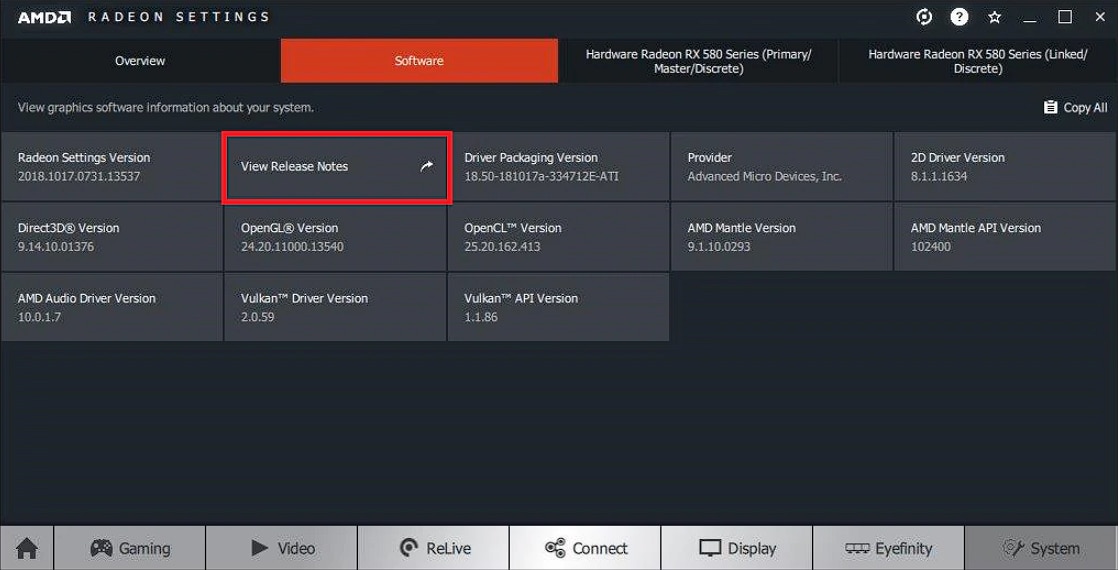
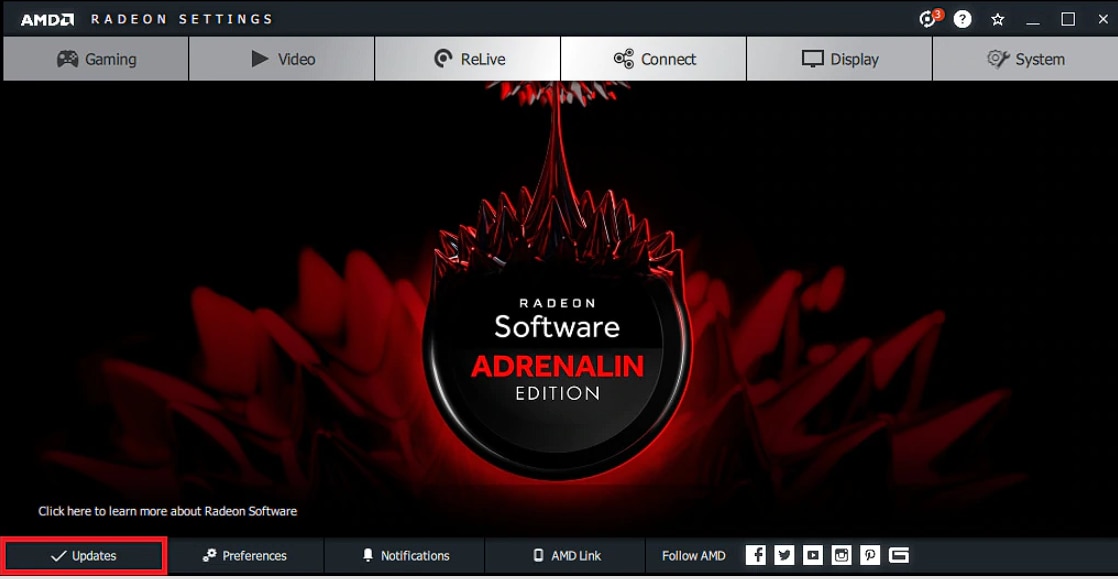
The Adrenalin Software is designed to keep your system up-to-date with minimal effort.
- Launch AMD Software: Open AMD Software: Adrenalin Edition.
- Check for Updates: In the top right corner of the application (or sometimes in a dedicated “Drivers & Software” section), you’ll usually see a notification if a new driver version is available. Click on “Check for Updates” if it’s not immediately visible.
- Download and Install: If an update is available, you’ll be prompted to “Download” or “Install.” Click the appropriate button. The software will download the new driver package.
- Choose Installation Type: Once downloaded, you’ll typically be given options for installation:
- Express Install: This is the default and recommended option for most users. It installs the new driver over the existing one, retaining your AMD software settings.
- Custom Install: This allows you to select specific components to install.
- Factory Reset: This performs a clean installation, removing previous AMD drivers and settings entirely before installing the new one. This is useful for troubleshooting or major driver versions.
- Follow On-Screen Prompts: The installer will guide you through the process. Your screen may flicker or go black momentarily during installation.
- Restart Your PC: After the installation is complete, it’s highly recommended to restart your computer to ensure all changes take effect properly.
Manual Driver Download and Installation via Adrenalin
Even within Adrenalin, you can perform a “manual” update by specifically choosing a driver package if you’ve already downloaded it or if the automatic check is not working as expected.
- Navigate to Drivers & Software: In the Adrenalin Software, go to the “Drivers & Software” section.
- Select Driver Version: You might see an option to “View Recommended” or “View All” driver versions. You can also click on the “Check for Updates” button to refresh the list.
- Initiate Install: Choose the desired driver version and click “Install.” The process from step 4 above (choosing installation type) will then follow.
Understanding Different Driver Types (Recommended vs. Optional)
AMD typically provides two main types of driver releases:
- Recommended (WHQL Certified): These drivers have undergone extensive testing and have received Windows Hardware Quality Labs (WHQL) certification from Microsoft. They are generally the most stable and reliable, ideal for most users. Adrenalin software usually defaults to offering these.
- Optional (Beta/Adrenalin Software Preview): These drivers often include early support for new games or features, or contain experimental optimizations. While they might offer cutting-edge performance, they might also be less stable than WHQL-certified drivers. Unless you’re an enthusiast looking for the absolute latest or troubleshooting a very specific issue that an optional driver addresses, it’s generally best to stick with the recommended versions.
Alternative Method: Manual Driver Download from AMD’s Website
While the Adrenalin Software is convenient, there are situations where a manual download directly from AMD’s website is necessary. This includes fresh Windows installations, resolving persistent driver issues, or if you prefer a more hands-on approach.
Navigating the AMD Support Page
- Visit AMD Support: Open your web browser and go to the official AMD support website:
www.amd.com/support. - Use the Auto-Detect Tool (Optional but Recommended): On the support page, AMD usually offers an “Auto-Detect and Install Radeon™ Graphics Drivers for Windows” tool. Running this executable can automatically identify your graphics card and recommend the correct driver. This is a great shortcut if you’re unsure of your exact model.
- Manually Select Your Product: If you prefer manual selection or the auto-detect tool doesn’t work, scroll down to the “Select Your Product from the List” section.
Selecting the Correct Product Series and Model
This step is crucial for downloading the right driver.
- Graphics Category: Choose “Graphics.”
- AMD Radeon Graphics: Select “AMD Radeon Graphics.”
- Series: Select your graphics card series (e.g., Radeon RX 7000 Series, Radeon RX 6000 Series, Ryzen Processors with Radeon Graphics).
- Model: Choose your specific graphics card model (e.g., Radeon RX 7900 XT, Radeon RX 6800, Ryzen 7 5700G).
- Submit: Click the “Submit” button.
- Choose Operating System: On the next page, you’ll see a list of available drivers for your chosen hardware. Expand the section for your operating system (e.g., Windows 10 – 64-Bit Edition, Windows 11 – 64-Bit Edition).
- Download the Latest Driver: Look for the latest recommended driver package (usually labeled “Recommended (WHQL)”). Click the “Download” button to save the installer to your computer.
Performing a Clean Installation (Using DDU – Driver Display Uninstaller)
For the most thorough and problem-free manual installation, especially if you’re upgrading from a very old driver or switching graphics cards (even from another AMD model), a “clean installation” is highly recommended. This involves completely removing all traces of previous drivers before installing the new one. While the AMD installer often has a “Factory Reset” option, a dedicated third-party tool called Display Driver Uninstaller (DDU) is often preferred by enthusiasts for its effectiveness.
Using DDU:
- Download DDU: Download the latest version of Display Driver Uninstaller from its official source (e.g., Guru3D).
- Download Latest AMD Driver: Make sure you’ve already downloaded the latest AMD driver package from the AMD website.
- Disconnect from Internet: This prevents Windows Update from automatically installing an older driver while you’re uninstalling.
- Boot into Safe Mode: This is crucial. Restart your PC and repeatedly press the appropriate key (often F8 or Shift+F8, consult your PC’s manual) to enter Advanced Startup Options, then select Safe Mode.
- Run DDU: In Safe Mode, extract and run DDU.
- Select Options: Choose “GPU” and then “AMD.”
- Clean and Restart: Click “Clean and restart (Highly recommended).” DDU will remove all AMD display and audio drivers, and then reboot your system.
- Install New Driver: Once your system restarts (in normal mode), run the AMD driver installer you downloaded earlier. Follow the on-screen prompts, choosing “Express Install” unless you have specific reasons for a custom installation.
- Reconnect Internet: Once the installation is complete and you’ve restarted your PC, you can reconnect to the internet.
Post-Update Verification and Troubleshooting Common Issues
After any driver update, it’s a good practice to verify that the installation was successful and to know how to address potential problems.
Confirming Successful Installation
- Check in Adrenalin Software: The easiest way is to open AMD Software: Adrenalin Edition. The “Drivers & Software” section should now display the newly installed driver version.
- Verify in Device Manager: Go back to Device Manager, check the “Driver” tab of your AMD graphics card’s properties. Confirm that the “Driver Version” matches the one you just installed.
- Test Applications: Launch a few graphically demanding applications or games to ensure they run smoothly and without issues.
Addressing Installation Failures
Occasionally, a driver installation might fail or lead to unexpected behavior.
- Corrupted Download: Re-download the driver package, ensuring a stable internet connection.
- System Conflicts: If you didn’t do a clean install, remnants of older drivers might be causing conflicts. Try performing a clean installation using DDU as described above.
- Antivirus Interference: Temporarily disable your antivirus software during the installation process, then re-enable it afterward.
- Insufficient Permissions: Ensure you are running the installer as an administrator. Right-click the installer file and select “Run as administrator.”
- Windows Update Conflicts: In some cases, Windows Update might try to install an older driver. Temporarily pause Windows updates before installing your AMD driver.
Reverting to Previous Driver Versions
If a new driver causes more problems than it solves (e.g., instability, performance regressions), you have options to revert.
- Windows Device Manager Rollback: In Device Manager, right-click your AMD graphics card, go to “Properties,” and then the “Driver” tab. If available, the “Roll Back Driver” button will allow you to revert to the previously installed driver.
- AMD Software: Adrenalin Edition: Some versions of Adrenalin Software allow you to revert to a previous WHQL-certified driver directly from within the application.
- Manual Uninstall and Reinstall: If rollback isn’t an option, use DDU to clean uninstall the problematic driver, then manually download and install an older, known-stable driver version from AMD’s website. AMD usually archives older driver versions on their support pages.
Conclusion
Keeping your AMD graphics driver updated is a simple yet profoundly impactful maintenance task that significantly contributes to the longevity, performance, and security of your PC. Whether you opt for the convenience of AMD Software: Adrenalin Edition’s automatic updates or prefer the meticulous control of a manual, clean installation, understanding the process is key. By regularly dedicating a few minutes to this essential update, you ensure that your AMD Radeon graphics card is always operating at its peak, ready to deliver the immersive experiences and reliable performance you expect. Don’t let outdated drivers hold your system back; embrace the updates and unlock the full power of your AMD hardware.
aViewFromTheCave is a participant in the Amazon Services LLC Associates Program, an affiliate advertising program designed to provide a means for sites to earn advertising fees by advertising and linking to Amazon.com. Amazon, the Amazon logo, AmazonSupply, and the AmazonSupply logo are trademarks of Amazon.com, Inc. or its affiliates. As an Amazon Associate we earn affiliate commissions from qualifying purchases.