
In the modern computing landscape, the Graphics Processing Unit (GPU) has evolved from a simple component that renders windows and icons into the powerhouse of the machine. Whether you are a competitive gamer seeking high frame rates, a creative professional rendering 4K video, or an AI researcher training neural networks, your GPU is the engine driving your productivity and entertainment. However, even the most powerful hardware is only as effective as the software that instructs it.
Graphics drivers act as the vital bridge between your operating system and your hardware. Keeping these drivers updated is not merely a suggestion; it is a critical maintenance task for anyone serious about digital performance and system stability. This guide explores why, when, and how to update your graphics drivers to ensure your system remains at the cutting edge of technological efficiency.

1. Why Updating Your Graphics Drivers is Essential
The software environment is in a state of constant flux. New games are released weekly, professional suites like Adobe Creative Cloud receive frequent feature updates, and Windows or Linux environments are patched regularly. Without updated drivers, your hardware may struggle to communicate with these new software iterations.
Performance Optimization for Gaming and Creativity
For gamers, driver updates are often synonymous with “Game Ready” patches. Manufacturers like NVIDIA and AMD work closely with developers before a major title launches to ensure that the driver includes specific optimizations for that game’s engine. These updates can lead to double-digit increases in frame rates, reduced input latency, and the elimination of graphical artifacts. For creative professionals, updated drivers ensure that hardware acceleration is fully utilized in applications like Blender, DaVinci Resolve, or AutoCAD, significantly reducing render times and improving real-time viewport fluidity.
System Stability and Bug Fixes
A “Blue Screen of Death” (BSOD) or a sudden application crash is often traced back to a driver conflict. Over time, bugs are discovered in driver code—perhaps a memory leak that occurs only when using specific monitors or a flicker that appears when waking the computer from sleep. Manufacturers use driver updates to roll out these critical fixes. By staying current, you minimize the risk of system instability that can lead to lost work or interrupted gameplay.
Security Vulnerabilities and New Feature Support
Modern GPUs are complex enough to have their own security vulnerabilities. Sophisticated malware can sometimes exploit driver loopholes to gain elevated system privileges. Regular updates include security patches that harden your system against such threats. Furthermore, updates often unlock new features that didn’t exist when you bought the card, such as AI-driven upscaling (DLSS or FSR), noise-canceling microphone features, or improved encoding protocols for streamers.
2. Determining Your Hardware and Current Driver Version
Before you can update your drivers, you must accurately identify the hardware you are using. While most users know they have an NVIDIA or AMD card, the specific model and the current version of the installed driver are necessary details for a successful update.
Using Windows Device Manager and System Information
The quickest way to identify your GPU on a Windows machine is through the Device Manager. By right-clicking the Start button and selecting “Device Manager,” you can expand the “Display adapters” section. This will list your GPU model (e.g., NVIDIA GeForce RTX 3080). By right-clicking the device and selecting “Properties,” then the “Driver” tab, you can see the provider and the version number currently in use. This baseline helps you determine if a newer version is actually available on the manufacturer’s website.
Leveraging Third-Party Tools for Detailed Metrics
For tech enthusiasts who want more granular data, tools like GPU-Z offer a wealth of information that the OS might hide. GPU-Z can tell you the specific BIOS version of your card, the release date of your current driver, and even the “silicon lottery” details of your chip. Knowing the release date of your driver is a great heuristic: if your driver is more than three months old, you are likely missing out on significant optimizations.
Identifying Integrated vs. Discrete Graphics
It is important to distinguish between “Integrated” and “Discrete” graphics. Many laptops and budget desktops use integrated graphics (Intel UHD/Iris Xe or AMD Radeon Graphics) built into the CPU. High-performance machines use a discrete GPU (a separate card). It is common for a system to have both. In such cases, both the integrated and discrete drivers should be kept up to date to ensure seamless switching (technologies like NVIDIA Optimus) and power management.
3. Step-by-Step Guide to Updating Drivers
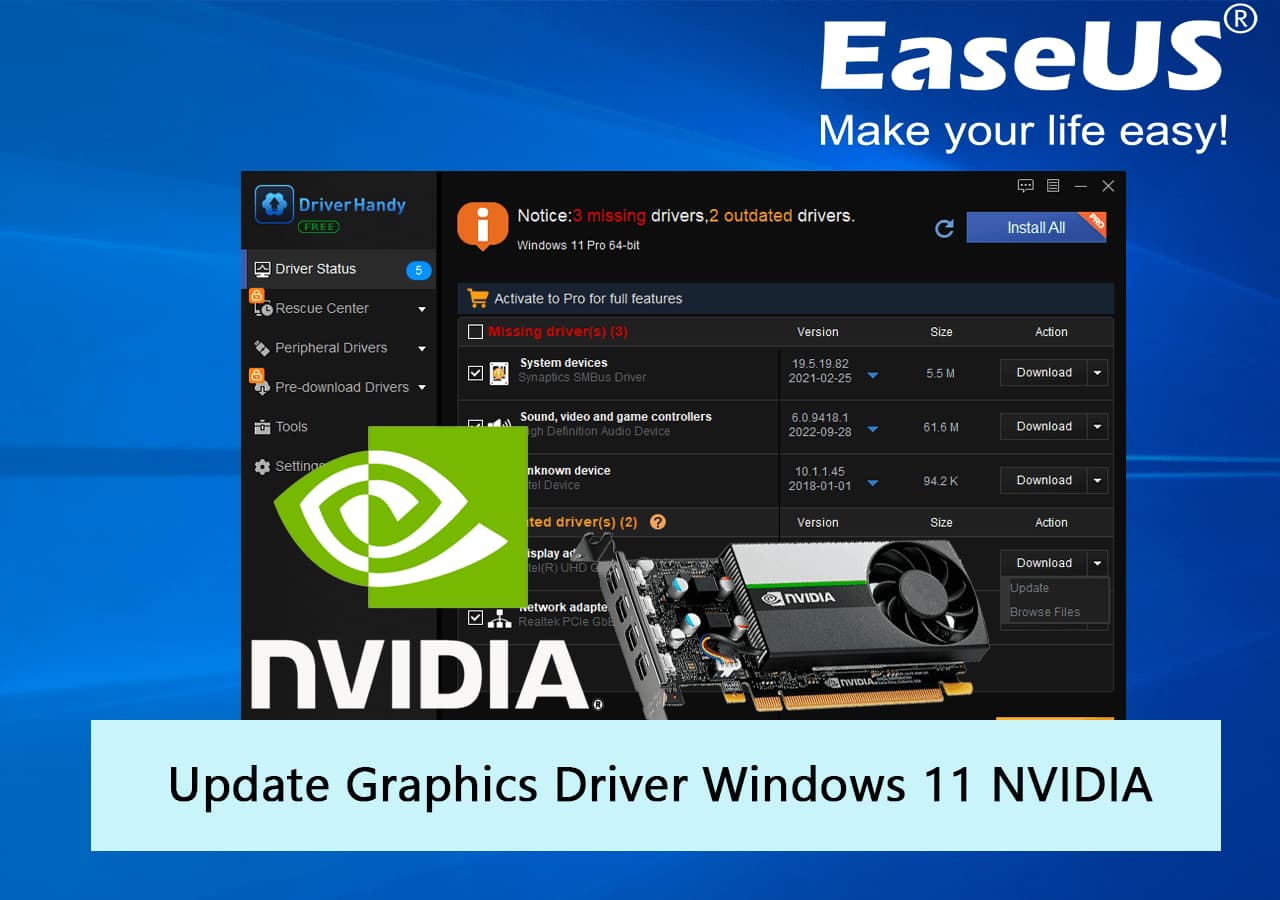
There are three primary methods for updating graphics drivers, ranging from fully automated to manual precision.
Automatic Updates via Proprietary Software
The most user-friendly method is utilizing the software suites provided by the manufacturers: NVIDIA GeForce Experience, AMD Software: Adrenalin Edition, or the Intel Graphics Command Center.
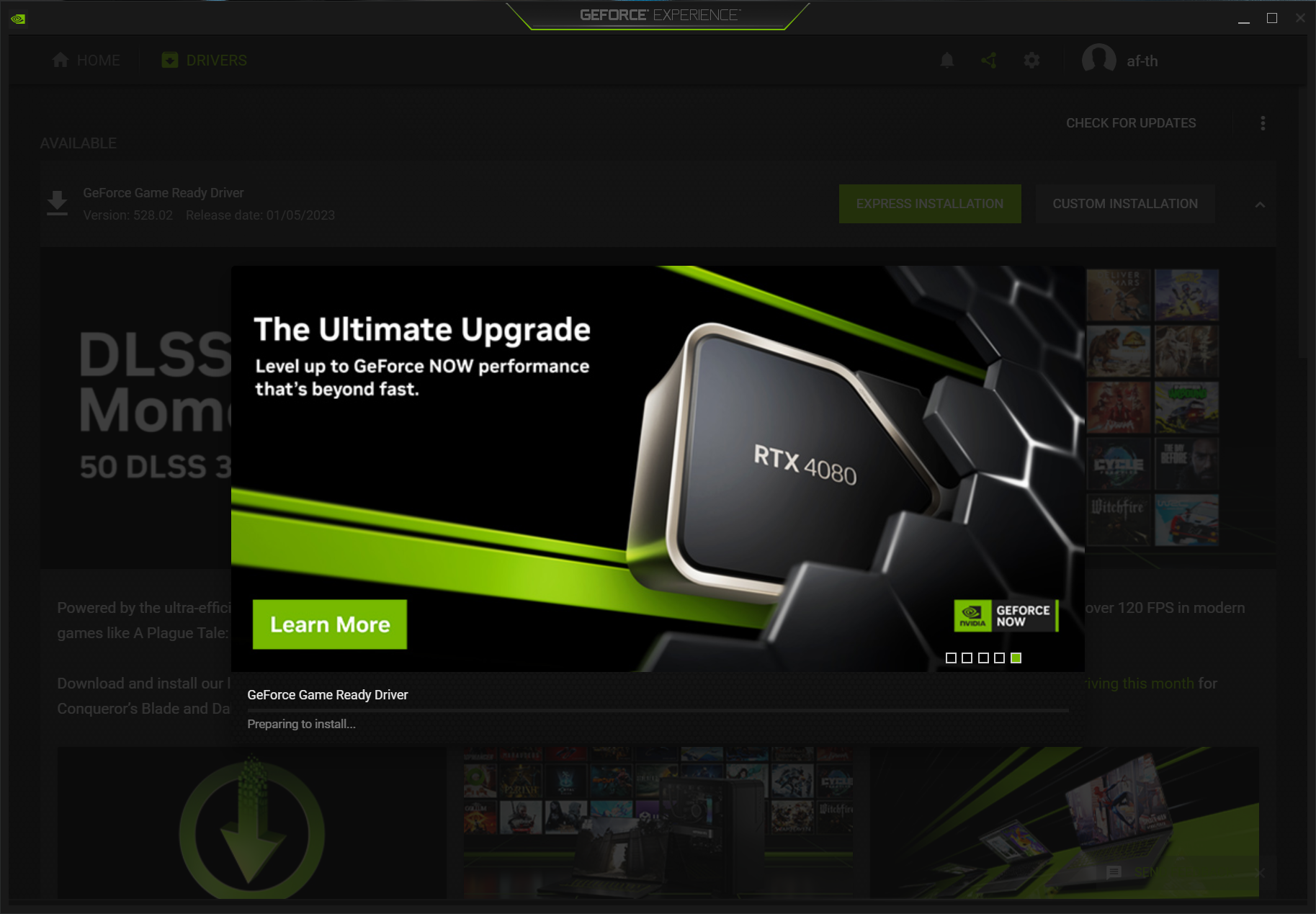
- NVIDIA: Open GeForce Experience, click the “Drivers” tab, and select “Check for Updates.” If a new driver is available, click “Download” and then “Express Installation.”
- AMD: Open the Adrenalin software. On the Home tab, look at the “Software & Driver” section on the right. It will indicate if an update is available and provide a “Download” button.
- Intel: Intel offers a “Driver & Support Assistant” (DSA) that lives in your system tray and notifies you via your web browser when any Intel component, including the GPU, needs an update.
Manual Updates from Manufacturer Websites
For those who prefer not to have extra background software running, or for IT professionals managing multiple machines, manual installation is the gold standard.
- Visit the official download page (nvidia.com/drivers, amd.com/en/support, or intel.com/download).
- Manually select your product type, series, and operating system.
- Download the executable file (.exe or .msi).
- Run the installer as an administrator.
Manual updates are often safer for older hardware where the automated software might suggest a “universal” driver that isn’t perfectly compatible with legacy architecture.
Using Windows Update: The Pros and Cons
Windows Update will automatically download graphics drivers as part of general system maintenance. While this is convenient, it is rarely the best method for power users. Microsoft’s repository often contains “WHQL” (Windows Hardware Quality Labs) certified drivers that are several months old. They are chosen for stability rather than performance. If you are a casual user who only uses their PC for web browsing and office work, Windows Update is sufficient. If you do anything graphically intensive, you should prioritize the manufacturer’s direct drivers.
4. Advanced Maintenance: Performing a Clean Installation
Sometimes, simply “overwriting” an old driver with a new one causes issues. Residual files from previous versions can conflict with new instructions, leading to stuttering or “micro-stutter.” In these cases, a clean installation is required.
When to Use Display Driver Uninstaller (DDU)
Display Driver Uninstaller (DDU) is a niche but essential utility for tech enthusiasts. It is designed to completely remove all traces of previous graphics drivers from the Windows Registry and file system. You should use DDU if you are switching brands (e.g., moving from an AMD card to an NVIDIA card) or if you are experiencing persistent graphical glitches that a standard update didn’t fix.
Safe Mode Procedures
To perform a truly clean install, you should boot Windows into “Safe Mode.” This prevents the OS from loading the graphics driver while you are trying to delete it. Once in Safe Mode, run DDU to wipe the existing driver, then restart the computer into normal mode. Windows will revert to a “Basic Display Adapter” mode, allowing you to install the fresh driver package you downloaded earlier without any interference from legacy files.
The “Clean Install” Toggle in Official Installers
If you don’t want to use third-party tools like DDU, both NVIDIA and AMD offer a “Perform a clean installation” checkbox during their custom installation process. This will factory-reset your graphics settings and remove old profiles. While not as thorough as DDU, it resolves 90% of common driver conflicts and is a recommended practice every few months.
5. Troubleshooting Common Driver Issues
Even with the best intentions, driver updates can occasionally go wrong. Understanding how to recover from a bad update is as important as the update itself.
Rolling Back to a Previous Driver
If you notice that your performance has actually decreased after an update, or if a specific app starts crashing, Windows provides a “Roll Back Driver” feature in the Device Manager. This keeps a backup of the previous version. If the “Roll Back” button is greyed out, you will need to manually download the previous version from the manufacturer’s “Beta and Older Drivers” archive and install it manually.
Resolving Black Screens and TDR Errors
A common driver-related error is the “Timeout Detection and Recovery” (TDR) error, where the screen goes black for a second and a notification says “Display driver stopped responding and has recovered.” This often points to a driver that is struggling with a specific power state or overclock. If this happens after an update, try disabling “Hardware Accelerated GPU Scheduling” in Windows Settings or reverting to a previous driver version to see if the stability returns.
Managing Incompatibilities in Laptops
Laptops often use “OEM-customized” drivers. This means the manufacturer (like Dell, HP, or ASUS) has tweaked the driver to work specifically with the laptop’s unique cooling and power delivery system. If you download a generic driver from NVIDIA/AMD and find that your brightness controls or external ports stop working, you must go to the laptop manufacturer’s support page and download their specific version, even if it is slightly older.
In conclusion, the health of your digital experience is inextricably linked to the state of your graphics drivers. By understanding the hardware you own, choosing the right update method, and knowing how to perform a clean installation when necessary, you ensure that your technology serves you with maximum efficiency and reliability. Regular driver maintenance is the hallmark of a savvy tech user, turning potential hardware headaches into a seamless, high-performance computing experience.
aViewFromTheCave is a participant in the Amazon Services LLC Associates Program, an affiliate advertising program designed to provide a means for sites to earn advertising fees by advertising and linking to Amazon.com. Amazon, the Amazon logo, AmazonSupply, and the AmazonSupply logo are trademarks of Amazon.com, Inc. or its affiliates. As an Amazon Associate we earn affiliate commissions from qualifying purchases.