
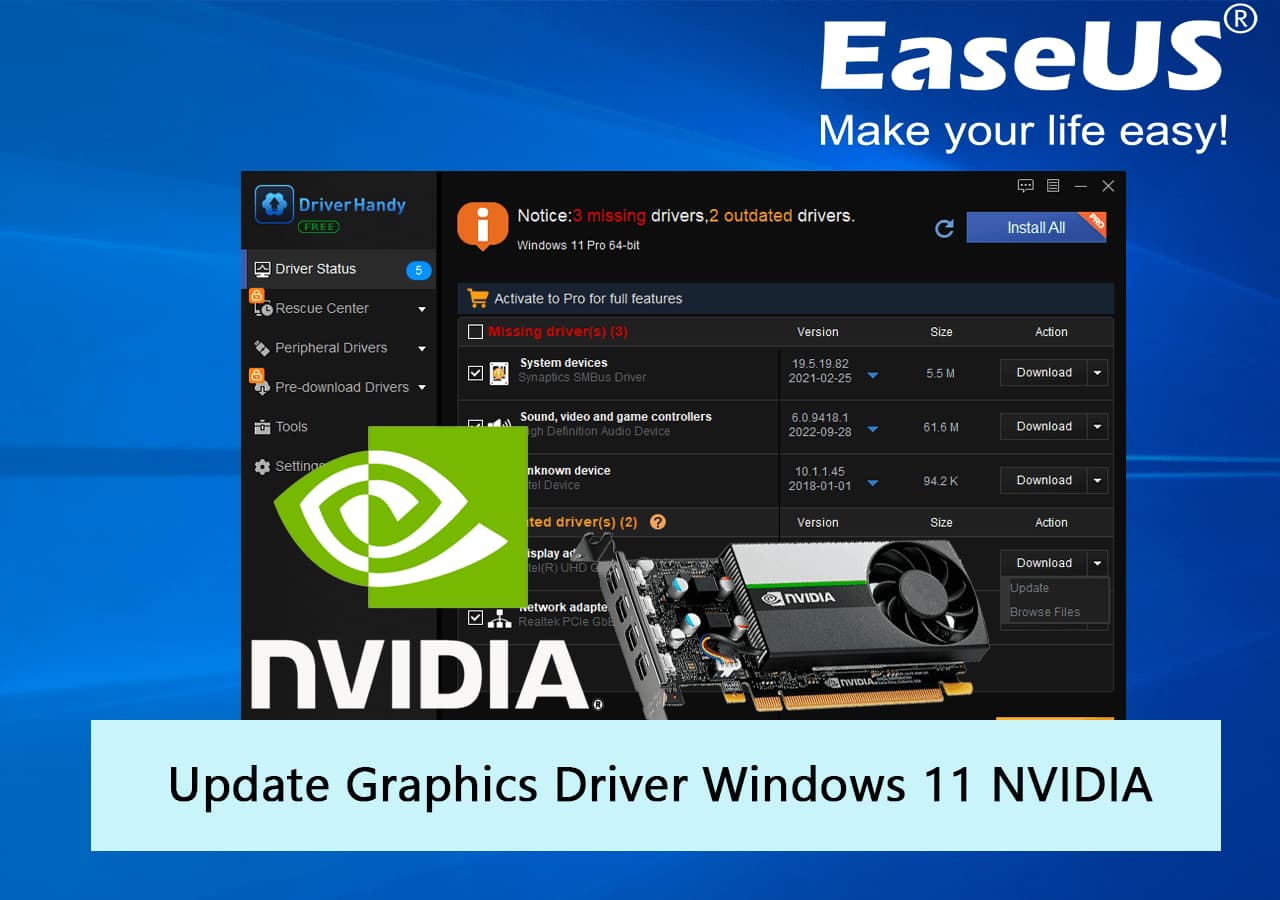
Keeping the graphics drivers on your PC up to date is one of the most fundamental yet often overlooked aspects of maintaining a healthy and high-performing system. Graphics drivers act as the crucial communication bridge between your operating system, applications, and your graphics processing unit (GPU). Without them, or with outdated versions, your PC’s ability to render visuals, run games, or even perform basic tasks smoothly can be significantly hampered. This guide delves into the importance of these updates, how to identify your current setup, and the most effective methods for ensuring your graphics drivers are always in optimal condition.
Why Keeping Your Graphic Drivers Updated is Crucial
The benefits of regularly updating your graphic drivers extend far beyond mere compatibility. They touch upon critical aspects of system performance, stability, and security, making it a maintenance task that no PC user should ignore.
Enhanced Performance
One of the primary reasons to update graphics drivers is to unlock performance improvements. Graphics card manufacturers like NVIDIA, AMD, and Intel constantly optimize their drivers to squeeze more performance out of their hardware. These optimizations can lead to higher frame rates in games, faster rendering in video editing software, and smoother operation in demanding applications. New game titles or software often come with specific driver optimizations that, if not applied, can result in poor performance or even outright incompatibility.
Improved Stability and Bug Fixes
Outdated drivers are a common culprit behind system instability, ranging from application crashes and freezes to the dreaded “Blue Screen of Death” (BSOD). Manufacturers frequently release driver updates that include critical bug fixes, addressing issues reported by users or discovered during internal testing. These fixes can resolve graphical glitches, memory leaks, and various other errors that degrade the user experience. Staying current ensures you benefit from these stability enhancements, leading to a more reliable computing environment.
Access to New Features and Technologies
Graphics hardware technology evolves rapidly, and often, new features or support for emerging standards are introduced through driver updates. This could include support for new DirectX or Vulkan API versions, advanced rendering techniques like Ray Tracing or DLSS (Deep Learning Super Sampling), or compatibility with new display technologies such as adaptive sync monitors. Without updated drivers, your system might not be able to utilize these cutting-edge features, leaving you behind in terms of visual fidelity and technological capability.
Security Vulnerabilities
While less common than performance or stability issues, outdated drivers can sometimes expose your system to security vulnerabilities. Malicious actors can exploit flaws in older driver versions to gain unauthorized access to your system or compromise its integrity. Manufacturers typically patch these vulnerabilities promptly, and applying the updates is essential for maintaining a secure computing environment, protecting your data and privacy.
Identifying Your Current Graphic Card and Driver Status
Before you can update your graphic drivers, you need to know what graphics card your PC has and what driver version it’s currently running. This information is critical for downloading the correct drivers from the manufacturer’s website.
Using Device Manager
The Windows Device Manager is a built-in utility that provides an overview of all hardware components installed on your PC.
- Open Device Manager: Right-click on the Start button (or press
Windows key + X) and select “Device Manager.” - Expand Display Adapters: In the Device Manager window, locate and expand the “Display adapters” section. You will see your graphics card(s) listed here (e.g., NVIDIA GeForce RTX 3080, AMD Radeon RX 6700 XT, Intel Iris Xe Graphics).
- Check Driver Details: Right-click on your graphics card and select “Properties.” Navigate to the “Driver” tab. Here, you’ll find details like the Driver Provider, Driver Date, and Driver Version. Note down this information.
Using System Information Tools
Windows also includes a “System Information” tool that can provide a more comprehensive report.
- Open System Information: Press
Windows key + R, typemsinfo32, and press Enter. - Navigate to Display: In the System Information window, expand “Components” and then select “Display.”
- Review Details: You’ll see detailed information about your graphics card, including its name, manufacturer, and driver version.
Checking Manufacturer Software
If you already have manufacturer-specific software installed (like NVIDIA GeForce Experience, AMD Radeon Software, or Intel Driver & Support Assistant), these tools usually display your current graphics card model and driver version prominently on their main dashboard. This is often the easiest way to get the information if the software is already running.
Methods for Updating Your Graphic Drivers

Once you know your graphics card model and current driver version, you can proceed with updating them. There are several methods, each with its own advantages.
Method 1: Automatic Update via Manufacturer Software (Recommended)
This is generally the easiest and most reliable method for most users, as the software automatically detects your GPU and downloads the correct drivers.
- NVIDIA GeForce Experience: If you have an NVIDIA GPU, download and install NVIDIA GeForce Experience. Once installed, open the application, go to the “Drivers” tab, and it will automatically check for available updates. You can then download and perform an “Express Installation” or “Custom Installation.” An express installation is sufficient for most users.
- AMD Radeon Software Adrenalin Edition: For AMD GPUs, download and install AMD Radeon Software Adrenalin Edition. Upon launching, it often prompts you if a new driver is available. Alternatively, navigate to the “Drivers & Software” section (usually represented by an arrow icon) to check for updates manually.
- Intel Driver & Support Assistant: For Intel integrated graphics (and some other Intel hardware), the Intel Driver & Support Assistant tool can scan your system for available updates and help you install them.
Using these official manufacturer tools ensures you get the correct, optimized drivers directly from the source, often with additional features and settings specific to your hardware.
Method 2: Manual Update via Manufacturer Websites
If you prefer more control or encounter issues with automatic update software, manual installation is a robust alternative. This method involves downloading the driver package directly from the manufacturer’s website.
- Step 1: Identify your GPU model: As detailed in the previous section, accurately identify the full model name of your graphics card (e.g., NVIDIA GeForce RTX 3070, AMD Radeon RX 6600 XT, Intel Iris Xe Graphics).
- Step 2: Visit the official manufacturer website:
- NVIDIA: Go to nvidia.com/drivers
- AMD: Go to amd.com/support
- Intel: Go to intel.com/support/drivers
- Step 3: Download the correct driver: On the support page, use the driver finder tool or navigate through the product categories to find your specific graphics card model. Ensure you select the correct operating system (e.g., Windows 10 64-bit, Windows 11 64-bit). Download the latest recommended driver package.
- Step 4: Install the driver: Once downloaded, run the installer executable. It’s often recommended to choose a “clean installation” option if available (especially for NVIDIA), which uninstalls previous driver components before installing the new ones, preventing potential conflicts. Follow the on-screen prompts to complete the installation. Your screen might flicker or go black momentarily during this process, which is normal. Restart your PC after installation if prompted.
Method 3: Using Windows Device Manager (Least Recommended for Latest Drivers)
While Windows Device Manager offers an “Update Driver” option, it’s generally not the best method for getting the absolute latest or most optimized drivers. Windows Update often provides older, generic drivers that are primarily focused on basic functionality and stability rather than peak performance or new features.
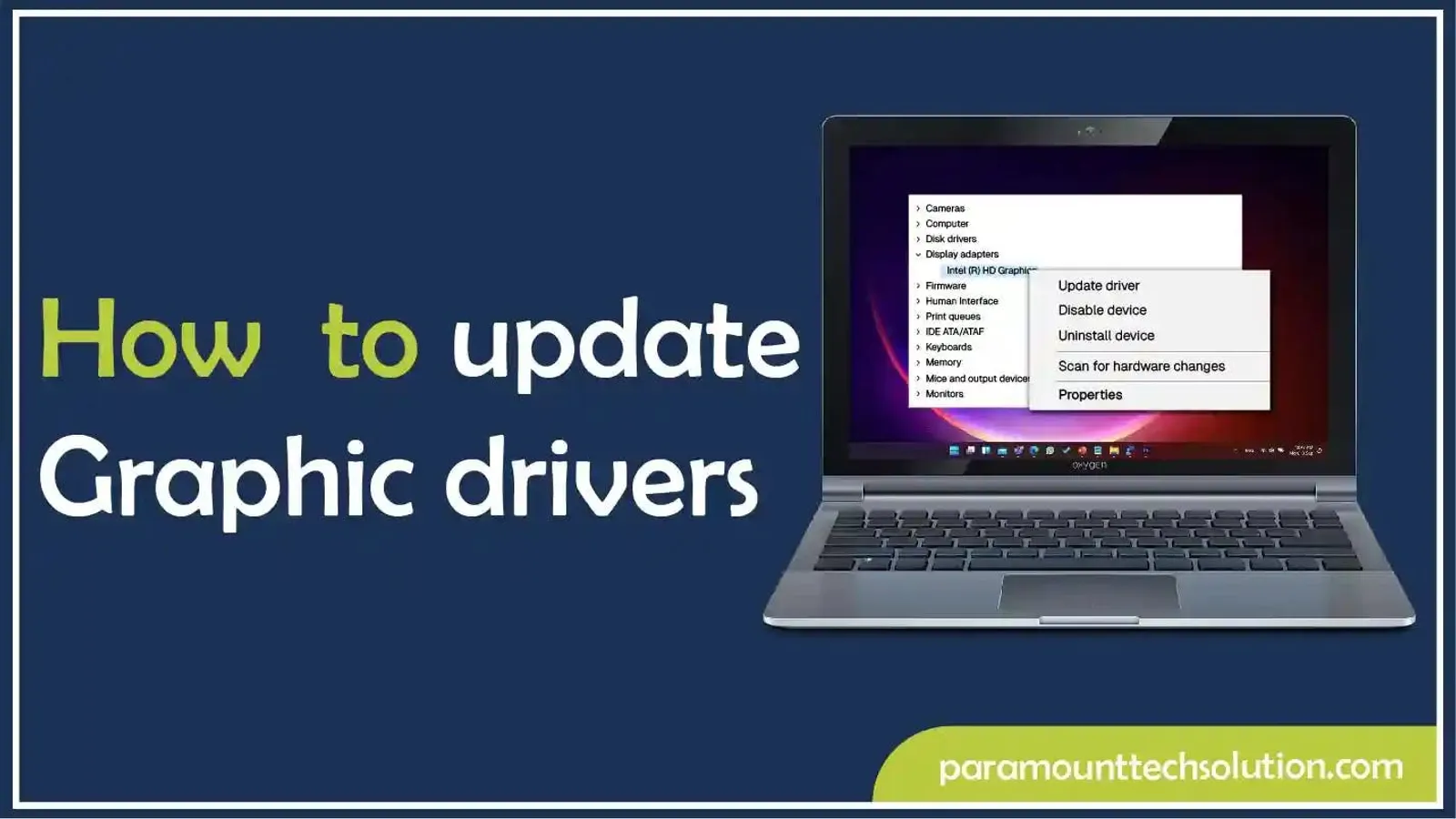
- Step 1: Open Device Manager: Right-click on the Start button and select “Device Manager.”
- Step 2: Locate your display adapter: Expand “Display adapters” and right-click on your graphics card.
- Step 3: Update driver software: Select “Update driver.”
- Step 4: Search automatically for updated driver software: Choose this option. Windows will then attempt to find drivers on your computer and through Windows Update. As mentioned, this often results in a generic or slightly older driver. For the best results, use Methods 1 or 2.
Best Practices and Troubleshooting Tips
Updating drivers can sometimes be tricky. Following best practices and knowing some troubleshooting steps can save you a lot of frustration.
Clean Installation vs. Standard Installation
When using manufacturer software or manual installers, you’re often given the choice between a “Standard” (or “Express”) installation and a “Custom” (or “Clean”) installation.
- A Standard installation typically installs new drivers over the existing ones.
- A Clean installation (often an option within a Custom installation) first uninstalls all previous driver components and then installs the new ones from scratch. This is highly recommended, especially if you’re experiencing issues or updating from a significantly older driver version, as it helps prevent conflicts and ensures a fresh slate.
Driver Rollback Option
If a new driver causes unexpected issues (e.g., performance degradation, crashes), Windows provides a “Roll Back Driver” option.
- Go to Device Manager, right-click on your graphics card, and select “Properties.”
- Go to the “Driver” tab and click “Roll Back Driver.” You’ll be asked to provide a reason. This will revert your system to the previous driver version.
Dealing with Installation Issues
- Download Corruption: If the downloaded driver file is corrupted, it might fail to install. Try re-downloading the file.
- Conflicting Software: Other software or background processes can interfere with driver installation. Try closing all non-essential applications.
- Antivirus Interference: Temporarily disable your antivirus software during the installation process, as it might block certain driver components. Remember to re-enable it afterward.
- Safe Mode: In rare cases, if the driver update causes system instability, you might need to boot into Windows Safe Mode to perform a rollback or a clean driver installation.
Regular Check-ups
Make it a habit to check for new graphic drivers periodically. Many manufacturer tools can be configured to notify you when new drivers are available. A good rhythm is to check monthly or whenever a major new game title or software application is released that you plan to use.
Keeping your graphic drivers updated is a fundamental aspect of PC maintenance that directly impacts your system’s performance, stability, and security. By understanding the “why” and following the “how-to” steps outlined above, you can ensure your PC’s visual capabilities are always at their best, providing a smooth and enjoyable computing experience.
aViewFromTheCave is a participant in the Amazon Services LLC Associates Program, an affiliate advertising program designed to provide a means for sites to earn advertising fees by advertising and linking to Amazon.com. Amazon, the Amazon logo, AmazonSupply, and the AmazonSupply logo are trademarks of Amazon.com, Inc. or its affiliates. As an Amazon Associate we earn affiliate commissions from qualifying purchases.