
In the dynamic world of computing, where visual fidelity often dictates the immersive quality of our digital experiences, the graphics processing unit (GPU) stands as a pivotal component. For millions of users worldwide, NVIDIA’s GeForce series GPUs are the bedrock of their gaming, content creation, and professional workflows. However, simply owning a powerful GeForce card is not enough; its true potential is unlocked and sustained through diligent driver updates. This guide delves into the essential process of updating GeForce drivers, outlining why it’s critical, when it should be done, and how to execute it flawlessly, ensuring your system always operates at its peak graphical performance and stability.
The Indispensable Role of Graphics Drivers
Graphics drivers are the critical bridge between your operating system, applications, and your NVIDIA GeForce hardware. They translate commands from software into instructions that your GPU can understand and execute, orchestrating everything from rendering complex 3D environments in games to accelerating video editing tasks and simply displaying your desktop. Outdated drivers are not just a minor inconvenience; they can be a significant bottleneck, compromising performance, stability, and even security.
Why Updating Drivers is Non-Negotiable
Regularly updating your GeForce drivers offers a multitude of benefits, transforming your computing experience:
- Performance Enhancement: NVIDIA frequently releases driver updates that include optimizations for the latest games and applications. These updates can significantly boost frame rates, reduce latency, and improve overall responsiveness, giving you a competitive edge in gaming or a smoother workflow in demanding software.
- Bug Fixes and Stability Improvements: Graphics drivers, like any complex software, can contain bugs. Updates often address these known issues, leading to greater system stability, fewer crashes, and a more reliable experience, especially during graphically intensive operations.
- New Features and Technologies: NVIDIA continually innovates, introducing new technologies like DLSS (Deep Learning Super Sampling), Ray Tracing enhancements, or new features within their control panel. Driver updates are often required to enable and fully utilize these cutting-edge capabilities.
- Security Patches: While less common for graphics drivers specifically, security vulnerabilities can occasionally be discovered in any software component. Updates ensure that any potential security gaps are promptly patched, safeguarding your system from exploits.
- Compatibility: As operating systems evolve and new hardware standards emerge, updated drivers ensure seamless compatibility, preventing potential conflicts or display issues that might arise with older software.
When to Prioritize Driver Updates
While some users prefer to update drivers only when encountering issues, a proactive approach is generally recommended. Consider these scenarios for timely updates:
- Upon New Game Releases: If you’re planning to play a major new game title, particularly an AAA release, checking for a “Game Ready Driver” is paramount. NVIDIA typically releases specific drivers optimized for new titles, offering performance boosts and ensuring a smooth launch experience.
- Experiencing Graphical Anomalies: If you notice strange visual artifacts, flickering screens, frequent application crashes related to graphics, or unexpected performance drops, an outdated or corrupted driver is often the first suspect.
- After Major OS Updates: Large Windows updates can sometimes introduce incompatibilities with older drivers. Updating your graphics driver after a significant operating system patch can prevent potential issues.
- Regular Maintenance Schedule: Even without specific triggers, establishing a routine (e.g., checking monthly or quarterly) for driver updates ensures you consistently benefit from the latest optimizations and fixes.
Method 1: The NVIDIA GeForce Experience – Simplicity and Optimization
For the vast majority of GeForce users, the NVIDIA GeForce Experience application is the easiest and most recommended path to keeping drivers current. It’s an all-in-one hub for driver updates, game optimization, and other GeForce-specific features.
Installing and Navigating GeForce Experience
If you don’t already have GeForce Experience installed, it typically comes bundled with new driver installations. You can also download it directly from the official NVIDIA website.
- Launch GeForce Experience: Once installed, open the application. You might need to log in with an NVIDIA account (or create one).
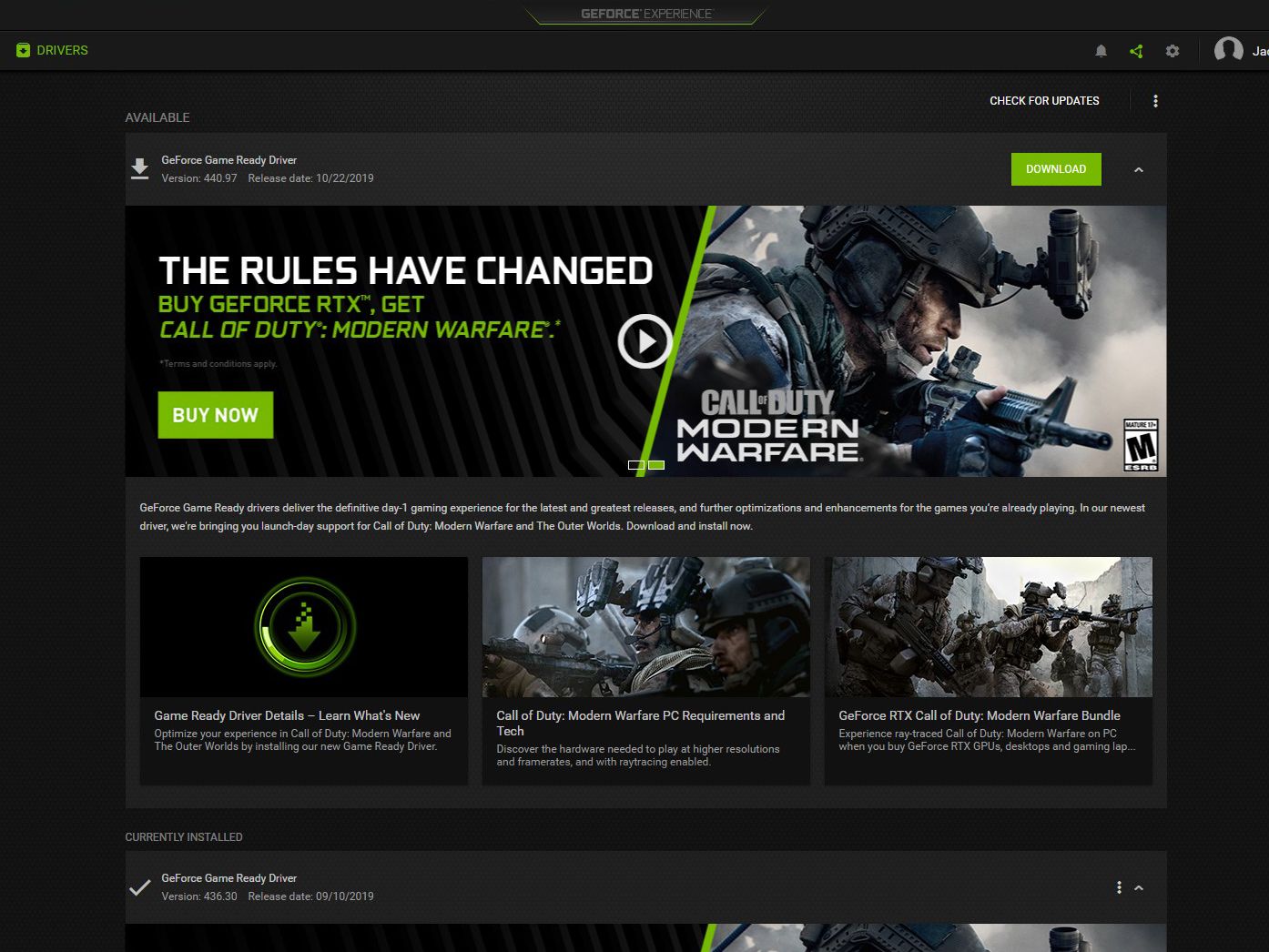
- Access the Drivers Tab: In the main interface, navigate to the “Drivers” tab, usually found at the top left.
- Check for Updates: Click the “Check for Updates” button. GeForce Experience will automatically scan for the latest available driver for your specific GPU.
- Download the Driver: If a new driver is detected, you’ll see details about it (version number, release date, included features, and optimizations). Click the “Download” button to begin downloading the driver package. The download size can vary, so ensure you have a stable internet connection.
Installation Options: Express vs. Custom
Once the driver package is downloaded, GeForce Experience offers two primary installation methods:
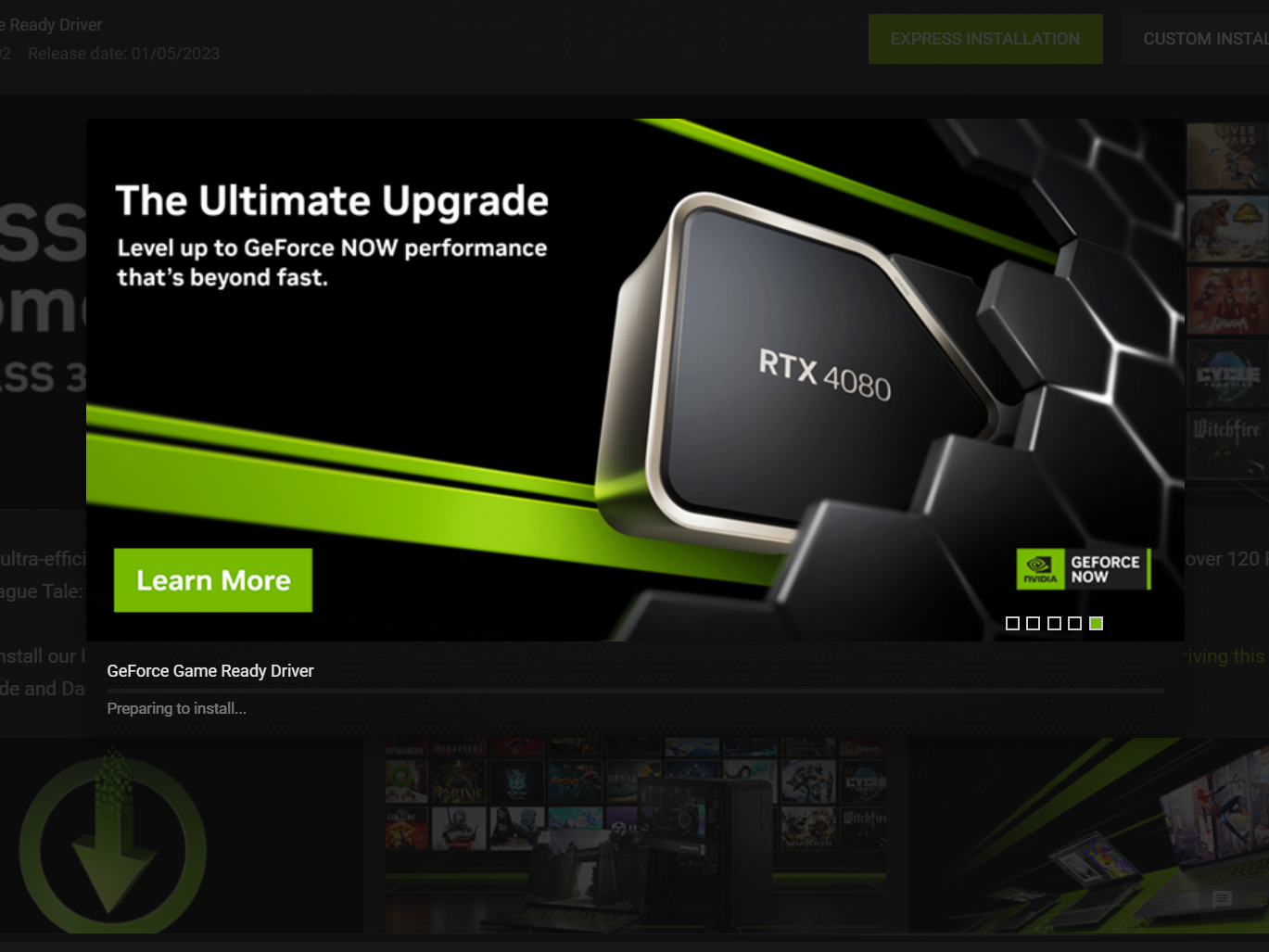
- Express Installation (Recommended for Most Users): This is the simplest and fastest option. GeForce Experience automatically installs the driver and all its components (like PhysX, HD Audio Driver, GeForce Experience itself) with minimal user intervention. It’s ideal if you just want to get the latest driver up and running quickly.
- Select “Express Installation.”
- The screen may flicker or go black momentarily during the installation process as the display driver is updated. Do not interrupt this process.
- Once complete, a confirmation message will appear.
- Custom Installation (For Advanced Users): This option provides more control over which components are installed and offers a crucial “Perform a clean installation” checkbox.
- Select “Custom Installation.”
- You’ll be presented with a list of components (Graphics Driver, PhysX, HD Audio Driver, USB-C Driver, etc.). You can deselect components you don’t need, though keeping all recommended components is generally advisable.
- Crucially, check the “Perform a clean installation” box. This option completely removes all previous NVIDIA driver files and settings before installing the new ones. This helps prevent conflicts and resolve issues that might stem from corrupted or leftover driver files, leading to a much more stable installation. This is highly recommended if you’re experiencing issues or if it’s been a while since your last clean install.
- Click “Install.” Similar to Express, the screen may flicker.
- Wait for the process to complete and click “Close.”
Method 2: Manual Driver Download from NVIDIA’s Website – Precision Control
While GeForce Experience offers convenience, manually downloading drivers directly from the NVIDIA website provides an alternative with granular control, especially useful for troubleshooting or for users who prefer not to use GeForce Experience.
Identifying Your GPU and OS
Before heading to the website, you need to know your exact GPU model and your operating system (OS) version.
- GPU Model:
- Windows: Right-click on your desktop, select “NVIDIA Control Panel,” then “System Information” in the bottom left. Your GPU model will be listed under “Display.”
- Alternatively, open “Device Manager” (search for it in Windows Start Menu), expand “Display adapters,” and note your GeForce card’s name.
- Operating System: Type “winver” into the Windows Start Menu search bar and press Enter to see your Windows version (e.g., Windows 10, Windows 11) and whether it’s 64-bit. Almost all modern systems are 64-bit.
Navigating the NVIDIA Driver Download Page
- Go to NVIDIA’s Official Driver Download Page: Open your web browser and navigate to
www.nvidia.com/drivers. - Use the Manual Driver Search:
- Product Type: Select “GeForce.”
- Product Series: Choose the series corresponding to your GPU (e.g., GeForce RTX 40 Series, GeForce GTX 16 Series).
- Product: Select your specific GPU model (e.g., RTX 4090, GTX 1660 SUPER).
- Operating System: Choose your Windows version (e.g., Windows 11 64-bit).
- Download Type: Generally, “Game Ready Driver (GRD)” is suitable for most users. “Studio Driver (SD)” is optimized for creative applications like Adobe Premiere Pro, Blender, etc. Choose based on your primary usage.
- Language: Select your preferred language.
- Search and Download: Click “Search.” The website will present the latest compatible driver. Review the details, then click “Download.”
- Confirm Download: On the next page, click “Download” again to start the download.
Running the Manual Installer
Once the driver package is downloaded (it’s usually an executable .exe file):
- Run as Administrator: Locate the downloaded file, right-click it, and select “Run as administrator.”
- Extraction Path: The installer will first ask where to extract the files. The default location is usually fine. Click “OK.”
- System Check: The installer will perform a quick compatibility check.
- License Agreement: Accept the NVIDIA Software License Agreement to proceed.
- Installation Options: You’ll be presented with “Express” and “Custom” options, identical to those in GeForce Experience. For a clean installation, always choose “Custom” and check the “Perform a clean installation” box.
- Complete Installation: Follow the on-screen prompts. Your screen will likely flicker during installation. Reboot your system if prompted, though often it’s not strictly necessary unless specified.
Post-Update Verification and Troubleshooting
After updating your drivers, it’s good practice to verify the installation and address any potential issues.
Confirming the New Driver Version
You can quickly confirm that the new driver is active:
- NVIDIA Control Panel: Right-click on your desktop, select “NVIDIA Control Panel,” then “System Information” in the bottom left. The driver version should match the one you just installed.
- GeForce Experience: Open GeForce Experience, go to the “Drivers” tab. It should indicate that you have the latest driver installed and display its version.
Common Troubleshooting Steps
While driver updates are generally smooth, occasional issues can arise:
- Installation Failure:
- Ensure all background applications are closed, especially any that use the GPU.
- Temporarily disable antivirus software (remember to re-enable it afterward).
- Try a clean installation via the “Custom” option.
- If persistent, download a fresh copy of the driver file in case the previous download was corrupted.
- Performance Degradation or Stability Issues After Update:
- This is rare, but if your system performs worse or becomes unstable, the new driver might have an unforeseen bug with your specific hardware or software configuration.
- Consider rolling back to the previous stable driver version. You can do this via Device Manager: Right-click Start Menu > Device Manager > Display adapters > Right-click your GPU > Properties > Driver tab > “Roll Back Driver.”
- Alternatively, use a tool like Display Driver Uninstaller (DDU) to completely remove the problematic driver in Safe Mode, then perform a clean installation of either the new driver or an older, stable version. DDU is a powerful tool for truly clean uninstalls, resolving many stubborn driver-related issues.
- Black Screen or Display Issues:
- If your screen goes black and doesn’t recover after a driver update, try restarting your PC. If it persists, boot into Safe Mode (search online for how to do this for your Windows version) and use DDU to uninstall the driver. Then, reboot and perform a fresh, clean installation.
- Ensure your monitor cables are securely connected.

Conclusion
Keeping your GeForce drivers up to date is a fundamental aspect of maintaining optimal PC performance, stability, and security, especially for gaming and demanding creative tasks. Whether you opt for the convenience of NVIDIA GeForce Experience or prefer the precise control of a manual download from the NVIDIA website, the process is straightforward and yields significant benefits. By understanding the ‘why,’ ‘when,’ and ‘how,’ you empower your GeForce GPU to deliver its best, ensuring you consistently experience the cutting-edge visuals and fluid performance it was designed for. Make driver updates a regular part of your digital maintenance routine, and unlock the full potential of your NVIDIA-powered system.
aViewFromTheCave is a participant in the Amazon Services LLC Associates Program, an affiliate advertising program designed to provide a means for sites to earn advertising fees by advertising and linking to Amazon.com. Amazon, the Amazon logo, AmazonSupply, and the AmazonSupply logo are trademarks of Amazon.com, Inc. or its affiliates. As an Amazon Associate we earn affiliate commissions from qualifying purchases.