
In the modern computing landscape, the Graphics Processing Unit (GPU) has evolved from a niche component for gamers into the beating heart of the digital experience. Whether you are a professional video editor, an AI researcher utilizing CUDA cores, or a hardcore gamer seeking 4K immersion, your NVIDIA hardware is only as capable as the software that communicates with it. This software—the driver—acts as the essential translator between your Windows operating system and the complex silicon architecture of your graphics card.
Keeping your NVIDIA drivers updated is not merely a recommendation; it is a fundamental maintenance task that ensures system stability, unlocks latent performance, and protects your hardware from emerging security threats. This comprehensive guide explores the multi-faceted methods of updating your drivers, troubleshooting common pitfalls, and understanding the technological nuances that make these updates so vital.
The Critical Importance of Regular Driver Updates
Before diving into the “how,” it is essential to understand the “why.” A GPU driver is a complex piece of code that instructs the hardware on how to render pixels, manage thermal loads, and interface with various APIs like DirectX, Vulkan, and OpenGL.
Optimized Performance for the Latest Software
The tech industry moves at breakneck speed. Every month, new software titles and creative applications are released that push hardware to its limits. NVIDIA works closely with developers through its “Game Ready” driver program. These updates often include specific optimizations for major game releases, sometimes resulting in a 20% to 30% increase in frame rates compared to older driver versions. Without these updates, you are effectively leaving performance on the table.
System Stability and Bug Mitigation
Software is rarely perfect upon release. As millions of users interact with different hardware configurations, bugs inevitably emerge. You might experience “Blue Screen of Death” (BSOD) errors, application crashes, or visual artifacts (glitches). NVIDIA’s driver updates frequently include patches for these known issues. By staying updated, you ensure that your system remains stable under heavy workloads, preventing the loss of unsaved work or mid-game interruptions.
Security Vulnerability Patching
In an era of increasing digital threats, hardware drivers have become a target for malicious actors. Vulnerabilities in a driver can allow an attacker to gain kernel-level access to your system. NVIDIA consistently releases security updates to close these loopholes. Neglecting your driver updates is equivalent to leaving a digital back door unlocked in your system security.
Streamlining the Process with NVIDIA GeForce Experience
For the vast majority of users, the most efficient way to manage updates is through NVIDIA’s proprietary software suite, GeForce Experience. This tool bridges the gap between complex hardware management and a user-friendly interface.
Automated Notifications and One-Click Downloads
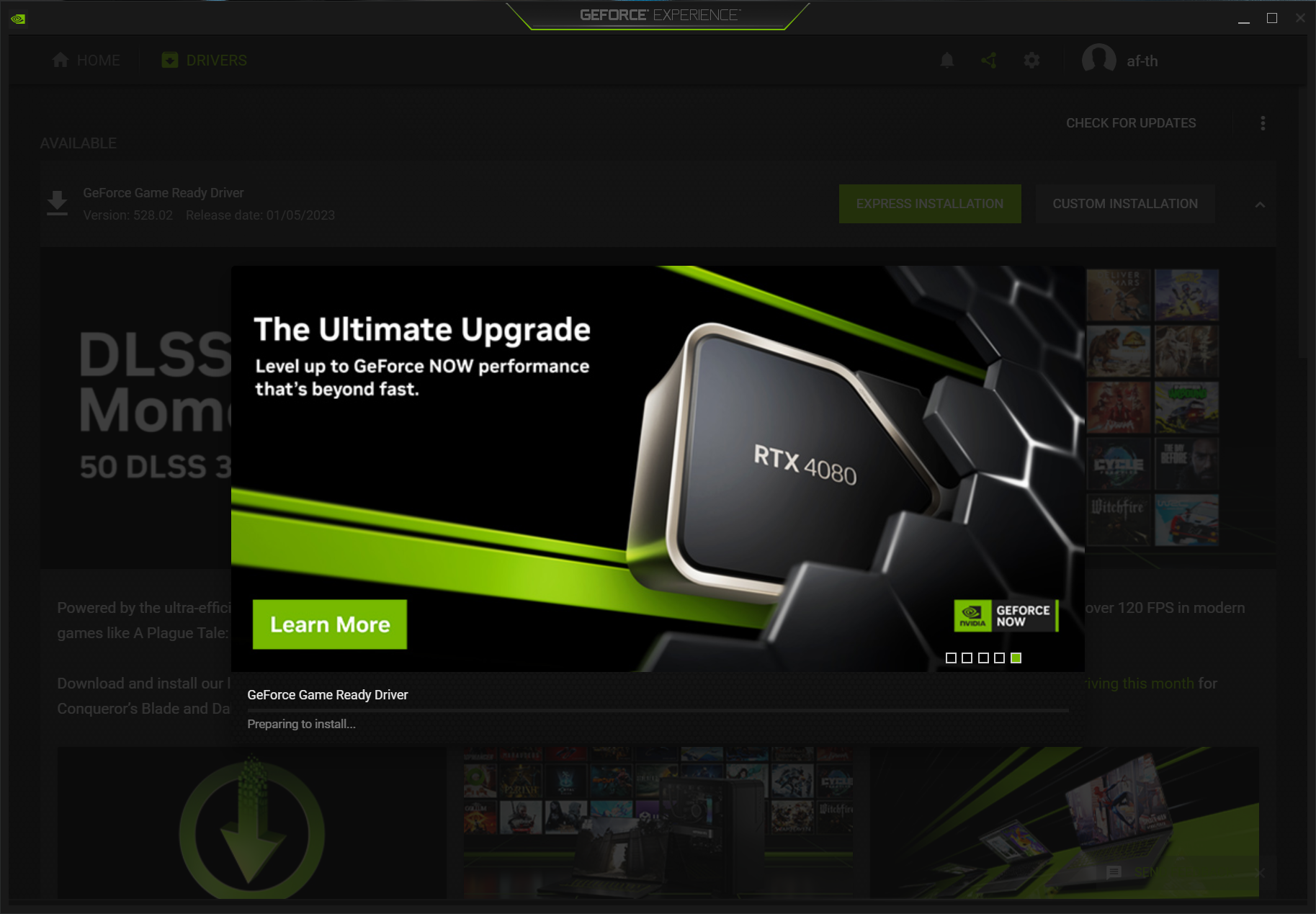
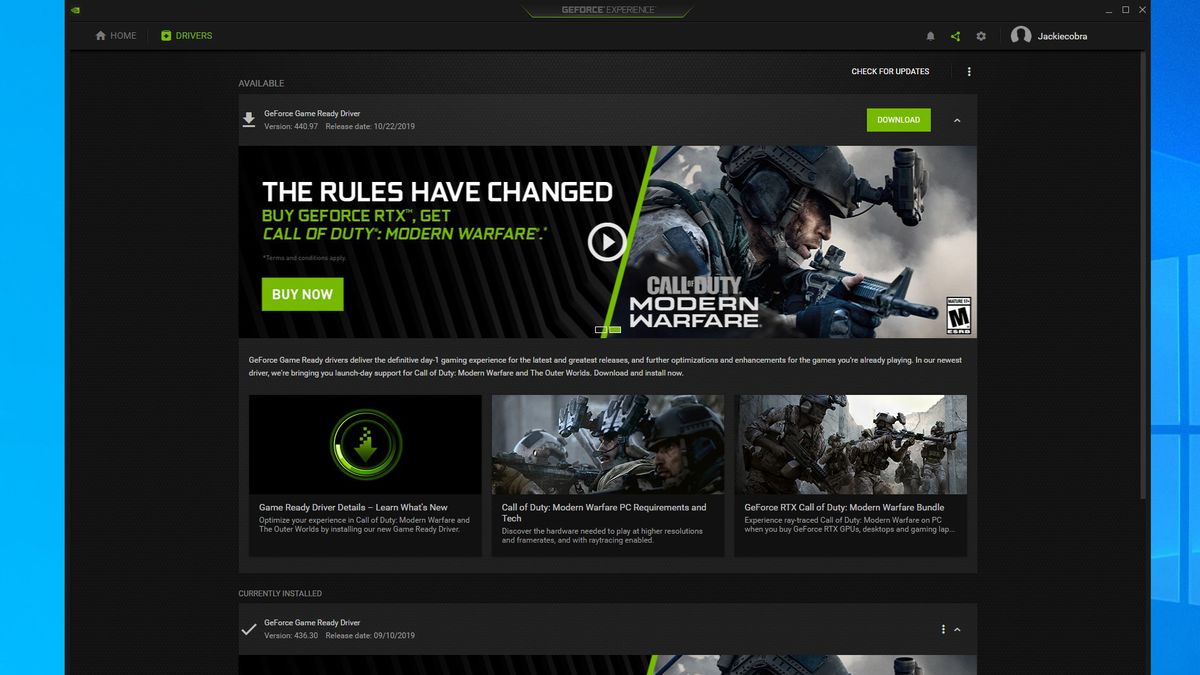
The primary advantage of GeForce Experience is automation. Once installed, the software runs in the background, periodically checking NVIDIA’s servers for new releases. When a new driver becomes available, you receive a desktop notification. Instead of hunting through menus, you can simply click “Download” and then “Express Installation.” The software handles the rest, removing the old driver and configuring the new one without requiring a system reboot in most cases.
Choosing Between Game Ready and Studio Drivers
One of the most significant technological shifts in NVIDIA’s driver strategy is the split between “Game Ready” and “Studio” drivers.
- Game Ready Drivers (GRD): These are optimized for the latest games and provide the best experience for day-of-launch titles.
- Studio Drivers (SD): These are intended for creative professionals using applications like Adobe Premiere Pro, Blender, and Autodesk Maya. Studio drivers undergo more extensive testing against creative workflows to ensure maximum stability.
Within GeForce Experience, users can easily toggle between these two “branches” depending on whether their priority is entertainment or professional production.
Optimizing Settings and ShadowPlay Features
GeForce Experience is more than just a driver updater; it’s a hub for the NVIDIA ecosystem. It allows for “Optimal Playable Settings,” where the software analyzes your CPU, RAM, and GPU to automatically adjust game settings for the best balance of visual fidelity and performance. Additionally, it provides access to the In-Game Overlay, allowing for high-quality recording (ShadowPlay) and performance monitoring (FPS counters and latency metrics) that rely on the updated driver architecture.
Precision Control: Manual Driver Installation
While automated tools are convenient, many power users, system administrators, and enthusiasts prefer the manual approach. This method offers the highest level of control over what is being installed on the system.
Navigating the NVIDIA Download Portal
To update manually, you must visit the official NVIDIA Driver Downloads page. This process requires you to know your exact hardware specifications. You must select the:
- Product Type: (e.g., GeForce, Quadro, RTX).
- Product Series: (e.g., GeForce RTX 40 Series, RTX 30 Series).
- Operating System: (e.g., Windows 10 64-bit, Windows 11).
- Download Type: (Game Ready vs. Studio).
Downloading the standalone installer is particularly useful for users with limited internet connectivity or those who need to update multiple offline machines using a USB drive.
Understanding the “Clean Install” Option
When running a manual installer, you are presented with a choice between “Express” and “Custom” installation. Choosing “Custom” allows you to select the “Perform a clean installation” checkbox. This is a critical feature for tech enthusiasts. It wipes all previous profiles, settings, and potentially corrupted registry entries before applying the new driver. This is the gold standard for fixing persistent graphical glitches or transitioning between different GPU models.
When to Use Manual Updates over Automated Tools
Manual updates are preferred when you want to avoid installing the GeForce Experience telemetry or overlay features. Some users prefer a “lean” system with only the core display driver and the NVIDIA Control Panel. Manual installation allows you to skip the extra software components, keeping your system overhead as low as possible.
Alternative Methods: Windows Update and Device Manager
For users who prefer a “plug-and-play” experience without ever visiting a website or installing third-party suites, Windows offers built-in tools. However, these come with significant caveats.
Leveraging Windows Update for Basic Functionality
Windows 10 and 11 are designed to automatically fetch “WHQL” (Windows Hardware Quality Labs) certified drivers. When you plug in a new NVIDIA card, Windows Update will often install a functional driver in the background. While this is excellent for getting a display output immediately, these drivers are often several months old. They are designed for “compatibility” rather than “performance,” meaning you won’t get the latest optimizations for new games or AI tools.
Using Device Manager for Quick Refreshes
You can also trigger an update through the Windows Device Manager. By right-clicking your GPU under “Display Adapters” and selecting “Update Driver,” Windows will search its local and online databases. This is a useful troubleshooting step if your GPU is not being recognized correctly, but it is rarely the best way to get the latest feature-rich driver from NVIDIA.
Troubleshooting Common NVIDIA Driver Issues
Even with the best tools, software installation can sometimes go wrong. Understanding how to recover from a failed update is a vital skill for any PC user.
Dealing with Installation Failures
If a driver installation fails halfway through, it can leave your system in a state where the resolution is locked to 800×600 or one of your monitors stops working. This usually happens due to conflicting background processes or corrupted temporary files. The first step is always a full system restart. If the problem persists, disabling your antivirus software temporarily during the installation can often resolve the conflict.
Using Display Driver Uninstaller (DDU) for a Fresh Start
For the most stubborn issues, the tech community relies on a third-party utility called Display Driver Uninstaller (DDU). This tool is used in “Safe Mode” to completely scrub every trace of NVIDIA, AMD, or Intel drivers from the system. It removes files and registry keys that standard uninstallers leave behind. If you are experiencing repeated crashes or “Driver Not Found” errors, a DDU wipe followed by a fresh manual installation is the most effective “nuclear option.”
How to Roll Back a Driver
Occasionally, a new driver update might actually introduce a bug that affects your specific workflow. In this case, you need to “roll back.” Within the Windows Device Manager, you can select “Roll Back Driver” to return to the previously installed version. Alternatively, you can visit the NVIDIA Advanced Driver Search to download an older, archived version of the driver that you know was stable for your system.

Conclusion: Sustaining Your Digital Edge
Updating your NVIDIA drivers is the simplest yet most impactful way to maintain your PC’s health. By choosing the method that fits your workflow—whether it’s the automated convenience of GeForce Experience or the surgical precision of a manual clean install—you ensure that your hardware remains capable of handling the demands of modern software. In a world where technology evolves daily, staying updated is the key to ensuring your silicon continues to perform at its absolute peak.
aViewFromTheCave is a participant in the Amazon Services LLC Associates Program, an affiliate advertising program designed to provide a means for sites to earn advertising fees by advertising and linking to Amazon.com. Amazon, the Amazon logo, AmazonSupply, and the AmazonSupply logo are trademarks of Amazon.com, Inc. or its affiliates. As an Amazon Associate we earn affiliate commissions from qualifying purchases.