
In the intricate ecosystem of modern computing, drivers serve as the essential translators between your operating system and your hardware components. From your graphics card rendering high-definition visuals to your Wi-Fi adapter connecting you to the internet, every piece of hardware relies on specific software—a driver—to function correctly. Over time, these drivers can become outdated, leading to a myriad of issues ranging from performance bottlenecks and system instability to security vulnerabilities. Understanding how and why to update them is a fundamental skill for any PC user looking to maintain an optimal and secure computing experience.

Why Driver Updates Are Crucial
Regularly updating your drivers isn’t just about chasing the latest version; it’s a proactive measure that yields significant benefits for your system’s health and performance. Neglecting driver updates can lead to frustrating experiences and even compromise your system’s integrity.
Performance Enhancement
Hardware manufacturers continually refine their drivers to extract more performance from their components. A graphics card driver update, for instance, might introduce optimizations that significantly boost frame rates in the latest games or accelerate rendering times in professional applications. Similarly, storage controller drivers can improve data transfer speeds, while network adapter drivers might enhance connection stability and throughput. Keeping drivers current ensures you’re getting the most out of your existing hardware investment.
Stability and Bug Fixes
Drivers are complex pieces of software, and like any software, they can contain bugs. These bugs might manifest as system crashes, blue screens of death (BSODs), application freezes, or unusual hardware behavior. Manufacturers release updated drivers to address these known issues, patching vulnerabilities and improving overall system stability. An old, buggy driver can be a constant source of frustration, making timely updates essential for a smooth computing experience.
Security Vulnerability Patches
In an increasingly connected world, software security is paramount. Drivers, acting as a low-level interface between hardware and the operating system, can sometimes harbor security vulnerabilities that attackers might exploit. Manufacturers are diligent about identifying and patching these flaws, releasing updated drivers that close potential backdoors and protect your system from malicious attacks. Keeping drivers updated is therefore a critical component of a robust digital security strategy, preventing exploits that could lead to data theft or system compromise.
New Feature Support
Beyond performance and stability, driver updates often introduce support for new features or technologies. For example, a new display driver might enable compatibility with a recently released monitor standard, or an audio driver update could unlock advanced sound processing capabilities. To leverage the full potential of your hardware and to ensure compatibility with evolving software and peripherals, up-to-date drivers are indispensable.
Identifying Your Current Drivers
Before you can update a driver, you need to know which drivers your system is using and whether they are indeed outdated. Several methods can help you gather this crucial information.
Using Device Manager (Windows)
The Windows Device Manager is your primary tool for managing hardware and their respective drivers. To access it, right-click the Start button and select “Device Manager.” Here, you’ll find a categorized list of all hardware components installed on your system. Expanding a category (e.g., “Display adapters”) will show you the specific device. Right-clicking on a device and selecting “Properties” will open a window with several tabs, including “Driver.” This tab provides details such as the driver provider, date, and version. This information is key to determining if a newer version is available.
System Information Tools
Windows also includes a built-in “System Information” tool (type msinfo32 in the Run dialog or search bar). While less direct for driver management than Device Manager, it provides a comprehensive overview of your system’s hardware and software environment, including some driver details. For more advanced diagnostics, third-party system information tools like HWiNFO or Speccy can offer even more granular data about your hardware and driver versions.
Manufacturer’s Software
Many major hardware manufacturers provide their own utility software designed to manage their products. For instance, NVIDIA’s GeForce Experience, AMD’s Radeon Software, and Intel’s Driver & Support Assistant are applications that not only provide system information but also actively monitor for and facilitate the installation of driver updates for their respective hardware. These tools are often the most reliable way to stay current for specific components like graphics cards, chipsets, and network adapters.
Manual Driver Update Methods
While automated solutions exist, understanding how to manually update drivers gives you greater control and is often necessary when troubleshooting or seeking specific driver versions.
Updating via Device Manager
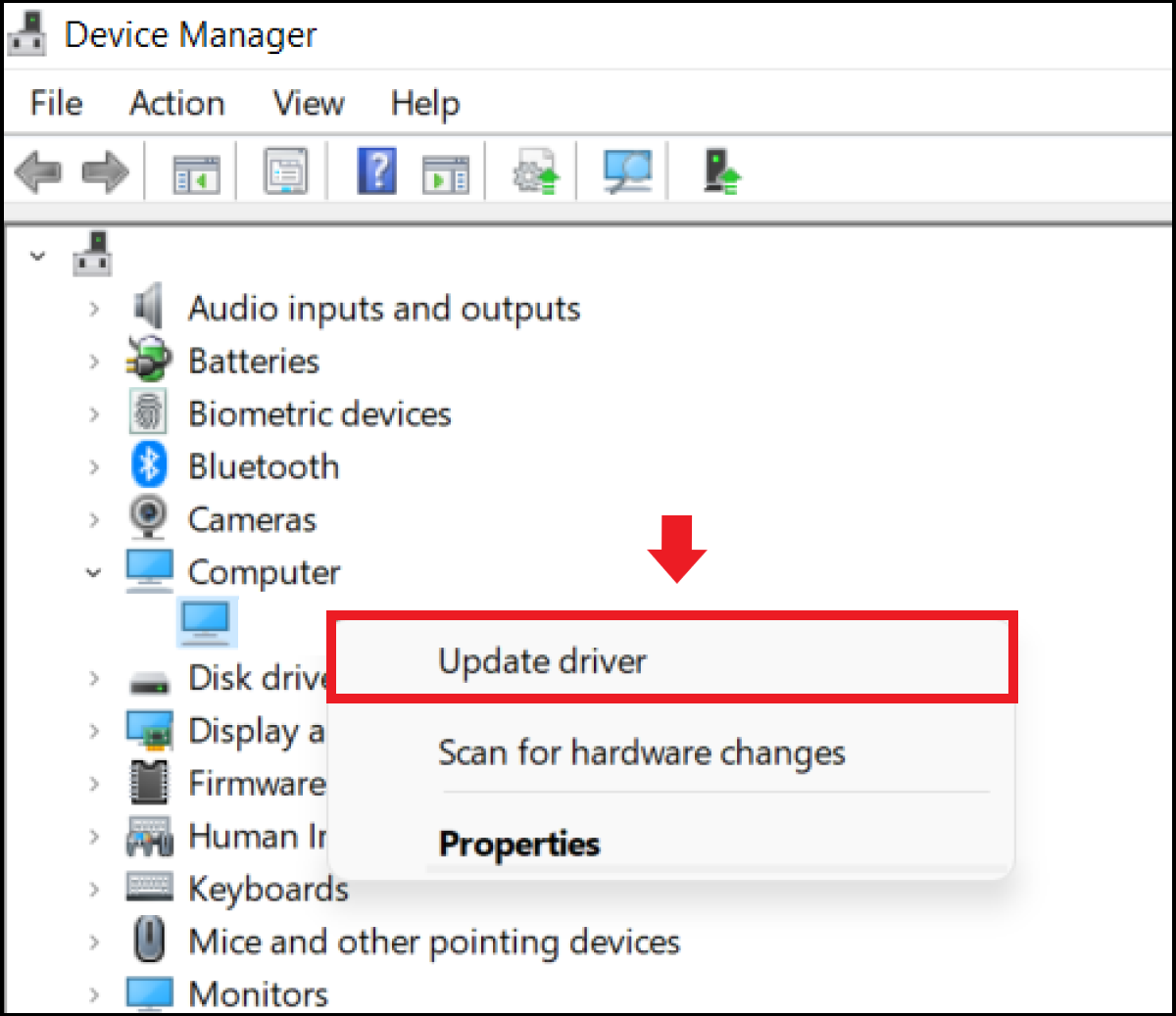
The Device Manager allows you to attempt a driver update directly. After navigating to the device in Device Manager, right-click it and select “Update driver.” You’ll then be given two options: “Search automatically for updated driver software” or “Browse my computer for driver software.” The first option allows Windows to search for drivers on your system and, if configured, through Windows Update. The second option is for when you have already downloaded a driver file (usually a .inf file or an executable) from the manufacturer’s website and want to point Windows to its location. This method is straightforward but may not always find the very latest drivers, especially for specialized hardware.
Downloading from Manufacturer’s Website
This is often the most reliable and recommended method for updating critical drivers, particularly for graphics cards, chipsets, and network adapters. Identify the exact model number of your hardware (e.g., “NVIDIA GeForce RTX 4080,” “Intel Core i9-14900K,” “Realtek PCIe GbE Family Controller”). Then, navigate to the support section of the manufacturer’s official website (e.g., NVIDIA, AMD, Intel, Realtek, ASUS, Dell, HP). Search for your specific product and look for a “Drivers” or “Downloads” section. Select your operating system and download the latest available driver package. These packages are typically executable files (.exe) that include an installer which automates the update process. Always download drivers directly from the official manufacturer’s website to avoid malicious or incorrect files.
Using Windows Update (Optional Driver Updates)
Windows Update primarily handles security patches and system updates, but it also occasionally provides driver updates. These are usually general-purpose drivers or those certified by Microsoft. To check for them, go to “Settings” > “Update & Security” (or “Windows Update” in Windows 11) > “View optional updates.” Here, you might find a section for “Driver updates” that lists available drivers. While convenient, these drivers might not always be the absolute latest versions directly from the hardware manufacturer. Use them if you’re looking for a hassle-free update or if the manufacturer’s website doesn’t offer a specific driver.
Automated Driver Update Solutions
For users who prefer a more hands-off approach, several tools can automate the process of keeping drivers current.
Manufacturer-Provided Utilities
As mentioned, many major hardware manufacturers offer dedicated software utilities. NVIDIA’s GeForce Experience, AMD’s Radeon Software Adrenalin Edition, and Intel’s Driver & Support Assistant are excellent examples. Once installed, these applications can scan your system for relevant hardware, notify you when new drivers are available, and often manage the download and installation process with minimal user intervention. These are highly recommended for the specific components they support, as they ensure you receive drivers optimized and tested by the original equipment manufacturer.
Third-Party Driver Updaters (with caution)
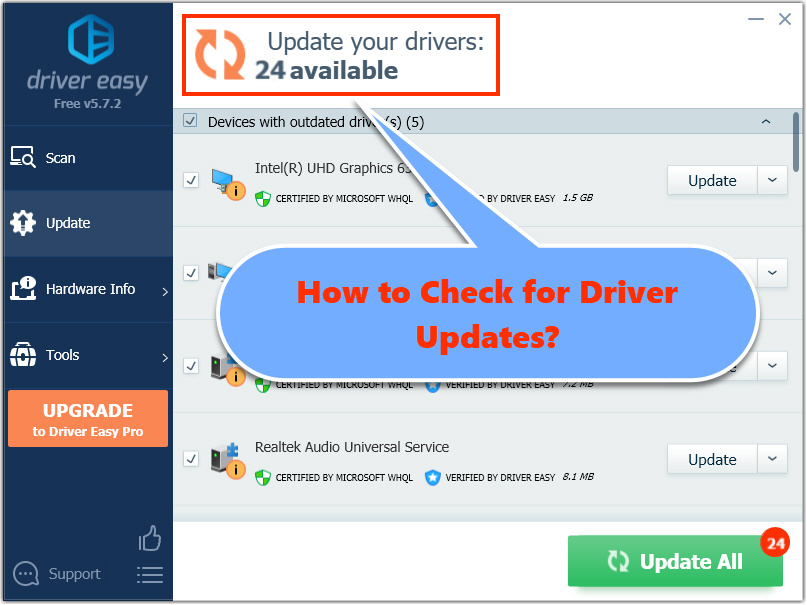
A wide array of third-party driver updater software exists, promising to scan your system, identify outdated drivers, and update them automatically. While some reputable options are available, extreme caution is advised. Many free or low-cost driver updaters can be bundled with adware, malware, or install incorrect or unstable drivers, leading to system instability or security risks. If you choose to use a third-party solution, thoroughly research its reputation, read user reviews, and ensure it comes from a trustworthy developer. Always back up your system before using such software. For most users, manual updates from official sources or manufacturer-provided utilities are safer and more reliable.
Best Practices and Troubleshooting
Updating drivers can sometimes lead to unforeseen issues. Implementing best practices and knowing how to troubleshoot can mitigate risks and resolve problems effectively.
Backup Before Updating
Before undertaking any significant driver update, especially for critical components like graphics cards or chipsets, it’s wise to back up your system. A full system image backup or even just a backup of your important data can save you from catastrophic data loss if an update goes awry. Tools like Windows’ built-in “Backup and Restore” or third-party imaging software can facilitate this.
Create a System Restore Point
A System Restore Point is an invaluable safety net. It creates a snapshot of your system’s configuration, including drivers, at a specific moment. If a driver update causes problems, you can revert your system to this restore point, effectively undoing the changes. Windows usually creates restore points automatically before major system changes, but it’s good practice to manually create one before installing a new driver. Search for “Create a restore point” in Windows Search to access this utility.
Roll Back a Driver
If a newly installed driver causes instability, performance issues, or prevents a device from working, Windows allows you to “roll back” to the previous driver version. Access Device Manager, right-click the problematic device, go to “Properties,” and then the “Driver” tab. If available, the “Roll Back Driver” button will be clickable. This is often the quickest way to resolve issues caused by a bad driver update.
Clean Installation vs. Update
Sometimes, simply updating a driver over an existing one isn’t enough, especially with graphics drivers. Remnants of old drivers can sometimes conflict with new ones. A “clean installation” involves completely uninstalling the old driver and its associated software before installing the new one. For graphics cards, manufacturer utilities like NVIDIA’s DDU (Display Driver Uninstaller) or options within the installer itself can perform a clean installation. This helps prevent conflicts and ensures the new driver integrates smoothly.
When to Avoid Updating
While generally beneficial, there are scenarios where deferring a driver update might be appropriate. If your system is perfectly stable and performing optimally, and you rely on it for critical work, you might choose to wait for a few days or weeks after a major driver release to ensure no widespread issues are reported. Similarly, if you are running a very old or custom piece of hardware for which new drivers are scarce, updating might not offer significant benefits or could even introduce incompatibility. If it isn’t broken and isn’t a security risk, sometimes leaving it alone is the best option.
Addressing Update Failures
Occasionally, a driver update might fail to install or complete properly. This could be due to corrupted download files, conflicts with existing software, or insufficient system resources.
- Retry the download: Re-download the driver package, ensuring a stable internet connection.
- Run as administrator: Right-click the installer and select “Run as administrator.”
- Temporarily disable antivirus: Antivirus software can sometimes interfere with installations. Disable it briefly (and re-enable immediately after) if you suspect a conflict.
- Check system logs: Windows Event Viewer (search for “Event Viewer”) can provide detailed error messages that might help diagnose the root cause of the failure.
- Safe Mode: If a driver update renders your system unbootable, you can often boot into Safe Mode to roll back the driver or attempt a clean installation of a working version.
By following these guidelines, you can ensure your drivers remain updated, your hardware performs optimally, and your system stays secure and stable. This proactive approach to system maintenance is a cornerstone of effective technology management.
aViewFromTheCave is a participant in the Amazon Services LLC Associates Program, an affiliate advertising program designed to provide a means for sites to earn advertising fees by advertising and linking to Amazon.com. Amazon, the Amazon logo, AmazonSupply, and the AmazonSupply logo are trademarks of Amazon.com, Inc. or its affiliates. As an Amazon Associate we earn affiliate commissions from qualifying purchases.