
The shift from traditional cable infrastructure to Over-the-Top (OTT) streaming services has fundamentally changed how we consume media. YouTube TV, Google’s premier live television offering, has stood at the forefront of this revolution, offering a robust cloud-based DVR system and a sleek interface that mirrors the simplicity of the standard YouTube platform. However, the fluid nature of the tech landscape means that users often cycle through different software ecosystems based on feature updates, device compatibility, or service tiers.
Whether you are migrating to a different streaming stack or simply streamlining your digital footprint, understanding the technical nuances of managing a YouTube TV subscription is essential. This guide provides an in-depth exploration of the cancellation process across various platforms, the technical implications for your stored data, and how to navigate the software-driven retention tactics employed by modern streaming giants.

Navigating the Cancellation Process Across Device Ecosystems
The process of unsubscribing from a high-tier service like YouTube TV is not always a universal experience. Depending on which device you used to register—or which operating system you currently utilize—the technical path to “cancel” can vary significantly. Because YouTube TV is integrated into the broader Google Account infrastructure, the process is largely centralized, but hardware limitations often dictate the user journey.
Step-by-Step: Cancellation via Web Browser
For the most stable and comprehensive management of your subscription, the web interface is the recommended route. By accessing the YouTube TV portal through a desktop browser (Chrome, Safari, or Firefox), you gain access to the full suite of account management tools.
- Authentication: Navigate to
tv.youtube.comand ensure you are logged into the specific Google Account associated with the subscription. - Accessing Settings: Click on your profile avatar in the top-right corner. This acts as the gateway to the service’s backend configuration.
- Membership Management: Select “Settings” and then the “Membership” tab. Here, the UI displays your current billing cycle and add-on packages.
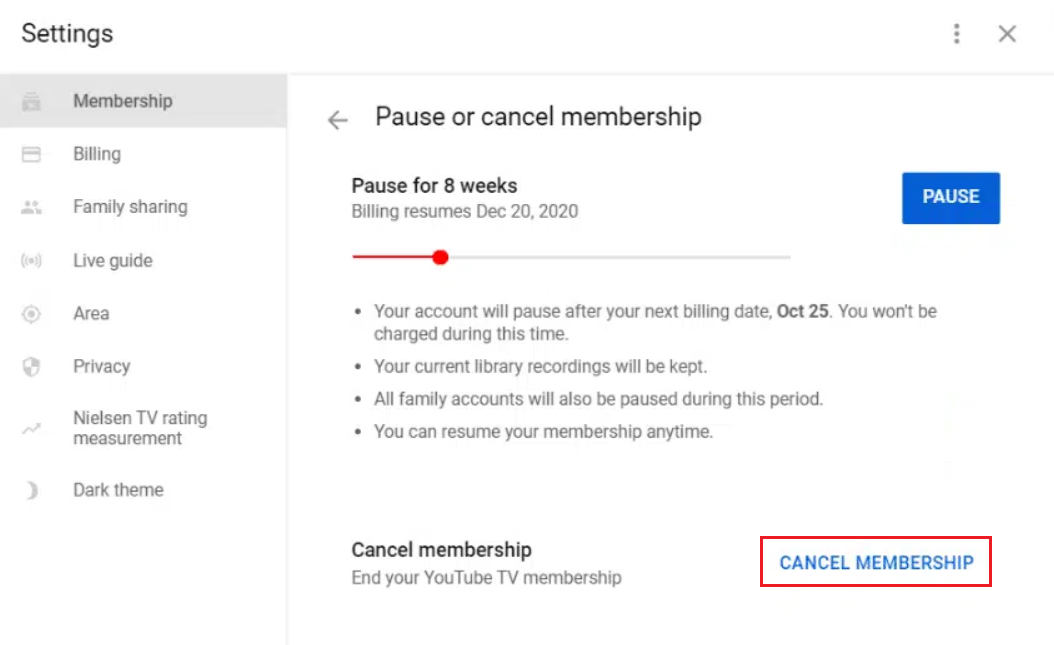
- The Deactivation Sequence: Click “Manage.” You will be presented with the option to either “Pause” or “Cancel.” Selecting “Cancel Membership” initiates the offboarding workflow.
Managing Subscriptions on Android vs. iOS
The mobile tech landscape introduces a layer of complexity due to the “app store economy.” If you subscribed to YouTube TV directly through Google, Android users can typically manage their membership within the YouTube TV app. By tapping the profile icon and navigating to the membership settings, the app redirects to the Google Play subscription management interface.
In contrast, iOS users often encounter a different architecture. If you signed up for YouTube TV through the Apple App Store, your billing is handled by Apple’s “In-App Purchase” (IAP) system rather than Google’s direct billing. In this scenario, the YouTube TV app will not allow you to cancel directly. You must navigate to the iOS Settings app, tap your Apple ID, select “Subscriptions,” and terminate the service through Apple’s localized management tool.
Handling Third-Party Billing Integrations
Many users integrate their YouTube TV subscription with third-party hardware providers like Roku or Frontier Internet. This creates a technical “bridge” where the billing is bundled. If your YouTube TV membership is part of a service bundle, the standard “Cancel” button in the YouTube TV UI will often be grayed out or replaced with a link to the provider’s portal. Navigating these external APIs is necessary to ensure the signal to terminate is successfully sent from the provider back to Google’s servers.
Understanding the Tech Behind YouTube TV’s Retention Tactics
Software companies invest heavily in “User Experience (UX) Research” to reduce churn. When you attempt to unsubscribe from YouTube TV, you are met with a series of technical hurdles and alternatives designed to keep you within the ecosystem. Understanding these features allows you to make an informed decision about whether to cut the cord entirely or simply optimize your usage.
The “Pause” Feature: A Technical Alternative to Deletion
One of the more innovative features of YouTube TV’s subscription model is the ability to “Pause” a membership. From a technical standpoint, pausing your account places a “hold” on your access token for a period ranging from four weeks to six months.
When you pause, your billing is suspended immediately at the end of your current cycle. However, unlike a full cancellation, your settings, library preferences, and specific algorithm-based recommendations are preserved in a “dormant” state. This is an ideal technical solution for users who only watch seasonal content, such as live sports, and do not want to re-configure their entire digital library once the season resumes.
What Happens to Your Cloud DVR Data?
YouTube TV’s primary technical advantage has always been its “Unlimited Cloud DVR.” When you unsubscribe, the fate of your recorded data is determined by a specific retention policy. Currently, YouTube TV retains your DVR recordings for 21 days after your membership expires.
If you choose to restart your subscription within that three-week window, your library remains intact. However, once that technical deadline passes, the metadata pointers to your recordings are purged from Google’s servers. For users with hundreds of hours of saved content, this is a critical factor to consider before confirming the final cancellation.
Navigating the “Exit Survey” UX
Before the final cancellation is processed, the system will prompt you with a multi-step survey. While this appears to be simple feedback, it serves as a logic-gate. Depending on the reason you select (e.g., “Too expensive” or “Missing specific channels”), the software may trigger a localized “save offer,” such as a discounted month or a free trial of an add-on like HBO Max. Understanding that these are automated, algorithmic responses can help you navigate the screens quickly if your intent is purely to leave the service.
Troubleshooting Common Cancellation Hurdles
Despite the streamlined nature of Google’s software, technical glitches can occur during the unsubscription process. These “friction points” can lead to accidental rebilling if not addressed.
Resolving Issues with Hidden Menus and App Updates
Occasionally, users report that the “Manage Membership” button is missing from their interface. This is frequently a result of an outdated app version or a cache conflict within the browser. From a troubleshooting perspective, the first step should always be clearing the browser’s “Cookies and Site Data” or ensuring the mobile app is updated to the latest version via the Play Store or App Store.
Furthermore, if you are using a “Family Group” plan, only the “Family Manager” (the primary account holder) has the technical permissions to cancel the subscription. “Family Members” can view the membership but lack the administrative rights to terminate the contract.
Confirming Your Cancellation Status
In the world of digital subscriptions, a “Cancel” click is only as good as its confirmation email. Once the process is completed, Google’s backend triggers an automated transactional email. This email serves as your “Receipt of Termination.”
To verify the status technically:
- Check the “Membership” tab again; it should now display an “End Date” rather than a “Next Billing Date.”
- Verify your Google Pay/Subscriptions dashboard (
payments.google.com) to ensure the recurring payment token has been revoked.
Post-Cancellation: Managing Your Tech Stack and Security
Unsubscribing from YouTube TV is often just one step in a larger recalibration of your digital life. Once the service is terminated, there are several technical house-cleaning tasks to perform to ensure your data remains secure and your hardware is optimized.
Re-evaluating Your Streaming Tech Stack
After leaving YouTube TV, your smart TV or streaming stick (Chromecast, Roku, Fire Stick) will still host the YouTube TV application. While the app remains, it now serves as a “shell.” You may choose to uninstall the application to free up local storage on your device, which can improve the performance of other resource-heavy apps like Netflix or Disney+.
Furthermore, this is an opportune time to evaluate your “Tech Stack Interoperability.” If you moved away from YouTube TV because you are migrating into the Apple ecosystem (Apple TV+) or the Amazon ecosystem (Prime Video), ensuring that your hardware is optimized for those specific codecs and streaming protocols will enhance your viewing experience.
Security and Privacy Considerations
When you cancel a service, your Google Account remains active, but the permissions granted to the YouTube TV sub-app may still exist. It is a best practice to visit your “Google Account Security” settings and review “Third-party apps with account access.”
While YouTube TV is a first-party Google service, you may have linked third-party “TV Everywhere” apps (like the ESPN app or Bravo app) using your YouTube TV credentials. Once your subscription ends, these third-party tokens will eventually expire, but manually revoking access ensures that no residual data sharing occurs between your Google profile and those external media networks.
The Future of Modular Media
The ability to subscribe and unsubscribe with a few clicks is the hallmark of modern software-as-a-service (SaaS) architecture. YouTube TV’s model reflects a broader trend toward “Modular Media,” where the consumer is no longer locked into long-term hardware contracts. By mastering the technical steps to enter and exit these services, you maintain control over your digital environment, ensuring that your software suite always aligns with your current technological needs and preferences.
aViewFromTheCave is a participant in the Amazon Services LLC Associates Program, an affiliate advertising program designed to provide a means for sites to earn advertising fees by advertising and linking to Amazon.com. Amazon, the Amazon logo, AmazonSupply, and the AmazonSupply logo are trademarks of Amazon.com, Inc. or its affiliates. As an Amazon Associate we earn affiliate commissions from qualifying purchases.