
In an increasingly interconnected digital landscape, the ability to share experiences remotely has become a cornerstone of modern communication. For enthusiasts of live television and on-demand content, YouTube TV offers a comprehensive suite of channels and features. Simultaneously, Discord has evolved from a gamer-centric chat platform into a versatile hub for communities, collaboration, and shared media consumption. This guide delves into the technical intricacies and practical steps of bridging these two powerful platforms, enabling users to stream YouTube TV directly through Discord, facilitating group viewing sessions and shared entertainment.
The concept of co-watching, once limited to physical proximity, has found a vibrant new life online. Streaming platforms like YouTube TV provide access to an extensive array of live sports, news, and entertainment, while Discord offers robust tools for real-time interaction, voice chat, and, crucially, screen sharing. Combining these allows friends, family, or community members to tune into their favorite shows or events together, reacting and discussing in the moment, irrespective of their geographical location. This synergy is not merely about convenience; it’s about transforming a solitary viewing experience into a collective digital gathering, fostering connection and enhancing engagement with content.
The Synergistic Appeal of Combining YouTube TV and Discord
The drive to combine services like YouTube TV and Discord stems from a fundamental human desire for shared experiences. In an era where digital consumption often occurs in isolation, platforms that enable communal engagement are highly valued. YouTube TV, with its extensive channel lineup and DVR capabilities, serves as a digital entertainment hub. Discord, on the other hand, provides the social infrastructure—voice channels, text chat, and screen sharing—to turn individual viewing into a group activity. Understanding this symbiotic relationship is key to appreciating the technical utility of integrating these platforms.
Beyond Individual Viewing: The Rise of Shared Digital Experiences
The transition from solitary consumption to shared digital experiences represents a significant shift in how we interact with media. Whether it’s watching a live sports event, a breaking news broadcast, or a popular series, the ability to share the viewing experience in real-time adds a layer of social engagement that traditional broadcasting often lacks. Discord’s screen sharing feature acts as a virtual “living room,” allowing participants to not only see the same content but also engage in spontaneous conversation, providing commentary, and sharing reactions. This setup transcends mere communication; it creates a shared context, mimicking the dynamics of watching TV together in a physical space. The technical challenge lies in ensuring this digital simulacrum is as seamless and immersive as possible.
Understanding Discord’s Screen Sharing Capabilities
Discord’s screen sharing functionality is a robust tool designed for various use cases, from collaborative work sessions to joint gaming streams. It allows a user to broadcast their entire screen, a specific application window, or even a particular browser tab to others in a voice channel. The platform handles video encoding, audio transmission, and peer-to-peer or server-based distribution, aiming for low latency and high fidelity. For streaming copyrighted content like YouTube TV, understanding how Discord manages video and audio output, its resolution and frame rate settings, and its underlying network protocols is crucial. The quality of the stream is directly influenced by the broadcaster’s system resources, internet bandwidth, and the chosen Discord settings. Moreover, Discord continually updates its streaming features, often incorporating optimizations for different types of content and network conditions.
Why YouTube TV is a Prime Candidate for Co-Watching
YouTube TV’s appeal for co-watching lies in its live TV focus and broad content library. Unlike on-demand services where viewers might watch at different paces, live TV inherently creates a synchronous event. This makes it ideal for group viewing, where everyone is experiencing the same content simultaneously. Furthermore, YouTube TV’s cloud DVR feature means that even if a group can’t catch a show live, they can still watch a recording together. The platform’s accessibility across various devices (web browsers, smart TVs, mobile apps) also means that initiating a stream is relatively straightforward for the host. From a technical standpoint, YouTube TV typically streams at high resolutions, and its web-based player is generally compatible with screen sharing protocols, though specific digital rights management (DRM) measures can present challenges that require careful handling.
Essential Preparations for Seamless Streaming
Before initiating a shared viewing session, several technical and logistical prerequisites must be addressed. A smooth streaming experience is a product of careful preparation, encompassing account verification, system optimization, and robust network infrastructure. Neglecting any of these steps can lead to frustrating technical glitches, ranging from audio desynchronization to complete stream failure.
Verifying Your YouTube TV Subscription and Access
The foundational requirement is an active and valid YouTube TV subscription. Without it, access to content is impossible. Ensure your subscription is current and that you can log in and stream content directly from the YouTube TV website or application without any issues. It’s also wise to test the playback of a few different channels or programs to confirm there are no service interruptions or account-specific limitations. Remember that YouTube TV enforces location-based restrictions for live local channels, so ensure your device’s location services are correctly configured if you’re streaming local programming. Additionally, familiarize yourself with YouTube TV’s concurrent stream limits; a standard subscription typically allows three simultaneous streams, which may affect other household members if you’re already near that limit.
Optimizing Your Discord Environment
A well-configured Discord environment is paramount for a high-quality stream. First, ensure your Discord client is updated to the latest version, as updates often include performance enhancements and bug fixes related to streaming. Check your “Voice & Video” settings within Discord. Here, you can select your input and output devices, adjust volume levels, and enable advanced voice processing features like echo cancellation and noise suppression, which are crucial for clear communication during a stream. For video, verify your webcam settings if you plan to share your camera feed alongside the screen share. Finally, consider joining a dedicated voice channel for the stream to minimize distractions and ensure all participants are in the correct audio space. Server administrators should also verify appropriate channel permissions to allow screen sharing.
Hardware and Internet Connectivity Prerequisites
The quality of your stream heavily relies on your hardware and internet connection. For the streamer, a modern CPU (e.g., Intel i5 7th Gen or AMD Ryzen 5 equivalent or newer), ample RAM (16GB recommended), and a dedicated GPU can significantly improve encoding performance, especially for higher resolutions (1080p, 60fps). An SSD also helps with overall system responsiveness. Crucially, a stable and fast internet connection is non-negotiable. Discord recommends an upload speed of at least 5-10 Mbps for 720p 30fps streaming and higher for 1080p 60fps. Utilize a wired Ethernet connection instead of Wi-Fi for maximum stability and reduced latency. Advise viewers to also have a decent internet connection to receive the stream without buffering, though their requirements are generally less stringent than the broadcaster’s. Close unnecessary applications and browser tabs before streaming to free up system resources.
A Step-by-Step Guide to Streaming YouTube TV on Discord
Once preparations are complete, the actual process of streaming YouTube TV on Discord is straightforward, though it involves careful attention to detail. This section breaks down the sequence of actions required to successfully broadcast your YouTube TV content to your Discord community.
Initiating a Discord Call or Voice Channel
The first step is to establish the communication channel within Discord. Navigate to your desired Discord server and join an existing voice channel, or create a new one if necessary. For private sessions, you can also start a direct call or a group DM call with specific individuals. Ensure all intended viewers have joined the voice channel. Verify that everyone’s microphone and speaker settings are correctly configured within Discord and that they can hear each other. This foundational step ensures that audio communication, which is integral to the co-watching experience, is functional before the video stream begins.
Launching YouTube TV for Screen Share
Before initiating the screen share, open YouTube TV in your web browser. Using a browser (like Chrome, Firefox, or Edge) is generally recommended over a dedicated desktop app (if one were available, which for YouTube TV, it primarily operates via browser or smart device apps) because Discord’s screen sharing often integrates more seamlessly with browser tabs or application windows. Log into your YouTube TV account, select the channel or program you wish to stream, and begin playback. Pause the video at the beginning or an appropriate moment if you wish to start the stream simultaneously with your audience. Having the content ready ensures a smooth transition once you start sharing your screen.
Configuring Discord’s Screen Share Settings
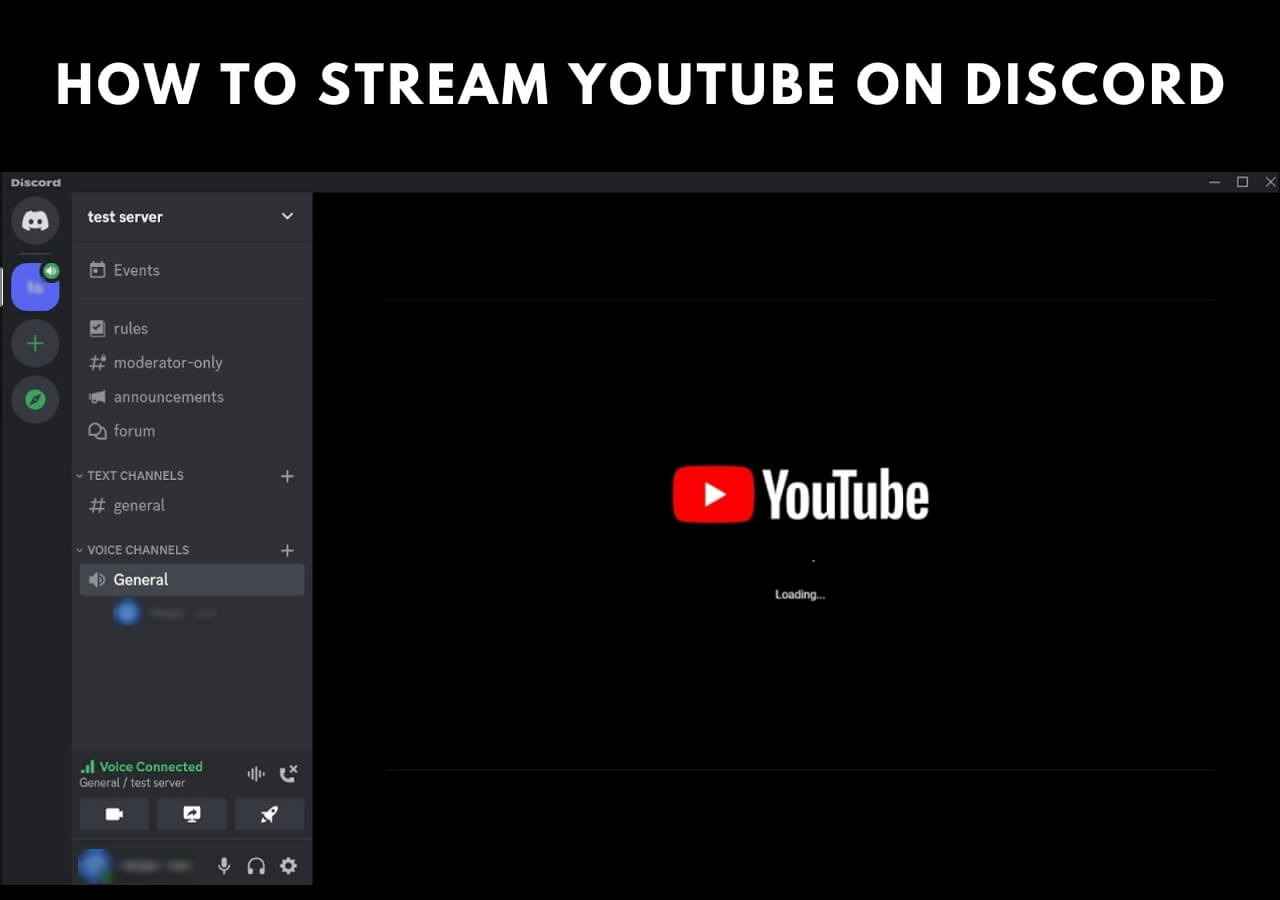
With YouTube TV playing, return to Discord. In the voice channel, locate the “Screen” button (often represented by a monitor icon with an arrow) in the voice channel panel or the bottom left of your Discord client. Click it. Discord will then present you with options:
- Applications: This allows you to select a specific application window. Choose your web browser instance where YouTube TV is running. This is often the preferred method as it only shares the chosen window, preventing accidental exposure of other desktop content.
- Screens: This option shares your entire monitor. Only use this if you’re comfortable sharing everything on your screen.
Once you’ve selected your YouTube TV browser window, you’ll be prompted to choose stream quality settings:
- Resolution: Defaults to 720p or 1080p. Match this to your internet speed and CPU capability. Higher resolution demands more bandwidth.
- Frame Rate: Options include 30 FPS or 60 FPS. For video content like TV, 30 FPS is usually sufficient and less demanding. For fast-paced content like sports, 60 FPS might offer a smoother experience if your system can handle it.
Click “Go Live” to start sharing.
Fine-Tuning Audio for Group Viewing
Audio is paramount for a shared viewing experience. When you share your screen, Discord typically prompts you to include “System Audio.” Ensure this option is enabled. If not, go to your Discord User Settings > Voice & Video > Scroll down to the “Screen Share” section and check if “Use an experimental method to capture audio” or similar options are available and enabled. You might need to adjust the volume levels of YouTube TV within your browser or operating system’s sound mixer to ensure it’s balanced with your microphone audio, allowing for comfortable conversation without overpowering the content. Instruct viewers to adjust their Discord audio settings to find a comfortable balance between the stream’s audio and your voice. Troubleshooting audio can be the trickiest part, often involving checking Discord’s audio input/output settings, Windows/macOS sound mixer settings, and browser-specific audio permissions.
Overcoming Common Hurdles and Troubleshooting Tips
Despite careful preparation, technical issues can arise. Understanding how to diagnose and resolve common problems is crucial for maintaining a smooth and enjoyable streaming session. Many issues stem from digital rights management (DRM), network instability, or incorrect software configurations.
Addressing the Infamous Black Screen Issue (DRM)
The most frequent and frustrating problem when streaming copyrighted content like YouTube TV is the “black screen” issue for viewers, even though the broadcaster sees the content perfectly. This is almost always due to Digital Rights Management (DRM) protections. DRM is designed to prevent unauthorized copying and distribution of content. When screen sharing, some streaming services detect this and black out the video output for recording or sharing purposes.
Solutions:
- Browser Choice: Try a different web browser. Some browsers handle DRM differently. For example, Chrome’s hardware acceleration can sometimes interfere, so try disabling it (Settings > System > Disable “Use hardware acceleration when available”) or switching to Firefox or Edge.
- Application Share vs. Screen Share: Sometimes, sharing a specific browser tab or application window is more effective than sharing the entire screen, as DRM detection might vary.
- Incognito/Private Mode: Occasionally, launching YouTube TV in an incognito or private browsing window can bypass some DRM checks, though this is not a guaranteed fix.
- Desktop App (If available): If YouTube TV had a dedicated desktop app, it might bypass browser-based DRM, but YouTube TV primarily operates via browsers or smart device apps on desktop.
- Update Graphics Drivers: Outdated graphics drivers can sometimes cause issues with hardware acceleration and DRM processing. Ensure your GPU drivers are up to date.
Resolving Audio Synchronization and Quality Problems
Audio issues can significantly detract from the co-watching experience.
- No Audio/Low Audio:
- Discord Settings: Ensure “System Audio” is enabled when sharing the screen. Check your output device in Discord’s Voice & Video settings.
- OS Mixer: Verify that your browser’s audio is not muted or set too low in your operating system’s volume mixer.
- Browser Tab Mute: Ensure the YouTube TV tab in your browser isn’t muted.
- Echo/Feedback:
- Headset Use: Encourage all participants to use headphones to prevent audio from their speakers being picked up by their microphone.
- Discord Voice Settings: Enable “Echo Cancellation” and “Noise Suppression” in Discord’s Voice & Video settings for all users.
- Desynchronized Audio/Video: This is often a symptom of network latency or insufficient processing power.
- Network: Ensure the streamer has a stable, high-bandwidth connection (wired Ethernet preferred).
- Stream Quality: Reduce the stream resolution and frame rate in Discord’s screen share settings (e.g., 720p 30 FPS instead of 1080p 60 FPS).
- Resource Management: Close other demanding applications on the streamer’s computer.
Mitigating Lag and Performance Degradation
Laggy video or choppy audio can ruin the immersion.
- Bandwidth Limitations: Both the streamer’s upload speed and the viewers’ download speeds are critical. If lag persists, the streamer should lower the resolution and frame rate.
- CPU/GPU Usage: High CPU or GPU usage on the streamer’s machine indicates resource strain. Check Task Manager (Windows) or Activity Monitor (macOS) to identify resource-intensive processes. Upgrade hardware or reduce quality settings.
- Discord Server Region: If the Discord server is located far from the majority of participants, latency can increase. Server administrators can change the voice channel’s region to one geographically closer to the group.
- Router Reboot: A simple router reboot can often clear network congestion for both streamer and viewers.
Navigating Permissions and Software Conflicts
Sometimes, issues are simpler than network or hardware.
- Discord Permissions: Ensure the voice channel has permissions enabled for “Video” and “Stream” for the streamer’s role. If you can’t see the “Screen” button, this might be the culprit.
- Firewall/Antivirus: Occasionally, security software can interfere with Discord’s ability to stream. Temporarily disabling them for testing purposes can help identify if they are the cause.
- Browser Extensions: Certain browser extensions (ad blockers, privacy tools) can sometimes interfere with streaming services or screen sharing. Try disabling them one by one or using an incognito window which typically disables extensions by default.
- Discord Overlays: While convenient, Discord’s in-game or application overlay can sometimes cause performance issues. Try disabling it in User Settings > Game Overlay.
Best Practices for an Optimal Shared Viewing Experience
Beyond troubleshooting, adopting certain best practices can significantly enhance the overall shared viewing experience, ensuring both technical stability and social engagement are maximized.
Communication and Etiquette in Group Streams
Effective communication is the bedrock of a successful co-watching session.
- Pre-Stream Coordination: Inform participants about the start time, what will be watched, and any necessary preparations (e.g., Discord account, good internet).
- Audio Discipline: Encourage viewers to mute their microphones when not speaking, especially during critical moments of the content, to minimize background noise and distractions. Use push-to-talk if available.
- Pacing: The streamer should be mindful of the group’s pace. If there’s a delay for some viewers, pausing briefly or checking in can prevent anyone from falling behind.
- Chat Utilization: Encourage the use of text chat for quick reactions, questions, or links without interrupting the audio flow of the content or ongoing discussion.
Leveraging Discord’s Advanced Features
Discord offers various features that can enrich the co-watching experience.
- Go Live Activity: Discord’s “Go Live” feature often integrates with specific games or applications, but its general screen sharing capabilities are what’s key for YouTube TV. Be aware of the “Activity” status that displays what you’re doing, which is optional.
- Role Management: For larger servers, creating specific roles for “Viewers” or “Stream Hosts” can streamline permission management for screen sharing and voice control.
- Emoji Reactions: Quick emoji reactions in chat can provide immediate feedback or express sentiment without needing to unmute.
- Threaded Discussions: For longer shows or series, use Discord’s thread feature to organize discussions around specific episodes or plot points, keeping the main chat clear.
- Quality Boosts: Server boosting can unlock higher quality stream resolutions and frame rates (e.g., 1080p 60fps) for your server, which can be beneficial for groups who frequently stream together.
Ethical Considerations and Fair Use Guidelines
While sharing YouTube TV via Discord is technically feasible, it’s important to consider the ethical and legal implications.
- Subscription Sharing: YouTube TV subscriptions are typically intended for household use. Sharing a stream with individuals outside your household, especially if it’s a regular practice, can potentially violate the service’s terms of service.
- Public vs. Private: Streaming to a small, private group of friends is generally less problematic than broadcasting to a large, public Discord server. The intent behind sharing is crucial.
- Commercial Use: Never use streamed content for commercial purposes or monetize your Discord streams without explicit permission from YouTube TV or the content owners.
- DRM Purpose: Understand that DRM exists to protect creators and distributors. While bypassing it for personal co-watching is a gray area, deliberately circumventing it for illicit purposes is illegal. Always prioritize respecting intellectual property rights.
In conclusion, streaming YouTube TV on Discord is a powerful way to merge live entertainment with real-time social interaction. By meticulously preparing your technical environment, understanding Discord’s screen sharing mechanics, proactively troubleshooting common issues, and adhering to best practices and ethical considerations, you can transform solitary viewing into a dynamic and engaging communal experience for your digital community. The technology exists to bring us closer, and mastering these tools allows us to harness that potential to its fullest.
aViewFromTheCave is a participant in the Amazon Services LLC Associates Program, an affiliate advertising program designed to provide a means for sites to earn advertising fees by advertising and linking to Amazon.com. Amazon, the Amazon logo, AmazonSupply, and the AmazonSupply logo are trademarks of Amazon.com, Inc. or its affiliates. As an Amazon Associate we earn affiliate commissions from qualifying purchases.