
In an increasingly digital and multi-faceted world, the ability to consume multiple streams of information simultaneously has become not just a luxury, but often a necessity. For television enthusiasts, particularly those following live events like sports, news, or even multiple reality shows, the traditional single-channel viewing experience can feel restrictive. Enter YouTube TV’s “Multiview” feature – a groundbreaking innovation that transforms how you interact with live television, allowing you to split your screen and watch up to four different programs at once. This isn’t merely a technological gimmick; it’s a strategic enhancement designed to provide unparalleled control and flexibility over your live content consumption, moving beyond the traditional channel-flipping paradigm into a dynamic, personalized viewing hub.

This article delves deep into the mechanics, benefits, and practical applications of YouTube TV’s split screen (Multiview) functionality. We’ll explore how this feature is redefining the live TV experience, provide a comprehensive guide to setting it up and optimizing it, and discuss its implications for the future of television. Whether you’re a sports fanatic eager to catch multiple games concurrently, a news junkie monitoring different reports, or simply someone who appreciates the power of choice, understanding Multiview is key to unlocking the full potential of your YouTube TV subscription.
Unlocking the Power of Multiview: What is YouTube TV’s Split Screen?
The concept of watching multiple television channels at the same time is not entirely new, but YouTube TV’s implementation, officially branded as Multiview, elevates it with a modern, user-friendly interface and seamless integration into its streaming ecosystem. It represents a significant leap forward in how digital content platforms empower their users to curate their own viewing experience.
Defining Multiview: More Than Just Two Screens
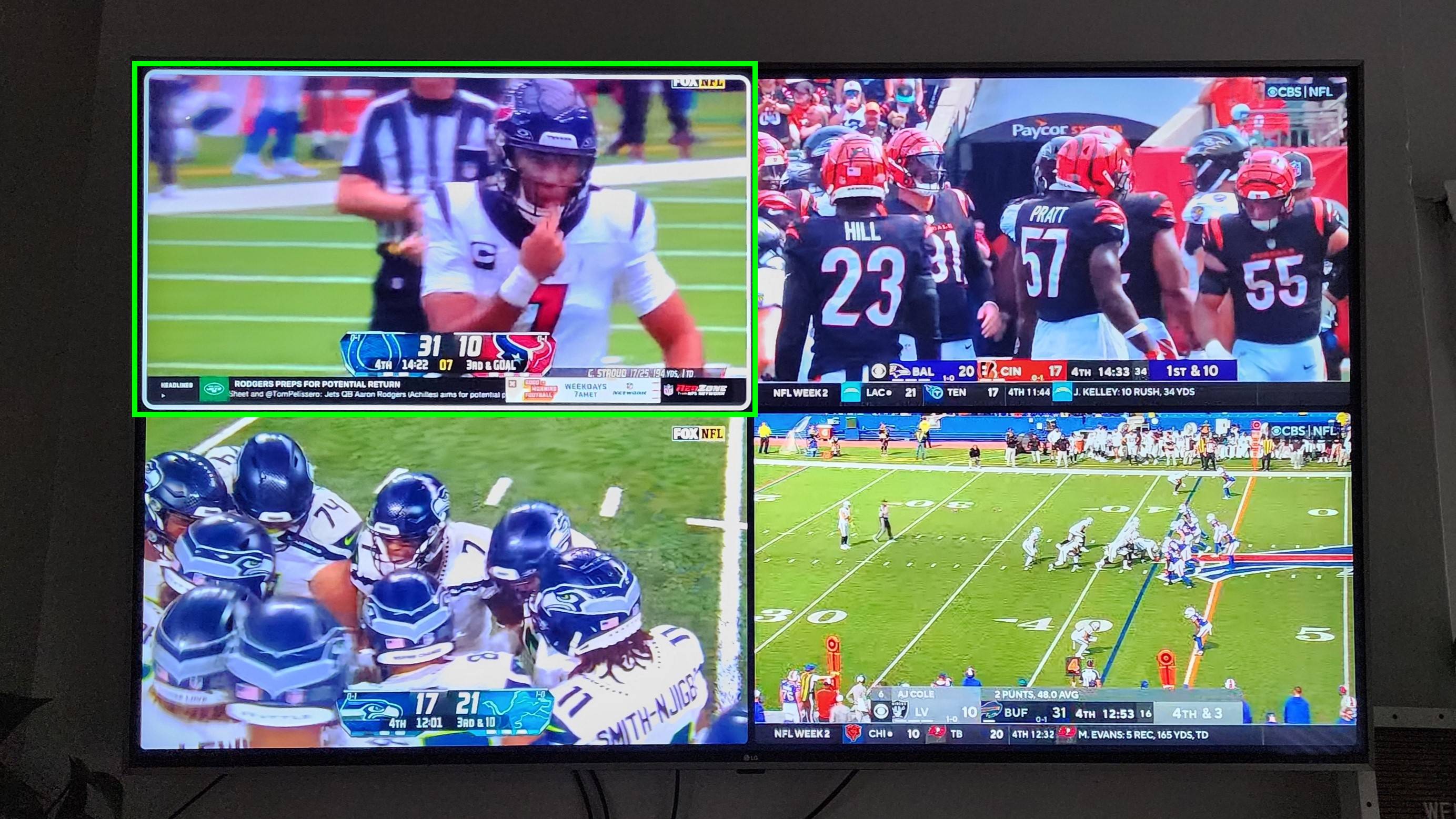
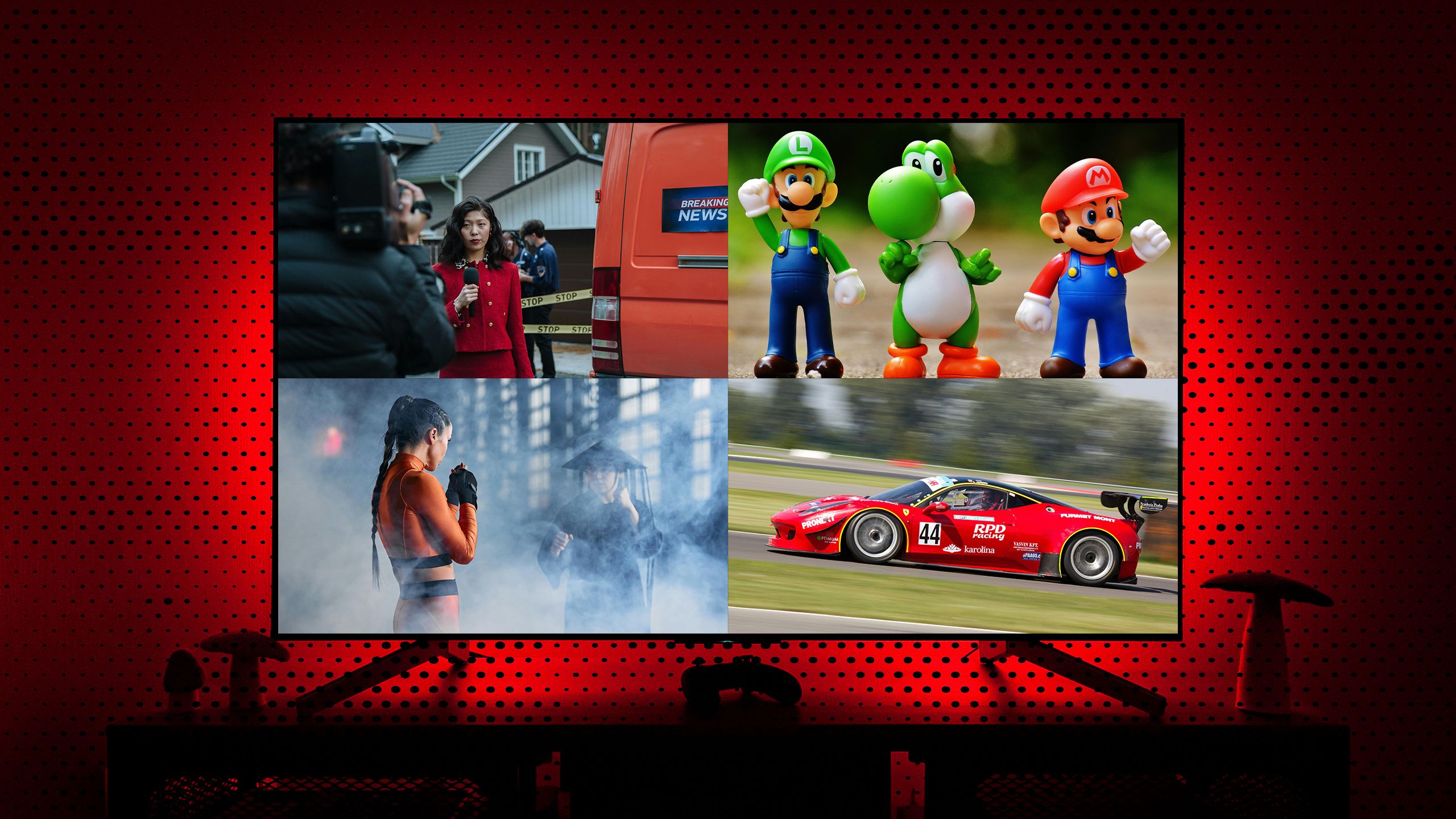
At its core, YouTube TV’s Multiview allows users to display two, three, or four live streams simultaneously on a single screen. Unlike simple picture-in-picture modes that often relegate secondary content to a tiny corner, Multiview provides a more equitable division of screen real estate. The layouts are intelligently designed, often featuring a prominent primary window with accompanying smaller windows, or an equally divided grid for multiple main events. The beauty lies in its dynamic nature: users can easily switch which stream has audio focus, enlarge a specific stream to full screen with a single click, or swap positions of different channels without interrupting the overall Multiview session. This level of interaction transforms passive consumption into an active, engaging experience, providing viewers with an unprecedented level of control over their personalized content dashboard. It’s a testament to the platform’s commitment to leveraging streaming technology to deliver a superior user experience, moving beyond the constraints of traditional broadcast television.
The Practical Benefits: Why Multiview is a Game-Changer for Live Content
The advantages of Multiview are particularly pronounced when it comes to live content, where timing is everything and missing a crucial moment is a common frustration. For sports fans, Multiview is revolutionary. Imagine watching two NFL games, an NBA playoff, and a golf tournament all at once, seamlessly toggling audio between them as significant plays unfold. This eliminates the need for multiple TVs, constant channel flipping, or relying on live updates from secondary devices. Beyond sports, news enthusiasts can track breaking stories from different networks, gaining a more comprehensive and balanced perspective on current events. Even for general entertainment, the ability to monitor multiple live reality show feeds or simultaneous award ceremonies offers a unique dimension. Multiview addresses the “fear of missing out” (FOMO) directly, empowering viewers to be at the center of multiple events concurrently, enhancing engagement and delivering a truly immersive and personalized live TV experience that was previously unattainable for the average consumer.
Device Compatibility: Where Can You Experience Multiview?
Initially rolled out with a focus on sports content during major events, Multiview has steadily expanded its availability across various devices, albeit with some key distinctions. Crucially, Multiview is primarily designed for smart TV platforms and streaming devices, leveraging their greater processing power and graphical capabilities. This includes devices such as:
- Google TV and Android TV devices: Such as Chromecast with Google TV, Sony Google TVs, Nvidia Shield TV.
- Roku devices: A wide range of Roku streaming sticks, boxes, and Roku OS integrated TVs.
- Apple TV (4K models): Ensuring smooth performance with its powerful A-series chip.
- Amazon Fire TV devices: Including Fire TV Sticks and Cubes.
- Select Smart TVs with native YouTube TV apps: Such as certain LG and Samsung models.
It’s important to note that while YouTube TV is available on web browsers, mobile phones, and tablets, the Multiview feature is generally not available on these platforms. This is due to the inherent limitations of smaller screens and the processing demands required to render multiple high-definition video streams simultaneously without compromising performance. The experience is optimized for larger screens where the multiple windows remain clear and easily discernible, making smart TVs and dedicated streaming boxes the ideal medium for this cutting-edge functionality.
Your Comprehensive Guide to Activating and Customizing Multiview
Getting started with Multiview on YouTube TV is remarkably intuitive, designed to integrate seamlessly with the existing user interface. However, understanding the nuances of its activation and customization can significantly enhance your viewing session.
Initiating Multiview: Starting Your Multi-Stream Session
There are several pathways to launch a Multiview session, typically starting from the YouTube TV home screen or a live program.
- From the Home Screen or Live Guide: When navigating the YouTube TV interface, you’ll often see curated Multiview options presented, especially during peak live events like weekends with multiple sports games. These are pre-selected bundles of channels that YouTube TV believes will be of interest. Simply select one of these options, and your Multiview session will begin instantly.
- From a Live Program: While watching any live channel, you can often bring up the playback controls (e.g., by pressing down on your remote’s D-pad). Look for a “More Options” menu or an explicit “Multiview” icon (often represented by a grid of squares). Selecting this can reveal available Multiview layouts that include the channel you are currently watching, alongside other relevant live content.
- From Search (Limited): In some instances, searching for a broad category like “NFL” or “March Madness” during an active event can display Multiview options as search results.
Upon selecting a Multiview option, YouTube TV will automatically arrange the chosen streams into a predefined layout, allowing you to dive straight into multi-stream viewing without any complex setup.
Navigating and Interacting Within Your Multiview Layout
Once a Multiview session is active, your remote control becomes a powerful tool for interaction.
- Switching Audio Focus: Use the directional pad (D-pad) on your remote to highlight the video stream you wish to hear. The selected stream’s border will typically illuminate, and its audio will become primary. All other streams will mute or play at a very low background volume.
- Enlarging a Stream to Full Screen: With a stream highlighted, pressing the “Select” or “OK” button on your remote will expand that particular stream to occupy the entire screen, allowing for a focused view without exiting the Multiview session. Pressing “Back” or “Exit” will return you to the Multiview layout.
- Closing Multiview: To end your Multiview session and return to regular single-stream viewing, simply press the “Back” or “Exit” button on your remote repeatedly until you exit the Multiview mode.
Selecting and Swapping Streams: Curating Your Own Content Dashboard
While YouTube TV often provides curated Multiview options, the ability to customize these layouts is crucial for a truly personalized experience. Though the feature initially offered predefined bundles, YouTube TV has been rolling out more flexibility.
- Adding/Removing Streams (Evolving Feature): Recent updates have introduced more dynamic control, allowing users to swap out one stream for another from a selection of live channels. When in Multiview, highlighting a stream and pressing a specific button (e.g., a “Menu” or “Options” button on your remote) might present a list of alternative live channels you can switch to within that specific window, without disrupting the other active streams. This granular control transforms Multiview from a pre-set experience into a truly customizable live dashboard.
- Rearranging Layouts: While direct drag-and-drop rearrangement of specific windows is not typically available in the current iteration, the focus is more on swapping content within existing layout structures. However, as the feature evolves, more advanced customization options are anticipated.
Audio Focus and Controls: Ensuring Your Primary Stream is Heard
Managing audio is paramount in a Multiview environment. As mentioned, highlighting a stream automatically brings its audio to the forefront. However, there are additional considerations:
- External Audio Systems: If you’re using a soundbar, home theater system, or headphones, ensure these are properly connected and configured with your smart TV or streaming device. Multiview’s audio switching will leverage your existing audio setup.
- Volume Control: Your TV remote’s volume controls will adjust the master volume of the currently focused audio stream. If you switch audio focus, the volume control will then apply to the new primary stream. There’s typically no independent volume control for each individual stream within Multiview, as this would become overly complex and confusing.
By mastering these navigation and customization techniques, you transform from a passive viewer into an active director of your live TV experience, making Multiview an indispensable tool for staying on top of all your favorite live content.
Optimizing Your Multiview Performance and Enjoyment
While Multiview is designed for seamless operation, achieving the best possible experience requires attention to a few technical and strategic details. Like any demanding streaming feature, its performance is directly tied to the underlying infrastructure and how you choose your content.
Internet Bandwidth and Network Considerations for Seamless Streaming
Multiview essentially requires your internet connection to handle multiple simultaneous high-definition video streams, which can be bandwidth-intensive.
- Minimum Bandwidth: While YouTube TV recommends a minimum of 3 Mbps for standard definition and 7-13 Mbps for HD per stream, a Multiview setup could demand significantly more. For four simultaneous HD streams, you’re looking at a theoretical requirement of 28-52 Mbps just for YouTube TV. Factoring in other devices on your network (smartphones, computers, smart home devices), a robust internet connection – ideally 100 Mbps or higher – is strongly recommended for a consistent, buffer-free Multiview experience.
- Wired vs. Wireless: For the most stable connection, particularly for demanding applications like Multiview, a wired Ethernet connection for your streaming device is always superior to Wi-Fi. It eliminates potential interference and ensures maximum data throughput. If Wi-Fi is your only option, ensure your router is modern (Wi-Fi 5 or Wi-Fi 6), supports 5GHz bands, and your streaming device is within close proximity for a strong signal.
- Network Congestion: Avoid other heavy network activities (large file downloads, multiple simultaneous 4K streams on other devices) during your Multiview session to minimize potential buffering or quality degradation.
Strategic Content Selection: Crafting the Perfect Multiview Ensemble
Not all combinations of channels are equally effective in Multiview. Strategic content selection can make or break your experience.
- Complementary Content: The best Multiview setups feature channels that complement each other. For example, multiple sports games, different news channels covering the same event, or even a main event with a secondary analysis channel. Avoid combining vastly different genres (e.g., a quiet drama with a loud action movie) unless you intend to primarily focus on one.
- Visual Similarity: While not always possible, streams with similar visual styles or pacing can be less jarring when viewed side-by-side. Rapidly cutting action sequences next to slow, panning shots might be distracting for some.
- Channel Availability: Remember that Multiview is based on live channels currently available on YouTube TV. You cannot use it to watch recorded DVR content or on-demand shows simultaneously with live streams.
Troubleshooting Common Multiview Hiccups
Even with optimal setup, you might occasionally encounter issues. Here’s how to address some common problems:
- Buffering or Lag: This is almost always a network issue.
- Check internet speed: Use a speed test tool on your streaming device or a connected computer.
- Restart router/modem: A classic fix that often clears network glitches.
- Move closer to router/use Ethernet: If on Wi-Fi, improve signal strength.
- Reduce network load: Temporarily disconnect other bandwidth-heavy devices.
- Missing Multiview Options:
- Availability is dynamic: Multiview options are often curated and appear when relevant live content is airing. They might not always be present if there isn’t suitable programming.
- Device compatibility: Ensure your device is supported (as discussed earlier).
- App update: Ensure your YouTube TV app is updated to the latest version.
- Audio/Video Sync Issues:
- Restart YouTube TV app: Close and reopen the app.
- Restart streaming device: A full device reboot can resolve many temporary glitches.
- Check TV settings: Ensure your TV’s audio processing settings (e.g., delay compensation) aren’t interfering.
By proactively managing your network, thoughtfully selecting your content, and knowing how to troubleshoot, you can ensure your Multiview experience is consistently smooth, engaging, and enjoyable.
The Evolving Landscape of Live TV: Multiview’s Role in the Future
YouTube TV’s Multiview isn’t just a standalone feature; it’s a window into the future of live television consumption. As technology advances and viewer expectations shift, features like Multiview are poised to play an increasingly central role in how we interact with broadcast content.
Beyond Sports: Expanding Multiview’s Application
While sports undoubtedly served as the initial catalyst for Multiview’s development and adoption, its potential extends far beyond the arena. Imagine:
- News and Current Events: Comparing live reports from different national and international news desks during a breaking event, offering a multifaceted perspective that a single channel cannot provide.
- Election Coverage: Monitoring various states’ results, expert panels, and political rallies simultaneously on election night.
- Concerts and Festivals: Following multiple stages at a music festival, switching audio between your favorite bands without missing a beat.
- Educational Content: Displaying a live lecture alongside supplementary material or a related documentary.
- Gaming Tournaments (Esports): Watching multiple player perspectives or different concurrent matches within a large esports event.
The expansion of Multiview into these diverse content categories will only deepen its value proposition, making it a universal tool for enhanced live content engagement across genres.
AI, Personalization, and the Next Generation of Multiview
The current iteration of Multiview relies heavily on human curation for its pre-bundled options. However, the integration of artificial intelligence and advanced personalization algorithms promises to revolutionize the feature further.
- Proactive Recommendations: Imagine an AI that understands your viewing habits, your favorite teams, and your preferred news sources. It could proactively suggest optimal Multiview layouts based on live events it predicts you’d want to follow. “Two of your favorite NBA teams are playing simultaneously, along with a match from your preferred tennis circuit. Would you like to launch a 3-way Multiview?”
- Dynamic Layouts: AI could potentially analyze the intensity of multiple live events and dynamically adjust the prominence of each window. If a game goes into overtime, that stream might automatically enlarge, while less active streams gracefully recede, ensuring your focus is always on the most critical developments.
- Personalized Audio Mixes: Future iterations might allow for intelligent audio mixing, where an AI can subtly raise the volume of significant moments from secondary streams, alerting you to action without fully switching audio focus.
This level of AI-driven personalization would transform Multiview from a useful tool into an indispensable, intelligent viewing companion.
Implications for Content Creators and Broadcasters
Multiview’s growth also has significant implications for how content is produced and broadcast.
- Multi-Perspective Production: Broadcasters might start producing events with Multiview in mind, offering dedicated feeds optimized for simultaneous viewing – perhaps different camera angles for a sporting event, or alternative expert commentary tracks.
- Interactive Overlays: Future Multiview experiences could include interactive overlays within each window, allowing viewers to access live stats, player profiles, or social media feeds pertaining to that specific stream without leaving the Multiview layout.
- Monetization Opportunities: Advertisers could explore new models for reaching viewers across multiple concurrent streams, perhaps with smaller, contextually relevant ads within each window, or synchronized ad breaks across bundled channels.
Ultimately, Multiview is more than just a feature; it’s a paradigm shift towards a more interactive, personalized, and engaging live television experience. As technology continues to evolve, Multiview will undoubtedly grow in sophistication, further cementing YouTube TV’s position at the forefront of digital content innovation.
Advanced Tips and Enhancements for the Savvy Multiviewer
For those looking to push the boundaries of their Multiview experience, several advanced tips and future-gazing insights can further enhance utility and enjoyment. Beyond the basic setup, a deeper understanding of ecosystem integration and anticipated developments can truly elevate your live TV watching.
Maximizing Peripheral Devices: Soundbars and Smart Assistants
The Multiview experience isn’t solely confined to your screen; integrating your streaming setup with other smart devices can dramatically improve usability.
- Optimizing Audio with Soundbars/Home Theater Systems: While Multiview handles audio switching internally, a high-quality sound system will make the primary audio stream more immersive. Ensure your soundbar is connected via HDMI ARC/eARC for the best audio fidelity and seamless control through your TV remote. Some soundbars offer virtual surround sound, which can add depth to sports broadcasts. Consider headphone support for private listening, especially if multiple people are in the room but only one is focused on the Multiview.
- Voice Control with Smart Assistants (Google Assistant, Alexa, Siri): If your streaming device (like a Chromecast with Google TV or Apple TV) is integrated with a smart assistant, you might be able to use voice commands for basic navigation. While specific Multiview voice commands are still evolving, you can often say things like “Hey Google, open YouTube TV” or “Siri, open YouTube TV” to launch the app. Future iterations may allow for more granular control, such as “Switch audio to ESPN” within a Multiview session. Keep an eye on updates for your specific device’s voice assistant capabilities.
Quick Access and Custom Presets: Streamlining Your Experience
As Multiview becomes more ingrained in daily viewing, the ability to quickly access favorite configurations will be key.
- “Recents” and “Favorites”: YouTube TV already has a “Recents” tab. Expect Multiview to leverage this more, potentially showing recent Multiview bundles you’ve watched, making it easy to jump back into a preferred combination of channels. The ability to “favorite” or “save” custom Multiview layouts – for example, “Weekend Sports Bundle” or “Morning News Mix” – is a highly anticipated feature that would drastically cut down on setup time.
- Dedicated Multiview Section: As the feature matures, a dedicated “Multiview Hub” on the YouTube TV interface, offering both curated and personalized saved options, would be a natural progression, centralizing all Multiview-related functionalities.
Exploring Hidden Features and Future Updates
Platform features evolve rapidly. Staying informed about YouTube TV updates is crucial for leveraging new Multiview capabilities.
- Beta Programs: If YouTube TV offers public beta programs, consider joining them. These often provide early access to new features like enhanced Multiview options, allowing you to experience and provide feedback on upcoming functionalities before general release.
- Community Forums and Official Announcements: Keep an eye on YouTube TV’s official blog, social media channels, and community forums. These are the primary sources for announcements regarding new Multiview layouts, expanded device support, or advanced features.
- Picture-in-Picture (PiP) Integration: While distinct from full Multiview, some devices and apps allow a smaller PiP window. Future YouTube TV updates might offer more seamless transitions between a full Multiview layout and a PiP mode, providing even more flexibility depending on the user’s primary focus.
The journey of Multiview is just beginning. By mastering its current capabilities and staying attuned to its future developments, users can unlock an unparalleled level of control and enjoyment over their live streaming experience, truly embodying the potential of modern digital television.
In conclusion, YouTube TV’s Multiview feature is a powerful testament to the innovation happening in the streaming world. It moves beyond passive channel surfing to offer an active, personalized, and highly engaging way to consume live content. By understanding its mechanics, optimizing your setup, and exploring its full potential, you can transform your viewing experience, ensuring you never miss a moment of the action or information that matters most to you. As technology continues to evolve, Multiview is poised to remain a cornerstone of advanced live TV, continually adapting to provide viewers with the ultimate control over their digital entertainment landscape.
aViewFromTheCave is a participant in the Amazon Services LLC Associates Program, an affiliate advertising program designed to provide a means for sites to earn advertising fees by advertising and linking to Amazon.com. Amazon, the Amazon logo, AmazonSupply, and the AmazonSupply logo are trademarks of Amazon.com, Inc. or its affiliates. As an Amazon Associate we earn affiliate commissions from qualifying purchases.