
YouTube TV offers a comprehensive live TV streaming experience, bringing together broadcast networks, cable channels, and on-demand content. While the service provides unparalleled convenience, understanding how to manage your account, particularly signing out, is crucial for maintaining security, privacy, and control over your viewing experience. Whether you’re upgrading devices, troubleshooting an issue, sharing a device, or simply want to protect your personal information, knowing the correct steps to sign out is an essential skill for any YouTube TV subscriber. This guide will walk you through the various methods of signing out from different devices, delve into advanced account management options, and offer best practices to keep your account secure, all within the context of technology management.
The Imperative of Signing Out: Why and When It Matters
Signing out of your YouTube TV account might seem like a trivial action, but it holds significant implications for your digital security and personal privacy within the broader technological landscape. In an increasingly connected world where streaming services are accessed across multiple devices and sometimes shared among households, understanding the “why” behind signing out is as important as knowing the “how.”
Protecting Your Privacy and Security
The primary reason to sign out is to safeguard your personal data and viewing history. When you remain signed in on a device, anyone with access to that device can potentially view your watch history, access your saved shows, and even make changes to your account settings or subscriptions. This risk is amplified on shared or public devices, such as a smart TV in a guest room, a computer at a hotel, or a communal tablet. By signing out, you effectively close the door to unauthorized access, ensuring that your streaming habits and personal information remain private. It prevents others from discovering what you’re watching, which could include sensitive or personal content, and protects your recommendations from being skewed by others’ viewing choices. This is a fundamental aspect of digital self-protection in the age of pervasive streaming.
Managing Shared Devices and Family Accounts
YouTube TV allows up to six accounts per household, each with its own personalized library and recommendations. However, the service also has limitations on simultaneous streams and geographical access. If you’re using YouTube TV on a shared smart TV in a common area, signing out after use can help prevent other family members from inadvertently using your profile instead of their own, which could impact your viewing limits or personal recommendations. Furthermore, if you’re lending a device to a friend or family member, signing out ensures they cannot access your YouTube TV account, preserving your privacy and preventing any accidental charges or viewing history mix-ups. This is particularly important for households with children, allowing parents to control access to content appropriate for their kids while keeping their own profiles secure. This reflects a smart approach to managing multi-user access on consumer tech devices.
Essential for Troubleshooting and Device Transitions
Signing out can also be a vital troubleshooting step. If you’re encountering persistent glitches, playback errors, or account synchronization issues, performing a complete sign-out and then signing back in can often resolve these problems by refreshing the application’s connection to the servers and clearing any cached data. This is a common first step in tech support for many applications. Moreover, when you’re upgrading to a new streaming device, selling an old one, or performing a factory reset, signing out of all applications, including YouTube TV, is a critical step. Failing to do so could leave your account vulnerable on the old device, allowing the next owner to access your subscription and personal data. Always make it a practice to sign out before decommissioning any device that has held your personal accounts, aligning with best practices for device lifecycle management.
Navigating the Sign-Out Process Across Devices
The method for signing out of YouTube TV can vary slightly depending on the specific device you’re using. While the core principle remains the same – accessing your profile settings – the interface and exact button locations might differ. This section provides detailed, step-by-step instructions for the most common platforms, highlighting the technical navigation specifics for each.
On Smart TVs and Streaming Devices (Roku, Fire TV, Apple TV, Android TV, Smart TVs)
Most smart TVs and dedicated streaming devices share a similar user interface for YouTube TV, optimized for remote control navigation.
- Open the YouTube TV app: Navigate to and launch the YouTube TV application from your device’s home screen.
- Access your profile icon: Look for your profile picture or initial icon, typically located in the top-right corner of the screen. You might need to use your remote’s navigation buttons to move the cursor to this area.
- Open the Settings Menu: Once your profile icon is highlighted, select it to open a drop-down or side menu.
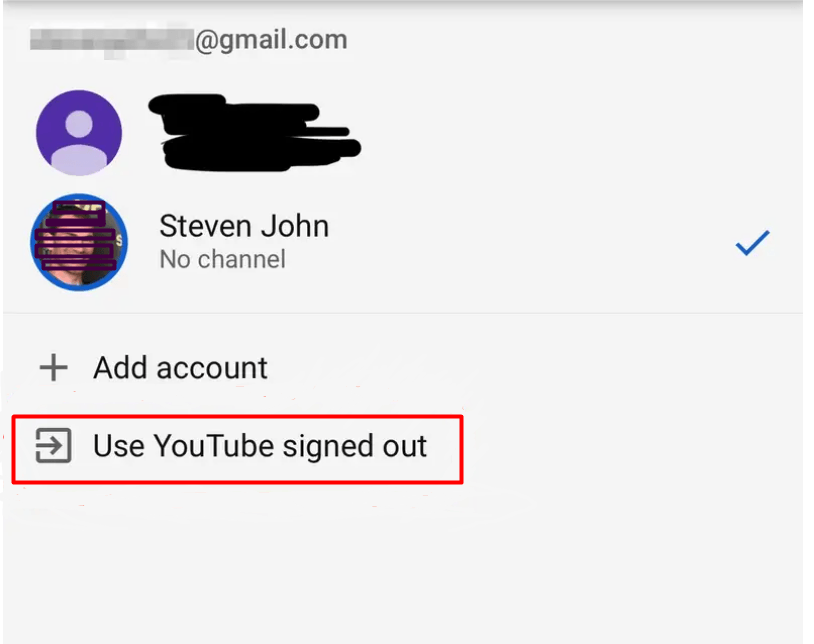
- Locate “Switch Account” or “Sign Out”: Within this menu, you’ll usually find options like “Switch Account,” “Manage Account,” or directly “Sign Out.” If you see “Switch Account,” select it.
- Select your account and sign out: If there are multiple accounts listed, select the one you wish to sign out of. You should then see an option to “Sign Out” or “Remove Account.” Confirm your choice if prompted.
- Note: On some devices, especially Android TV or smart TVs running a Google OS, signing out of YouTube TV might be linked to signing out of your primary Google account on the device itself. Be mindful if this is the case, as it will affect other Google services tied to that Google account.
On Mobile Devices (iOS and Android Smartphones/Tablets)
Signing out from the YouTube TV app on a mobile device is straightforward, utilizing touch-based navigation common to these platforms.
- Launch the YouTube TV app: Tap the YouTube TV icon on your home screen or app drawer.
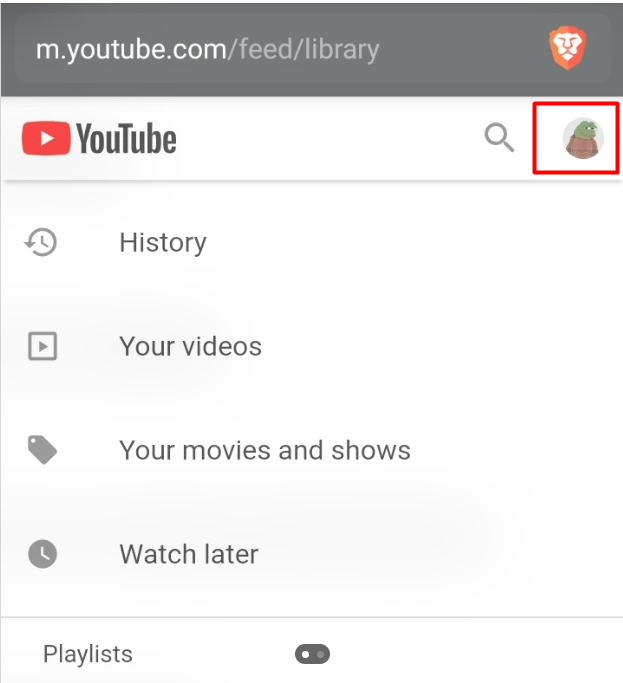
- Tap your profile picture: In the top-right corner of the screen, you’ll see your profile picture. Tap it to open the account menu.
- Navigate to “Settings”: From the account menu, select “Settings.”
- Choose “Membership & Perks” or “About”: Depending on the app version, you might find the sign-out option under “Membership & Perks” or sometimes within an “About” or “Privacy” section. Alternatively, some Android versions might have a “Sign out” option directly under the initial profile menu.
- Select “Sign Out”: Once you’ve located it, tap “Sign Out” and confirm if prompted. This will remove your account from that specific mobile device.
From a Web Browser (Desktop/Laptop)
Accessing YouTube TV through a web browser on a computer is also a common method, leveraging standard web interface controls.
- Go to tv.youtube.com: Open your preferred web browser (Chrome, Firefox, Edge, Safari, etc.) and navigate to the YouTube TV website.
- Click your profile picture: In the top-right corner of the page, click on your profile picture.
- Select “Sign out”: From the drop-down menu that appears, simply click on “Sign out.” This will sign you out of YouTube TV on that particular browser session. If you’re signed into your Google account across other Google services in that browser, you’ll still be signed into Google itself, but not YouTube TV. To fully sign out of Google, you’d need to do so from account.google.com.
On Game Consoles (Xbox One/Series X/S, PlayStation 4/5)
Game consoles also support YouTube TV, and the sign-out process is similar to streaming devices, adapting to controller input.
- Launch the YouTube TV app: Find and open the YouTube TV application from your console’s dashboard.
- Access your profile icon: Use your controller to navigate to your profile picture or icon, usually located in the top-right.
- Open the settings/account menu: Select your profile icon to open the associated menu.
- Find the “Sign Out” option: Look for “Switch Account” or “Sign Out” within this menu. If “Switch Account” is present, select it, then choose your account and the option to “Sign Out” or “Remove Account.”
- Confirm your action: Follow any on-screen prompts to confirm the sign-out.
Advanced Account Management and Remote Sign-Out
Sometimes, you might need to sign out of YouTube TV from a device you no longer have access to, or simply wish to ensure all active sessions are terminated. Google, being the parent company of YouTube TV, provides robust tools within your Google Account to manage connected devices and enhance security, offering a layer of technological control beyond the individual app.
Signing Out of All Devices Remotely via Google Security Checkup
This is the most powerful option for ensuring your YouTube TV account is logged out from every device it’s currently active on. Since YouTube TV is intrinsically linked to your Google Account, managing your Google Account’s security will affect YouTube TV.
- Go to your Google Account Security page: Open a web browser on any device and navigate to myaccount.google.com/security.
- Find “Your devices”: Scroll down to the “Your devices” section. This lists all devices where you’re currently signed into your Google Account.
- Manage devices: Click on “Manage all devices.”
- Review and sign out: You’ll see a list of all devices, including their last active date and location. Identify any device you wish to sign out from. Click on the device, and then select “Sign out” or “Remove access.” Confirm your action.
- Important: This action will sign you out of your entire Google Account on that device, which includes Gmail, YouTube, Google Drive, Google Photos, and, crucially, YouTube TV. This is an excellent way to remotely secure your account if a device is lost, stolen, or sold without proper sign-out, leveraging Google’s centralized account management system.
Removing Specific Apps/Services from Your Google Account
While less common for YouTube TV directly, you can also review and revoke access for specific third-party apps and services connected to your Google Account. This is a crucial security feature for managing delegated access.
- Go to “Third-party apps with account access”: From the Google Account Security page (myaccount.google.com/security), scroll down to the “Third-party apps with account access” section.
- Manage third-party access: Click on “Manage third-party access.”
- Review and remove: Here, you can see all applications and services that have been granted access to your Google Account. If you see an old or suspicious entry, you can click on it and choose “Remove access.” While YouTube TV itself isn’t a “third-party app” in this context, it’s a good place to review overall account security and manage all software integrations.
Troubleshooting Sign-Out Issues
Occasionally, you might encounter difficulties signing out. Here are some common troubleshooting steps, drawing on general technical problem-solving techniques:
- Restart the app/device: Close the YouTube TV app completely and reopen it. For stubborn issues, restart the entire device (smart TV, phone, computer). This often resolves temporary software glitches.
- Clear app cache and data: On mobile devices and some streaming devices, you can go into the app settings (via the device’s main settings, not the YouTube TV app itself) and clear the cache and data for the YouTube TV app. Be aware that clearing data will reset the app to its default state and you will definitely be signed out, but you’ll lose any personalized settings within the app.
- Check internet connection: A poor or interrupted internet connection can sometimes prevent sign-out requests from being processed correctly. Ensure your device is connected to a stable network.
- Update the app: Ensure your YouTube TV app is updated to the latest version. Outdated software can sometimes lead to unexpected behavior and security vulnerabilities.
- Contact YouTube TV Support: If all else fails, reach out to YouTube TV’s customer support. They can investigate account-specific issues and offer further assistance, leveraging their technical expertise.
Fortifying Your YouTube TV Security: Best Practices
Beyond simply knowing how to sign out, adopting robust security practices is paramount for protecting your YouTube TV and broader Google ecosystem. A proactive approach to digital security ensures your viewing experience remains private and your personal data secure. This section focuses on fundamental cybersecurity measures.
Implementing Strong, Unique Passwords
The foundation of any digital security strategy is a strong password. Avoid using easily guessable information like birthdays, pet names, or sequential numbers. Instead, create a complex password for your Google Account that includes a mix of uppercase and lowercase letters, numbers, and symbols. The longer and more random the password, the harder it is for malicious actors to crack. Crucially, avoid reusing passwords across multiple services. If one service is compromised, a unique password prevents a domino effect on your other accounts, including your YouTube TV. Password managers are excellent tools for generating and storing these complex, unique passwords securely, embodying a key tech solution for security.
Enabling Two-Factor Authentication (2FA)
Two-Factor Authentication (2FA), also known as two-step verification, adds an essential layer of security to your Google Account. With 2FA enabled, even if someone manages to steal your password, they won’t be able to access your account without the second factor of verification, which typically involves a code sent to your phone, a prompt on a trusted device, or a physical security key. Google offers several 2FA options, and setting it up is highly recommended for all users. It significantly reduces the risk of unauthorized access to your YouTube TV and all other Google services, representing a critical advancement in digital security protocols.
Regular Security Check-ups and Activity Reviews
Google provides excellent tools within your Google Account (myaccount.google.com) to regularly review your security status. Make it a habit to perform a “Security Checkup” periodically. This tool guides you through reviewing recent security events, connected devices, third-party app access, and password strength. Regularly checking “Recent security activity” can alert you to any unusual sign-ins or suspicious activities, allowing you to take immediate action. Similarly, reviewing your “Devices & activity” section ensures that only authorized devices are connected to your account. These proactive measures are essential for continuous technological oversight.
Vigilance Against Phishing and Suspicious Links
Be highly cautious of unsolicited emails or messages that claim to be from YouTube TV or Google, especially those asking for your login credentials or personal information. Phishing attempts are designed to trick you into revealing your account details. Always check the sender’s email address, look for grammatical errors, and never click on suspicious links. If you receive a communication that seems legitimate but makes unusual requests, it’s best to navigate directly to the official YouTube TV or Google website and log in there to check for any notifications or issues, rather than clicking a link in an email. Legitimate services will rarely ask for your password via email. This highlights the importance of digital literacy and critical thinking in navigating online environments.
Conclusion
Managing your YouTube TV account effectively, particularly understanding how and when to sign out, is more than just a convenience—it’s a critical component of your digital security strategy within the broader tech landscape. Whether you’re safeguarding your privacy on a shared device, troubleshooting a technical glitch, or transitioning to new hardware, the ability to securely log out is paramount. By following the detailed steps provided for various platforms and integrating advanced account management techniques like remote sign-out, you maintain robust control over your streaming experience. Furthermore, by embracing broader security best practices such as strong passwords, two-factor authentication, and regular security reviews, you build a formidable defense around your YouTube TV and entire Google ecosystem. In an age where digital privacy is increasingly valuable, these actions empower you to enjoy your favorite content with peace of mind.
aViewFromTheCave is a participant in the Amazon Services LLC Associates Program, an affiliate advertising program designed to provide a means for sites to earn advertising fees by advertising and linking to Amazon.com. Amazon, the Amazon logo, AmazonSupply, and the AmazonSupply logo are trademarks of Amazon.com, Inc. or its affiliates. As an Amazon Associate we earn affiliate commissions from qualifying purchases.